
1. Einleitung
The COMFAST WR773BE WiFi 7 Repeater is a high-performance wireless device designed to extend the coverage and enhance the speed of your existing WiFi network. Utilizing the latest 802.11be (WiFi 7) standard, it offers dual-band connectivity (2.4 GHz and 5 GHz) with speeds up to 3600 Mbps, providing a stable and fast internet experience for multiple connected devices. This manual will guide you through the setup, operation, and maintenance of your repeater.
1.1 Produktüberschussview

Front view of the COMFAST WR773BE WiFi 7 Repeater, highlighting its compact design and four external antennas. The device features LED indicators for power, network port, and WiFi status.
1.2 Packungsinhalt
Bitte überprüfen Sie den Packungsinhalt sorgfältig. Sollte ein Artikel fehlen oder beschädigt sein, wenden Sie sich bitte an Ihren Händler.
- COMFAST WR773BE WiFi 7 Repeater Unit
- Bedienungsanleitung
- RJ45-Ethernet-Kabel
- Netzteil (EU-Stecker)
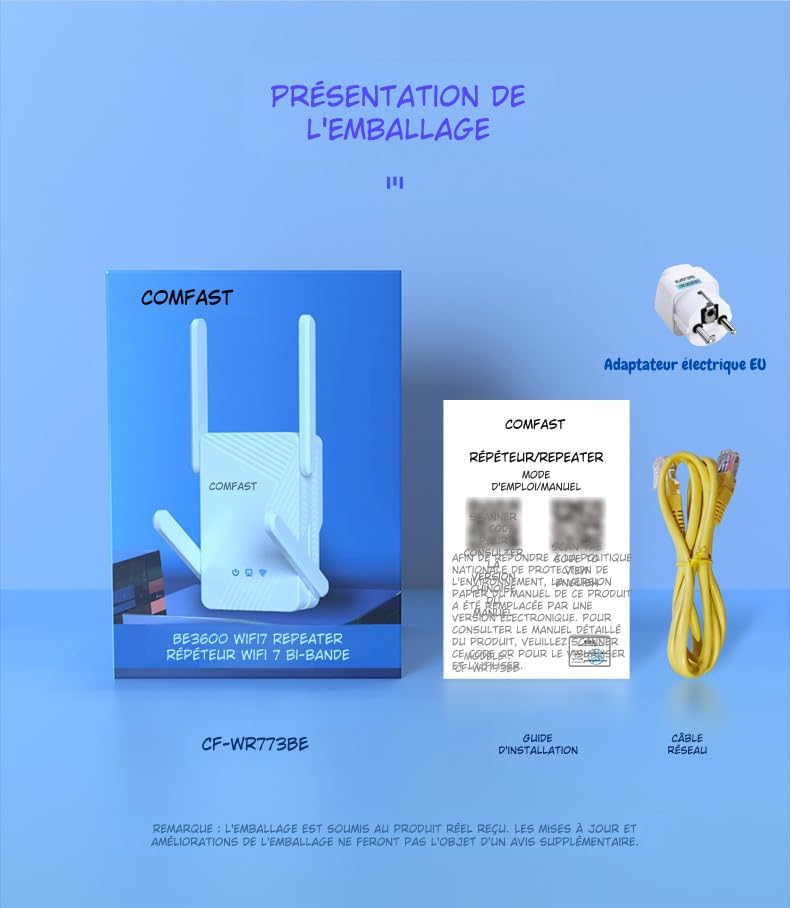
The package includes the COMFAST WR773BE WiFi 7 Repeater unit, a user manual, an RJ45 Ethernet cable, and an EU power adapter. Ensure all components are present upon unboxing.
2. Installationsanleitung
Follow these steps to set up your COMFAST WR773BE WiFi 7 Repeater.
2.1 Grundinstallation
- Einschalten: Plug the repeater into an electrical outlet near your main router. Wait for the Power LED to turn solid blue.
- Positionierung: For optimal performance, place the repeater halfway between your router and the area where you want to improve WiFi coverage. Avoid obstacles like thick walls or large metal objects.
- Verbindung: The repeater can be configured via WPS or a web Browser.
2.2 Configuration via WPS (Recommended)
WPS (Wi-Fi Protected Setup) is the easiest way to connect your repeater to your router.
- Stecken Sie den Repeater in eine Steckdose.
- Drücken Sie die WPS-Taste an Ihrem Hauptrouter.
- Within two minutes, press the WPS button on the COMFAST WR773BE repeater.
- The WiFi Status LED on the repeater will blink during connection and turn solid blue when successfully connected.
2.3 Konfiguration über Web Browser
If your router does not support WPS, or if you prefer manual setup, use a web Browser.
- Stecken Sie den Repeater in eine Steckdose.
- Connect your computer or smartphone to the repeater's default WiFi network (e.g., "COMFAST_XXXX"). No password is required initially.
- Öffnen Sie ein web im Browser die Standard-IP-Adresse eingeben (normalerweise 192.168.10.1 or repeater.net) in the address bar. Refer to the manual for the exact default IP.
- Melden Sie sich mit dem Standardbenutzernamen und -kennwort an (normalerweise Administrator/Administrator).
- Follow the on-screen instructions to select your router's WiFi network and enter its password.
- Configure the repeater's extended network name (SSID) and password.
- Save the settings and wait for the repeater to restart. The WiFi Status LED will turn solid blue upon successful connection.
3. Betriebsarten
The COMFAST WR773BE supports multiple operating modes to suit various network requirements.
3.1 Repeater-Modus
In Repeater Mode, the device extends the range of your existing WiFi network, eliminating dead zones. This is the most common mode for home users.
3.2 Zugriffspunktmodus (AP-Modus)
In AP Mode, the device connects to your wired network via an Ethernet cable and broadcasts a new wireless network. This is useful for adding WiFi capability to a wired-only network.
3.3 Router-Modus
In Router Mode, the device acts as a primary router, connecting to your modem and creating a new private network. This mode is suitable for small offices or homes without an existing router.
4. LED-Anzeigen
The LED indicators provide real-time status of the repeater's operation.
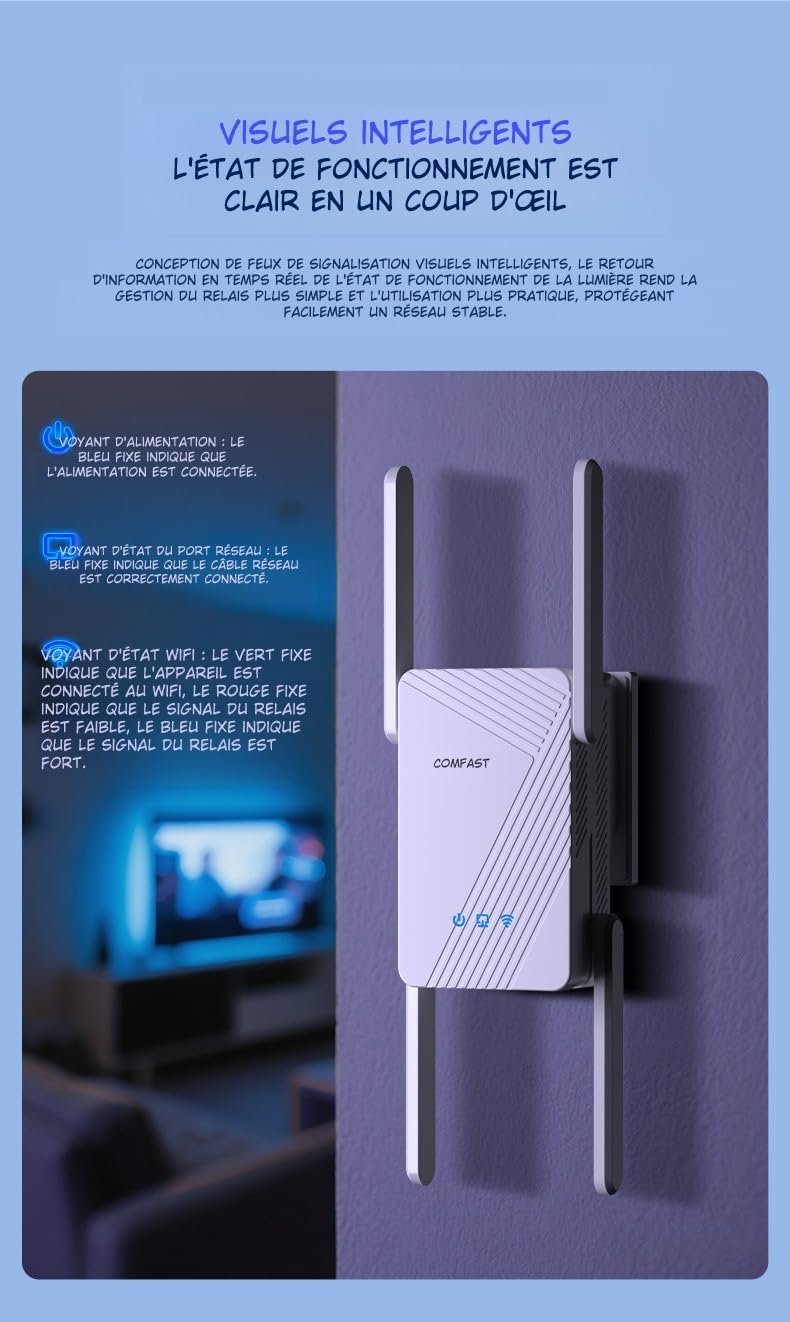
This image illustrates the LED indicators on the repeater. The Power LED (blue) indicates power status, the Network Port LED (blue) shows Ethernet cable connection, and the WiFi Status LED (red for weak, blue for strong) indicates signal strength.
| Indikator | Status | Beschreibung |
|---|---|---|
| Power LED | Durchgehend blau | The device is powered on and operating correctly. |
| Network Port LED | Durchgehend blau | An Ethernet cable is correctly connected to the RJ45 port. |
| WiFi Status LED | Durchgehend rot | The WiFi signal from the main router is weak. Consider repositioning the repeater closer to the router. |
| WiFi Status LED | Durchgehend blau | The WiFi signal from the main router is strong, and the repeater is working optimally. |
5. Wartung
Proper maintenance ensures the longevity and optimal performance of your repeater.
5.1 Pflege und Reinigung
- Halten Sie das Gerät sauber und staubfrei. Verwenden Sie zum Reinigen ein weiches, trockenes Tuch.
- Verwenden Sie keine flüssigen oder Aerosolreiniger, da diese das Gerät beschädigen können.
- Avoid exposing the repeater to extreme temperatures, humidity, or direct sunlight.
5.2 Belüftung
The COMFAST WR773BE is designed with efficient heat dissipation to maintain stable operation.

The repeater features an efficient heat dissipation design with ventilation openings to maintain stable operation and prevent overheating, ensuring long-term performance.
- Stellen Sie sicher, dass die Belüftungsöffnungen nicht blockiert sind.
- Stellen Sie das Gerät an einen gut belüfteten Ort, um eine Überhitzung zu vermeiden.
6. Fehlerbehebung
If you encounter issues with your repeater, refer to the following common problems and solutions.
- Kein Strom:
- Ensure the power adapter is securely plugged into the repeater and a working electrical outlet.
- Check if the Power LED is solid blue. If not, try a different outlet.
- Schwaches oder kein Signal:
- Reposition the repeater closer to your main router.
- Check the WiFi Status LED. If it's red, the signal from the router is weak.
- Ensure there are no major obstructions (e.g., thick walls, metal objects) between the repeater and the router.
- Kein Zugriff möglich Web Verwaltungsseite:
- Ensure your device is connected to the repeater's WiFi network.
- Verify that you are entering the correct IP address (e.g., 192.168.10.1) or domain name (e.g., repeater.net) in the browser.
- Löschen Sie den Cache und die Cookies Ihres Browsers oder versuchen Sie es mit einem anderen Browser.
- Passwort vergessen?
- Perform a factory reset by pressing and holding the reset button (usually a small pinhole) for about 5-10 seconds until the LEDs flash. The device will revert to factory default settings.
7. Spezifikationen
Detailed technical specifications for the COMFAST WR773BE WiFi 7 Repeater.

The back of the repeater displays key technical specifications, including data rates, antenna gain, wireless speeds for 2.4GHz and 5GHz bands, power consumption, and supported functionalities like AP, Repeater, and Router modes.
| Besonderheit | Detail |
|---|---|
| Modellnummer | WR773BE |
| Wireless-Standard | IEEE 802.11be (WiFi 7) |
| Datenübertragungsrate | Bis zu 3600 Mbit/s |
| Frequenzband | Dualband (2.4 GHz & 5 GHz) |
| 2.4 GHz Geschwindigkeit | Bis zu 688 Mbit/s |
| 5 GHz Geschwindigkeit | Bis zu 2882 Mbit/s |
| Antennen | 4*5dBi High-Gain Antennas |
| Häfen | 1 x 10/100/1000Mbps RJ45 WAN/LAN Port |
| Betriebsarten | Repeater, Access Point, Router |
| Energieaufnahme | 18 W |
| Abmessungen (L x B x H) | 4.8 cm (Breite) x 9.5 cm (Länge) x 13 cm (Höhe) |
| Farbe | Weiß |
| Kompatible Geräte | Surveillance Camera, Game Console, PC, Laptop, Smartphone, Tablet, Smart TV |
8. Garantie und Support
Information regarding spare parts availability and software updates for this product is not available at this time. For warranty claims or technical support, please refer to the purchase documentation or contact your retailer directly.