
1. Einleitung
This manual provides essential information for the safe and efficient operation of your FOXX C10 10.1-inch Android Tablet. Please read this guide thoroughly before using your device to ensure proper functionality and to understand its features. Keep this manual for future reference.
2. Lieferumfang
Überprüfen Sie, ob alle Artikel im Paket vorhanden sind:
- FOXX C10 Tablet
- Typ-C-Kabel
- Ladegerät (10W)
- Bedienungsanleitung
- Protective Cover (pre-applied)
- Screen Protector Film (pre-applied)
3. Produktüberschreitungview
The FOXX C10 tablet features a 10.1-inch HD display, dual 8MP cameras, and a robust 6000mAh battery, all powered by an Android 13 operating system.

Abbildung: Vorder- und Rückseite view of the FOXX C10 tablet, showcasing its sleek design and dual camera module on the rear.

Image: An infographic highlighting key features including the 10.1-inch display, Android 13, 6000mAh battery, 8MP cameras, MediaTek quad-core chipset, 4GB RAM + 64GB storage, 4G LTE bands, Wi-Fi, Bluetooth 5.0, Nano SIM, Type-C, and 3.5mm AUX port.
3.1 Anzeige
The tablet is equipped with a 10.1-inch HD TFT V-notch display, offering a resolution of 800x1280 pixels for clear visuals.

Image: Close-up of the tablet's 10.1-inch HD TFT V-notch display, showing vibrant colors and detail.
3.2 Kameras
The FOXX C10 features dual 8-megapixel cameras, both on the front and rear, enabling high-quality photos and video calls.
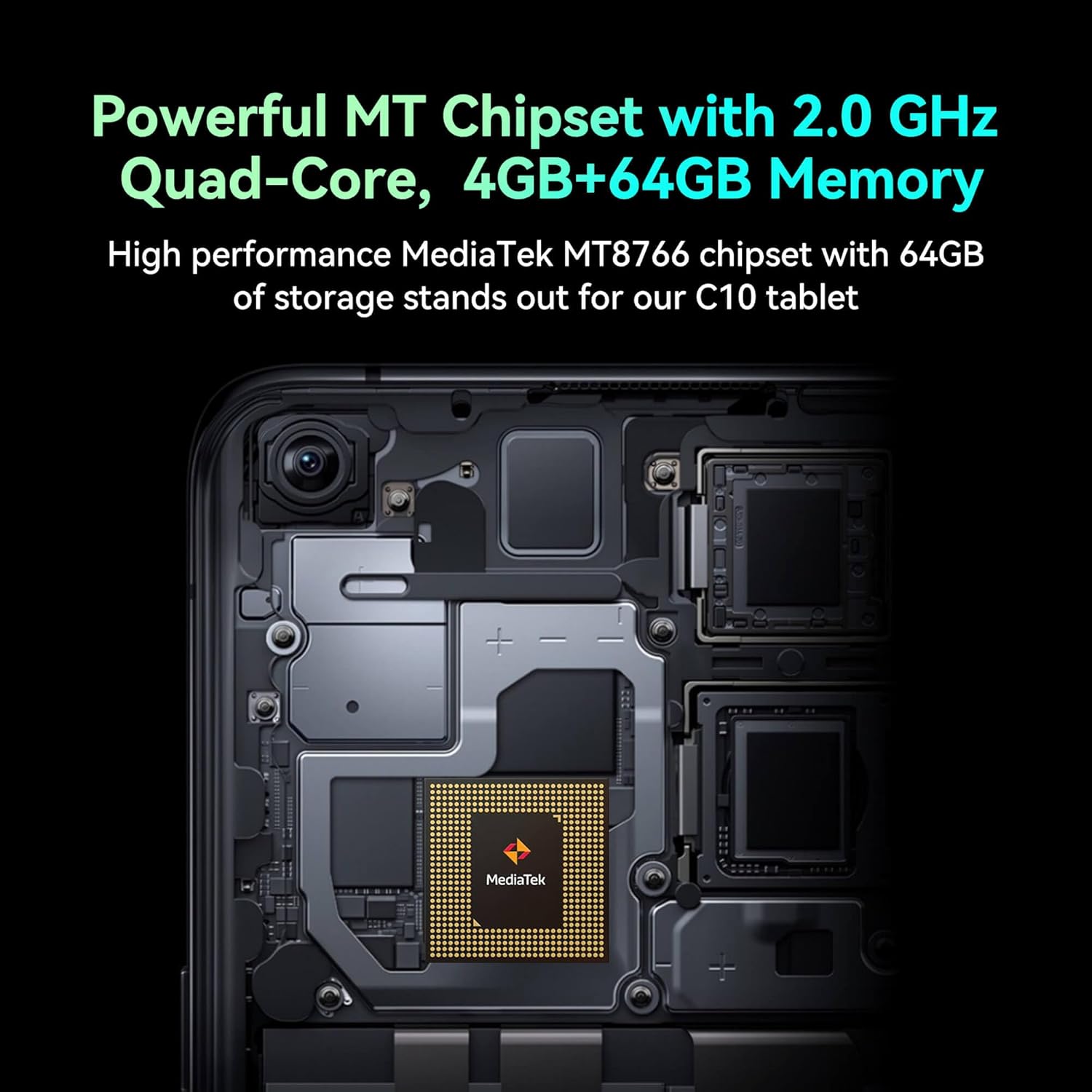
Image: Detail of the tablet's rear camera module, highlighting the 8-megapixel main camera with autofocus capabilities.
3.3 Prozessor und Speicher
It runs on a 2.0 GHz quad-core MediaTek MT8766 chipset, paired with 4GB of RAM and 64GB of internal storage for smooth performance and ample Raum.

Abbildung: Ein interner view of the tablet's motherboard, showcasing the MediaTek MT8766 quad-core chipset.
3.4 Batterie
A 6000mAh battery provides extended usage time, ensuring the device stays powered throughout the day.
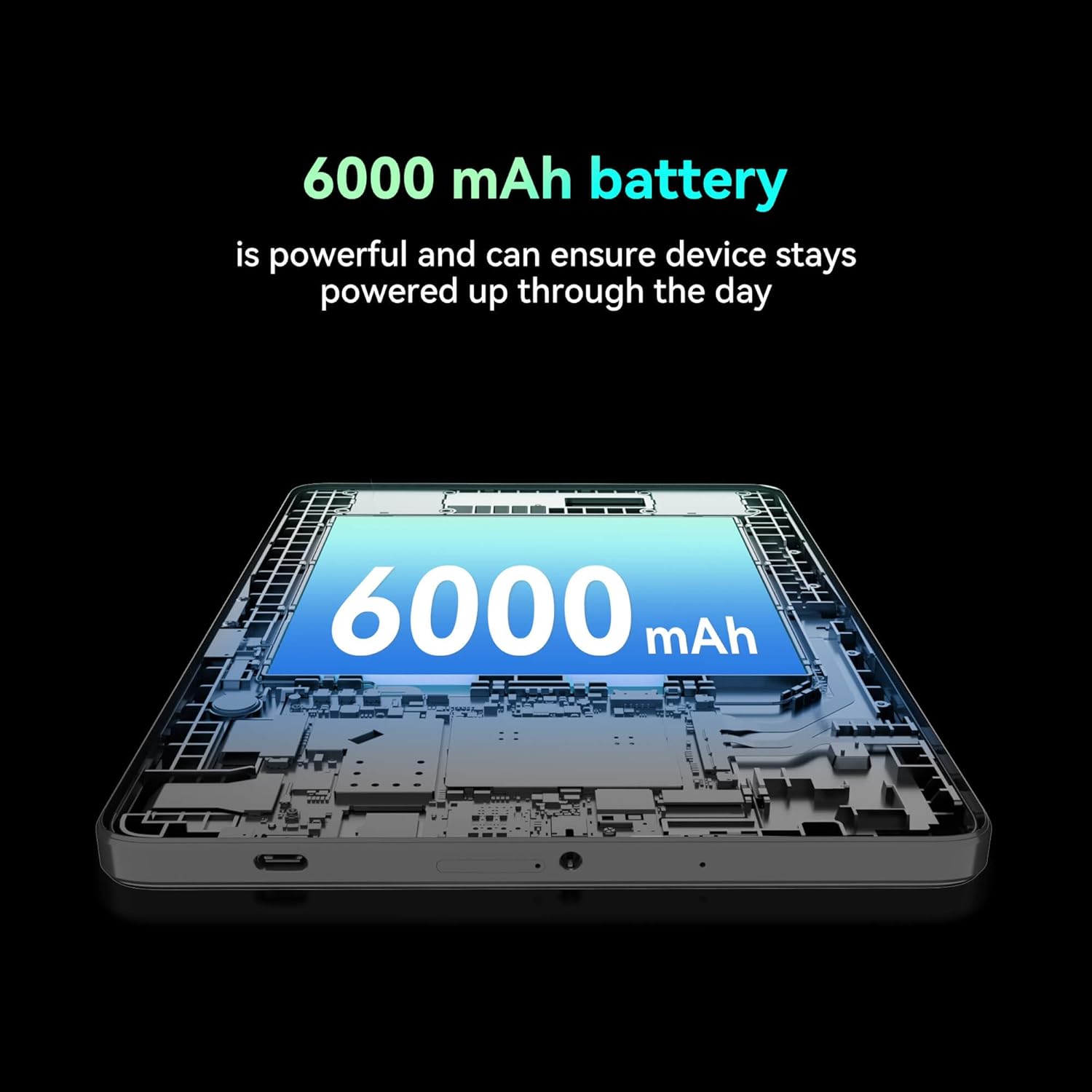
Abbildung: Eine Schnittzeichnung view of the tablet highlighting the large 6000 mAh battery component.
4. Einrichtung
4.1 Erstaufladung
Before first use, fully charge your tablet using the provided Type-C cable and 10W charger. The battery indicator on the screen will show charging status.
4.2 Ein-/Ausschalten
- So schalten Sie das Gerät ein: Halten Sie die Power-Taste gedrückt, bis der Bildschirm aufleuchtet.
- So schalten Sie das Gerät aus: Halten Sie die Ein-/Aus-Taste gedrückt und wählen Sie dann auf dem Bildschirm die Option „Ausschalten“ aus.
- Neustarten: Halten Sie die Ein-/Aus-Taste gedrückt und wählen Sie dann auf dem Bildschirm die Option „Neustart“ aus.
4.3 Installation der SIM-Karte
The FOXX C10 supports Nano SIM cards for cellular connectivity. Locate the SIM card tray on the side of the tablet. Use the provided SIM ejector tool to open the tray. Insert the Nano SIM card into the designated slot with the gold contacts facing down. Close the tray securely.
4.4 Installation der microSD-Karte (optional)
If your tablet supports expandable storage, locate the MicroSD card slot, often combined with the SIM tray. Insert a MicroSD card (up to 128GB, sold separately) into the slot with the gold contacts facing down. Close the tray securely.
5. Bedienungsanleitung
5.1 Grundlegende Navigation
Your tablet runs on Android 13. Use touch gestures for navigation:
- Klopfen: Wählen Sie ein Element aus oder öffnen Sie eine App.
- Wischen: Durch Bildschirme oder Listen scrollen.
- Prise: Bilder vergrößern oder verkleinern und web Seiten.
- Lange drücken: Kontextmenüs aufrufen oder Symbole verschieben.
5.2 Mit WLAN verbinden
- Gehe zu Einstellungen > Netzwerk & Internet > W-lan.
- WLAN ein-/ausschalten On.
- Wählen Sie das gewünschte WLAN-Netzwerk aus der Liste aus.
- Geben Sie gegebenenfalls das Passwort ein und tippen Sie anschließend auf Verbinden.
5.3 Making Calls (4G LTE)
With a properly installed and activated Nano SIM card, your tablet can make and receive calls.
- Öffnen Sie die Telefon App.
- Dial the desired number or select a contact.
- Tippen Sie auf das Anruf Taste.
5.4 Verwendung der Kamera
The tablet features dual 8MP cameras for photography and video recording.
- Öffnen Sie die Kamera App.
- Tippen Sie auf das Verschluss , um ein Foto aufzunehmen.
- Tippen Sie auf das Video Symbol zum Umschalten in den Videoaufnahmemodus.
- Verwenden Sie das Kamerasymbol, um zwischen Front- und Rückkamera umzuschalten.
5.5 Bluetooth-Kopplung
- Gehe zu Einstellungen > Verbundene Geräte > Bluetooth.
- Bluetooth ein-/ausschalten On.
- Ensure the device you want to pair with is in pairing mode.
- Select the device from the list and follow any on-screen prompts to complete pairing.
6. Wartung
6.1 Batteriepflege
- Vermeiden Sie extreme Temperaturen, da diese die Lebensdauer des Akkus beeinträchtigen können.
- Lassen Sie das Tablet nach dem vollständigen Aufladen nicht über längere Zeiträume am Ladegerät.
- Verwenden Sie ausschließlich das mitgelieferte Ladegerät und Kabel.
6.2 Reinigung
Use a soft, lint-free cloth to clean the screen and body of the tablet. Avoid using harsh chemicals or abrasive materials. For stubborn smudges, slightly dampReinigen Sie das Tuch mit Wasser oder einem für elektronische Bildschirme geeigneten Reiniger.
6.3 Softwareaktualisierungen
Prüfen Sie regelmäßig, ob Software-Updates verfügbar sind, und installieren Sie diese, um sicherzustellen, dass Ihr Tablet über die neuesten Funktionen, Sicherheitspatches und Leistungsverbesserungen verfügt. Gehen Sie zu Einstellungen > System > Systemaktualisierung.
7. Fehlerbehebung
| Problem | Lösung |
|---|---|
| Das Tablet lässt sich nicht einschalten. | Stellen Sie sicher, dass der Akku geladen ist. Schließen Sie das Ladegerät an und warten Sie einige Minuten, bevor Sie versuchen, das Gerät erneut einzuschalten. |
| Keine Verbindung zum WLAN möglich | Check if Wi-Fi is enabled in settings. Restart your router and the tablet. Verify the Wi-Fi password. |
| Apps sind langsam oder stürzen ab | Close unused apps. Clear app cache (Settings > Apps > [App Name] > Storage > Clear cache). Restart the tablet. Ensure sufficient storage space. |
| Kein Mobilfunkempfang | Ensure the Nano SIM card is correctly inserted and activated. Check your network settings and contact your service provider if necessary. |
| Der Bildschirm reagiert nicht | Starten Sie das Tablet neu. Sollte das Problem weiterhin bestehen, setzen Sie das Tablet auf die Werkseinstellungen zurück (dabei gehen alle Daten verloren). |
8. Spezifikationen
| Besonderheit | Detail |
|---|---|
| Modellname | FOXX C10 |
| Betriebssystem | Android 13 |
| Bildschirmgröße | 10.1 Zoll |
| Maximale Bildschirmauflösung | 800x1280 Pixel |
| Prozessor | 2 GHz Quad-Core MediaTek |
| RAM | 4 GB |
| Interner Speicher | 64 GB |
| Flash-Speichergröße | 8 GB (likely referring to system partition or eMMC base) |
| Kameras | Dual 8MP (Front & Rear) |
| Batteriekapazität | 6000 mAh |
| Konnektivität | 4G LTE, Wi-Fi (802.11 b/g/n/ac), Bluetooth 5.0, USB-C, 3.5mm AUX |
| Artikelgewicht | 1.26 Pfund |
| Technische Daten | 9.64 x 6.39 x 0.42 Zoll |
| Farbe | Schwarz |
9. Garantie und Support
Informationen zur Garantie und zum technischen Support finden Sie in der mitgelieferten Dokumentation oder wenden Sie sich an Ihren Händler. Bewahren Sie Ihren Kaufbeleg für Garantieansprüche auf.