
1. Einleitung
This manual provides detailed instructions for the ETOE Google TV Streaming Device. This device transforms any compatible TV into a smart TV, offering access to a wide range of streaming services, apps, and smart features powered by Google TV. Please read this manual thoroughly before use to ensure proper setup and operation.

Image: The ETOE Google TV Streaming Device connected to a television, showcasing its streaming capabilities.
2. Packungsinhalt
Überprüfen Sie, ob alle Artikel in Ihrem Paket vorhanden sind:
- ETOE Google TV Streaming Device (T2 Stick) x1
- Fernbedienung x1
- Power Cable (Micro USB) x1
- HDMI Extension Cable x1
- Benutzerhandbuch x1
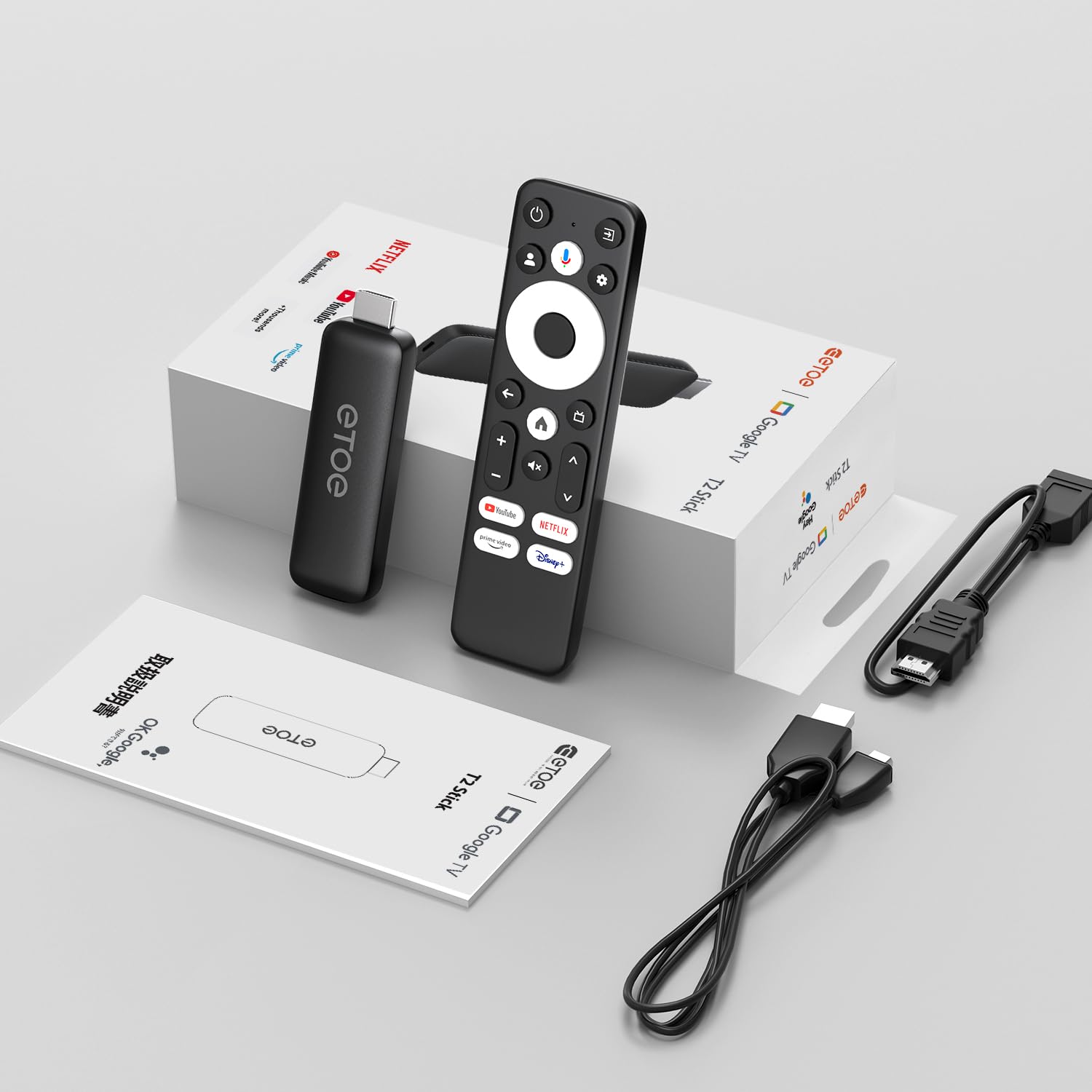
Image: All components included in the ETOE Google TV Streaming Device package.
3. Installationsanleitung
Follow these steps to set up your ETOE Google TV Streaming Device:
3.1. Gerät anschließen
- Stromanschluss: Connect one end of the USB cable to the TV stick and the other end to a power adapter (not included). Plug the power adapter into a nearby power outlet. Alternatively, you can connect the USB cable directly to a USB port on your TV or monitor for power.
- HDMI-Verbindung: Insert the TV stick into an available HDMI port on your television. If the HDMI port is difficult to access, use the included HDMI extension cable.
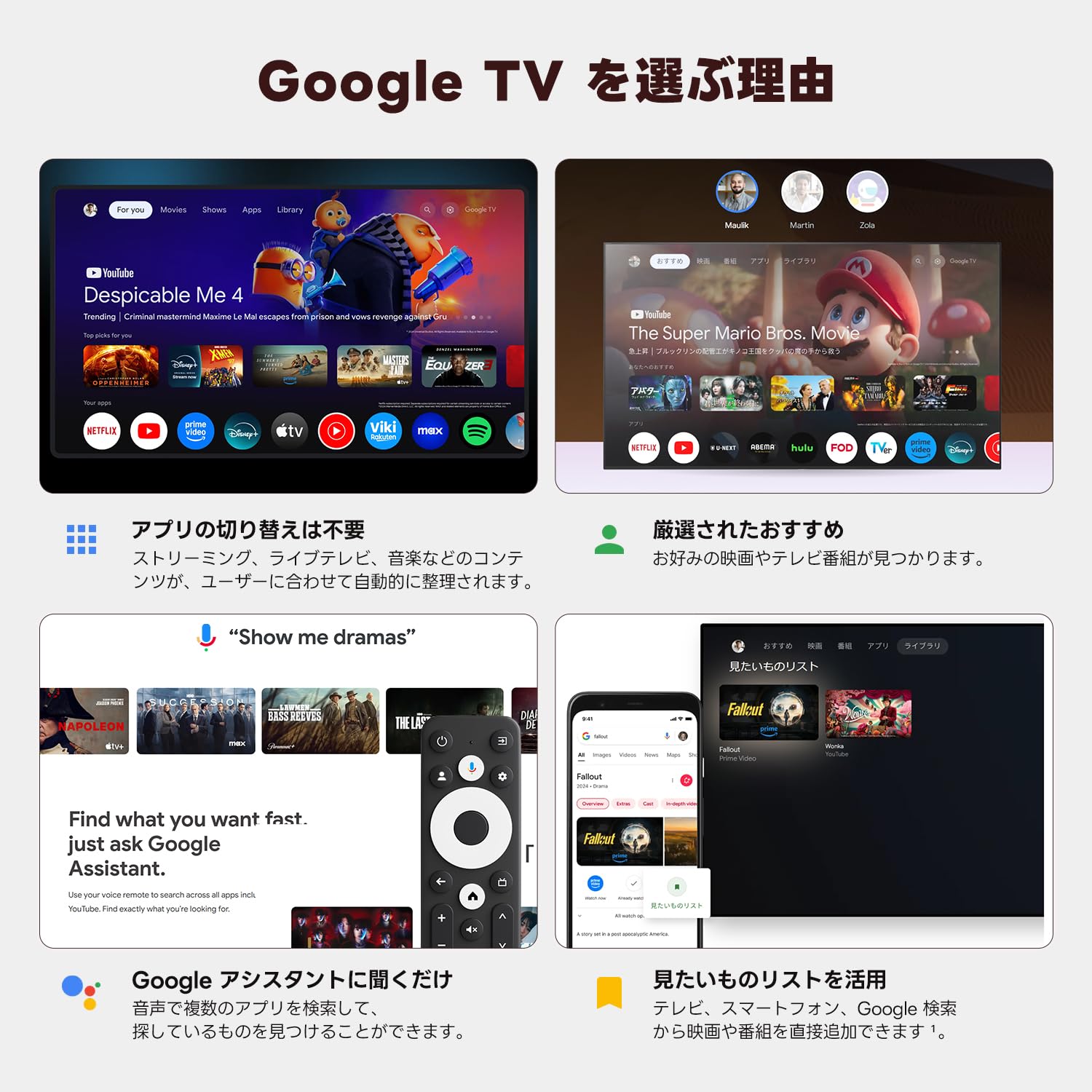
Image: Connection diagram for the ETOE Google TV Streaming Device.
3.2. Initial Setup and Remote Pairing
Turn on your TV and select the correct HDMI input. The device will boot up, and you will see a welcome screen. Follow the on-screen instructions to complete the initial setup, which includes pairing your remote control.
Um die Fernbedienung zu koppeln, halten Sie die Heim Und Zurück buttons simultaneously for approximately 5 seconds, or until the LED on the remote blinks green. Keep the remote within 3 feet of the streaming device during pairing.
3.3. Video Guide: Unboxing and Setup
Video: A short demonstration of unboxing the ETOE Google TV Streaming Device and performing the initial setup steps, including remote pairing and language selection.
4. Bedienungsanleitung
Once set up, navigate the Google TV interface using your remote control.
4.1. Navigieren auf der Benutzeroberfläche
- Use the directional pad (D-pad) on the remote to move between menu items.
- Drücken Sie die Center Taste, um ein Element auszuwählen.
- Drücken Sie die Zurück Taste, um zum vorherigen Bildschirm zurückzukehren.
- Drücken Sie die Heim button to go to the Google TV home screen.
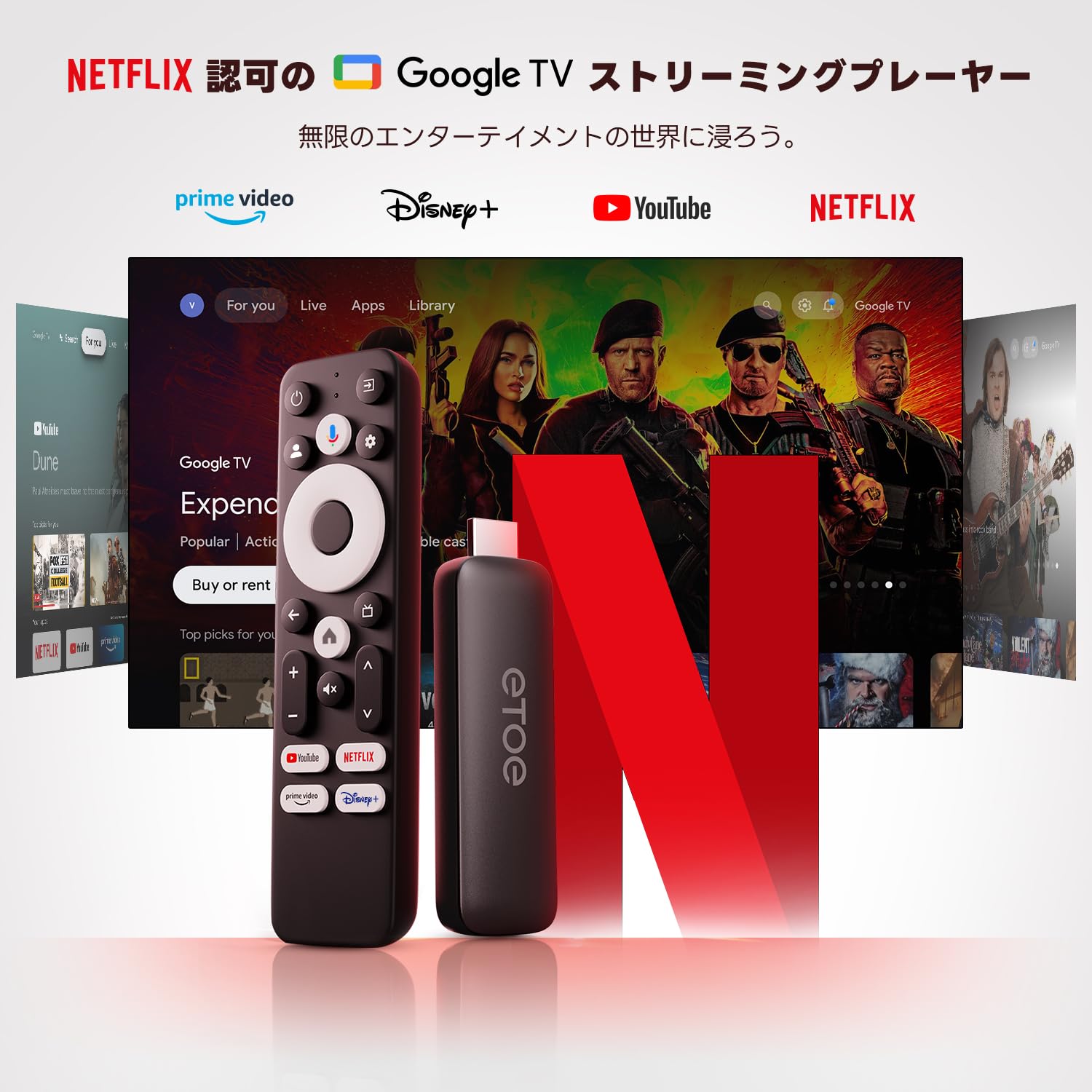
Image: The ETOE Google TV interface with the remote control.
4.2. Sprachsteuerung mit Google Assistant
The ETOE Google TV Streaming Device supports Google Assistant for hands-free control. Press the Google Assistant button on your remote or say "OK Google" (if enabled) to activate voice commands.
- Suchen nach Filme und Fernsehsendungen.
- Offene Bewerbungen.
- Control playback (play, pause, skip).
- Lautstärke anpassen.
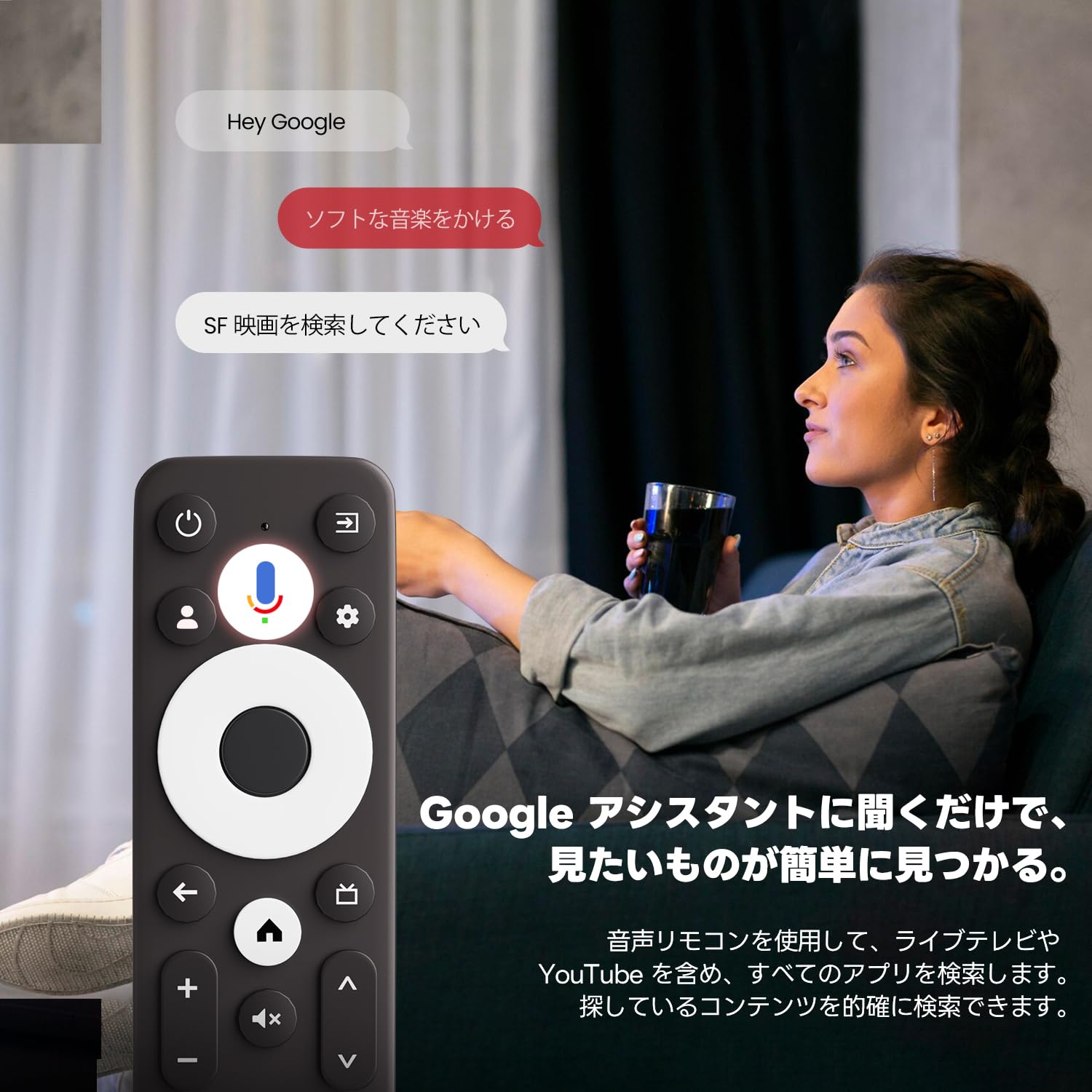
Image: Using voice commands with the ETOE Google TV remote.
4.3. Streaming-Anwendungen
Access a vast library of content from popular streaming services like Netflix, YouTube, Prime Video, Disney+, and many more. The Google TV interface organizes content from all your subscriptions, making it easy to discover new shows and movies.
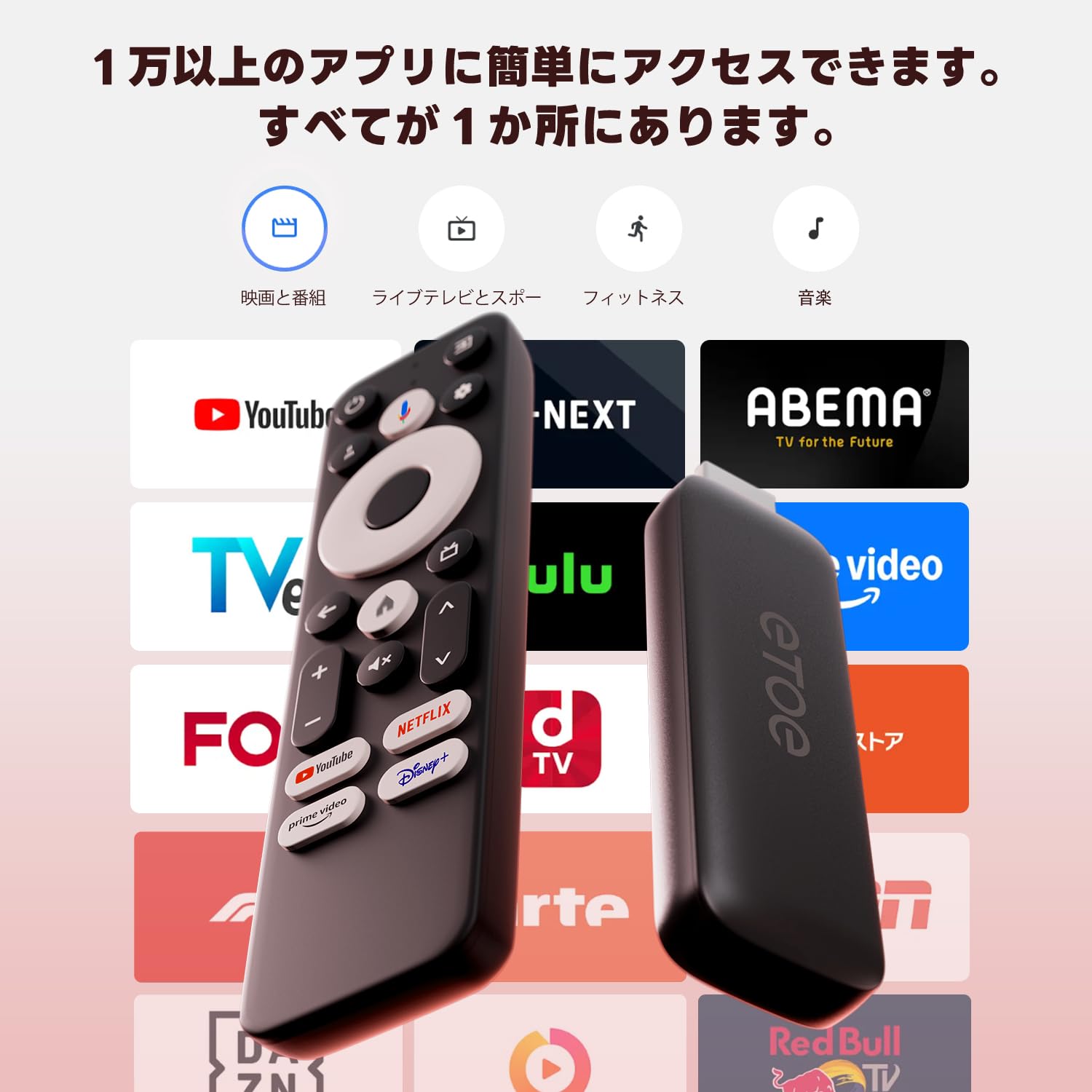
Bild: Überview of popular streaming applications accessible on the device.
4.4. Google Cast / Screen Mirroring
The device supports Google Cast, allowing you to mirror content from your smartphone or tablet directly to your TV screen. This feature is ideal for sharing photos, videos, or presentations.
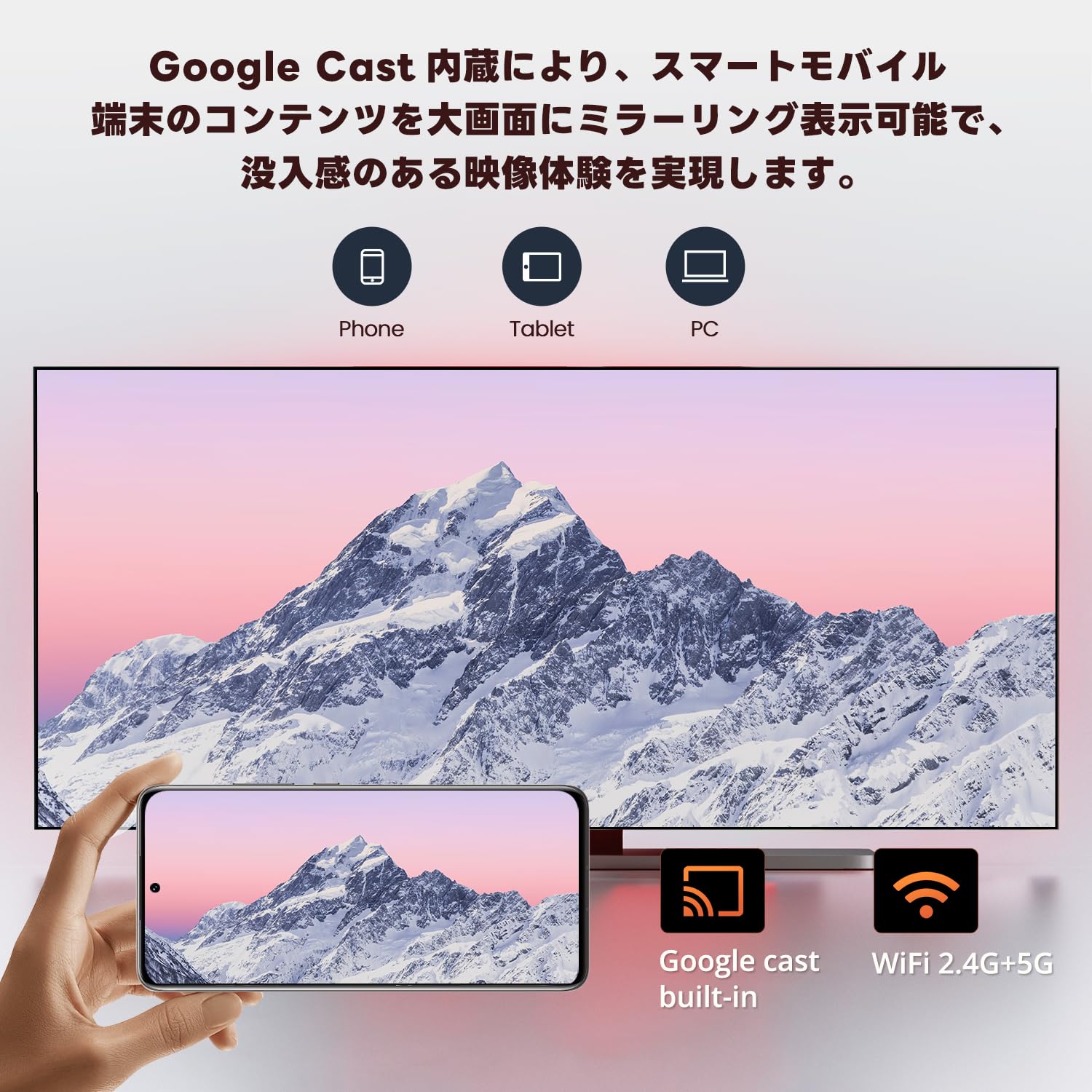
Image: Smartphone screen mirroring to a TV using Google Cast.
5. Funktionen
The ETOE Google TV Streaming Device offers a range of features designed to enhance your entertainment experience:
- Official Google TV: Access over 700,000 movies and TV episodes from various streaming services.
- Full HD 1080p-Ausgabe: Enjoy vivid and clear images with 1080p resolution support.
- Dualband-WLAN (2.4 GHz & 5 GHz): Ensures stable and fast wireless connectivity for smooth streaming.
- Bluetooth 5.0: Connect wireless accessories such as headphones or game controllers.
- Google Assistant: Use voice commands for search, playback control, and more.
- Google Cast Built-in: Easily cast content from your mobile devices to your TV.
- Personalisierte Empfehlungen: Google TV lernt Ihre Vorlieben kennen und schlägt Ihnen auf Sie zugeschnittene Inhalte vor.
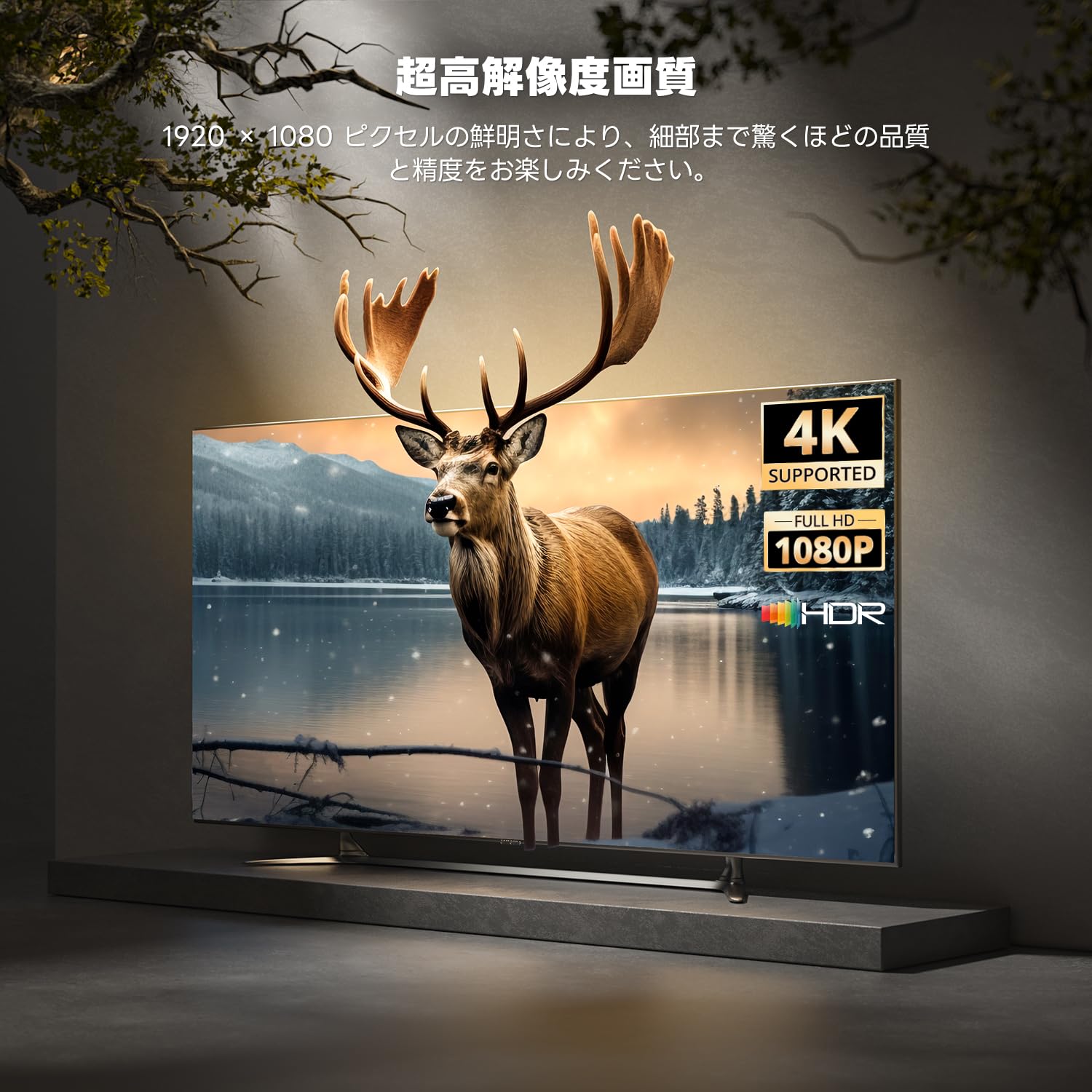
Image: High-resolution display capabilities of the device.
6. Wartung
To ensure the longevity and optimal performance of your ETOE Google TV Streaming Device, follow these maintenance guidelines:
- Reinigung: Reinigen Sie das Gerät mit einem weichen, trockenen Tuch. Verwenden Sie keine flüssigen Reiniger oder Sprays.
- Belüftung: Ensure the device is placed in a well-ventilated area to prevent overheating. Do not cover the device.
- Lagerung: Wenn das Gerät längere Zeit nicht benutzt wird, trennen Sie es vom Stromnetz und bewahren Sie es an einem kühlen, trockenen Ort auf.
- Software-Updates: Keep the device's software updated to the latest version for improved performance and security. Updates are typically managed automatically by Google TV.
7. Fehlerbehebung
If you encounter issues with your ETOE Google TV Streaming Device, refer to the following common problems and solutions:
| Problem | Mögliche Lösung |
|---|---|
| Kein Strom/Gerät schaltet sich nicht ein | Ensure the power cable is securely connected to the device and a working power outlet. Try a different power adapter or USB port. |
| Kein Fernsehsignal | Verify the HDMI cable is securely connected to both the device and the TV. Ensure your TV is set to the correct HDMI input. Try a different HDMI port or cable. |
| Fernbedienung reagiert nicht | Check the remote's batteries and replace if necessary. Re-pair the remote by holding the Home and Back buttons for 5 seconds. |
| Probleme mit der Wi-Fi-Verbindung | Restart your Wi-Fi router. Go to the device's Wi-Fi settings and reconnect to your network. Ensure the device is within range of your router. |
| App freezing or crashing | Restart the application. Clear the app's cache and data in the device settings. If the problem persists, uninstall and reinstall the app. |
| Schlechte Videoqualität | Check your internet connection speed. Ensure your TV supports the resolution being streamed. Adjust video quality settings within the streaming app if available. |
8. Spezifikationen
Key technical specifications for the ETOE Google TV Streaming Device (Model D2861):
- Marke: ETOE
- Modellnummer: T2861 - Die wunderbare Welt der Träume
- Formfaktor: TV-Stick
- Farbe: Schwarz
- Konnektivitätstechnologie: Wi-Fi (2.4G & 5G), Bluetooth 5.0
- Steckertyp: HDMI
- Videoausgabeauflösung: 1080p (1920x1080)
- Video Codecs: H.264, H.265/HEVC
- Produktgewicht: 190 g
- Paketabmessungen: 19.3 x 9.1 x 4.6 cm
9. Garantie und Support
ETOE provides a 12-month warranty and 30-day return policy for this product. For any initial defects or compatibility issues, please contact customer support. Japanese language support is available, and manufacturer warranty ensures comprehensive post-purchase assistance.
For further assistance, please visit the official ETOE store or contact customer support through the provided channels.
- Offizieller Shop: ETOE Official Store on Amazon.co.jp