
1. Einleitung
This manual provides instructions for the SABLUTE KMA1pro Bluetooth Keyboard and Mouse combo, designed for Apple devices. This combo offers a full-size Mac layout keyboard with 7-color backlighting, multi-device connectivity, and a quiet, rechargeable mouse. Please read this manual thoroughly before use to ensure proper operation and longevity of your devices.
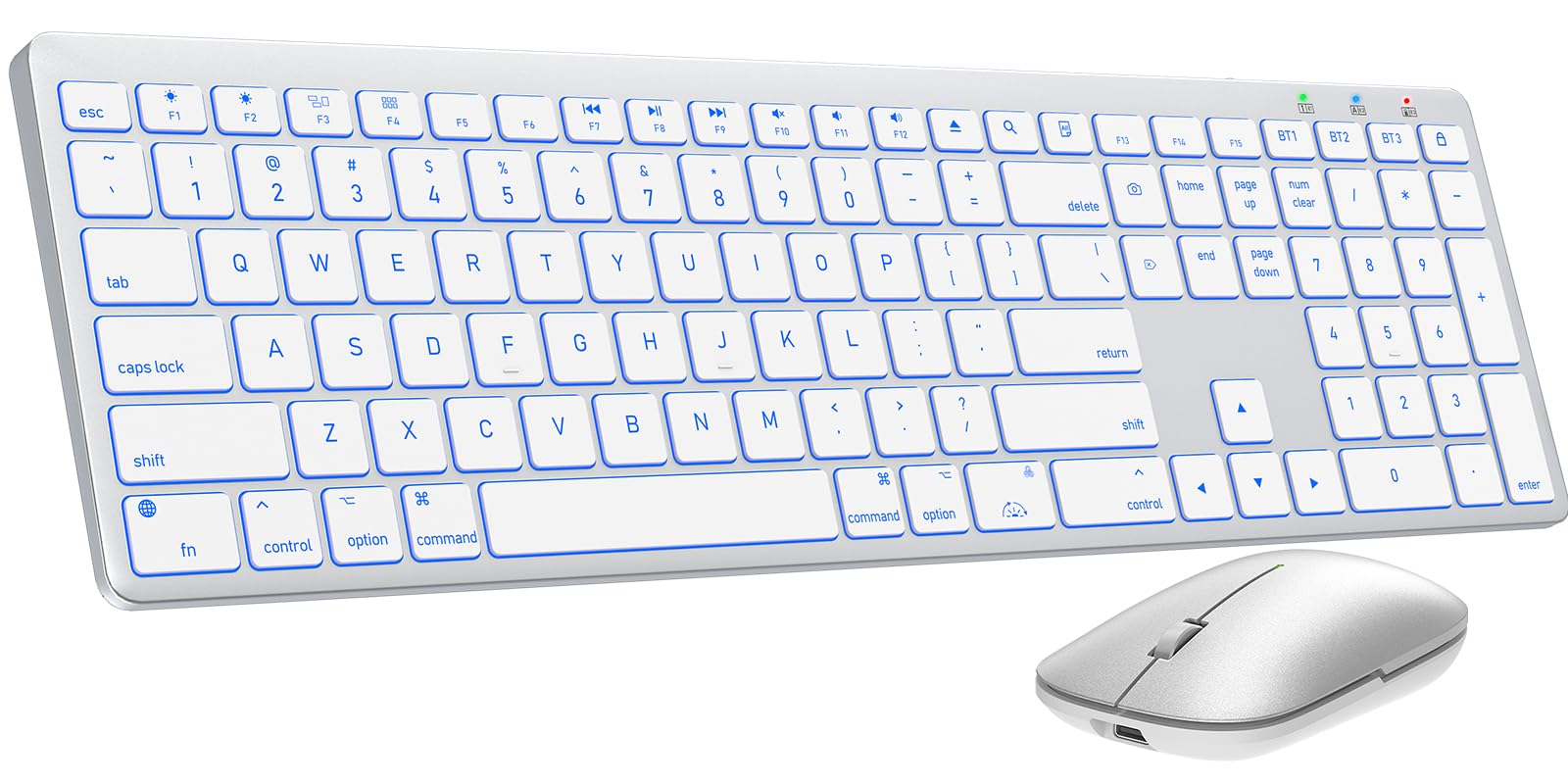
Image 1.1: The SABLUTE KMA1pro Bluetooth Keyboard and Mouse combo.
Packungsinhalt:
- SABLUTE KMA1pro Bluetooth Keyboard
- SABLUTE Bluetooth Mouse
- USB-C-Ladekabel
- Silicone Dustproof Cover
- Bedienungsanleitung
2. Einrichtung
2.1 Aufladen der Geräte
Before initial use, fully charge both the keyboard and the mouse. Use the provided USB-C charging cable.
- Connect the USB-C end of the cable to the charging port on the keyboard (located on the top edge) and the mouse (located on the front edge).
- Verbinden Sie das USB-A-Ende des Kabels mit einem USB-Netzteil (nicht im Lieferumfang enthalten) oder einem USB-Anschluss Ihres Computers.
- The charging indicator light will illuminate. Once fully charged (approximately 2-3 hours), the indicator will change or turn off.

Image 2.1: Charging the keyboard and mouse via USB-C cable.
2.2 Ein-/Ausschalten
- Tastatur: Locate the power switch on the top edge of the keyboard. Slide it to the 'ON' position to power on, and 'OFF' to power off.
- Maus: Locate the power switch on the bottom of the mouse. Slide it to the 'ON' position to power on, and 'OFF' to power off.
2.3 Bluetooth-Kopplung
The KMA1pro combo supports connecting up to three Bluetooth devices simultaneously.
- Enable Bluetooth on your Mac device: Go to System Settings (or System Preferences) > Bluetooth and ensure Bluetooth is turned on.
- Tastaturpaarung:
- Schalten Sie die Tastatur ein.
- Halten Sie die BT1, BT2, oder BT3 key for 3-5 seconds until the corresponding indicator light flashes rapidly. This indicates the keyboard is in pairing mode.
- On your Mac device, look for "SABLUTE Keyboard" in the Bluetooth device list and click "Connect".
- Sobald die Verbindung hergestellt ist, hört die Kontrollleuchte auf zu blinken.
- Mauspaarung:
- Schalten Sie die Maus ein.
- Press the channel switch button on the bottom of the mouse to select a channel (e.g., BT1). The indicator light will flash.
- On your Mac device, look for "SABLUTE Mouse" in the Bluetooth device list and click "Connect".
- Sobald die Verbindung hergestellt ist, hört die Kontrollleuchte auf zu blinken.
- Repeat these steps for additional devices using BT2 and BT3 channels.

Image 2.2: The keyboard and mouse can switch between three paired Bluetooth devices.
3. Bedienung
3.1 Steuerung der Tastatur-Hintergrundbeleuchtung
The keyboard features 7-color backlighting with adjustable brightness levels.
- Hintergrundbeleuchtungsfarbe ändern: Drücken Fn +
 (the light bulb icon) to cycle through the 7 available colors.
 - Helligkeit anpassen: Drücken Fn + (the sun icon) to cycle through 3 brightness levels or turn the backlight off.

Image 3.1: Adjusting backlight colors and brightness on the keyboard.
3.2 Umschalten zwischen mehreren Geräten
To switch between your paired devices (Mac, iPad, iPhone), simply press the corresponding Bluetooth channel key on the keyboard:
- Drücken BT1 to switch to device 1.
- Drücken BT2 to switch to device 2.
- Drücken BT3 to switch to device 3.
For the mouse, press the channel switch button on the bottom to select the desired paired channel.
3.3 Mac Shortcut Keys
The keyboard features a full standard Mac layout with dedicated macOS shortcut keys for enhanced productivity.

Image 3.2: Mac-specific function keys on the keyboard.
| Schlüssel | Funktion |
|---|---|
| F1 | Light Decreases |
| F2 | Light Increases |
| F3 | Multitasking-Fenster |
| F4 | Launchpad |
| F7 | Vorheriger Titel |
| F8 | Abspielen/Pause |
| F9 | Nächster Titel |
| F10 | Stumm |
| F11 | Lautstärke - |
| F12 | Volume + |
| Medienauswurf | Eject Media |
| Suche | Suchfunktion |
| Alles auswählen | Select All Content |
| Hintergrundbeleuchtung wechseln | Hintergrundbeleuchtung ein-/ausschalten |
| Sperrbildschirm | Sperrbildschirm |
Notiz: Mac shortcuts and keys are incompatible with Windows operating systems.
3.4 Maus-DPI-Anpassung
The mouse features three adjustable DPI settings (800/1200/1600) for precise cursor control.
- To switch DPI settings, press and hold the middle scroll wheel button and the right-click button simultaneously for 3 seconds. The DPI will cycle through 800, 1200, and 1600.

Image 3.3: The mouse offers three adjustable DPI settings for cursor precision.
3.5 Ergonomic Tilt
The keyboard includes built-in adjustable folding feet to set an ergonomic typing angle, reducing wrist strain during extended use.
- Gently pull out the folding feet located on the underside of the keyboard to elevate the back edge.
- Push them back in to return the keyboard to a flat position.

Image 3.4: The keyboard features adjustable folding feet for ergonomic comfort.
3.6 Energiesparmodus
Both the keyboard and mouse feature an intelligent auto-sleep mode to conserve battery power when not in use. To reactivate, simply press any key on the keyboard or move/click the mouse.
4. Wartung
4.1 Reinigung
- Schalten Sie vor der Reinigung sowohl Tastatur als auch Maus aus.
- Mit einem weichen, fusselfreien Tuch leichtampMit Wasser oder einer milden Reinigungslösung abspülen. Scharfe Chemikalien vermeiden.
- For the keyboard, you can use a can of compressed air to remove dust and debris from between the keys.
4.2 Using the Dustproof Cover
A custom-fit silicone protective film is included to shield your keyboard from dust, spills, and daily wear. Place it over the keyboard when not in active use or during travel.
4.3 Batteriepflege
- Avoid fully discharging the batteries frequently. Recharge when the low battery indicator appears.
- If storing the devices for an extended period, charge them to about 50% and power them off. Recharge every few months to prevent deep discharge.
5. Fehlerbehebung
| Problem | Mögliche Lösung |
|---|---|
| Tastatur/Maus verbinden sich nicht über Bluetooth |
|
| Hintergrundbeleuchtung funktioniert nicht oder ist zu schwach |
|
| Mauszeiger unregelmäßig oder reagiert nicht |
|
| Tastaturtasten reagieren nicht |
|
6. Spezifikationen
| Besonderheit | Detail |
|---|---|
| Marke | SABLUTE |
| Modellnummer | KMA1pro |
| Farbe | Silberweiß |
| Konnektivitätstechnologie | Bluetooth |
| Kompatible Geräte | Mac, Mac Mini, iPad, MacBook, MacBook Air, MacBook Pro |
| Betriebssystem | Mac OS |
| Tastaturlayout | QWERTY |
| Tastaturbeschreibung | Membrane, Scissor-Switch Keys |
| Tastaturbeleuchtung | 7 Farben, 3 Helligkeitsstufen |
| Batteriekapazität der Tastatur | 1600 mAh |
| Batteriekapazität der Maus | 300 mAh |
| Maus-DPI-Einstellungen | 800 |
| Artikelgewicht | 0.82 Kilograms (Keyboard and Mouse) |
| Besondere Merkmale | 7 Color Backlit, Designed for Mac, Dustproof Cover, Quiet Typing, Rechargeable, Multi-Device Switching, Ergonomic Tilt |
7. Garantieinformationen
SABLUTE offers a 24 Monate Garantie for each KMA1pro Bluetooth Keyboard and Mouse combo from the date of purchase. This warranty covers manufacturing defects and workmanship. Please retain your proof of purchase for warranty claims.
Die Garantie deckt keine Schäden ab, die durch Missbrauch, Unfälle, nicht autorisierte Änderungen oder normale Abnutzung verursacht wurden.
8. Kundendienst
For any questions, technical assistance, or warranty claims, please contact SABLUTE customer support:
- E-Mail: sabluteservices@outlook.com
Unser Support-Team ist bestrebt, innerhalb von 24 Stunden zu antworten.
Video 8.1: Official product video demonstrating the SABLUTE Bluetooth Wireless Keyboard and Mouse for Mac features.