
1. Einführung und Endeview
This manual provides detailed instructions for the installation, operation, and maintenance of your SIXWIN Android 15 Car Radio, model P4-4+128G Carplay. This unit is specifically designed for Renault Clio 3 vehicles manufactured between 2005 and 2014. It features an Android 15 operating system, 4GB RAM, and 128GB internal storage for high performance and efficient power consumption. The 9-inch HD IN-Cell touchscreen offers a resolution of 1280x720 pixels for a clear and responsive user experience.
Key features include wireless CarPlay and Android Auto, integrated GPS navigation, WiFi connectivity, Bluetooth 5.0, FM/RDS radio, and support for steering wheel controls and a rearview Kamera.

Image: Comparison of the car dashboard before and after installing the SIXWIN car radio, highlighting the integrated 9-inch touchscreen and various feature icons.
2. Einrichtung und Installation
Careful installation is crucial for optimal performance. Please refer to the included user manual for detailed wiring diagrams and consult a professional if you are unsure about any steps.
2.1 Packungsinhalt
Überprüfen Sie, ob alle Komponenten in Ihrem Paket vorhanden sind:
- 1x Car Player Unit
- 1x GPS-Antenne
- 1x Hintenview Kamera
- 1x Stromkabel
- 1x Cinch-Kabel
- 1x Rückfahrkamera-Eingangskabel
- 2x USB-Kabel
- 1x Set of Mounting Accessories
- 1x User Manual (English language not guaranteed in original packaging, refer to this digital guide)
- 1x Canbus-Decoder

Image: Diagram illustrating the dimensions of the car radio and a comprehensive list of all included cables and accessories.
2.2 Steering Wheel Control Troubleshooting (Important)
If your car's original steering wheel buttons are not functioning after installation, please follow these steps to restore their normal operation:
- Insert the small end of your original vehicle's Line 1 into our Line 2 interface, as indicated in the provided diagram.
- After removing the small screen from your original vehicle, reconnect the corresponding cables and then place the small screen back into your car.
- Select the protocol path: Hiworld/Renault/clio3. If this option is not available, please choose Hiworld/Renault/Megane 3.

Image: Visual guide for troubleshooting steering wheel controls, showing cable connections and the reinstallation of the original small screen.
2.3 Rückseiteview Kameraverbindung
Die mitgelieferte HD-Rückseiteview camera enhances parking safety. Follow these steps to connect it:
- Connect the camera's power wire to the positive pole of your car's reversing light.
- Connect the camera's ground wire to the negative pole of your car's reversing light.
- Connect the camera's video signal cable to the radio's power cable (specifically the pink wire labeled "Reverse / Parking Sensor Control / Back in").

Image: Wiring diagram for connecting the rearview camera, detailing connections to the car's reversing light and the radio unit.
3. Bedienungsanleitung
3.1 Kabelloses CarPlay und Android Auto
Connect your smartphone wirelessly for seamless integration. CarPlay connects easily via Bluetooth for iOS devices, while Android Auto pairs wirelessly in seconds for Android devices. Use voice commands or the touchscreen to access navigation, make calls, send/receive messages, and play music, maintaining focus on the road.

Image: Illustration of wireless connectivity options including CarPlay, Android Auto, and Mirror Link, demonstrating smartphone integration.
3.2 GPS-Navigation
The integrated GPS receiver supports both online and offline maps. Connect the unit to WiFi or a mobile hotspot to access online maps and navigation applications like Google Maps, Waze, or other preferred services. This ensures reliable navigation even in areas with limited cellular coverage.

Image: The car radio screen displaying GPS navigation with a map, distance, and speed indicators.
3.3 Bluetooth 5.0 und FM/RDS-Radio
Connect your Android or iOS device via Bluetooth 5.0 for hands-free calls, music streaming, and voice commands with exceptional audio clarity. The FM/RDS radio provides clear reception of local stations, delivering real-time traffic information, news, and weather updates.
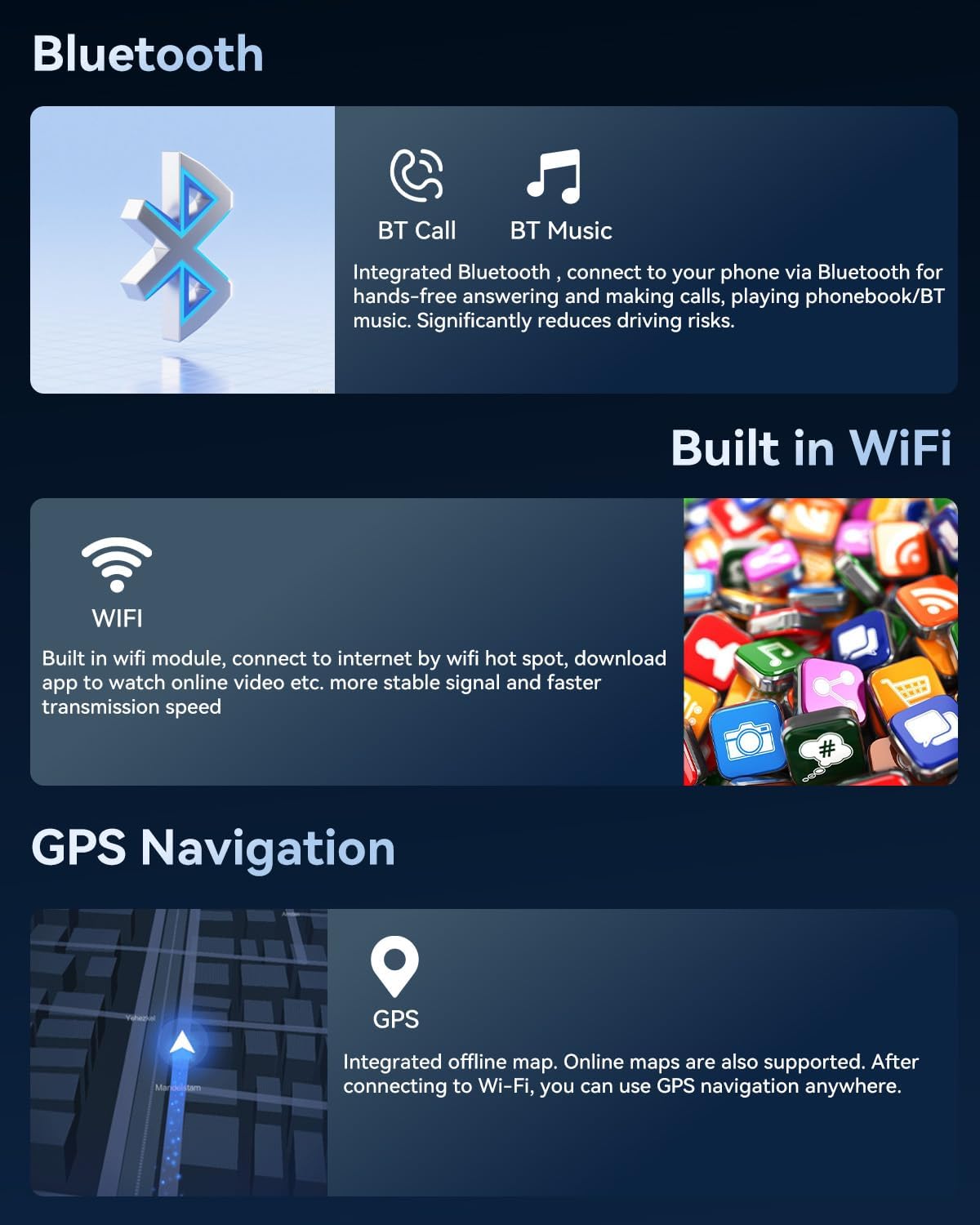
Image: Visual representation of Bluetooth, WiFi, and GPS functionalities.
3.4 Equalizer (EQ)-Einstellung
Customize your audio experience with adjustable EQ settings. Tailor the sound to your music preferences and the acoustics of your vehicle for an immersive audio experience.

Image: Displays of the equalizer settings, FM/RDS radio, and other user interface features.
3.5 Split Screen Function and Multiple UI Options
The split-screen function allows you to run two applications simultaneously, such as navigation and music playback. The unit also offers a wide range of customizable user interface themes to personalize the appearance of your device.

Bild: Examples of various user interface options available on the car radio.
4. Wartung
To ensure the longevity and optimal performance of your SIXWIN car radio, follow these general maintenance guidelines:
- Bildschirmreinigung: Verwenden Sie ein weiches, fusselfreies Tuch, um den Touchscreen vorsichtig abzuwischen. Bei hartnäckigen Flecken etwas nachhelfen.ampReinigen Sie das Tuch mit Wasser oder einem für Bildschirme geeigneten Reiniger. Vermeiden Sie aggressive Chemikalien oder Scheuermittel.
- Software-Updates: Periodically check for available software updates through the device's settings menu. Updates can improve performance, add new features, and fix bugs.
- Verbindungsprüfungen: Occasionally inspect all visible cables and connections to ensure they are secure and free from damage.
- Umweltschutz: Vermeiden Sie es, das Gerät extremen Temperaturen, direkter Sonneneinstrahlung über längere Zeiträume oder übermäßiger Feuchtigkeit auszusetzen.
5. Fehlerbehebung
Sollten Sie Probleme mit Ihrem Autoradio haben, beachten Sie bitte die folgenden gängigen Schritte zur Fehlerbehebung:
- Gerät lässt sich nicht einschalten: Check all power connections. Ensure the car's ignition is on. Verify the car's fuse box for any blown fuses related to the radio.
- Lenkradbedienelemente funktionieren nicht: Refer to Section 2.2 for detailed troubleshooting steps regarding steering wheel control configuration. Ensure the Canbus decoder is correctly connected and configured.
- Kein Ton oder schlechte Tonqualität: Check speaker connections. Adjust the volume and equalizer settings. Ensure no cables are loose or damaged. If using Bluetooth, ensure the phone's volume is also up.
- Hinterenview Kamera zeigt kein Bild an: Verify the camera's power and video signal connections as described in Section 2.3. Ensure the car is in reverse gear.
- GPS-Signalprobleme: Stellen Sie sicher, dass die GPS-Antenne ordnungsgemäß installiert ist und eine freie Sicht hat. view of the sky. If using online maps, check your WiFi or mobile hotspot connection.
- Systemverzögerung oder Nichtreaktion: Close any unnecessary background applications. Restart the unit. If issues persist, a factory reset might be necessary (note: this will erase all user data).
- Missing Cables (as per user feedback): Carefully check the package contents against the packing list in Section 2.1. If components are genuinely missing, contact customer support.
6. Spezifikationen
Detailed technical specifications for the SIXWIN Android 15 Car Radio (Model P4-4+128G Carplay):
| Besonderheit | Spezifikation |
|---|---|
| Modellnummer | P4-4+128G Carplay |
| Betriebssystem | Android 15 |
| RAM | 4 GB |
| Interner Speicher (ROM) | 128 GB |
| Bildschirmgröße | 9 Zoll |
| Bildschirmtyp | In-Cell HD-Touchscreen |
| Auflösung | 1280 x 720 |
| Konnektivitätstechnologie | Bluetooth 5.0, USB, WLAN |
| Besondere Merkmale | Wireless CarPlay, Wireless Android Auto, Mirror Link, GPS Navigation, Integrated Wi-Fi |
| Kompatible Geräte | Smartphone |
| Steckertyp | HDMI, USB, 3.5 mm jack |
| Audioausgabemodus | Stereo |
| Surround-Sound-Kanalkonfiguration | 5.1 |
| Videokodierung | H.264, H.265/HEVC |
| Ausgangsleistung (pro Kanal) | 45 Watt |
| Anzahl der Kanäle | 4 |
| Gesamtleistung Watttage | 180 Watt |
| Artikelgewicht | 1.67 Kilogramm |
7. Garantie und Support
For warranty information, please refer to the documentation provided at the time of purchase or contact the seller directly. If you require technical assistance or have questions not covered in this manual, please reach out to SIXWIN customer support through the retailer where you purchased the product. Ensure you have your product model number (P4-4+128G Carplay) and purchase details ready for faster service.