
Einführung
The FEELWORLD FW759PRO is a 7-inch full HD IPS touchscreen camera monitor designed to enhance your video production workflow. It features a 1280x800 resolution, 1000:1 contrast ratio, and a 178° ultra-wide viewing angle, providing a clear and detailed display for precise monitoring. This manual will guide you through the setup, operation, and maintenance of your FW759PRO monitor.
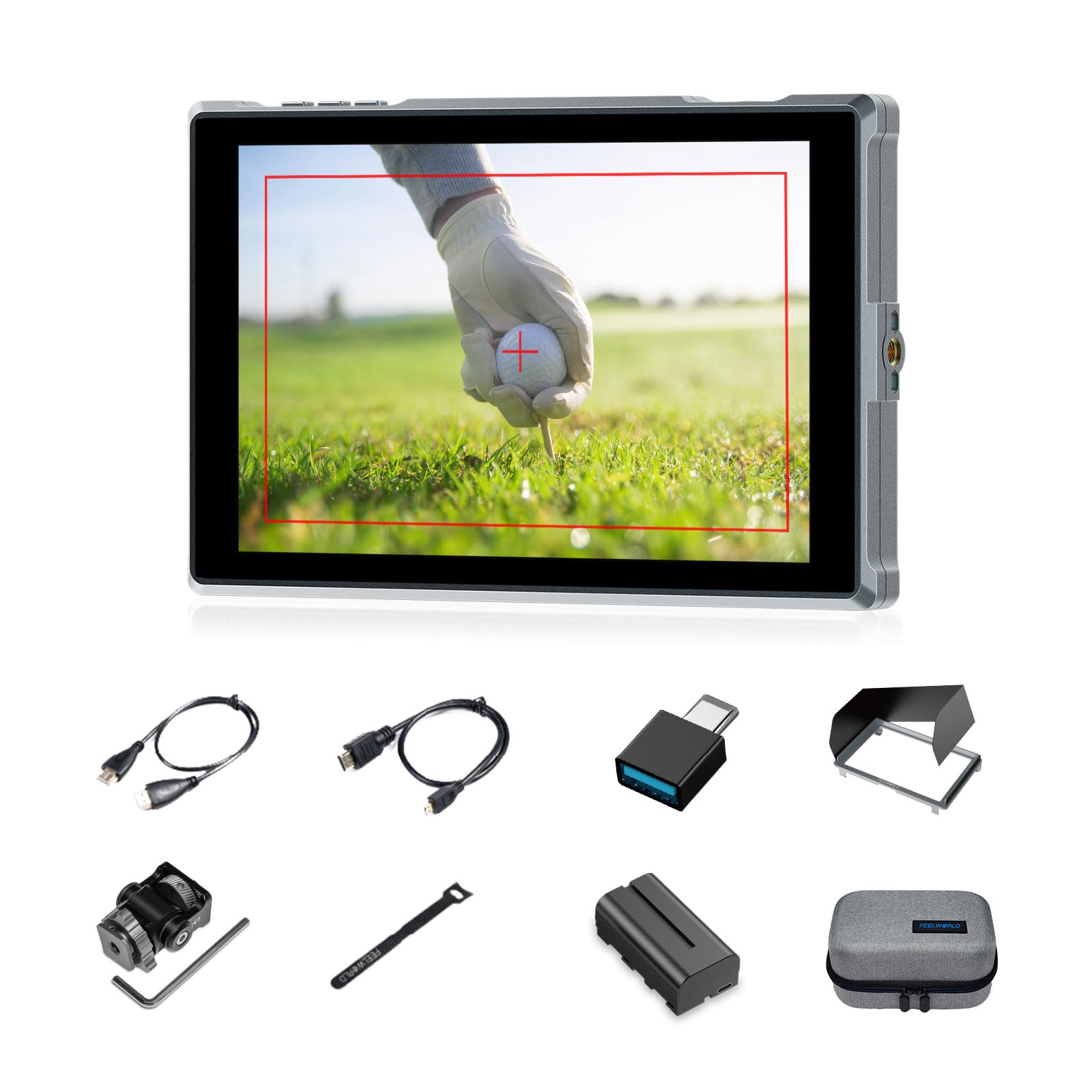
Figure 1: FEELWORLD FW759PRO Monitor Overview
Hauptmerkmale:
- 7-inch Full HD IPS Touchscreen (1280x800 resolution)
- 4K HDMI Input & Output (up to 4K30Hz) and AV Input
- Slim and Lightweight Design (22mm thickness, 300g weight)
- Multiple Power Options: NP-F series battery, 12V DC IN, 5V Type-C
- Advanced Monitoring Functions: Histogram, Embedded Audio, False Colors, Peaking Filter, etc.
- Customizable Features: 4 groups of menu settings, 9:16 vertical screen marker
Aufstellen
1. Packungsinhalt
Überprüfen Sie, ob alle Artikel im Paket vorhanden sind:
- 1 x FW759PRO Monitor
- 1 x HDMI-Kabel
- 1 x Micro HDMI Cable
- 1 x Mini Hot Shoe Mount + Hex Wrench
- 1 x USB-A-zu-USB-C-Adapter
- 1 x Sun Shade + Frame
- 1 x Cable Management Tie
- 1 x Kurzanleitung
- 1 x F550 Battery
- 1 x Tasche

Abbildung 2: Mitgeliefertes Zubehör
2. Den Monitor mit Strom versorgen
The FW759PRO offers three power options:
- NP-F-Serie Batterie: Attach a compatible NP-F series battery to the battery plate on the rear of the monitor.
- 12 V DC-EINGANG: Connect a 12V DC power adapter (not included, suitable for 1A, DC 5.5*2.1mm plug) to the "DC IN 12V" port.
- 5V Typ-C: Connect a 5V/2A (or higher) Type-C power source to the "TYPE-C 5V" port.

Figure 3: Power Input Options
3. Montage des Monitors
The monitor features two 1/4"-20 mounting ports on its sides for versatile attachment to camera rigs, arms, or tripods. Use the included mini hot shoe mount to attach it to your camera's hot shoe or cold shoe mount.

Figure 4: 1/4 Inch Mounting Ports
4. Connecting to a Camera/Device
The FW759PRO supports 4K HDMI and AV inputs:
- HDMI-Eingang: Connect your camera or video source using an HDMI cable to the HDMI port. The monitor supports up to 4K30Hz signals.
- AV-Eingang: For specialized or legacy devices, use the AV input port.

Abbildung 5: Anschlussmöglichkeiten
Bedienungsanleitung
1. Ein-/Ausschalten
Press and hold the power button located on the top edge of the monitor to turn it on or off.
2. Touchscreen-Bedienung
The FW759PRO features an intuitive touchscreen interface for menu navigation and function control.
- Hintergrundbeleuchtung anpassen: Swipe up/down on the left half of the screen.
- Lautstärke anpassen: Swipe up/down on the right half of the screen.
- Access Shortcut Menu: Swipe up/down on the bottom of the screen.

Figure 6: Touchscreen Gestures
3. Menu Navigation and Custom Buttons
Access the main menu by tapping the screen. Navigate through options using touch. The monitor also features customizable function buttons (F1, F2, F3) on the top edge, allowing quick access to frequently used features.

Figure 7: Menu and Custom Buttons
4. Advanced Monitoring Functions
The FW759PRO includes several tools for precise exposure and focus control:
- Histogramm: Zeigt die Tonwertverteilung Ihres Bildes an.
- Peaking-Filter: Highlights sharp edges to assist with focus.
- Eingebettetes Audio: Monitors audio levels.
- Falsche Farben: Helps set exposure by displaying different exposure levels as distinct colors.
- Kontrollfeld: Assists in calibrating the monitor.
- Neun-Gitter: Aids in composition.
- Bildschirmmarkierung: Various aspect ratio markers for framing.
- Mittenmarkierung: Marks the center of the screen.
- Verhältnismarkierung: Provides different aspect ratio guides.
- Overscan: Passt den Anzeigebereich an.
- Anamorpher Modus: Entstopft anamorphisches Essentage (1.33x, 1.6x, 2.0x, or custom).
- Bild Flip: Spiegelt das Bild horizontal oder vertikal.
- Bild einfrieren: Friert das aktuelle Bild ein.
- Hineinzoomen: Vergrößert einen Bildausschnitt zur detaillierten Betrachtung.
- Pixel für Pixel: Zeigt das Bild in seiner nativen Auflösung ohne Skalierung an.

Figure 8: Auxiliary Functions Overview

Figure 9: False Color Function

Figure 10: Anamorphic Mode
5. New Feature Upgrades
- 9:16 Vertical Screen Marker: Ideal for content creators producing vertical video for platforms like TikTok and YouTube Shorts.
- 4 Groups Menu Setting Saving: Save up to four custom menu configurations for quick recall. Once settings are adjusted, they save automatically and can be called directly.

Figure 11: 9:16 Vertical Screen Marker
Wartung
1. Monitor reinigen
- Verwenden Sie ein weiches, fusselfreies Tuch, um Bildschirm und Gehäuse des Monitors vorsichtig abzuwischen.
- Bei hartnäckigen Flecken leicht dampDas Tuch mit Wasser oder einer für Bildschirme geeigneten Reinigungslösung befeuchten.
- Avoid using harsh chemicals, solvents, or abrasive materials, as these can damage the screen or finish.
2. Batteriepflege
- Bewahren Sie Batterien an einem kühlen, trockenen Ort auf, wenn Sie sie nicht verwenden.
- Avoid fully discharging lithium-ion batteries frequently to prolong their lifespan.
- Bei längerer Lagerung sollten die Batterien auf etwa 50-60% ihrer Kapazität geladen werden.
Fehlerbehebung
No Signal Displayed
- Kabelverbindungen prüfen: Ensure HDMI or AV cables are securely connected to both the monitor and the camera/source.
- Eingabequelle überprüfen: Confirm that the correct input source (HDMI or AV) is selected on the monitor.
- Camera Output Settings: Check your camera's video output settings to ensure it is sending a signal and that the resolution/frame rate is compatible with the monitor (up to 4K30Hz).
- Test mit einem anderen Kabel/Gerät: If possible, try a different HDMI/AV cable or connect the monitor to another video source to isolate the issue.
Monitor Does Not Power On
- Batterie prüfen: Ensure the NP-F battery is charged and correctly installed.
- Überprüfen Sie das Netzteil: If using DC IN or Type-C, confirm the power adapter is connected and providing sufficient power (12V DC IN, 5V/2A Type-C).
- Netzschalter: Ensure the power button is pressed and held for a few seconds to initiate power-on.
Touchscreen reagiert nicht
- Restart Monitor: Power off and then power on the monitor.
- Sauberer Bildschirm: Stellen Sie sicher, dass der Bildschirm sauber und frei von Schmutz oder Feuchtigkeit ist, die die Touch-Eingabe beeinträchtigen könnten.
Technische Daten
| Besonderheit | Detail |
|---|---|
| Marke | FEELWORLD |
| Modellname | FW759PRO |
| Bildschirmgröße | 7 Zoll |
| Auflösung | 1280 x 800 |
| Seitenverhältnis | 16:10 |
| Kontrastverhältnis | 1000:1 |
| Anzeigetyp | IPS |
| Viewing-Winkel | 178 Grad |
| Konnektivitätstechnologie | Auxiliary, HDMI |
| Hardware-Konnektivität | HDMI |
| Zusätzliche Merkmale | Touchscreen, Portable |
| Ansprechzeit | 2 Millisekunden |
| Total Number of HDMI Ports | 2 |
| Hersteller | LAIZESKE |
Garantie und Support
Garantieinformationen
The FEELWORLD FW759PRO monitor comes with a 1 Jahr Garantie Diese Garantie gilt ab Kaufdatum und deckt Herstellungsfehler sowie Funktionsstörungen bei normalem Gebrauch ab. Bitte bewahren Sie Ihren Kaufbeleg für Garantieansprüche auf.
For detailed warranty terms and conditions, please refer to the official FEELWORLD webWebsite oder wenden Sie sich an den Kundendienst.
Kundenservice
If you encounter any issues not covered in this manual or require further assistance, please contact FEELWORLD customer support. Contact information can typically be found on the official FEELWORLD webauf der Website oder in der Kurzanleitung, die Ihrem Produkt beiliegt.