
Einführung
This manual provides essential information for the safe and efficient use of your Google Pixel 9 Pro 5G smartphone. Please read these instructions carefully before operating your device.

Abbildung 1: Vorderseite view of the Google Pixel 9 Pro 5G.
Lieferumfang
Prüfen Sie, ob alle Artikel in der Verpackung vorhanden sind:
- Google Pixel 9 Pro Smartphone
- USB-C to USB-C Cable (1m, USB 2.0)
- SIM-Karten-Auswurfwerkzeug
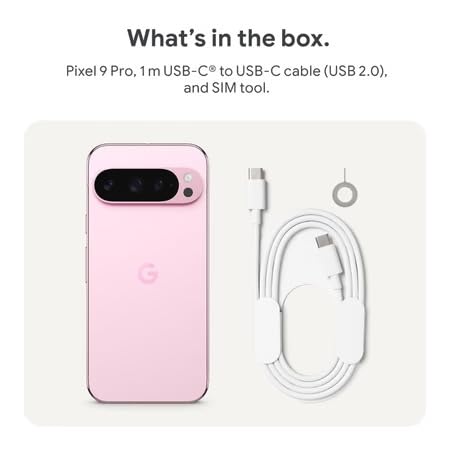
Figure 2: Included items in the Pixel 9 Pro packaging.
Aufstellen
1. SIM-Karte einlegen
- Locate the SIM tray on the side of your Pixel 9 Pro.
- Führen Sie das mitgelieferte SIM-Auswurfwerkzeug in die kleine Öffnung am SIM-Kartenfach ein und drücken Sie vorsichtig, bis das Fach herausspringt.
- Legen Sie Ihre Nano-SIM-Karte mit den goldenen Kontakten nach unten in den Kartenhalter ein. Achten Sie darauf, dass sie richtig sitzt.
- Drücken Sie den SIM-Kartenhalter vorsichtig wieder in das Gerät hinein, bis er bündig abschließt.
2. Erstes Aufladen
Es wird empfohlen, Ihr Gerät vor der ersten Verwendung vollständig aufzuladen.
- Verbinden Sie das USB-C-Kabel mit dem Ladeanschluss an der Unterseite Ihres Telefons.
- Connect the other end of the cable to a compatible USB power adapter (sold separately) and plug it into a power outlet.
- Das Batteriesymbol auf dem Bildschirm zeigt den Ladestatus an.
3. Ein-/Ausschalten
- So schalten Sie das Gerät ein: Press and hold the Power button (located on the right side) until the Google logo appears on the screen.
- So schalten Sie das Gerät aus: Halten Sie die Ein-/Aus-Taste gedrückt und tippen Sie anschließend auf dem Bildschirm auf „Ausschalten“.
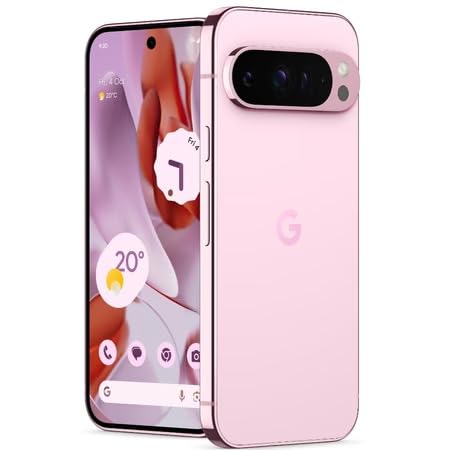
Figure 3: Power and volume buttons on the side of the device.
4. Ersteinrichtungsassistent
Upon powering on for the first time, follow the on-screen instructions to:
- Wählen Sie Ihre Sprache und Region aus.
- Stellen Sie eine Verbindung zu einem Wi-Fi-Netzwerk her.
- Melden Sie sich mit Ihrem Google-Konto an oder erstellen Sie ein neues.
- Set up security features such as fingerprint unlock, face unlock, PIN, pattern, or password.
- Datenübertragung von einem alten Gerät (optional).
Bedienungsanleitung
Grundlegende Navigation
- Touchscreen-Gesten: Interact with the device using taps, swipes, pinches (for zoom), and long presses.
- Startbildschirm: Access your applications, widgets, and customize your layout.
- Benachrichtigungen: Wischen Sie vom oberen Bildschirmrand nach unten zu view Benachrichtigungen.
- Schnelleinstellungen: Swipe down twice from the top of the screen to access quick settings toggles (Wi-Fi, Bluetooth, etc.).
Kamerabedienung
The Pixel 9 Pro features a powerful triple rear camera system.
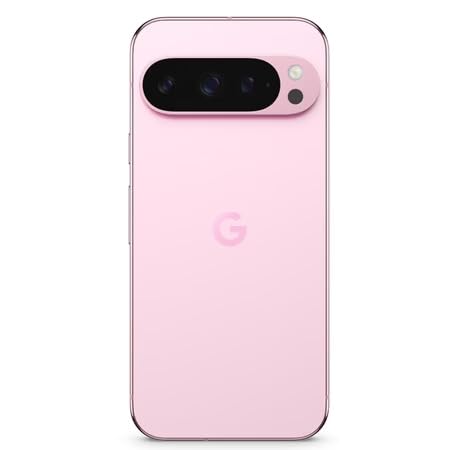
Figure 4: Rear camera system of the Pixel 9 Pro.
- Öffnen der Kamera: Tippen Sie auf das Kamera-App-Symbol auf Ihrem Startbildschirm oder Sperrbildschirm.
- Objektivwechsel: Tap the icons on the viewfinder to switch between wide, ultrawide, and 5x telephoto lenses.
- Aufnahmemodi: Select from various modes such as Night Sight for low-light conditions, Astrofotografie for capturing stars, Makro for close-up shots, Langzeitbelichtung for creative effects, and Porträt for depth-of-field effects.
- Super Res Zoom: Pinch the screen to digitally zoom up to 30x. For video, Super Res Zoom supports up to 20x.
- Pro Controls: Access advanced camera settings like shutter speed and manual focus for greater creative control.
Batteriemanagement
- Batteriestand prüfen: View der Batterieprozentsatztage in the status bar or in Settings > Battery.
- Extreme Battery Saver: Enable this mode in Settings > Battery > Extreme Battery Saver to significantly extend battery life.
- Laden: Use the provided USB-C cable and a compatible power adapter for optimal charging speed.
Sicherheitsfunktionen
Your Pixel 9 Pro incorporates multiple hardware security layers to protect your data.
- Entsperren per Fingerabdruck: Register your fingerprints in Settings > Security & privacy > Device unlock.
- Gesichtsentsperrung: Richten Sie eine Gesichtserkennung für bequemes Entsperren ein.
- PIN/Muster/Passwort: Always set a strong screen lock method.
- Software-Updates: Regularly install system updates to ensure your device has the latest security patches.
Temperatursensor
The Pixel 9 Pro includes a thermometer for measuring temperature.
- Open the dedicated Thermometer app.
- Follow the on-screen instructions to measure body temperature or the temperature of objects.
- Temperature data can be saved and tracked within the Fitbit application.
Wartung
Reinigen Ihres Geräts
- Verwenden Sie ein weiches, fusselfreies Tuch, um den Bildschirm und das Gehäuse Ihres Telefons zu reinigen.
- Vermeiden Sie die Verwendung von Scheuermitteln, aggressiven Chemikalien oder Aerosolsprays.
- Do not submerge the device in water, despite its water-resistant rating.
Software-Updates
Google regularly releases software updates to improve performance, add features, and enhance security.
- To check for updates, go to Settings > System > System update.
- Ensure your device is connected to Wi-Fi and has sufficient battery charge before installing updates.
Körperliche Pflege
The Pixel 9 Pro is built with Corning Gorilla Glass Victus 2 and is water-resistant, offering durability against everyday drops and spills.
- While durable, avoid excessive impacts or drops to prevent damage.
- Consider using a screen protector and a protective case for additional safeguarding.
Fehlerbehebung
Gerät reagiert nicht
If your phone becomes unresponsive, perform a force restart:
- Press and hold the Power button for approximately 10-15 seconds until the device restarts.
Apps stürzen ab oder frieren ein
- Schließen Sie die problematische App und öffnen Sie sie erneut.
- Clear the app's cache: Go to Settings > Apps > See all apps > [App Name] > Storage & cache > Clear cache.
- Stellen Sie sicher, dass die App auf die neueste Version aus dem Google Play Store aktualisiert ist.
- Starten Sie Ihr Telefon neu.
Netzwerkverbindungsprobleme (WLAN/Mobilfunk)
- Toggle Wi-Fi or cellular data off and then back on.
- Starten Sie Ihr Telefon neu.
- Vergewissern Sie sich, dass Ihre SIM-Karte korrekt eingelegt ist.
- Netzwerkeinstellungen zurücksetzen: Gehen Sie zu Einstellungen > System > Optionen zurücksetzen > WLAN, Mobilfunk & Bluetooth zurücksetzen.
Batterie entlädt sich schnell
- Check battery usage in Settings > Battery to identify power-consuming apps.
- Reduzieren Sie die Bildschirmhelligkeit und die Bildschirm-Timeout-Dauer.
- Disable unnecessary features like GPS, Bluetooth, and Wi-Fi when not in use.
- Enable Extreme Battery Saver mode.
Zurücksetzen auf Werkseinstellungen (letzter Ausweg)
Warning: A factory reset will erase all data from your phone. Back up all important data before proceeding.
- Gehen Sie zu Einstellungen > System > Zurücksetzen > Alle Daten löschen (Zurücksetzen auf Werkseinstellungen).
- Confirm your decision when prompted.
Technische Daten
| Besonderheit | Detail |
|---|---|
| Marke | |
| Modell | Pixel 9 Pro |
| Betriebssystem | Android 15 |
| Prozessor | Google Tensor G4 (3.1 GHz) |
| RAM | 16 GB |
| Interner Speicher | 256 GB |
| Anzeige | 6.3 Inches LTPO OLED (Actua), 1280 x 2856 Pixels, 120 Hz Refresh Rate |
| Rückfahrkamera | 50 MP wide + 48 MP ultrawide (Macro) + 48 MP 5x telephoto |
| Frontkamera | 42 Megapixel |
| Batteriekapazität | 4700 Milliamp Hours (up to 24 hours average life) |
| Konnektivität | 5G, Wi-Fi 7, Bluetooth 5.3, NFC, UWB, USB-C |
| SIM Karte | Single Nano SIM |
| Wasserbeständigkeit | Wasserfest |
| Maße | 8 x 72 x 153 Millimeter |
| Gewicht | 198 Gramm |
Garantie und Support
Garantieinformationen
Your Google Pixel 9 Pro 5G comes with a 1 Jahre Herstellergarantie Diese Garantie gilt ab Kaufdatum und deckt Herstellungsfehler bei normalem Gebrauch ab. Bitte bewahren Sie Ihren Kaufbeleg für Garantieansprüche auf.
Kundenservice
For technical assistance, warranty claims, or other support inquiries, please contact Google customer service:
- Hersteller: Google LLC, 1600 Amphitheatre Parkway, Berg View, CA 94043, USA
- Phone Support (India): +91 7718892303
- Importeurkontakt (Indien): Nexora Axis Private Limited (+91 7718892303)
For the most up-to-date support information, please visit the official Google Pixel support webWebsite.