
1. Produktüberschreitungview
The Portta HDMI Video Capture Card is designed for capturing and streaming HDMI video signals up to 1080p at 60 frames per second (fps) via USB 3.0. It features 4K HDMI input and loop-out capabilities, a 3.5mm audio output, and a microphone input, making it suitable for various applications including game streaming, live broadcasts, and content creation.
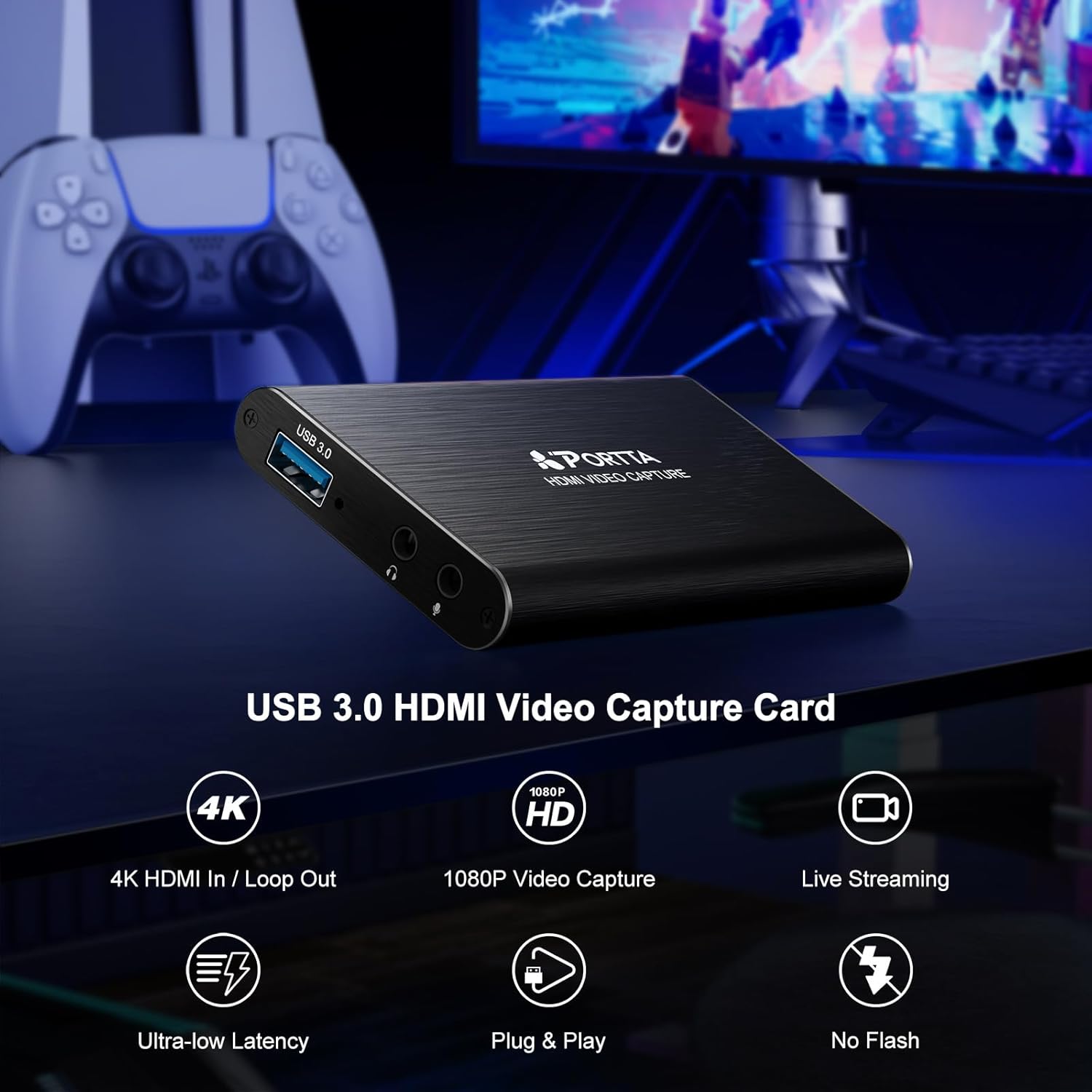
Bild: Vorderseite view of the Portta HDMI Video Capture Card, highlighting the USB 3.0 port, 3.5mm audio output, and microphone input.

Bild: Rückseite view of the Portta HDMI Video Capture Card, illustrating the HDMI input and HDMI loop-out ports, along with an IN/OUT indicator.
2. Packungsinhalt
Überprüfen Sie, ob alle Artikel im Paket vorhanden sind:
- Portta HDMI Video Capture Card (x1)
- USB-A to USB-A 3.0 Data Cable (x1)
- HDMI-Kabel (x1)
- Benutzerhandbuch (x1)
3. Systemanforderungen
To ensure optimal performance, your computer system should meet the following minimum specifications:
- Betriebssystem: Windows 7/8/10/11 or later; macOS 10.8+ (Intel/Apple Silicon; Metal support recommended); Linux (kernel 2.6.38+, e.g., Ubuntu 18.04+; X11/Wayland)
- CPU: Quad-Core Intel Core i5 / Ryzen 5 oder höher
- Erinnerung: 8 GB RAM oder mehr
- Grafik: DirectX 10.1- oder OpenGL 3.3-kompatible GPU (DirectX 11 / Metal empfohlen)
- Lagerung: SSD für Aufnahmen mit hoher Bitrate empfohlen
The device is plug-and-play and does not require driver installation.
4. Einrichtungsanweisungen
Follow these steps to connect and set up your Portta HDMI Video Capture Card:
- HDMI-Eingang anschließen: Connect your HDMI source device (e.g., game console, camcorder, PC) to the HDMI-EINGANG Anschluss an die Aufnahmekarte über ein HDMI-Kabel.
- Connect HDMI Loop-Out (Optional): Wenn Sie möchten view your source content on a separate display while capturing, connect an HDMI cable from the HDMI-Loop-Ausgang port on the capture card to your monitor or TV.
- Mit Computer verbinden: Connect the USB-A to USB-A 3.0 data cable from the USB 3.0 port on the capture card to an available USB 3.0 port on your computer. The device will be automatically recognized.
- Audiogeräte anschließen (optional):
- For microphone input, connect a microphone to the Mic In 3.5-mm-Buchse.
- For audio monitoring, connect headphones (TRS only) or speakers to the 3.5-mm-Audioausgang Jack.
Note: Microphone audio is not routed through the HDMI OUT port.

Image: Connection diagram for the capture card, showing an HDMI source (game console) connected to the input, a TV connected to the loop-out, and a laptop connected via USB 3.0 for capture.
5. Bedienungsanleitung
The Portta HDMI Video Capture Card is compatible with various UVC/UAC-compliant applications, including OBS Studio. The following instructions focus on using OBS Studio, a popular free and open-source software for video recording and live streaming.
5.1. Using with OBS Studio (Windows/macOS/Linux)
- Download and Install OBS Studio: If you haven't already, download OBS Studio from its official webSeite? ˅ (obsproject.com) und installieren Sie es auf Ihrem Computer.
- Launch OBS Studio: Open the OBS Studio application.
- Videoquelle hinzufügen:
- In the "Sources" box at the bottom left, click the "+" Symbol.
- Wählen "Video Capture Device".
- Wählen "Create new" and give it a name (e.g., "Portta Capture"). Click "OK".
- Im Eigenschaftenfenster auswählen "USB3 Video" (or similar) from the "Device" dropdown menu.
- Configure resolution/FPS if needed (e.g., 1920x1080, 60 FPS). Click "OK".

Image: Step-by-step guide within OBS Studio to add the video capture device as a source.
- Add Audio Source (Optional):
- Klicken Sie im Feld „Quellen“ auf die "+" Symbol.
- Wählen "Audio Input Capture".
- Wählen "Create new" and name it (e.g., "Portta Mic"). Click "OK".
- Wählen "USB3 Digital Audio" (or similar) from the "Device" dropdown. Click "OK".
- Adjust Audio Properties:
- In the "Audio Mixer" section, click the gear icon next to your audio source (e.g., "Portta Mic").
- Wählen "Advanced Audio Properties".
- For "Audio Monitoring", select "Monitor and Output" if you want to hear the audio through your computer's speakers/headphones while streaming/recording.

Image: Guide on configuring advanced audio properties in OBS Studio for monitoring and output.
- Aufnahme/Streaming starten: In the "Controls" section, click "Start Recording" or "Start Streaming" nach Wunsch.
5.2. Hinweise zur Bedienung von OBS unter macOS
For macOS users, you may need to grant OBS Studio specific permissions:
- Gehe zu OBS Studio > Settings > Review App-Berechtigungen.
- Sicherstellen "Screen Recording", "Camera", Und "Microphone" access are granted. Follow system prompts until "Access Granted" appears for each.

Image: macOS system settings showing how to grant necessary permissions (Screen Recording, Camera, Microphone) to OBS Studio.
6. Wartung
Um die Langlebigkeit und optimale Leistung Ihrer Portta HDMI-Videoaufnahmekarte zu gewährleisten, befolgen Sie bitte diese Wartungsrichtlinien:
- Reinigung: Reinigen Sie die Außenseite des Geräts mit einem weichen, trockenen Tuch. Vermeiden Sie flüssige Reiniger oder Lösungsmittel, da diese die Oberfläche oder interne Bauteile beschädigen können.
- Lagerung: Bewahren Sie das Gerät bei Nichtgebrauch an einem kühlen, trockenen Ort fern von direkter Sonneneinstrahlung, extremen Temperaturen und hoher Luftfeuchtigkeit auf.
- Kabelmanagement: Avoid bending or kinking cables excessively. Proper cable management helps prevent damage to the connectors and wires.
- Belüftung: Um eine Überhitzung des Geräts zu vermeiden, ist während des Betriebs eine ausreichende Belüftung sicherzustellen.
7. Fehlerbehebung
If you encounter issues with your Portta HDMI Video Capture Card, refer to the following common troubleshooting steps:
- Kein Videosignal:
- Ensure all HDMI cables are securely connected to both the source device, capture card, and display (if using loop-out).
- Verify that the HDMI source device is powered on and outputting a signal.
- Check the resolution settings of your source device. The capture card supports up to 4K@60Hz (YUV 4:2:0) input, but does not support HDR or CEC.
- Try a different HDMI cable or source device to rule out cable or source issues.
- Kein Ton:
- Confirm that the audio source is enabled in your capture software (e.g., OBS Studio).
- Check the volume levels on your computer and within the capture software.
- If using the 3.5mm audio output, ensure headphones/speakers are properly connected and functioning. Note that only TRS headphones are supported.
- Remember that microphone audio connected to the 3.5mm Mic In port is not routed to the HDMI loop-out.
- Poor Capture Quality or Lag:
- Ensure your computer meets the recommended system requirements, especially for CPU, RAM, and graphics.
- Connect the capture card to a USB 3.0 port on your computer for optimal bandwidth. USB 2.0 ports may result in lower performance.
- Schließen Sie unnötige, im Hintergrund laufende Anwendungen, um Systemressourcen freizugeben.
- If recording high-bitrate content, use an SSD for storage.
- Verify that your capture software settings (resolution, FPS, bitrate) are appropriate for your system's capabilities.
- Gerät nicht erkannt:
- Versuchen Sie, die Aufnahmekarte an einen anderen USB 3.0-Anschluss Ihres Computers anzuschließen.
- Starten Sie Ihren Computer neu.
- Stellen Sie sicher, dass das USB-Kabel nicht beschädigt ist.
8. Spezifikationen
| Modellnummer | HCC101-1BK |
| Marke | Porta |
| Kompatible Geräte | Laptop, Camcorder, PS4, PS5, Xbox, Nintendo Switch |
| Steckertyp | HDMI, USB 3.0, 3.5mm Audio |
| HDMI-Eingangsauflösung | Bis zu 4K@60Hz (YUV 4:2:0) |
| HDMI Loop-Out Resolution | Bis zu 4K@60Hz (YUV 4:2:0) |
| Aufnahmeauflösung | Bis zu 1080p bei 60 Hz über USB 3.0 |
| Audioeingang | 3.5mm Microphone In |
| Audioausgang | 3.5mm Audio Out (TRS Only) |
| Abmessungen (L x B x H) | 4.02 x 2.72 x 0.49 Zoll |
| Artikelgewicht | 68 Gramm |
| HDCP Unterstützung | HDCP 1.4 (nur Eingang) |
| HDR-Unterstützung | Nicht unterstützt |
| CEC-Unterstützung | Nicht unterstützt |

Image: Physical dimensions of the Portta HDMI Video Capture Card.
9. Garantie und Support
Die Portta HDMI-Videoaufnahmekarte wird mit einer problemlosen 2 Jahr Garantie und lebenslanger technischer Support.
For any questions or assistance, please contact Portta customer service. Refer to the contact information provided in the included user manual or visit the official Portta webSite für Supportressourcen.