
Produkt überview
The pTron Studio Pro are wireless over-ear headphones designed for extended listening and clear communication. They feature an ergonomic design with soft earpads and an adjustable headband for comfortable wear. Key features include long battery life, advanced audio drivers, and versatile connectivity options.
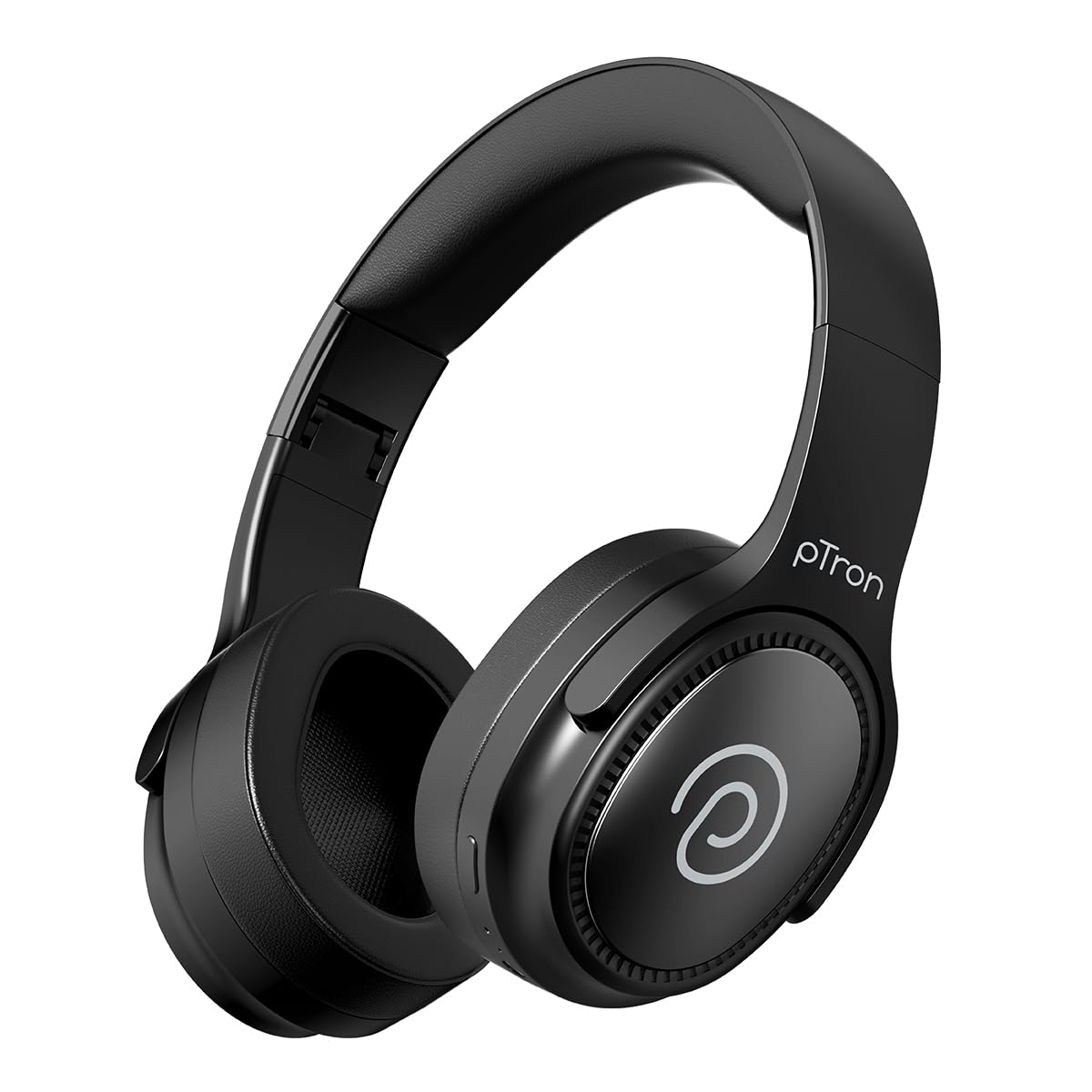
Image: pTron Studio Pro Wireless Over-Ear Headphones in Jet Black, showcasing das elegante Design.
Hauptmerkmale
- Erweiterte Spielzeit: Up to 65 hours of music playback on a single full charge.
- Schnelles Laden: 2.5 hours for a full charge via Type-C. A 10-minute charge provides approximately 4 hours of playtime.
- Hochwertiges Audio: Equipped with 40mm Neody Drivers for pristine stereo sound.
- Anrufe löschen: Built-in HD Microphone with TruTalk AI-ENC (Environmental Noise Cancellation) for crystal-clear calls.
- Erweiterte Konnektivität: Fast Bluetooth v5.4 for instant pairing and stable connection.
- Kopplung zweier Geräte: Seamlessly connect and switch between two devices simultaneously.
- Vielseitige Modi: Dedicated Low-Latency Gaming Mode and Music Mode.
- Wasserbeständigkeit: IPX4 rating, making them resistant to water splashes and sweat.
- Comfort & Portability: Ergonomic, lightweight, and foldable design with soft earpads and an adjustable headband for a perfect fit and easy storage.
- Einfache Bedienung: Multi-functional buttons for managing music, calls, and activating voice assistant.

Image: Infographic detailing the main features of the pTron Studio Pro headphones, including battery life, drivers, and connectivity.
Lieferumfang
Upon unboxing your pTron Studio Pro headphones, you will find the following items:
- pTron Studio Pro Wireless Over-Ear Headphones
- Ladekabel (Typ-C)
- Bedienungsanleitung
Video: An official product video demonstrating the unboxing and key features of the pTron Studio Pro headphones.
Produktlayout und Bedienelemente
Familiarize yourself with the physical components and control buttons of your pTron Studio Pro headphones.

Bild: Detailliert view of the multi-function control buttons located on the ear cup, including power, volume, and track controls.
Control Button Functions:
| Schaltfläche/Aktion | Funktion |
|---|---|
| Ein-/Aus-Taste (langes Drücken) | Ein-/Ausschalten, Kopplungsmodus aktivieren |
| Wiedergabe-/Pause-Taste (einmaliges Drücken) | Musik abspielen/pausieren, Anruf annehmen/beenden |
| Play/Pause Button (Long Press) | Anruf ablehnen, Sprachassistent aktivieren |
| Lautstärke erhöhen (+) (Einmal drücken) | Lautstärke erhöhen |
| Lautstärke verringern (-) (Einmal drücken) | Lautstärke verringern |
| Lautstärke erhöhen (+) (langes Drücken) | Nächster Titel |
| Lautstärke verringern (-) (langes Drücken) | Vorheriger Titel |
| Mode Button (Single Press) | Zwischen Spielmodus und Musikmodus wechseln |
Aufstellen
1. Aufladen der Kopfhörer
- Schließen Sie das mitgelieferte USB-C-Ladekabel an den Ladeanschluss der Kopfhörer an.
- Connect the other end of the cable to a USB power source (DC5V-1A max.).
- Die LED-Anzeige signalisiert den Ladestatus. Eine vollständige Ladung dauert etwa 2.5 Stunden.
- Eine 10-minütige Ladung ermöglicht bis zu 4 Stunden Spielzeit.

Image: The pTron Studio Pro headphones highlighting the Type-C charging port and emphasizing the 65-hour playtime.
2. Bluetooth-Kopplung
- Stellen Sie sicher, dass die Kopfhörer vollständig aufgeladen sind.
- Halten Sie die Ein-/Aus-Taste gedrückt, bis die LED-Anzeige abwechselnd rot und blau blinkt und damit den Kopplungsmodus signalisiert.
- Aktivieren Sie auf Ihrem Gerät (Smartphone, Tablet, Laptop) Bluetooth und suchen Sie nach verfügbaren Geräten.
- Select "pTron Studio Pro" from the list of devices.
- Once connected, the LED indicator will turn solid blue or stop flashing.
3. Kopplung zweier Geräte
- Koppeln Sie die Kopfhörer wie oben beschrieben mit dem ersten Gerät.
- Deaktivieren Sie Bluetooth auf dem ersten Gerät. Die Kopfhörer wechseln dann erneut in den Kopplungsmodus.
- Koppeln Sie die Kopfhörer mit dem zweiten Gerät.
- Aktivieren Sie Bluetooth auf dem ersten Gerät wieder. Die Kopfhörer sollten sich automatisch mit beiden Geräten verbinden.
- Sie können nun die Audiowiedergabe zwischen den beiden verbundenen Geräten umschalten.

Image: The headphones connected to both a laptop and a smartphone, demonstrating the dual device pairing feature.
4. Wired Connection (3.5mm Aux-in)
- Insert one end of a 3.5mm audio cable (not included) into the Aux-in port on the headphones.
- Connect the other end of the cable to your audio source's 3.5mm jack.
- Die Kopfhörer schalten automatisch in den kabelgebundenen Modus.

Image: The headphones connected to a smartphone using a 3.5mm Aux-in cable, illustrating wired music playback.
Bedienungsanleitung
Ein-/Ausschalten
- Einschalten: Halten Sie den Ein-/Ausschalter etwa 3 Sekunden lang gedrückt, bis die LED-Anzeige aufleuchtet.
- Ausschalten: Halten Sie den Netzschalter etwa 5 Sekunden lang gedrückt, bis die LED-Anzeige erlischt.
Musiksteuerung
- Abspielen/Pause: Drücken Sie einmal die Wiedergabe-/Pause-Taste.
- Nächster Titel: Die Lauter-Taste (+) lange drücken.
- Vorheriges Lied: Die Leiser-Taste (-) lange gedrückt halten.
- Lautstärke erhöhen: Single press the Volume Up (+) button.
- Lautstärke runter: Single press the Volume Down (-) button.
Anrufsteuerung
- Anruf annehmen/beenden: Drücken Sie einmal die Wiedergabe-/Pause-Taste.
- Anruf ablehnen: Drücken Sie lange auf die Wiedergabe-/Pause-Taste.
Sprachassistent
- Sprachassistenten aktivieren: Long press the Play/Pause button (after rejecting a call, if applicable, or when not on a call).
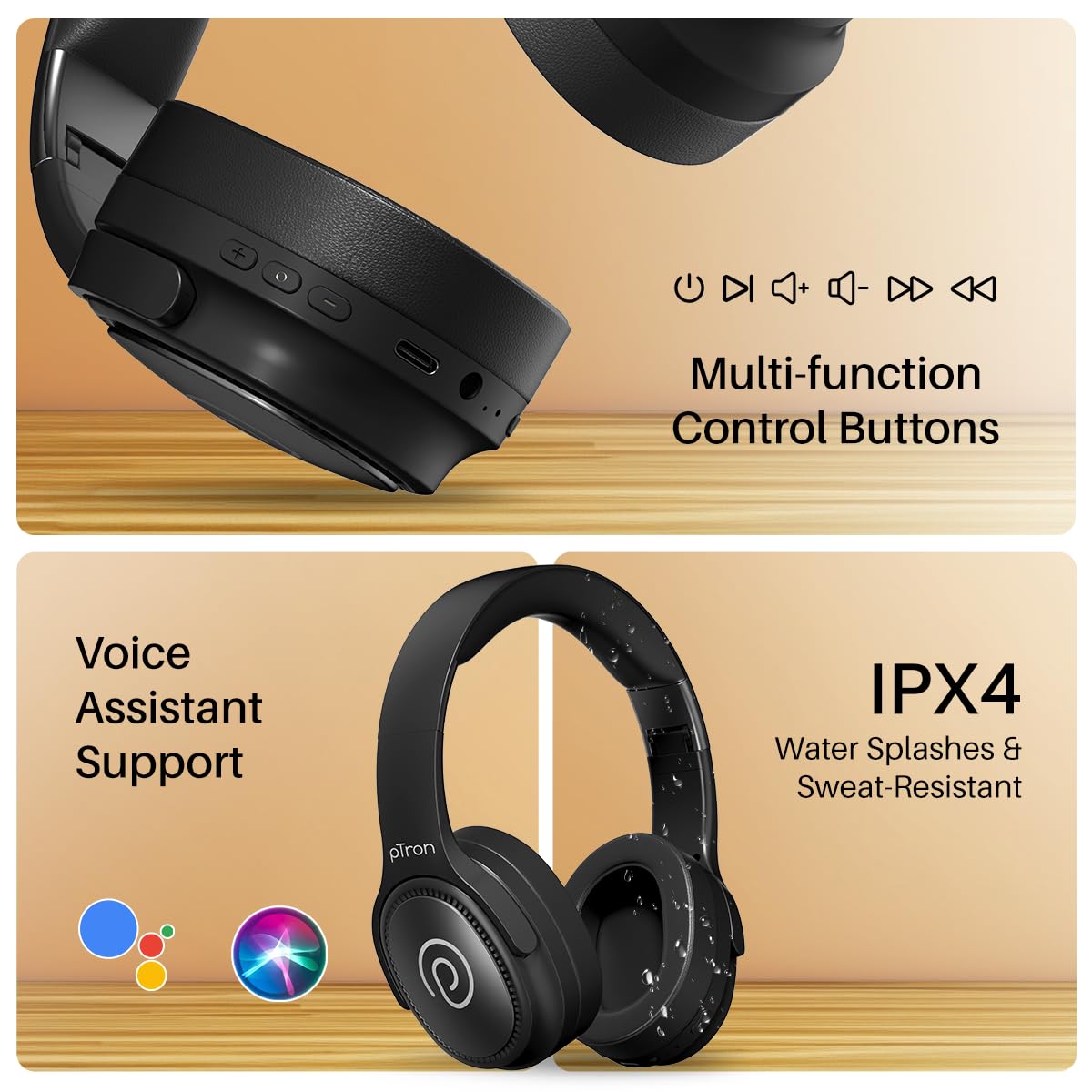
Image: The headphones illustrating support for voice assistants like Google Assistant and Siri, along with their IPX4 water-resistant rating.
Game & Music Modes
- Modi wechseln: Single press the Mode button to toggle between Low-Latency Gaming Mode and standard Music Mode.
Wartung
To ensure the longevity and optimal performance of your pTron Studio Pro headphones, follow these maintenance guidelines:
- Reinigung: Reinigen Sie die Kopfhörer mit einem weichen, trockenen Tuch. Verwenden Sie keine Scheuermittel oder Lösungsmittel.
- Lagerung: Bewahren Sie die Kopfhörer bei Nichtgebrauch an einem kühlen, trockenen Ort auf. Dank des faltbaren Designs lassen sie sich platzsparend verstauen.
- Wassereinwirkung: While rated IPX4 for water splashes and sweat resistance, avoid submerging the headphones in water or exposing them to heavy rain. Dry them thoroughly if they get wet.
- Laden: Use only the provided Type-C cable and a compatible power adapter (DC5V-1A max.) for charging.
- Vermeiden Sie extreme Temperaturen: Setzen Sie die Kopfhörer keinen extrem hohen oder niedrigen Temperaturen aus.
Fehlerbehebung
If you encounter any issues with your pTron Studio Pro headphones, refer to the following common troubleshooting steps:
| Problem | Lösung |
|---|---|
| Die Kopfhörer lassen sich nicht einschalten. | Stellen Sie sicher, dass die Kopfhörer vollständig aufgeladen sind. Schließen Sie sie an eine Stromquelle an und überprüfen Sie die Ladeanzeige. |
| Verbindung mit einem Gerät nicht möglich. | Make sure Bluetooth is enabled on your device and the headphones are in pairing mode (LED flashing red/blue). Move closer to the device. Forget previous pairings on your device and try again. |
| Kein Ton oder geringe Lautstärke. | Check the volume levels on both the headphones and your connected device. Ensure the headphones are correctly paired. If using Aux-in, ensure the cable is fully inserted. |
| Die Gesprächsqualität ist schlecht. | Ensure the microphone is not obstructed. Move to an area with less environmental noise. Check your device's network signal. |
| Die Kopfhörer verlieren häufig die Verbindung. | Ensure there are no obstacles between the headphones and your device. Keep within the Bluetooth range (10 meters). Avoid strong electromagnetic interference. |
Technische Daten
| Besonderheit | Detail |
|---|---|
| Marke | pTron |
| Modellname | Studio |
| Platzierung des Ohrs | Über dem Ohr |
| Bluetooth-Version | 5.4 |
| Bluetooth-Reichweite | 10 Meter |
| Größe des Audiotreibers | 40 Millimeter |
| Impedanz | 32 Ohm |
| Durchschnittliche Batterielebensdauer | 65 Stunden |
| Akkuladezeit | 2.5 Stunden |
| Ladeanschluss | Typ C |
| Wasserbeständigkeit | IPX4 (wasserbeständig) |
| Mikrofon | Built-in HD Mic with AI-ENC |
| Kopfhöreranschluss | 3.5 mm Klinke |
| Steuerungstyp | Anrufsteuerung, Druckknopf |
| Produkteigenschaften | Fast Charging, Foldable, Microphone Included, Noise Isolation, Surround Sound |
| Artikelgewicht | 200 Gramm |
| Material | Acrylnitril-Butadien-Styrol (ABS) |
| Kompatible Geräte | Handys, Desktop-Computer, Laptops, Tablets |
Garantie und Support
Your pTron Studio Pro headphones come with a manufacturer's warranty and dedicated customer support.
- Garantie: 6 Months Manufacturer Warranty from the Date of Purchase on Manufacturing Defects Only.
- Herstellerkontakt: Building A1, Red Box Creative Park, No. 3 Huancheng South Road, Bantian Street, Longgang District, Shenzhen City, China 518116.
- Kontaktdaten des Kundendienstes: 40-67138888 / Support@ptron.in
- Kontakt zum Importeur: PALRED ELECTRONICS PVT. LTD., SY.NR. 56, 1. STOCK, GUNDLAPOCHAMPALLY VILLAGE, TECH PARK MTP, TSIIC-IALA NACHARAM, HYDERABAD - 500076, TELANGANA, INDIEN.