
Einführung
This manual provides instructions for the OMOTON Illuminated Keyboard. Designed with extra-large fonts, this keyboard offers enhanced visibility, making it suitable for users who benefit from clearer visual experiences, including seniors, students, and office workers. It aims to reduce eye fatigue and typing errors. The keyboard features a wired 2-in-1 USB-A/C interface for broad compatibility and includes multimedia keys for efficient control of various functions.
Produkteigenschaften
- Large Font Keys: Keys feature oversized characters for improved readability, minimizing typing errors.
- Multimedia-Funktionalität: Dedicated multimedia keys provide quick access to functions such as music, video playback, and volume control.
- Dual USB A/C Compatibility: Equipped with a 2-in-1 USB-A/C cable, allowing connection to a wide range of devices.
- Ergonomisches Design: Features a user-friendly, ergonomic design with an adjustable kickstand for comfortable typing positions, reducing strain during extended use.
- Windows-Kompatibilität: Specifically designed for seamless operation with Windows operating systems.
Aufstellen
The OMOTON Illuminated Keyboard is designed for simple plug-and-play setup.
- Schließen Sie die Tastatur an: Locate an available USB-A or USB-C port on your computer.
- Einstecken: Connect the keyboard's 2-in-1 USB cable to the chosen port. The keyboard will be automatically recognized by your operating system (Windows).
- Verbindung überprüfen: Once connected, the keyboard should be ready for use. The backlight will illuminate.

Image: The keyboard features a versatile 2-in-1 USB-A/C cable for easy connection to various devices, including laptops and desktop PCs.
Bedienungsanleitung
Steuerung der Hintergrundbeleuchtung
The keyboard features an adjustable white backlight. Use the following key combinations to control it:
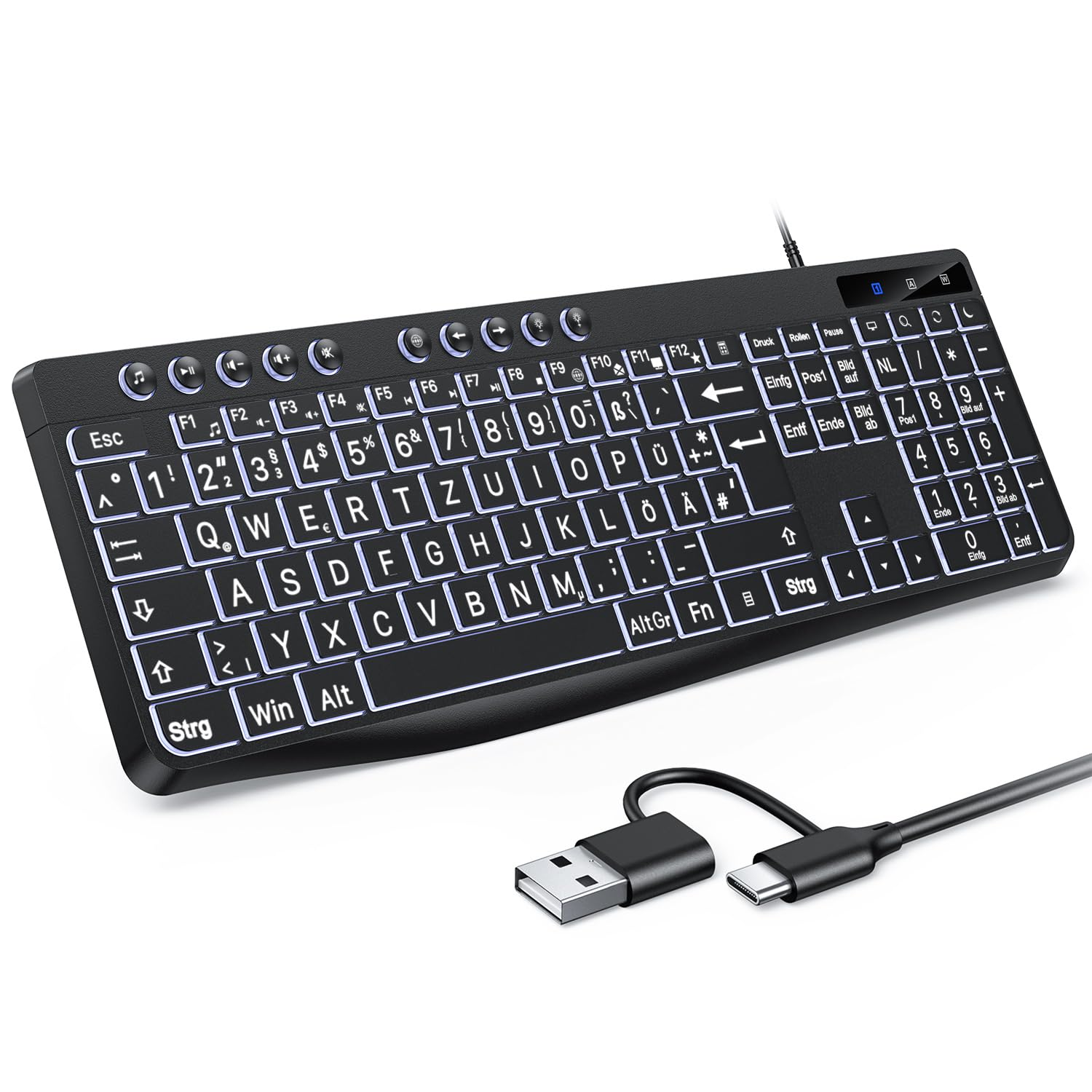
Image: Visual guide for backlight control functions.
- Fn + Print Screen (Druck): Toggles the backlight on or off.
- Fn + Scroll Lock (Rollen): Switches between constant illumination mode and 'breathing' mode.
- In Constant Illumination Mode:
- Fn + Pfeil nach oben: Erhöht die Helligkeit der Hintergrundbeleuchtung.
- Fn + Pfeil nach unten: Verringert die Helligkeit der Hintergrundbeleuchtung.
- In 'Breathing' Mode:
- Fn + Pfeil nach links: Adjusts breathing frequency (slower).
- Fn + Pfeil nach rechts: Adjusts breathing frequency (faster).
Multimedia-Schlüssel
The keyboard includes dedicated multimedia keys (F1-F12) that provide quick access to various functions when pressed in combination with the Fn Schlüssel.

Image: The multimedia keys (F1-F12) offer convenient shortcuts for common tasks.
- Fn + F1-F12: Access functions such as volume control, media playback, email, web browser, and calculator. Refer to the icons on the F-keys for specific functions.
Wartung
To ensure the longevity and optimal performance of your OMOTON Illuminated Keyboard, follow these maintenance guidelines:
- Reinigung: Regularly clean the keyboard with a soft, dry, lint-free cloth. For stubborn dirt, slightly dampBefeuchten Sie das Tuch mit Wasser oder einer milden Reinigungslösung. Vermeiden Sie scharfe Chemikalien oder scheuernde Materialien.
- Staubentfernung: Verwenden Sie Druckluft, um Staub und Schmutz zwischen den Tasten zu entfernen.
- Verschüttete Flüssigkeiten: In case of a liquid spill, immediately disconnect the keyboard from your computer. Turn it upside down to drain any liquid and allow it to dry completely before reconnecting.
- Lagerung: Bewahren Sie die Tastatur an einem kühlen, trockenen Ort fern von direkter Sonneneinstrahlung und extremen Temperaturen auf.
Fehlerbehebung
If you encounter issues with your OMOTON Illuminated Keyboard, refer to the following common troubleshooting steps:
- Tastatur reagiert nicht:
- Stellen Sie sicher, dass das USB-Kabel sowohl an die Tastatur als auch an den Computer fest angeschlossen ist.
- Versuchen Sie, die Tastatur an einen anderen USB-Anschluss Ihres Computers anzuschließen.
- Starten Sie Ihren Computer neu.
- Wenn Sie einen USB-Hub verwenden, versuchen Sie, die Tastatur direkt an den Computer anzuschließen.
- Hintergrundbeleuchtung funktioniert nicht:
- Drücken Fn + Druck um sicherzustellen, dass die Hintergrundbeleuchtung nicht ausgeschaltet wird.
- Passen Sie die Helligkeit an mit Fn + Pfeiltaste nach oben/unten Tasten.
- Tasten funktionieren nicht richtig:
- Check for any physical obstructions or debris under the keys.
- Ensure your operating system drivers are up to date (though typically plug-and-play for keyboards).
Technische Daten
| Marke | OMOTON |
| Kompatible Geräte | PC |
| Konnektivitätstechnologie | USB-Klimaanlage |
| Tastaturbeschreibung | Multimedia |
| Empfohlene Verwendung für das Produkt | Alltagsgebrauch |
Garantie und Support
OMOTON products are designed for reliability and performance. For specific warranty details regarding your Illuminated Keyboard, please refer to the warranty card included with your purchase or visit the official OMOTON webWebsite.
If you require technical assistance or have questions not covered in this manual, please contact OMOTON customer support through their official channels. Contact information can typically be found on the product packaging or the brand's webWebsite.