
1. Einleitung
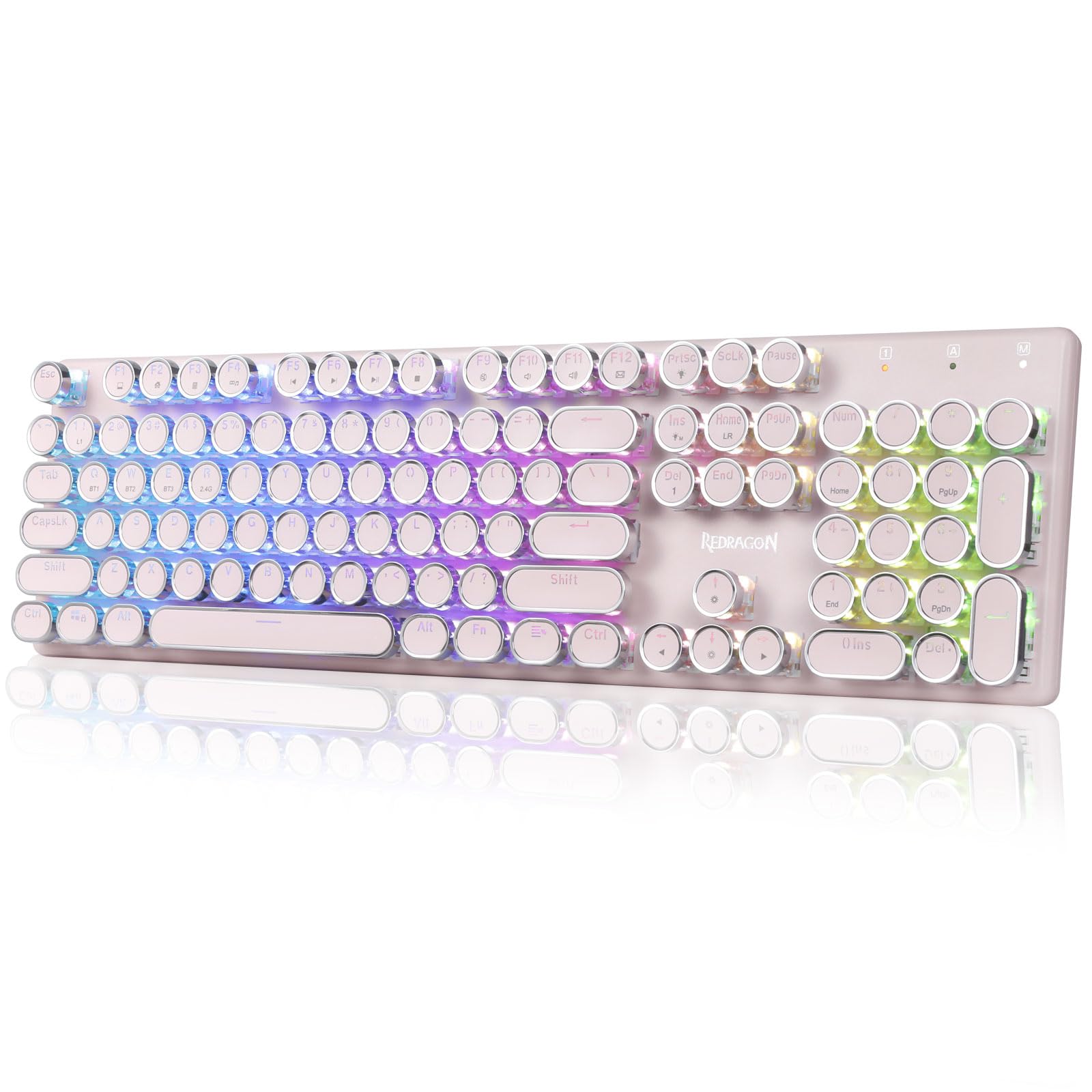
The Redragon K710 is a versatile mechanical gaming keyboard designed for a superior typing and gaming experience. It features a retro typewriter style with round keycaps and offers multiple connectivity options, vibrant RGB backlighting, and durable construction. This manual provides detailed instructions for setup, operation, maintenance, and troubleshooting.

2. Einrichtung
2.1 Packungsinhalt
Bevor Sie beginnen, vergewissern Sie sich, dass alle Artikel im Paket vorhanden sind:
- Redragon K710 Kabellose mechanische Gaming-Tastatur
- USB-C-Kabel
- 2.4Ghz Wireless Dongle
- Tastenkappenabzieher (falls enthalten)
- Bedienungsanleitung
2.2 Erstaufladung
For optimal performance, fully charge the keyboard before first use. Connect the provided USB-C cable to the keyboard's port and to a USB power source (e.g., computer, wall adapter). The LED indicator will show charging status.
2.3 Verbindungsmodi
The Redragon K710 supports three connection modes: 2.4Ghz Wireless, Bluetooth 3.0/5.0, and USB-C Wired.


2.3.1 2.4-GHz-Funkmodus
- Locate the 2.4Ghz wireless dongle, usually stored in a compartment on the back of the keyboard.
- Stecken Sie den Dongle in einen freien USB-Anschluss Ihres Computers.
- Switch the mode selector on the back of the keyboard to "2.4G".
- Drücken und halten FN+R on the keyboard to enter 2.4G pairing mode. The indicator light will flash.
- Die Tastatur sollte sich automatisch verbinden.
2.3.2 Bluetooth-Modus
- Switch the mode selector on the back of the keyboard to "BT".
- Drücken und halten FN+Q, Fn + W, oder FN+E for 3 seconds to select a Bluetooth channel (BT1, BT2, or BT3). The indicator light for the selected channel will flash rapidly, indicating pairing mode.
- On your device (PC, laptop, tablet, phone), open Bluetooth settings and search for new devices.
- Select "Redragon K710" from the list of available devices to pair.
- Sobald die Verbindung hergestellt ist, hört die Kontrollleuchte auf zu blinken.
2.3.3 USB-C-Kabelmodus
- Connect the provided USB-C cable to the keyboard and to a USB port on your computer.
- Die Tastatur schaltet automatisch in den kabelgebundenen Modus und beginnt mit dem Ladevorgang.
3. Bedienungsanleitung
3.1 RGB-Hintergrundbeleuchtungssteuerung
The K710 keyboard features 16.8 million RGB backlighting with various modes and customization options.

- FN + INS: Switch between 16 different RGB lighting modes and effects.
- FN + ↑ / ↓: Helligkeit der Hintergrundbeleuchtung anpassen (5 Stufen).
- FN + ENTF: Cycle through 7 solid colors (Red, Green, Blue, Yellow, Purple, Cyan, White).
- FN + PrtSc: Hintergrundbeleuchtung ein-/ausschalten.
3.2 Custom Backlighting
You can customize individual key backlighting:
- Drücken Fn + 1 to enter game mode.
- Drücken FN + Zuhause to enter custom recording state.
- Press desired keys continuously to set their color.
- Drücken FN + Zuhause again to save the custom lighting.
3.3 Multimedia-Kurzbefehle
Access various functions using FN key combinations:

- FN + F1: Mein Computer
- FN + F2: Startseite
- FN + F3: Taschenrechner
- FN + F4: Spieler
- FN + F5: Vorheriges Lied
- FN + F6: Nächster Titel
- FN + F7: Wiedergabe/Pause
- FN + F8: Halt
- FN + F9: Stumm
- FN + F10: Volume -
- FN + F11: Lautstärke +
- FN + F12: Mail
- FN + GEWINNENWindows-Taste sperren/entsperren
- FN + ESC (5 s gedrückt halten): Werkseinstellungen wiederherstellen
3.4 Batteriemanagement
The keyboard is equipped with a durable 4000mAh battery.

- Akkulaufzeit: Up to 70 hours with RGB lights on, and over 300 hours with lights off.
- Laden: A fast charge can provide enough power for a full day's use.
- Überprüfen des Batteriestands: Drücken Sie FN + Eingabe to check the current battery level via the LED indicators.

3.5 Automatische Energiesparfunktion
To conserve battery, the keyboard's backlight will automatically turn off after 3 minutes of inactivity in wireless mode. Press any key to wake up the keyboard.
3.6 Softwareunterstützung
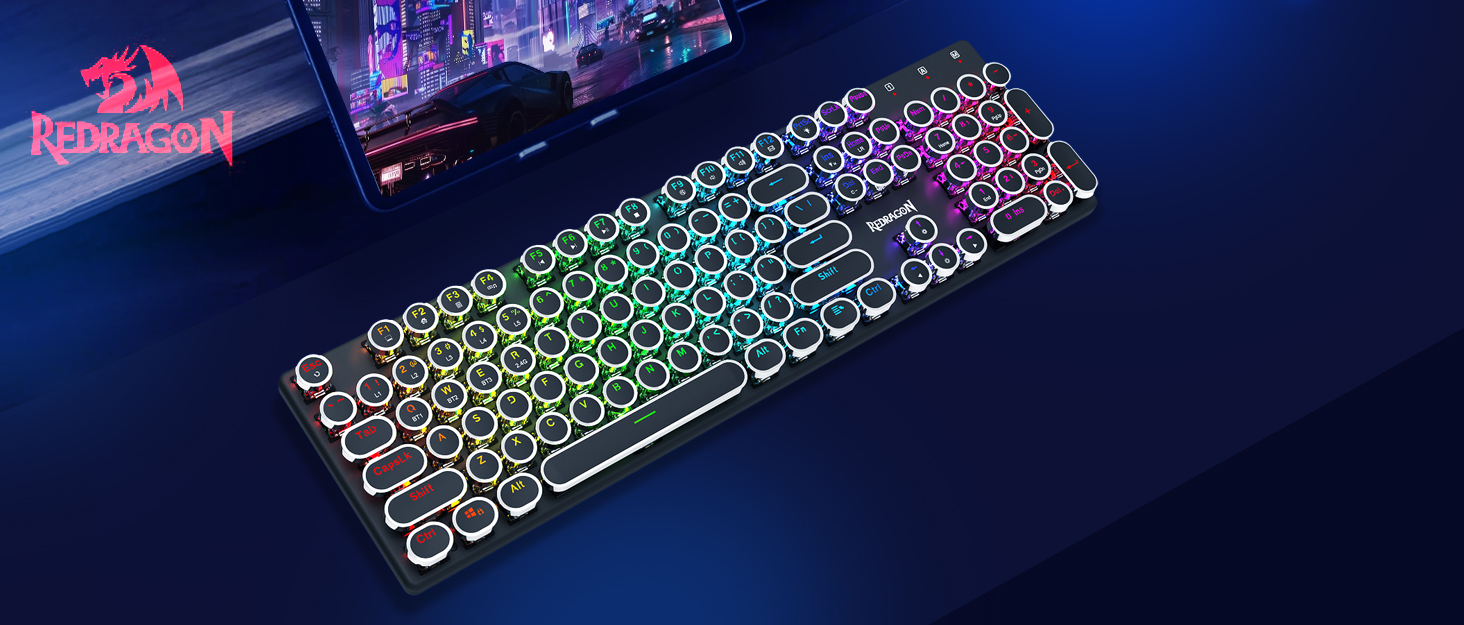
The Redragon K710 is compatible with dedicated software for advanced customization, including macro recording, key remapping, and detailed lighting effects.

To download the driver software, visit the official Redragon webWebsite: redragonzone.com/software.html. Navigate to "KEYBOARDS", search for model "K710", and download the appropriate software.
4. Wartung
4.1 Reinigung
- Vor der Reinigung die Tastatur von allen Stromquellen trennen.
- Verwenden Sie ein weiches, trockenes Tuch, um die Oberfläche der Tastatur abzuwischen.
- Für Staub und Schmutz zwischen den Tastenkappen verwenden Sie Druckluft.
- The included keycap puller can be used to carefully remove keycaps for deeper cleaning of the switches.
4.2 Speicherung
Bewahren Sie die Tastatur an einem kühlen, trockenen Ort ohne direkte Sonneneinstrahlung und extreme Temperaturen auf. Vermeiden Sie es, schwere Gegenstände auf die Tastatur zu stellen.
5. Fehlerbehebung
- Tastatur reagiert nicht: Ensure the keyboard is charged. Check the connection mode (wired, 2.4G, Bluetooth) and ensure it matches your device. Try reconnecting the USB cable or re-pairing the wireless connection.
- Tasten werden nicht registriert oder es werden doppelte Eingaben gemacht: Clean under the keycaps. If using wireless, ensure the dongle is securely plugged in or Bluetooth connection is stable. Try updating the keyboard firmware via the Redragon software.
- RGB-Lichter funktionieren nicht: Check if the backlight is turned off (FN + PrtSc). Adjust brightness (FN + ↑/↓). If issues persist, perform a factory reset (FN + ESC for 5 seconds).
- Probleme mit der Bluetooth-Verbindung: Ensure your device's Bluetooth is enabled. Remove the keyboard from your device's paired list and re-pair it. Try a different Bluetooth channel (FN + Q/W/E).
- Software download link not working: Ensure you are visiting the official Redragon webSeite? ˅ (redragonzone.com/software.html) and searching for the correct model (K710).
6. Spezifikationen
| Besonderheit | Detail |
|---|---|
| Marke | Roter Drache |
| Modellnummer | K710P-RGB |
| Konnektivität | 2.4Ghz Wireless, Bluetooth 3.0/5.0, USB-C Wired |
| Tastaturtyp | Mechanisch |
| Schaltertyp | Blue Switch (Clicky, Tactile) |
| Tastenkappen | Round, Electroplated, Double Shot |
| Hintergrundbeleuchtung | RGB (16.8 Million Colors, 16+ Modes) |
| Anti-Ghosting | 104-Tasten-Anti-Ghosting |
| Batteriekapazität | 4000 mAh |
| Material | Metal (Panel), Plastic |
| Artikelgewicht | 950 Gramm |
| Kompatible Geräte | Gaming Console, Laptop, PC, Tablet |


7. Garantie und Support
Informationen zur Garantie, technische Unterstützung oder weitere Hilfe finden Sie auf der offiziellen Redragon-Website. website or contact their customer service. The latest drivers and software can be found at redragonzone.com/software.html.