
1. Einleitung
Thank you for choosing the OMOTON WK209 Wireless Keyboard and Mouse Set. This manual provides detailed instructions for setting up, operating, and maintaining your new wireless peripheral set. Please read this manual carefully before use to ensure optimal performance and longevity of your product.
2. Packungsinhalt
The OMOTON WK209 Wireless Keyboard and Mouse Set package includes the following items:
- 1 x OMOTON WK209 Wireless Keyboard
- 1 x OMOTON Wireless Mouse
- 1 x USB 2.4 GHz Receiver
Note: AAA batteries are required for operation but are not included in the package.
3. Installationsanleitung
3.1. Einlegen der Batterien
Before using the keyboard and mouse, you need to install batteries.
- Suchen Sie das Batteriefach an der Unterseite von Tastatur und Maus.
- Öffnen Sie die Batteriefächer.
- Insert two AAA batteries into the keyboard and one AAA battery into the mouse, ensuring correct polarity (+/-).
- Schließen Sie die Batterieabdeckungen sorgfältig.

This image displays the battery compartments for the OMOTON WK209 keyboard and mouse. The keyboard requires two AAA batteries, and the mouse requires one AAA battery. Please note that batteries are not included with the product.
3.2. Anschließen des USB-Empfängers
The OMOTON WK209 set uses a single USB receiver for both the keyboard and mouse.
- Locate the USB 2.4 GHz receiver, usually stored in the mouse's battery compartment or packaging.
- Stecken Sie den USB-Empfänger in einen freien USB-Anschluss Ihres Computers (Laptop oder Desktop-PC).
- The system will automatically detect and install the necessary drivers. This is a Plug & Play process and typically requires no manual installation.
- Turn on the mouse using the ON/OFF switch located on its underside. The keyboard does not have a separate power switch; it activates when keys are pressed.

This image illustrates the 2.4 GHz wireless connection of the OMOTON WK209 keyboard and mouse set. It highlights features such as Plug & Play functionality, a stable 2.4G connection, and a wireless range of up to 10 meters (33 feet).
3.3. Kompatibilität
The OMOTON WK209 set is compatible with a wide range of Windows operating systems.
- Betriebssysteme: Windows 11, Windows 10, Windows 8, Windows 7, Windows XP.
- Geräte: Laptop, Desktop PC.

This image demonstrates the broad compatibility of the OMOTON WK209 set with different Windows operating systems, including Windows 7, 8, 10, and 11, across desktop PCs and laptops.
4. Bedienungsanleitung
4.1. Tastaturbenutzung
The WK209 keyboard features a full-size QWERTZ layout with multimedia keys for enhanced productivity. Simply begin typing after successful connection.
- Multimedia-Tasten: Access functions like volume control, play/pause, and more directly from the keyboard.
- QWERTZ Layout: Standard German keyboard layout for familiar typing experience.
- 8° Neigung: The keyboard is designed with a natural 8-degree tilt for ergonomic comfort during extended use.

This image provides the physical dimensions of the OMOTON WK209 full-size QWERTZ keyboard (43.8 cm x 12.4 cm) and mouse (10.3 cm x 6.6 cm x 3.6 cm). It also notes the keyboard's natural 8-degree tilt for comfortable typing.
4.2. Mausnutzung
The WK209 mouse offers precise control and several functional buttons.
- Links Klick: Standardauswahl und -aktivierung.
- Rechtsklick: Greift auf Kontextmenüs zu.
- Scrollrad: Für vertikales Scrollen und Mittelklick-Funktionalität.
- Zurück-Schaltfläche: Navigiert zurück in web Browser bzw file Entdecker.
- Vorwärts-Taste: Navigiert vorwärts in web Browser bzw file Entdecker.
- Desktop Show/Hide Button: Quickly minimizes all open windows to show the desktop, and restores them with another press.

This image highlights the features of the OMOTON WK209 wireless mouse, including the scroll wheel, left-click button, right-click button, back button, forward button, and a button for showing/hiding the desktop. It also emphasizes its ergonomic design and quiet click functionality.
5. Funktionen
- 2.4-GHz-Funkverbindung: Provides a stable and reliable connection with a range of up to 10 meters (33 feet).
- Plug & Play: Easy setup without the need for additional software or drivers.
- Full-size QWERTZ Layout: Comfortable and familiar typing experience.
- Multimedia-Tasten: Convenient access to media controls.
- Ergonomisches Design: The mouse is shaped for comfortable use, and the keyboard features a natural 8-degree tilt.
- Leiser Betrieb: Both the keyboard and mouse are designed for silent clicks and keystrokes, ideal for quiet environments.
- Anzeige für niedrigen Batteriestand: The keyboard features an indicator light to alert you when batteries are running low.

This image illustrates the quiet operation of the OMOTON WK209 keyboard and mouse, highlighting its silent keys and noiseless mouse clicks, suitable for quiet environments.
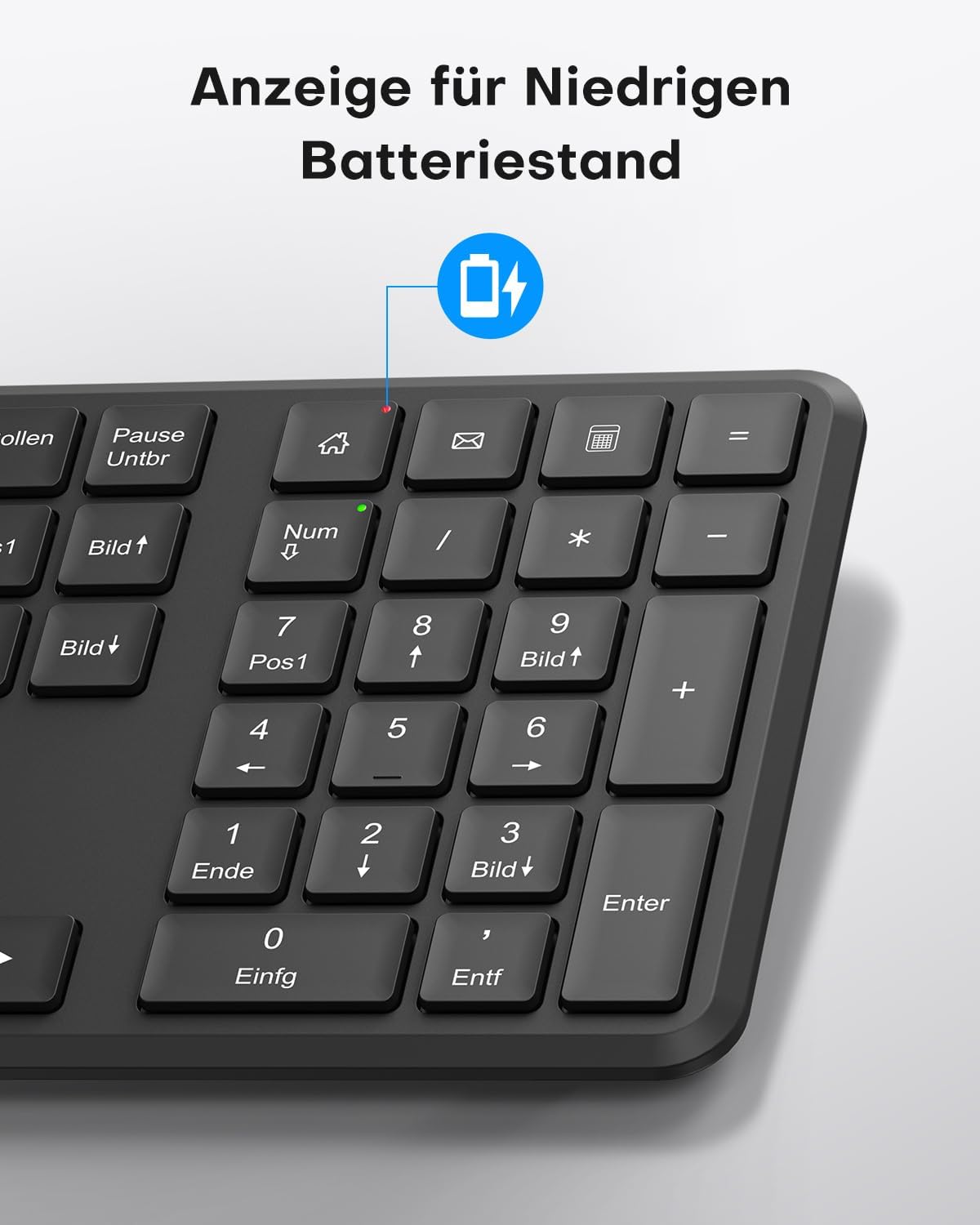
This image points out the low battery indicator on the OMOTON WK209 keyboard, which illuminates to alert the user when batteries need to be replaced.
6. Wartung
To ensure the longevity and optimal performance of your OMOTON WK209 set, follow these maintenance guidelines:
- Reinigung: Reinigen Sie die Oberflächen von Tastatur und Maus mit einem weichen, trockenen Tuch. Bei hartnäckigem Schmutz kann ein leicht feuchtes Tuch hilfreich sein.amp Ein Tuch kann verwendet werden, achten Sie aber darauf, dass keine Feuchtigkeit in die Geräte eindringt.
- Batteriewechsel: Replace batteries promptly when the low battery indicator appears or when performance degrades. Always use fresh, high-quality AAA batteries.
- Lagerung: Bei längerer Nichtbenutzung sollten die Batterien entfernt werden, um ein Auslaufen zu verhindern. Die Geräte sollten an einem kühlen, trockenen Ort aufbewahrt werden.
- Vermeiden Sie Flüssigkeiten: Keep the keyboard and mouse away from liquids to prevent damage.
7. Fehlerbehebung
If you encounter issues with your OMOTON WK209 set, try the following troubleshooting steps:
- Keine Reaktion von Tastatur/Maus:
- Ensure batteries are correctly installed and not depleted. Replace them if necessary.
- Make sure the mouse's ON/OFF switch is in the 'ON' position.
- Vergewissern Sie sich, dass der USB-Empfänger fest an einen funktionierenden USB-Anschluss Ihres Computers angeschlossen ist. Versuchen Sie es mit einem anderen USB-Anschluss.
- Starten Sie Ihren Computer neu.
- Verzögerung oder intermittierende Verbindung:
- Bringen Sie Tastatur und Maus näher an den USB-Empfänger heran.
- Ensure there are no large metal objects or other wireless devices (e.g., Wi-Fi routers, cordless phones) interfering with the 2.4 GHz signal.
- Try plugging the USB receiver into a front USB port or using a USB extension cable to bring it closer to the devices.
- Tasten funktionieren nicht richtig:
- Prüfen Sie, ob sich unter den Tasten Fremdkörper befinden.
- Ensure the keyboard layout setting on your computer matches the QWERTZ layout.
- Der Mauszeiger springt oder ist ungenau:
- Reinigen Sie den optischen Sensor an der Unterseite der Maus.
- Verwenden Sie die Maus auf einer sauberen, nicht reflektierenden Oberfläche oder einem Mauspad.
8. Spezifikationen
| Besonderheit | Detail |
|---|---|
| Marke | OMOTON |
| Modell | WK209 |
| Farbe | Schwarz |
| Konnektivitätstechnologie | 2.4-GHz-WLAN |
| Tastaturlayout | Full-size QWERTZ (German Layout) |
| Besondere Merkmale | 2.4 GHz, Full-size, QWERTZ-layout, Battery-operated, Multimedia keys |
| Kompatible Geräte | Notebook, PC |
| Kompatible Betriebssysteme | Windows 11/10/8/7/XP |
| Stromquelle | Battery-Powered (2x AAA for keyboard, 1x AAA for mouse - not included) |
| Artikelgewicht (ca.) | 514 Grams (total set, including packaging) |
| Verpackungsabmessungen | 44.79 x 13.9 x 5.3 cm |
| ASIN | B0FQNS3FFB |
9. Garantie und Support
OMOTON products are designed for reliability and performance. For warranty information and customer support, please refer to the warranty card included with your purchase or visit the official OMOTON website. If you experience any issues that cannot be resolved using the troubleshooting guide, please contact OMOTON customer service for assistance.