
Einführung
Thank you for choosing the Digitus DA-70919 USB-C 8K 12-Port Docking Station. This device is designed to expand the connectivity of your USB-C enabled laptop or computer, providing a comprehensive solution for video output, data transfer, network access, and power delivery. Please read this manual carefully to ensure proper installation and operation.
Produkt überview
The Digitus DA-70919 docking station offers 12 essential ports to enhance your workspace. It supports high-resolution video output, fast data transfer, and efficient power delivery to your host device.

Abbildung 1: Detailed diagram of the Digitus DA-70919 docking station ports and their functions. This diagram labels each of the 12 ports on the docking station, including Audio Jack, USB-A, USB-C, USB-C PD, DisplayPort, HDMI, RJ45 Gigabit Ethernet, and SD/MicroSD card slots, along with anti-theft protection.

Abbildung 2: Front view of the Digitus DA-70919 docking station showing all accessible ports. A clear view of the docking station's front panel, displaying the various input and output ports including USB-A, USB-C, HDMI, DisplayPort, Ethernet, and card readers.
Hauptmerkmale:
- Videoausgang: 2x HDMI, 1x DisplayPort (DP) supporting up to 8K/30Hz for single display, or multi-display configurations.
- USB-Datenanschlüsse: 2x USB-A 3.2 Gen 2 (10Gbps), 1x USB-A 3.2 Gen 1 (5Gbps), 1x USB-C 3.2 Gen 2 (10Gbps).
- Stromversorgung (PD): USB-C PD 3.0 port for charging your host laptop (up to 85W output).
- Netzwerk: Gigabit Ethernet (RJ45) for stable wired internet connection.
- Kartenleser: SD and MicroSD card slots with 104 MBps transfer speed.
- Audio: 3.5-mm-Audiobuchse für Kopfhörer oder Lautsprecher.
Installationsanweisungen
Follow these steps to set up your Digitus DA-70919 docking station:
- Check Host USB-C Port Compatibility: Ensure your laptop's USB-C port supports DisplayPort Alternate Mode (DP Alt Mode) for video output and Power Delivery for charging. Without DP Alt Mode, video output will not function.

Abbildung 3: Guide to USB-C port compatibility for DisplayPort Alternate Mode. This graphic explains which types of USB-C ports on your laptop support the full functionality of the docking station, specifically highlighting the requirement for DisplayPort Alternate Mode (DP Alt Mode) for video output.
- Verbindung zum Hostgerät herstellen: Connect the integrated USB-C cable from the docking station to the USB-C port on your laptop.
- Netzteil anschließen (optional, aber empfohlen): If you wish to charge your laptop via the docking station or power high-demand peripherals, connect a USB-C Power Delivery adapter (not included, up to 100W recommended) to the USB-C PD input port on the docking station.
- Anschluss externer Bildschirme: Schließen Sie Ihre Monitore mithilfe geeigneter Kabel an die HDMI- und/oder DisplayPort-Ausgänge der Dockingstation an.
- Peripheriegeräte anschließen: Plug in your USB devices (keyboard, mouse, external drives), Ethernet cable, SD/MicroSD cards, and audio devices to the corresponding ports on the docking station.
- Treiberinstallation: In most cases, the docking station is plug-and-play and does not require additional drivers. If prompted, allow your operating system to install any necessary drivers automatically.
Bedienungsanleitung
Anzeigemodi
Die Dockingstation unterstützt verschiedene Displaykonfigurationen:
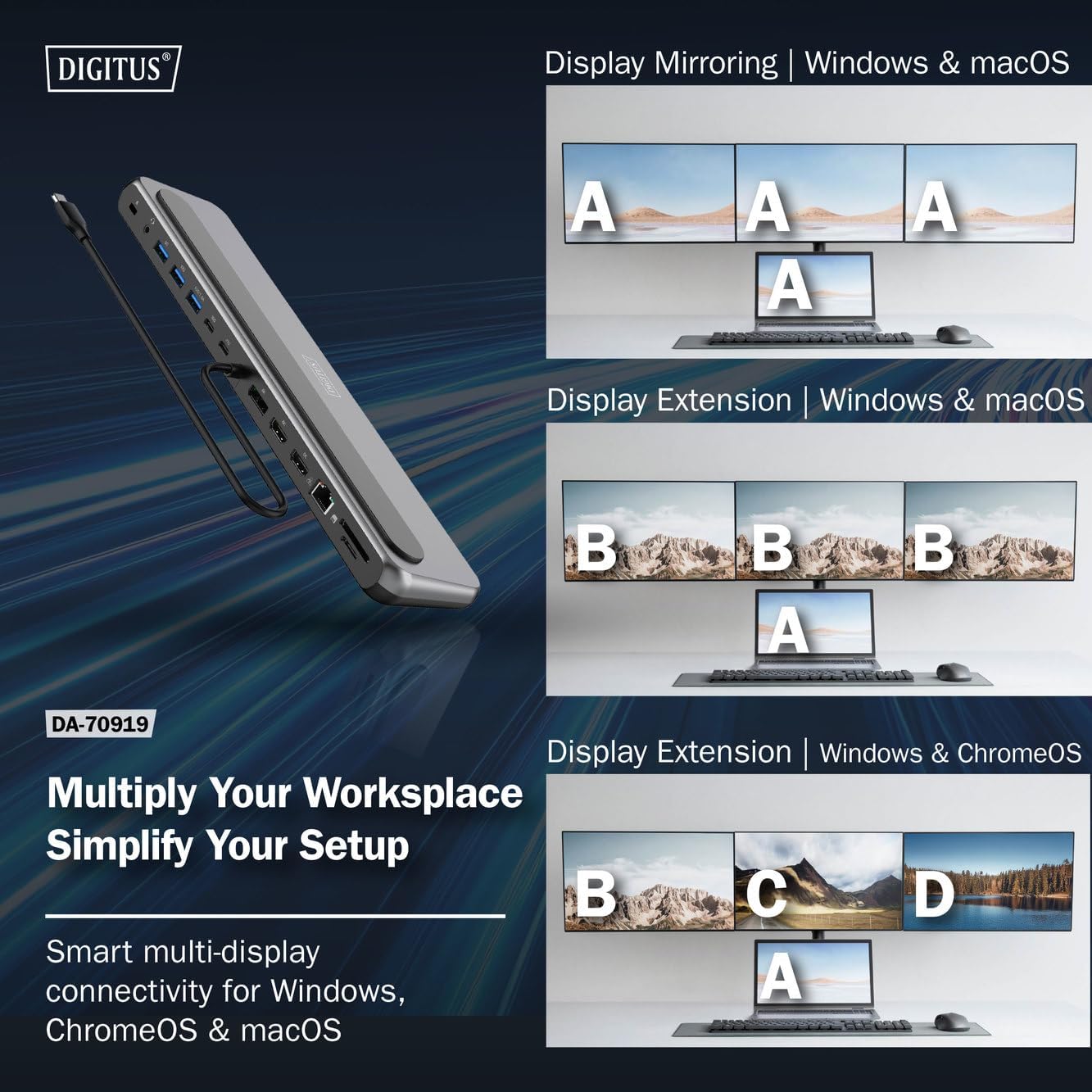
Abbildung 4: Diagram showing display mirroring and extension modes for Windows, macOS, and ChromeOS. This image illustrates the various display configurations supported by the docking station, including mirroring your screen or extending it across multiple external monitors on Windows, macOS, and ChromeOS.
- Spiegelmodus: Duplicates your laptop's display onto the external monitors.
- Extend Mode (Windows/ChromeOS): Extends your desktop across multiple external monitors, allowing for a multi-tasking environment. Supports dual monitors (2x 4K/60Hz) and triple monitors (1x 4K/60Hz + 2x 4K/30Hz) in MST (Multi Stream Transport) mode.
- Extend Mode (macOS): macOS typically supports extended desktop to one external monitor, with other external monitors mirroring each other.
To configure display settings, access your operating system's display settings (e.g., Windows Display Settings, macOS System Preferences > Displays).
Datenübertragung
Utilize the USB-A and USB-C data ports for connecting external storage devices, keyboards, mice, and other USB peripherals. The USB 3.2 Gen 2 ports offer speeds up to 10Gbps, while the USB 3.2 Gen 1 port offers speeds up to 5Gbps.
Stromversorgung
When a compatible USB-C PD power adapter is connected to the docking station's PD input port, the docking station can deliver up to 85W of power to charge your connected laptop. This allows you to power your laptop and peripherals through a single USB-C connection.
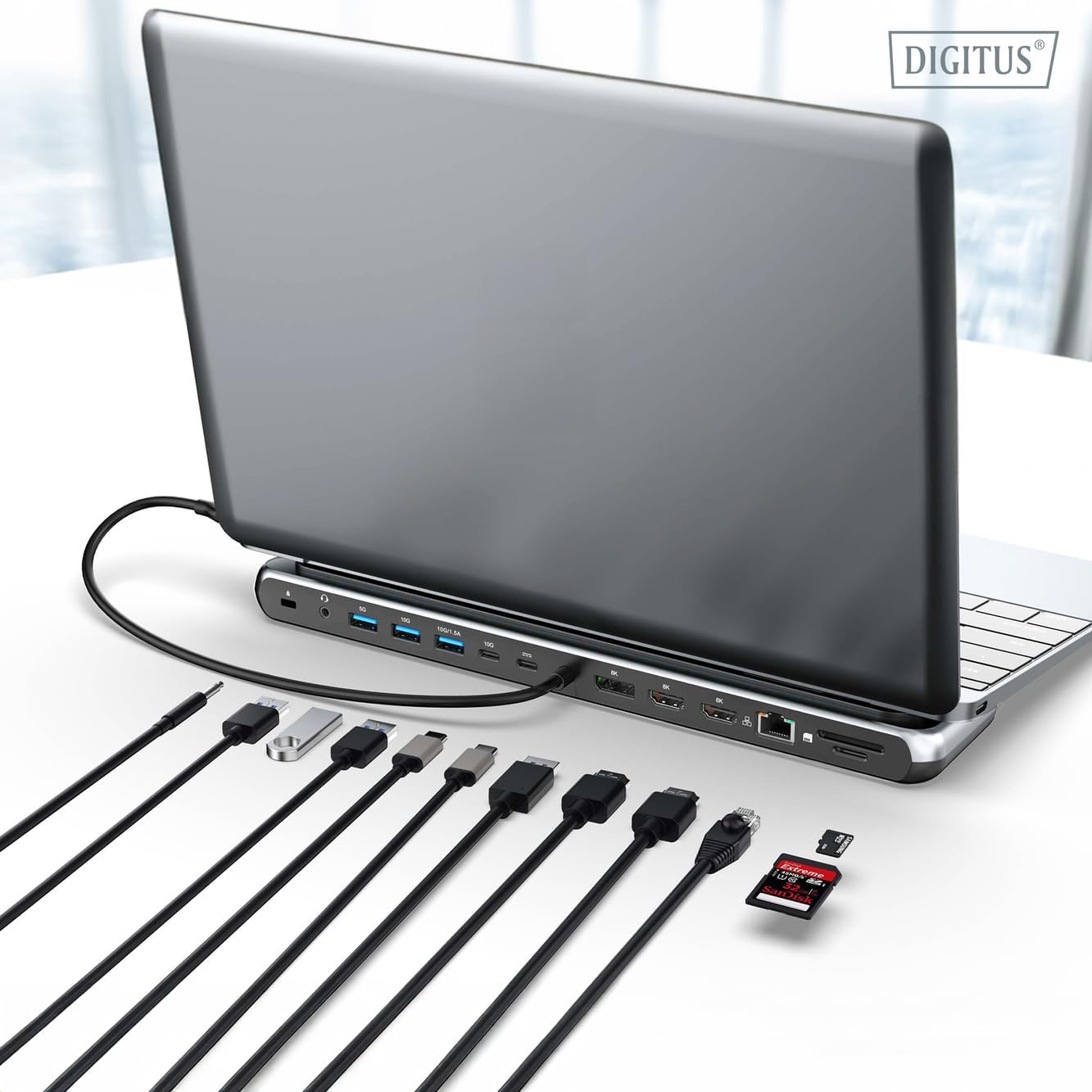
Abbildung 5: Illustration of the docking station's fast charging capability via USB-C Power Delivery. This image demonstrates the Power Delivery function, showing a 100W input to the docking station and an 85W output to charge the connected laptop.
Netzwerkverbindung
Connect an Ethernet cable to the RJ45 port for a stable and high-speed wired network connection (10/100/1000 Mbps Gigabit Ethernet).
Kartenlesegeräte
Insert SD or MicroSD cards into the dedicated slots for quick access to photos, videos, and other files. The card readers support transfer speeds up to 104 MBps.
Audioausgang
Connect your headphones or speakers to the 3.5mm audio jack for audio output.
Wartung
- Reinigung: Reinigen Sie die Oberfläche der Dockingstation mit einem weichen, trockenen Tuch. Vermeiden Sie die Verwendung von flüssigen Reinigern oder Lösungsmitteln.
- Lagerung: Bewahren Sie die Dockingstation an einem kühlen, trockenen Ort fern von direkter Sonneneinstrahlung und extremen Temperaturen auf.
- Handhabung: Avoid dropping or subjecting the device to strong impacts. Do not attempt to disassemble the docking station.
Fehlerbehebung
If you encounter issues with your docking station, please refer to the following common solutions:
- Keine Anzeigeausgabe:
- Stellen Sie sicher, dass der USB-C-Anschluss Ihres Laptops den DisplayPort-Alternativmodus unterstützt.
- Check all video cables (HDMI/DP) are securely connected to both the docking station and the monitor.
- Vergewissern Sie sich, dass der Monitor eingeschaltet und auf die richtige Eingangsquelle eingestellt ist.
- Um das Problem einzugrenzen, versuchen Sie, jeweils nur einen Monitor anzuschließen.
- Aktualisieren Sie die Grafiktreiber Ihres Laptops.
- Keine Stromversorgung des Laptops:
- Ensure a compatible USB-C PD power adapter (up to 100W) is connected to the docking station's PD input port.
- Vergewissern Sie sich, dass der USB-C-Anschluss Ihres Laptops Power Delivery unterstützt.
- Prüfen Sie Netzteil und Kabel auf Beschädigungen.
- USB-Geräte werden nicht erkannt:
- Schließen Sie das USB-Gerät an einen anderen Port der Dockingstation an.
- Ensure the docking station is properly connected to the host laptop.
- If using a high-power USB device, ensure the docking station is connected to an external power adapter.
- Probleme mit der Ethernet-Verbindung:
- Überprüfen Sie die Ethernet-Kabelverbindung sowohl zur Dockingstation als auch zu Ihrem Router/Modem.
- Überprüfen Sie die Netzwerkeinstellungen Ihres Laptops.
- Starten Sie Ihren Router/Ihr Modem und Ihren Laptop neu.
- Kartenleser funktioniert nicht:
- Ensure the SD/MicroSD card is inserted correctly and fully.
- Test the card with another device to confirm it is not damaged.
Technische Daten
| Besonderheit | Spezifikation |
|---|---|
| Modell | DA-70919 |
| Host-Verbindung | USB-C (integriertes Kabel) |
| Videoausgang | 2x HDMI, 1x DisplayPort (DP) |
| Max. Single Display Resolution | 8K (7680x4320) bei 30 Hz |
| Max. Dual Display Resolution (MST) | 2x 4K (3840x2160) @ 60Hz |
| Max. Triple Display Resolution (MST) | 1x 4K@60Hz + 2x 4K@30Hz |
| USB-A-Datenports | 2x USB 3.2 Gen 2 (10Gbps), 1x USB 3.2 Gen 1 (5Gbps) |
| USB-C-Datenanschluss | 1x USB 3.2 Gen 2 (10 Gbit/s) |
| Leistungsabgabe (PD) Eingang | USB-C PD 3.0 (up to 100W) |
| Power Delivery (PD) Output to Host | Bis zu 85 W |
| Ethernet | RJ45 Gigabit (10/100/1000 Mbps) |
| Kartenlesegeräte | SD, MicroSD (104 MBps) |
| Audio | 1x 3.5-mm-Audiobuchse |
| Kompatibilität | Windows, macOS, ChromeOS |
| Betriebstemperatur | 0 °C bis 45 °C (32 °F bis 113 °F) |
| Lagertemperatur | -10 °C bis 70 °C (14 °F bis 158 °F) |
Garantie und Support
The Digitus DA-70919 USB-C 8K 12-Port Docking Station comes with a 2 Jahr Garantie Diese Garantie gilt ab Kaufdatum und deckt Herstellungsfehler ab. Sie gewährleistet, dass das Produkt bei normalem Gebrauch wie beschrieben funktioniert.
For technical support, warranty claims, or further assistance, please contact your retailer or visit the official Digitus website for contact information. Please have your product model number (DA-70919) and proof of purchase ready when seeking support.