
1. Einleitung
This manual provides detailed instructions for the setup, operation, and maintenance of your Gloryang 668BT Thermal Label Printer. Please read this manual thoroughly before using the printer to ensure proper function and to maximize its lifespan. The Gloryang 668BT is designed for efficient and reliable label printing, suitable for various applications including shipping and product labeling.
2. Packungsinhalt
Bitte prüfen Sie, ob alle unten aufgeführten Artikel in Ihrem Paket enthalten sind. Sollten Artikel fehlen oder beschädigt sein, kontaktieren Sie bitte unseren Kundenservice.
- Gloryang 668BT Thermal Label Printer
- Fan-fold Thermal Labels (550 count)
- Netzteil
- USB Cable for Windows
- USB Cable for Mac
- APP-Leitfadenkarte
- Bedienungsanleitung

This image details the complete package contents for the Gloryang 668BT printer. It includes the printer unit, a stack of fan-fold labels, an APP Guide Card, a User Manual, a Power Adapter, a USB cable for Windows, and a USB cable for Mac.
3. Einrichtung
3.1 Ladeetiketten
- Stellen Sie sicher, dass der Drucker ausgeschaltet ist.
- Öffnen Sie die obere Abdeckung des Druckers.
- Place the fan-fold labels into the label compartment, ensuring the printing side faces upwards and the labels feed smoothly into the printer mechanism.
- Adjust the label guides to fit the width of your labels snugly, without creasing ihnen.
- Schließen Sie die obere Abdeckung.

This image illustrates the Gloryang 668BT thermal label printer in operation, showing a shipping label being printed. A smartphone is connected, indicating mobile printing capabilities. A stack of 4x6 inch thermal labels is also visible, ready for use. Example tracking number: 1Z81RW830373586843.
3.2 Anschließen des Druckers
The Gloryang 668BT printer supports both USB and Bluetooth connectivity.
- USB-Verbindung: Connect one end of the provided USB cable to the printer and the other end to your computer (Windows or Mac).
- Bluetooth Verbindung: Power on the printer. On your mobile device (iOS, Android, iPad), enable Bluetooth and search for available devices. Select 'Gloryang 668BT' to pair. Note: Bluetooth connection is not supported for Mac or Chromebook devices.

This image demonstrates the connectivity options for the Gloryang 668BT printer, including Bluetooth for mobile devices (iOS, Android, iPad) and USB cable for computers (Windows). It specifies that Bluetooth connectivity is not available for Mac or Chromebook systems. Example tracking number: 1Z81RW830373586843.
3.3 Driver and App Installation
For computer printing, install the appropriate driver for your operating system (Windows or Mac) from the official Gloryang website or the provided installation media. For mobile printing, download the dedicated Gloryang printing application from your device's app store (e.g., Apple App Store, Google Play Store) as indicated on the APP Guide Card.
4. Bedienungsanleitung
4.1 Drucken von Mobilgeräten
- Ensure the printer is powered on and connected via Bluetooth to your mobile device.
- Open the Gloryang printing application.
- Wählen Sie das Dokument oder Bild aus, das Sie drucken möchten.
- Adjust print settings such as label size and orientation within the app.
- Starten Sie den Druckbefehl.
4.2 Drucken vom Computer
- Ensure the printer is powered on and connected via USB to your computer.
- Öffnen Sie das Dokument oder Etikett file you wish to print (e.g., PDF, image file).
- Gehe zu 'File' > 'Print' or use the print shortcut (Ctrl+P for Windows, Cmd+P for Mac).
- Select 'Gloryang 668BT' as your printer.
- Adjust print settings, including paper size (e.g., 4x6 inches), orientation, and density, in the printer preferences.
- Klicken Sie auf „Drucken“.
4.3 Unterstützte Etikettentypen
The Gloryang 668BT printer is compatible with various thermal label types, including standard shipping labels, product labels, and other specialized thermal labels. The labels are designed for strong adhesion and water resistance, ensuring durability.

This image illustrates the versatility of the Gloryang 668BT printer, capable of printing various types of labels, including standard shipping labels, round product labels for items like perfume bottles, and rectangular labels for food containers.

This image emphasizes the quality of the thermal labels compatible with the Gloryang 668BT printer, showcasing their strong adhesive backing and water-resistant properties, ensuring durability and secure attachment.
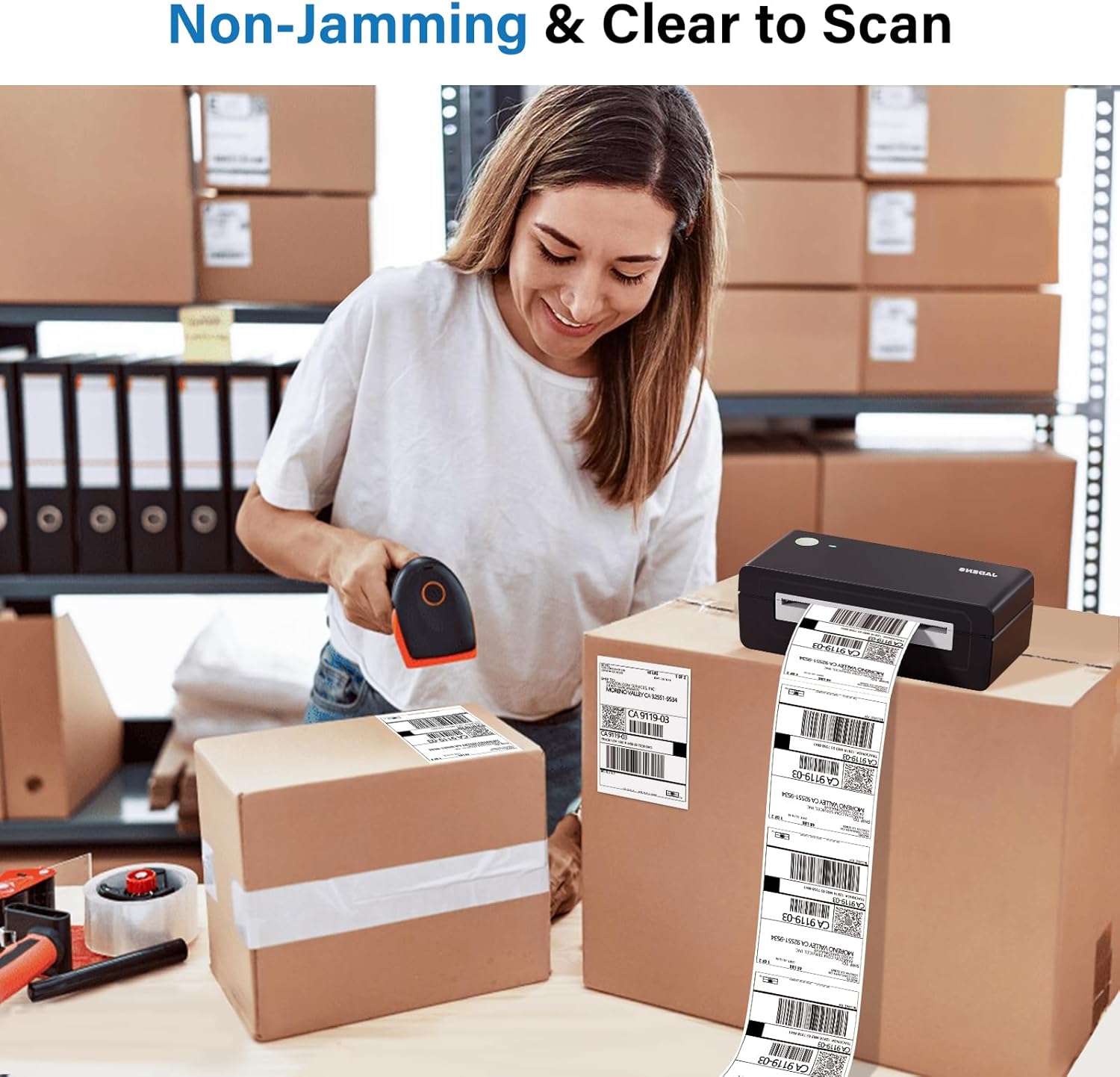
This image demonstrates the reliable performance of the Gloryang 668BT printer, highlighting its non-jamming mechanism and the clarity of the printed labels, which are easily scannable.

This image illustrates the convenience of the thermal labels, featuring a perforated line that allows for easy and clean tearing after printing, enhancing efficiency. Example address part: 420925519534. Example tracking number: 1Z81RW830373586843.

This image displays a stack of 500 4" x 6" fanfold thermal shipping labels, emphasizing their standard size and the fanfold design which facilitates easy tearing and continuous feeding.
5. Wartung
Regelmäßige Wartung gewährleistet optimale Leistung und verlängert die Lebensdauer Ihres Druckers.
- Reinigen des Druckkopfes: Verwenden Sie ein Alkoholtupfer oder einen speziellen Druckkopfreinigungsstift, um den Druckkopf vorsichtig abzuwischen. Stellen Sie sicher, dass der Drucker ausgeschaltet und abgekühlt ist, bevor Sie ihn reinigen.
- Reinigung der Walzenplatte: Use an alcohol swab to clean the rubber platen roller. Rotate the roller manually to clean the entire surface.
- Außenreinigung: Wischen Sie die Außenseite des Druckers mit einem weichen, fusselfreien Tuch ab.amp Tuch. Vermeiden Sie die Verwendung aggressiver Chemikalien oder Scheuermittel.
- Staubentfernung: Periodically use compressed air to remove dust and debris from inside the label compartment.
6. Fehlerbehebung
In der folgenden Tabelle finden Sie häufig auftretende Probleme und deren Lösungen.
| Problem | Mögliche Ursache | Lösung |
|---|---|---|
| Drucker reagiert nicht | Power issue, loose cable, driver error | Check power connection. Reconnect USB/Bluetooth. Reinstall printer driver. |
| Schlechte Druckqualität | Dirty print head, incorrect label type, low print density | Clean print head. Ensure thermal labels are used. Adjust print density in settings. |
| Labels not feeding | Labels incorrectly loaded, label jam, empty roll | Reload labels correctly. Clear any jammed labels. Replace with new labels. |
| Die Bluetooth-Verbindung schlägt fehl | Device incompatibility, Bluetooth off, pairing issue | Verify device compatibility (Mac/Chromebook not supported). Ensure Bluetooth is enabled. Re-pair the device. |
7. Spezifikationen
Key technical specifications for the Gloryang 668BT Thermal Label Printer.
| Besonderheit | Detail |
|---|---|
| Modell | 668BT |
| Drucktechnologie | Thermodirekt |
| Konnektivität | USB, Bluetooth |
| Unterstützte Betriebssysteme | Windows, iOS, Android, iPad (Bluetooth not for Mac/Chromebook) |
| Etikettenbreite | Variable (commonly 4x6 inches) |
| Maße | Ca. 7.28 cm L x 3.15 cm B x 2.36 cm H |
| Gewicht | Approx. 1.06 lbs (0.48 KG) |

This image highlights the compact and lightweight design of the Gloryang 668BT printer, making it suitable for on-the-go printing. It displays the printer's dimensions (7.28" x 2.36" x 3.15") and weight (1.06 lbs / 0.48 kg) in comparison to a standard desktop printer.
8. Garantie und Support
The Gloryang 668BT Thermal Label Printer comes with a standard manufacturer's warranty. For specific warranty terms and conditions, please refer to the warranty card included in your package or visit the official Gloryang webWebsite.
For technical support, troubleshooting assistance, or any inquiries regarding your product, please contact Gloryang customer service through the contact information provided in your user manual or on the official Gloryang website. Please have your model number (668BT) and purchase details ready when contacting support.