
1. Einleitung
The Fenvi FU-AX300 is a compact Wi-Fi 6 USB adapter designed to provide wireless connectivity to your desktop or laptop computer. It offers AX300 speeds on the 2.4 GHz band, making it suitable for everyday internet activities such as browsing, online classes, and HD streaming. Featuring OFDMA technology, it enhances efficiency in crowded network environments, and WPA3 security provides improved protection for your wireless connection. Its nano form factor allows it to remain plugged into a USB port without obstructing adjacent ports.
- AX300 Class Speed: Up to 287 Mbps on 2.4 GHz for reliable performance.
- Wi-Fi 6 Efficiency: OFDMA technology reduces network congestion.
- Verbesserte Sicherheit: Supports WPA3 encryption (requires compatible router).
- Ultrakompaktes Design: Nano form factor for discreet use.
- Einfache Installation: Driver installation for Windows 11/10.
2. Packungsinhalt
Bitte überprüfen Sie, ob Ihr Paket folgende Artikel enthält:
- Fenvi FU-AX300 Wireless USB Adapter
Note: Drivers are typically included on the device itself for easy installation or can be downloaded from the manufacturer's webWebsite.
3. Einrichtungsanweisungen
Follow these steps to install and set up your Fenvi FU-AX300 Wi-Fi 6 USB Adapter:
- Setzen Sie den Adapter ein: Locate an available USB port on your desktop or laptop computer. Carefully insert the Fenvi FU-AX300 USB adapter into the USB port. Ensure it is fully seated.
- Treiberinstallation (Windows 11/10):
- For most Windows 11/10 systems, the operating system may automatically detect and install the necessary drivers. Wait a few moments for this process to complete.
- If automatic installation does not occur, or if prompted, you may need to run the driver installer. The FU-AX300 is often "driver-free" meaning the driver is stored on the device itself and can be accessed like a USB drive.
- Open "This PC" or "My Computer" and look for a new drive labeled "FENVI" or similar. Double-click to open it and run the setup executable (e.g., "setup.exe" or "install.exe").
- Befolgen Sie die Anweisungen auf dem Bildschirm, um die Treiberinstallation abzuschließen.
- Alternatively, download the latest drivers from the official Fenvi support website if you encounter issues.
- Installation überprüfen: After driver installation, check your computer's Device Manager (search for "Device Manager" in Windows search) under "Network adapters" to confirm that the Fenvi FU-AX300 adapter is listed and functioning correctly.
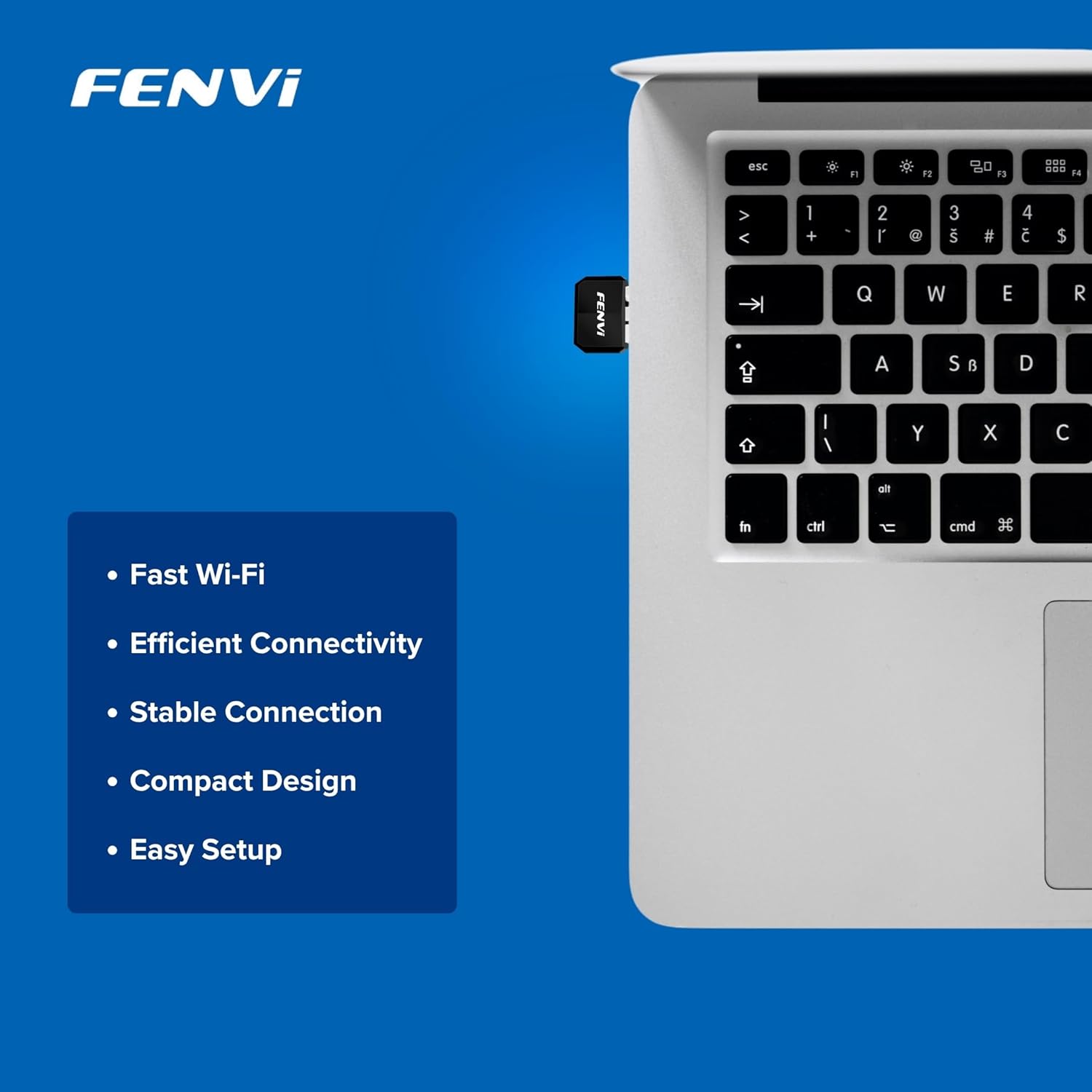
Image: The Fenvi FU-AX300 adapter shown plugged into a laptop, demonstrating its small size. Key features such as Fast Wi-Fi, Efficient Connectivity, Stable Connection, Compact Design, and Easy Setup are listed alongside.
4. Bedienungsanleitung
Once the drivers are successfully installed, you can connect to a wireless network:
- Auf die WLAN-Einstellungen zugreifen: Click on the Wi-Fi icon in the system tray (usually in the bottom-right corner of your screen) or navigate to Einstellungen > Netzwerk & Internet > WLAN.
- Wählen Sie Netzwerk: Es wird eine Liste der verfügbaren WLAN-Netzwerke angezeigt. Wählen Sie das gewünschte Netzwerk (SSID) aus.
- Verbinden: Klicken Sie auf „Verbinden“ und geben Sie gegebenenfalls den Netzwerksicherheitsschlüssel (WLAN-Passwort) ein.
- Verbindung bestätigen: Once connected, the Wi-Fi icon will indicate an active connection, and you should have internet access.

Image: This diagram illustrates the benefits of Wi-Fi 6 technology, specifically OFDMA and MU-MIMO, in improving network efficiency compared to older Wi-Fi 4 standards, especially in scenarios with multiple connected devices.
5. Wartung
To ensure optimal performance and longevity of your Fenvi FU-AX300 adapter, consider the following maintenance tips:
- Halten Sie die Treiber auf dem neuesten Stand: Periodically check the Fenvi official webDiese Website bietet die neuesten Treiber-Updates. Aktualisierte Treiber können Leistung, Stabilität und Sicherheit verbessern.
- Sanft reinigen: Reinigen Sie den Adapter bei Bedarf vorsichtig mit einem weichen, trockenen Tuch. Vermeiden Sie die Verwendung von flüssigen Reinigern oder Lösungsmitteln.
- Vermeiden Sie physischen Schaden: While compact, avoid bending or applying excessive force to the adapter when it is plugged in or stored.
- Optimale Platzierung: For best signal strength, ensure the adapter is not obstructed by other objects or placed in an enclosed space.
6. Fehlerbehebung
If you encounter issues with your Fenvi FU-AX300 adapter, refer to the following troubleshooting steps:
- Keine WLAN-Netzwerke erkannt:
- Stellen Sie sicher, dass der Adapter fest an einen USB-Anschluss angeschlossen ist.
- Überprüfen Sie im Geräte-Manager, ob die Treiber korrekt installiert sind. Installieren Sie die Treiber gegebenenfalls neu.
- Check if your computer's Wi-Fi is enabled (e.g., via a physical switch or keyboard shortcut).
- Restart your computer and your Wi-Fi router.
- Langsame Verbindungsgeschwindigkeit:
- Stellen Sie sicher, dass Sie sich in Reichweite Ihres WLAN-Routers befinden.
- Minimieren Sie Störungen durch andere elektronische Geräte (z. B. Mikrowellen, schnurlose Telefone).
- Aktualisieren Sie die Treiber Ihres Adapters auf die neueste Version.
- Überprüfen Sie die Geschwindigkeit Ihres Internetanbieters.
- "Driver not compatible with Windows 11" (as per some user feedback):
- While the product is advertised for Windows 11/10, if you face compatibility issues, ensure you have downloaded the absolute latest drivers directly from the Fenvi official webWebsite.
- Try installing the driver in compatibility mode for an earlier Windows version if available.
- Contact Fenvi technical support for specific Windows 11 driver assistance.
- Häufige Verbindungsabbrüche:
- Gehen Sie näher an Ihren WLAN-Router heran.
- Stellen Sie sicher, dass die Firmware Ihres Routers auf dem neuesten Stand ist.
- Disable power-saving features for the USB port in Device Manager (under USB Root Hub properties, Power Management tab, uncheck "Allow the computer to turn off this device to save power").
7. Spezifikationen

Image: This image displays the compact dimensions of the Fenvi FU-AX300 USB adapter, measuring 24mm in length, 16mm in width, and 7mm in thickness. It also highlights the 3-year warranty.
| Besonderheit | Detail |
|---|---|
| Marke | Fenvi |
| Modellnummer | FU-AX300 |
| Hardware-Schnittstelle | USB 2.0 |
| Data Link-Protokoll | IEEE 802.11a (Wi-Fi 6 / 802.11ax compatible) |
| Datenübertragungsrate | Bis zu 300 Mbit/s (2.4 GHz) |
| Sicherheit | WPA3 (router support required) |
| Merkmale | MU-MIMO, OFDMA |
| Kompatible Betriebssysteme | Windows-11, Windows 10 |
| Produktabmessungen (L x B x H) | 40 x 20 x 15 Millimeter |
| Artikelgewicht | 25 Gramm |
| Farbe | Schwarz |
| Ursprungsland | China |

Image: This image provides a summary of the Fenvi FU-AX300's key specifications, such as its brand (Fenvi), model (FU-AX300), Wi-Fi standard (IEEE 802.11ax), USB 2.0 interface, WPA3 security, 2.4GHz data rate, MU-MIMO/OFDMA features, Windows 7/10/11 compatibility, and 3-year warranty.
8. Garantie und Support
Garantieinformationen: The Fenvi FU-AX300 Wi-Fi 6 USB Adapter comes with a 3 Jahr HerstellergarantieBitte bewahren Sie Ihren Kaufbeleg für Garantieansprüche auf.
Technische Unterstützung: For further assistance, driver downloads, or troubleshooting not covered in this manual, please visit the official Fenvi support website or contact their customer service. Contact details are typically available on the manufacturer's webStandort oder Produktverpackung.
Hersteller: Fenvi
Kontaktinformationen des Importeurs: Compassco No 98 1st Floor Digital Park Road Yeshwanthpur Industrial Suburb Bangalore Karnataka 560022 India
Packer Contact Information: Shenzhen fenvi Technology Co., Ltd 401C West Area,North Block, High tech Industrial Park,Beier Road,Bantian Community, Bantian Street, Longgang District, Shenzhen China