
1. Einleitung
Thank you for choosing the suevery All-in-One PC. This manual provides essential information for setting up, operating, and maintaining your new computer. The suevery All-in-One PC is designed for productivity, entertainment, and various applications, featuring a 21.5-inch Full HD display, Intel Core i5 processor, 16GB RAM, and a 256GB SSD. It comes equipped with a built-in HD webcam, Wi-Fi 6, and includes a keyboard and mouse for a complete out-of-the-box experience.
2. Lieferumfang
Bitte überprüfen Sie den Inhalt Ihres Pakets. Sollten Artikel fehlen oder beschädigt sein, kontaktieren Sie bitte unseren Kundenservice.
- suevery 21.5-inch All-in-One PC
- Netzteil
- Tastatur
- Maus
- Benutzerhandbuch (dieses Dokument)
3. Produktüberschreitungview
3.1-Vorderseite View und Anzeige
The All-in-One PC features a 21.5-inch Full HD (1920x1080) IPS Anti-glare display, providing clear and vibrant visuals. The display is tiltable for ergonomic adjustment.

Abbildung 3.1: Vorderseite view of the suevery All-in-One PC, showcasing sein 21.5-Zoll-Display.
3.2 Built-in Audio-Video Components
The PC integrates a high-definition camera, microphone, and speakers, eliminating the need for external peripherals for video communication.

Figure 3.2: Illustration of the integrated speaker, camera, and microphone for video communication.
3.3 Anschlüsse und Schnittstellen
The device provides various ports for connectivity. Refer to the diagram below for port locations and types.
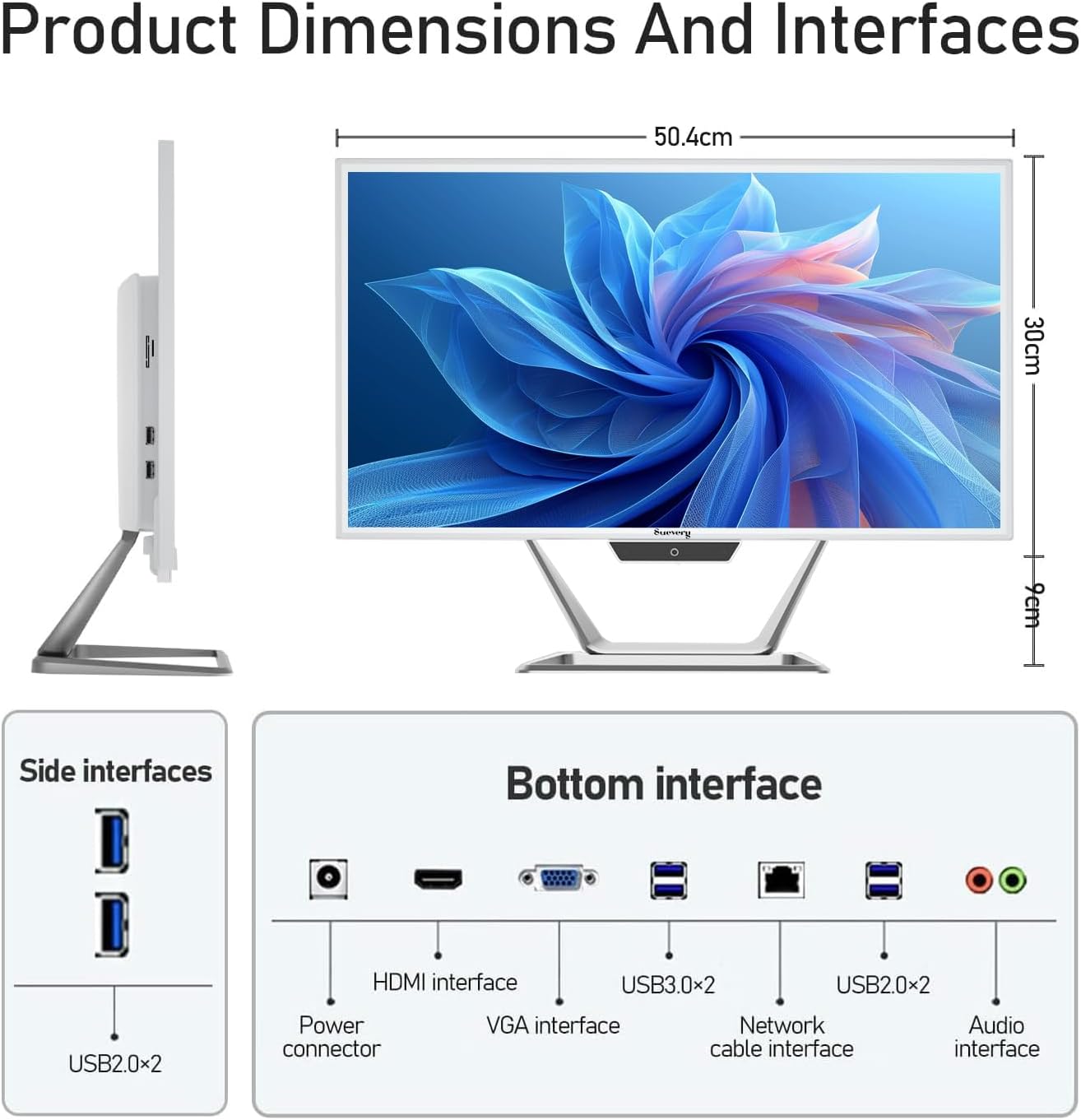
Figure 3.3: Product dimensions and interface layout. Includes USB 2.0, USB 3.0, HDMI, VGA, Network, Audio, and Power ports.
- Stecker: Zum Anschluss des Netzteils.
- HDMI-Schnittstelle: Zum Anschluss externer Displays.
- VGA-Schnittstelle: For connecting to older external displays.
- USB 3.0 x 2: Hochgeschwindigkeits-Datenübertragungsanschlüsse.
- USB 2.0 x 4: Standard data transfer ports (2 on side, 2 on bottom).
- Network Cable Interface: Für kabelgebundene Ethernet-Verbindungen.
- Audio-Schnittstelle: Zum Anschluss externer Kopfhörer oder Lautsprecher.
4. Installationsanleitung
Follow these steps to set up your suevery All-in-One PC.
- PC auspacken: Carefully remove the All-in-One PC and all accessories from the packaging. Place the PC on a stable, flat surface.
- Tastatur und Maus anschließen: Connect the included keyboard and mouse to the available USB ports on the back or side of the PC.
- Strom anschließen: Connect the power adapter to the power connector on the PC, then plug the power cord into a wall outlet.
- Einschalten: Press the power button, usually located on the bottom bezel or side of the display. The PC will boot up.
- Erste Einrichtung des Betriebssystems: Your PC comes with DOS pre-installed. You will need to install your preferred operating system (e.g., Windows, Linux) following its specific installation instructions. This typically involves booting from a USB drive or DVD.
- Mit Netzwerk verbinden: Once the OS is installed, connect to your network via Wi-Fi 6 or an Ethernet cable.
5. Bedienungsanleitung
5.1 Grundlegende Bedienung
- Ein-/Ausschalten: Press the power button to turn the PC on. To turn off, use the operating system's shutdown function. A short press on the power button can put the PC to sleep.
- Anzeigeanpassung: The display can be tilted from -5 to 25 degrees to achieve an optimal viewing angle. Gently adjust the top or bottom edge of the screen to tilt it.

Figure 5.1: The display supports tilt angle adjustment for ergonomic viewing.
5.2 Verwendung integrierter Peripheriegeräte
- WebNocken: The built-in 5MP HD webcam is ready for video calls and conferences. Ensure your operating system and applications have permission to access the camera.
- Mikrofon: The integrated microphone captures audio for calls and voice commands. Adjust microphone levels in your operating system's sound settings.
- Referenten: The built-in speakers provide audio output. Adjust volume using your operating system's sound controls or external keyboard media keys.
5.3 Konnektivität
- WLAN 6: Connect to wireless networks for internet access. Configure Wi-Fi settings through your operating system.
- Ethernet: For a stable wired connection, plug an Ethernet cable into the network port.
- USB-Anschlüsse: Use the USB 2.0 and USB 3.0 ports to connect external devices such as USB drives, printers, or additional peripherals.
- HDMI/VGA: Connect an external monitor or projector using the HDMI or VGA port for extended display options.
6. Wartung
Proper maintenance ensures the longevity and optimal performance of your PC.
- Reinigen des Bildschirms: Mit einem weichen, fusselfreien Tuch leichtampMit Wasser oder einem speziell für Elektronikbildschirme entwickelten Bildschirmreiniger abspülen. Reiniger nicht direkt auf den Bildschirm sprühen.
- Reinigung des Chassis: Wischen Sie die Außenflächen mit einem weichen, trockenen Tuch ab. Vermeiden Sie scheuernde Reinigungsmittel oder Lösungsmittel.
- Belüftung: Ensure the ventilation openings on the back and sides of the PC are not blocked to prevent overheating.
- Software-Updates: Aktualisieren Sie regelmäßig Ihr Betriebssystem und Ihre Treiber, um Sicherheit und Leistung zu gewährleisten.
- Datensicherung: Sichern Sie wichtige Daten regelmäßig auf einer externen Festplatte oder in der Cloud.
7. Fehlerbehebung
Sollten Sie auf Probleme stoßen, konsultieren Sie bitte die folgenden häufigen Probleme und Lösungen.
| Problem | Mögliche Lösung |
|---|---|
| Der PC lässt sich nicht einschalten. | Check if the power adapter is securely connected to both the PC and the wall outlet. Ensure the power outlet is functional. |
| Es wird nichts auf dem Bildschirm angezeigt. | Ensure the PC is powered on. If an external monitor is connected, check its power and cable connection. Try restarting the PC. |
| Tastatur oder Maus reagieren nicht. | Check USB connections. Try plugging them into different USB ports. If wireless, ensure batteries are charged and dongle is connected. |
| Keine Internetverbindung (WLAN/Ethernet). | For Wi-Fi, check if Wi-Fi is enabled in your OS settings and if you're connected to the correct network. For Ethernet, ensure the cable is properly connected to both the PC and the router/modem. Restart your router/modem. |
| Webcam or microphone not working. | Check privacy settings in your operating system to ensure applications have permission to access the camera and microphone. Ensure drivers are up to date. |
8. Spezifikationen
Detailed technical specifications for the suevery All-in-One PC (Model: I22X W1-99).
| Besonderheit | Detail |
|---|---|
| Marke | Umfrage |
| Modellnummer | I22X W1-99 |
| Betriebssystem | DOS (User-installable OS) |
| CPU Modell | Intel Core i5 7300U |
| CPU-Geschwindigkeit | 2.6 GHz (up to 3.5 GHz Turbo) |
| RAM-Speicher installiert | 16 GB DDR3 |
| Maximale Größe des RAM-Speichers | 32 GB |
| Speicherkapazität | 256 GB SSD (PCIE x 2) |
| Grafik-Coprozessor | Intel HD Graphics 620 (integriert) |
| Bildschirmgröße | 21.5 Zoll |
| Maximale Bildschirmauflösung | 1920x1080 Pixel (Full HD) |
| Anzeigetyp | LED IPS Anti-glare |
| Konnektivitätstechnologie | Ethernet, Wi-Fi 6 |
| Videoausgangsschnittstelle | HDMI, VGA |
| Anzahl USB-Anschlüsse | 6 (2x USB 3.0, 4x USB 2.0) |
| Integrierte Medien | Webcam (5MP), Speakers, Microphone |
| Energieaufnahme | 90 Watt |
| Farbe | Weiß |
9. Garantieinformationen
The suevery All-in-One PC comes with a 1 Jahr eingeschränkte Garantie from the date of purchase. This warranty covers manufacturing defects and workmanship under normal use. It does not cover damage caused by misuse, accidents, unauthorized modifications, or external factors. Please retain your proof of purchase for warranty claims.
10. Kundendienst
For technical assistance, troubleshooting beyond this manual, or warranty inquiries, please contact suevery customer support through the retailer where you purchased the product or refer to the official suevery webWebsite für Kontaktinformationen.
Please have your product model number (I22X W1-99) and proof of purchase ready when contacting support.