
Einführung
The ShanWan Wireless Controller is a versatile gaming peripheral designed for use across multiple platforms, including PC, iPhone, Android, Nintendo Switch, and Steam. It offers tri-mode connectivity (Bluetooth, 2.4G wireless, and USB-C wired) to ensure a seamless gaming experience. This manual provides detailed instructions for setup, operation, maintenance, and troubleshooting to help you maximize your controller's performance.
Note: This controller is not compatible with Xbox or PlayStation 4/5 consoles.
Packungsinhalt
- ShanWan Wireless Controller
- USB-C-Ladekabel
- 2.4-GHz-Funkdongle
- Benutzerhandbuch (dieses Dokument)
Controller überview
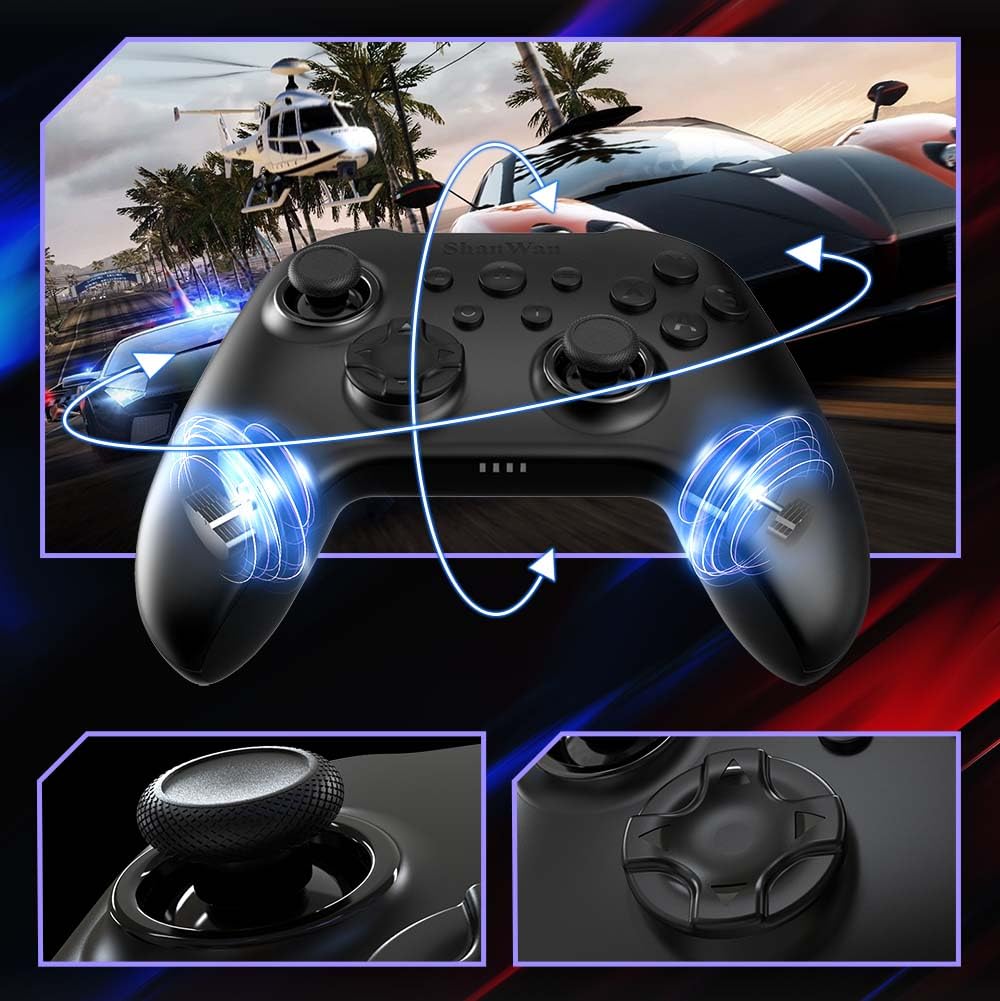
Bild: Front view of the ShanWan Wireless Controller, showcasing its ergonomic design, dual joysticks, D-pad, and face buttons (A, B, X, Y).
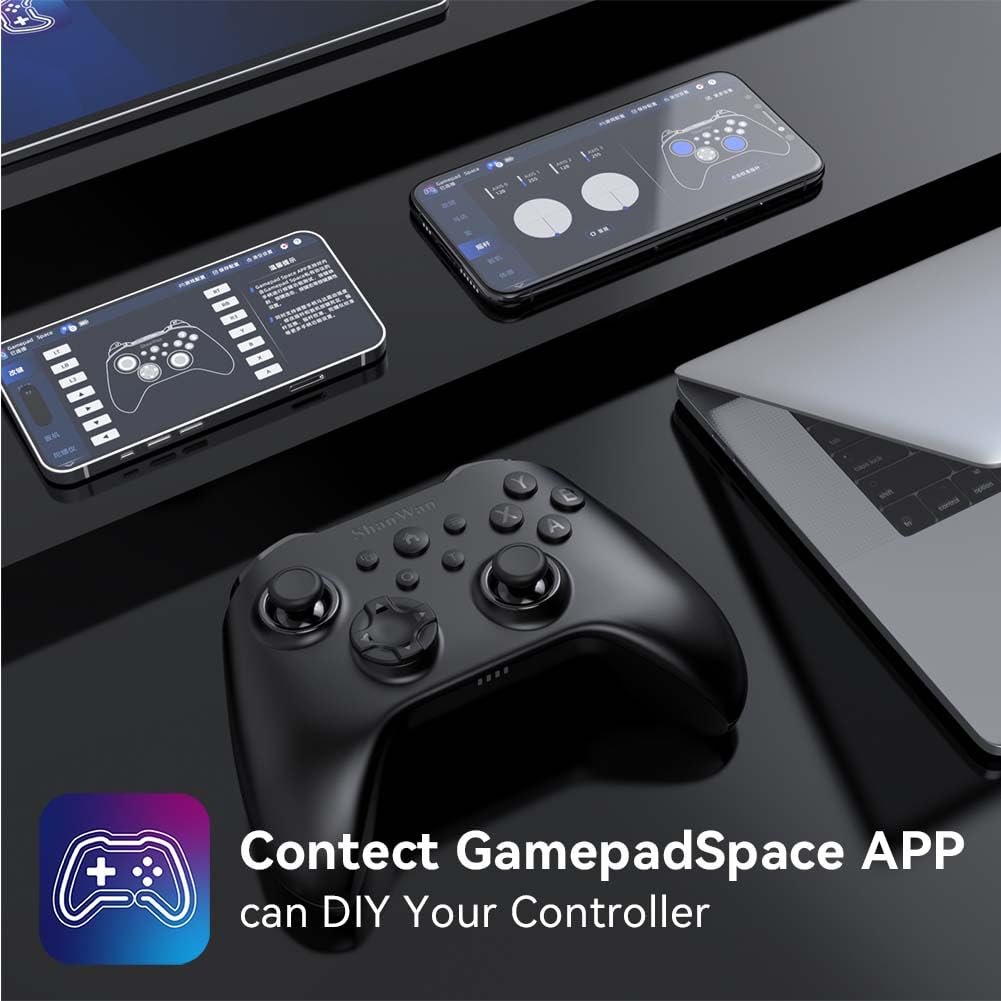
Bild: Zurück view of the ShanWan Wireless Controller, highlighting the mode switch for different platforms (X, D, S).
Hauptmerkmale:
- Hall-Effekt-Joysticks: Designed for precision with no dead zones and anti-drift capabilities.
- Strapazierfähige Gelknöpfe: Conductive gel buttons tested for 1 million clicks for long-lasting performance.
- 6-Achsen-Gyroskop: Bietet präzise Bewegungserkennung für ein immersives Spielerlebnis.
- Doppelte Vibrationsmotoren: Delivers strong and subtle haptic feedback for an enhanced gaming experience.
- Turbofunktion: Ermöglicht schnelles, wiederholtes Drücken der Tasten.
Aufstellen
1. Aufladen des Controllers
Before initial use, fully charge the controller using the provided USB-C cable. Connect the USB-C end to the controller and the USB-A end to a power source (e.g., computer USB port, USB wall adapter). The charging indicator lights will show charging status and turn off when fully charged.
2. Verbindung zu Geräten herstellen
The ShanWan Wireless Controller supports three connection modes: Bluetooth, 2.4G Wireless, and USB-C Wired. Ensure the mode switch on the back of the controller is set to the appropriate platform before attempting to connect.

Bild: Visual representation of the controller's tri-mode connectivity, illustrating Bluetooth, 2.4G wireless, and USB-C wired options.
Mode Switch Settings:
- 'S' Mode: Für Nintendo Switch.
- 'X' Mode: For PC (X-input), Android.
- 'D' Mode: For PC (D-input), iOS.
Bluetooth Verbindung:
- Set the mode switch on the back of the controller to the desired platform ('S', 'X', or 'D').
- Press and hold the pairing button (usually a small button on the top or back) until the indicator lights flash rapidly.
- On your device (PC, iPhone, Android, Switch), go to Bluetooth settings and search for new devices.
- Select "ShanWan Controller" or a similar name from the list to pair.
- Sobald die Kopplung abgeschlossen ist, leuchten die Kontrollleuchten am Controller dauerhaft.
2.4G Wireless Connection (for PC/Switch):
- Set the mode switch on the back of the controller to 'X' (for PC) or 'S' (for Switch).
- Insert the 2.4G wireless dongle into a USB port on your PC or Switch dock.
- Press the Home button on the controller to power it on. It should automatically connect to the dongle.
- The indicator lights will become solid once connected.
Kabelgebundene USB-C-Verbindung:
- Connect the USB-C cable to the controller and the other end to your PC or Switch dock.
- The controller will automatically be recognized as a wired device.
- No specific mode switch setting is required for wired connection, but setting it to the correct platform mode ('X' for PC, 'S' for Switch) is recommended for optimal compatibility.
Bedienungsanleitung
Ein-/Ausschalten:
- Einschalten: Press the Home button once.
- Ausschalten: Press and hold the Home button for 3-5 seconds, or the controller will automatically power off after a period of inactivity.
Bewegungskontrolle:
The built-in 6-axis gyroscope provides motion control capabilities, particularly useful for games on Nintendo Switch or other compatible platforms. Ensure the game supports motion controls for this feature to function.
Vibrations-Feedback:
The dual vibration motors provide haptic feedback during gameplay. The intensity of the vibration can often be adjusted through game settings or the Gamepad Space app.
Turbofunktion:
So aktivieren Sie die Turbo-Funktion für eine bestimmte Taste:
- Press and hold the button you wish to set to Turbo.
- While holding the button, press the Turbo button (refer to controller layout for location).
- The button will now repeatedly register presses as long as it is held down.
Um die Turbo-Funktion für eine Taste zu deaktivieren, wiederholen Sie den Vorgang.
Software Customization (Gamepad Space App):
Enhance your gaming experience by customizing controller settings using the Gamepad Space mobile application.

Bild: A ShanWan controller alongside smartphones displaying the Gamepad Space app, illustrating options for calibration and on-the-fly adjustments.
- Download the "Gamepad Space" app from your mobile device's app store.
- Connect your controller to your mobile device via Bluetooth.
- Innerhalb der App können Sie:
- Firmware upgraden.
- Totzonen von Stick und Trigger einstellen.
- Vibrationsintensität anpassen.
- Testtasten.
Wartung
- Reinigung: Reinigen Sie den Controller mit einem weichen, trockenen Tuch. Vermeiden Sie die Verwendung von scharfen Chemikalien oder Scheuermitteln.
- Lagerung: Bewahren Sie den Controller an einem kühlen, trockenen Ort fern von direkter Sonneneinstrahlung und extremen Temperaturen auf.
- Batteriepflege: Um die Batterielebensdauer zu verlängern, vermeiden Sie häufiges vollständiges Entladen des Controllers. Laden Sie ihn regelmäßig auf, auch wenn er nicht ständig in Gebrauch ist.
Fehlerbehebung
Controller stellt keine Verbindung her:
- Stellen Sie sicher, dass der Controller aufgeladen ist.
- Verify the mode switch on the back of the controller is set correctly for your platform (S, X, or D).
- Stellen Sie bei Bluetooth-Verbindungen sicher, dass Bluetooth an Ihrem Gerät aktiviert ist und sich der Controller im Kopplungsmodus befindet.
- For 2.4G wireless, ensure the dongle is properly inserted and the controller is in the correct mode.
- Versuchen Sie, sowohl den Controller als auch Ihr Gerät neu zu starten.
Eingabeverzögerung oder Verbindungsabbrüche:
- Stellen Sie sicher, dass sich keine starken elektromagnetischen Störungen in der Nähe befinden.
- Move closer to your device for a stronger wireless signal.
- Stellen Sie sicher, dass der Akku des Controllers nicht schwach ist.
- Consider using a wired USB-C connection for the most stable experience.
Joystick Drift or Unresponsive Buttons:
- Calibrate the joysticks and test buttons using the Gamepad Space app.
- Ensure the controller's firmware is up to date via the Gamepad Space app.
- Reinigen Sie die Bereiche um die Knöpfe und Joysticks, um eventuelle Verunreinigungen zu entfernen.
Technische Daten
| Modell | B0FS13DT2B |
| Konnektivitätstechnologie | Bluetooth, 2.4-GHz-Funkverbindung, USB-C-Kabelverbindung |
| Kompatible Geräte | Android, iOS, Nintendo Switch, Nintendo Switch 2, PC |
| Controllertyp | Gamepad |
| Anzahl der Tasten | 12 |
| Besondere Merkmale | Hall Effect Joysticks, 6-Axis Gyroscope, Dual Vibration, Turbo Function, Software Customization |
| Stromquelle | Batteriebetrieben |
| Artikelgewicht | 300 Gramm |
| Artikelabmessungen (T x B x H) | 2.5" x 4" x 6" |
Garantie und Support
ShanWan products are designed for reliability and performance. For specific warranty information, please refer to the documentation included with your purchase or visit the official ShanWan support website. If you encounter any issues not covered in this manual, please contact ShanWan customer support for assistance.
Online-Hilfe: Visit the ShanWan Store on Amazon