
1. Einleitung
Thank you for choosing the Magcubic HY350MAX Portable Projector. This manual provides essential information for setting up, operating, and maintaining your device. Please read it thoroughly before use to ensure optimal performance and safety.

Figure 1: Magcubic HY350MAX Portable Projector Overview
2. Lieferumfang
Überprüfen Sie, ob alle Artikel im Paket vorhanden sind:
- 1 x Magcubic HY350MAX Portable Projector
- 1 x Air Mouse Remote Control
- 1 x Benutzerhandbuch
3. Produktmerkmale
The Magcubic HY350MAX projector offers a range of advanced features for an immersive viewErfahrung:
- Hohe Auflösung: Native 1080P Full HD (1920x1080) with support for 4K and 8K content decoding, enhanced by HDR10+.
- Helligkeit: 600 ANSI Lumens for clear images even in ambient light.
- Intelligente Automatisierung: Automatic focus, 6D keystone correction, screen detection, and intelligent obstacle avoidance for a perfectly aligned and sharp image.
- Integriertes intelligentes System: Powered by Allwinner H726 chip, 2GB RAM, and 16GB internal storage, running Android 14 with over 6000 pre-installed apps.
- Erweiterte Konnektivität: Dual-band WiFi 6 (2.4 GHz and 5 GHz) for fast and stable wireless screen mirroring, and Bluetooth 5.4 for audio device connections.
- Immersives Audio: Built-in 12W Hi-Fi stereo speaker.
- Flexible Projektion: 180° rotation allows projection onto walls or ceilings. Short throw ratio of 1.0:1, projecting 40 to 140 inches.
- Universelle Kompatibilität: HDMI and USB ports for connecting PS5, laptops, TV sticks, USB drives, smartphones, and tablets.
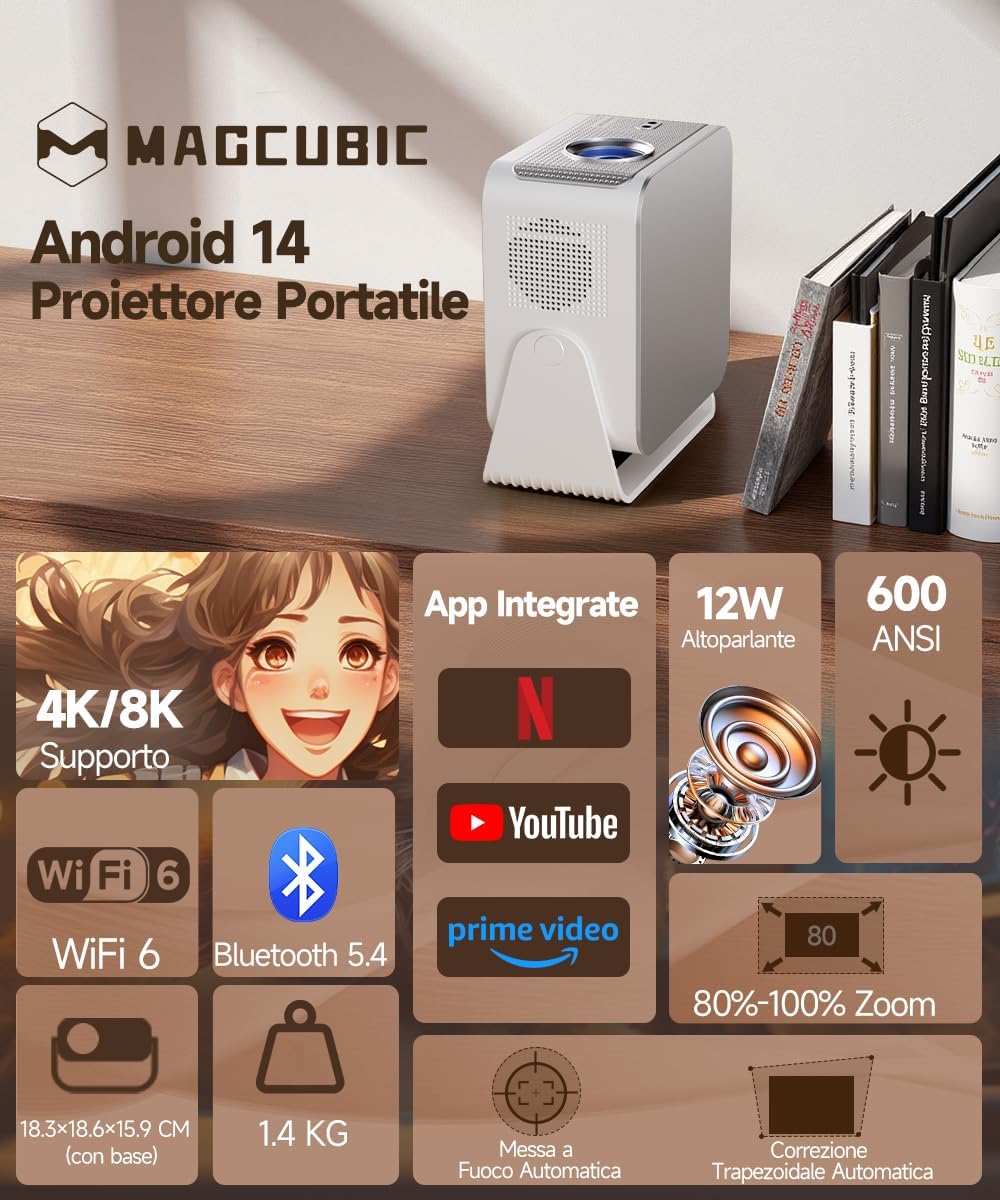
Figure 2: Key Features of the HY350MAX Projector

Figure 3: 1080P Native Resolution Clarity

Figure 4: Android 14 and Integrated Applications
4. Einrichtung
4.1 Placement and Power
- Place the projector on a stable, flat surface. The 180° rotation feature allows for versatile placement, including ceiling projection.
- Schließen Sie das Netzkabel an den Projektor und anschließend an eine Steckdose an.
- For optimal projection, ensure the room is sufficiently dark.

Figure 5: Flexible 180° Rotation for Placement
4.2 Erste Bildanpassung
The projector features automatic focus and keystone correction. Upon powering on or moving the projector, it will automatically adjust the image for clarity and shape.
- Automatischer Fokus: The projector will automatically focus the image. This works best for projection distances under 2.5 meters.
- Automatische Trapezkorrektur: The projector will automatically correct the image's trapezoidal distortion.
- Manueller Fokus: If the projection distance is greater than 2.5 meters or if automatic focus is not sensitive enough, use the remote control to adjust focus manually.

Abbildung 6: Automatische Bildkorrekturfunktionen

Figure 7: Auto and Manual Focus Guide
4.3 Geräte anschließen
Der Projektor unterstützt verschiedene Eingabemethoden:
- HDMI: Connect gaming consoles (e.g., PS5), laptops, or TV sticks using an HDMI cable.
- USB: Schließen Sie USB-Laufwerke zur Medienwiedergabe an.
- WLAN 6: Connect to your home network for streaming and wireless screen mirroring from smartphones and tablets.
- Bluetooth 5.4: Für ein besseres Klangerlebnis können Sie externe Bluetooth-Lautsprecher oder -Kopfhörer anschließen.
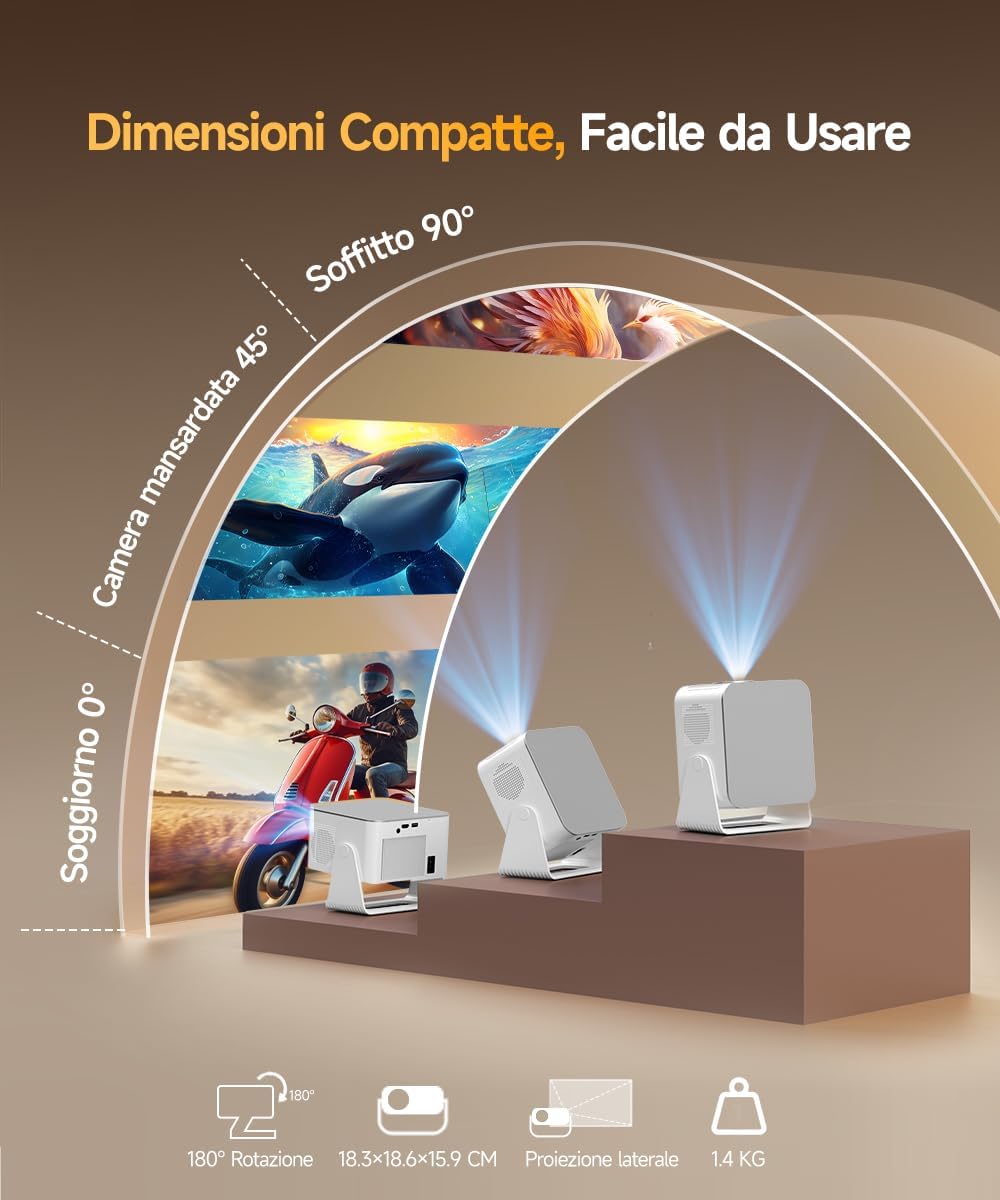
Figure 8: Universal Connectivity Options
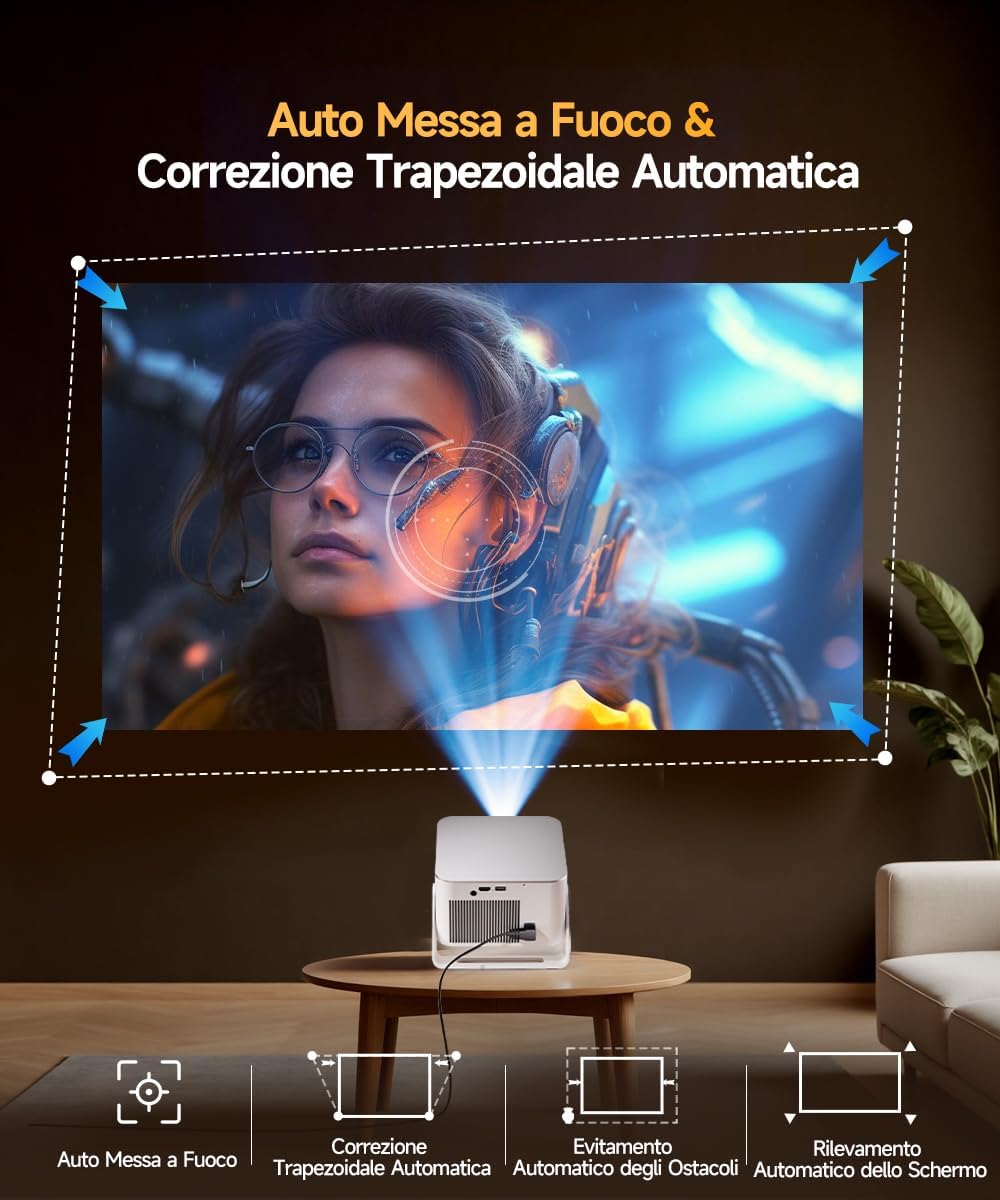
Abbildung 9: WiFi 6 und Bluetooth 5.4
4.4 Air Mouse Remote Control Setup
To use the Air Mouse function of your remote control, follow these steps:
- Activate Bluetooth on your projector.
- Simultaneously press the left and right directional buttons on the remote control until the projector emits an audible signal.
- Press the button with the 'mouse' symbol on the remote control to activate the Air Mouse function.
- Bewegen Sie Ihr Handgelenk, um den Cursor auf dem Bildschirm zu steuern.

Figure 10: Air Mouse Remote Control Usage
Video 1: Demonstrates the steps to pair and use the Air Mouse remote control for navigation.
5. Bedienungsanleitung
5.1 Ein-/Ausschalten
Drücken Sie den Netzschalter am Projektor oder an der Fernbedienung, um das Gerät ein- oder auszuschalten.
5.2 Navigation auf der Benutzeroberfläche
The projector runs on Android 14, providing a user-friendly interface. Use the remote control (or Air Mouse) to navigate through menus, select apps, and adjust settings.
- Startbildschirm: Access integrated apps, input sources (HDMI, USB), and settings.
- App Store: Download additional applications as needed.
- Einstellungen: Passen Sie Anzeige-, Ton-, Netzwerk- und Systemeinstellungen an.
5.3 Bildschirmspiegelung
Utilize the WiFi 6 dual-band connectivity for seamless screen mirroring from compatible devices.
- Ensure both your device (smartphone, tablet, laptop) and the projector are connected to the same WiFi network.
- Select the screen mirroring option on the projector's interface (e.g., Airplay, Miracast).
- Initiate screen mirroring from your device's settings.
5.4 Audioausgang
The projector features a built-in 12W Hi-Fi stereo speaker. For external audio, use Bluetooth 5.4 to connect to speakers or headphones.
- To connect via Bluetooth, go to the projector's settings, select Bluetooth, and pair with your desired audio device.
Video 2: Endeview of the projector's features, including automatic adjustments, connectivity, and smart interface.
Video 3: Demonstration of the projector's image quality and clarity with various nature scenes.
6. Wartung
6.1 Reinigung
- Verwenden Sie ein weiches, trockenes Tuch, um die Außenseite des Projektors zu reinigen.
- Verwenden Sie für die Linsenreinigung ein spezielles Linsenreinigungstuch und eine entsprechende Reinigungslösung. Vermeiden Sie scheuernde Materialien.
- Stellen Sie sicher, dass die Lüftungsöffnungen frei von Staub und Verstopfungen sind.
6.2 Speicherung
Wenn Sie den Projektor längere Zeit nicht verwenden, lagern Sie ihn an einem kühlen, trockenen Ort, geschützt vor direkter Sonneneinstrahlung und extremen Temperaturen.
7. Fehlerbehebung
Sollten Sie Probleme mit Ihrem Projektor haben, beachten Sie bitte die folgenden gängigen Lösungsansätze:
- Kein Strom: Überprüfen Sie den Anschluss des Stromkabels und stellen Sie sicher, dass die Steckdose funktionsfähig ist.
- Kein Bild: Verify the input source is correctly selected (HDMI, USB, WiFi). Ensure the lens cap is removed.
- Verschwommenes Bild: Allow the automatic focus to complete. If still blurry, manually adjust focus using the remote control. Ensure the projection surface is flat.
- Zerrbild: The automatic keystone correction should resolve this. If not, check projector placement or manually adjust keystone settings if available.
- Kein Ton: Check volume settings on both the projector and the connected source device. Ensure Bluetooth audio devices are correctly paired.
- WLAN-/Bluetooth-Verbindungsprobleme: Stellen Sie sicher, dass sich der Projektor in Reichweite des Routers/Bluetooth-Geräts befindet. Starten Sie beide Geräte neu.
Für weitere Unterstützung wenden Sie sich bitte an den Kundendienst.
8. Spezifikationen
| Besonderheit | Spezifikation |
|---|---|
| Marke | Magcubic |
| Modellnummer | HY350MAX |
| Native Auflösung | 1920 x 1080 (1080P Full HD) |
| Maximale Bildschirmauflösung | 7680 x 4320 (8K-Unterstützung) |
| Helligkeit | 600 ANSI-Lumen |
| Kontrastverhältnis | Hoch |
| Konnektivitätstechnologie | Bluetooth 5.4, HDMI, USB, WiFi 6 (5 Ghz+2.4 Ghz) |
| Betriebssystem | Android 14 |
| CPU | Allwinner H726 |
| RAM | 2 GB |
| Interner Speicher | 16 GB |
| Audio | 12W Hi-Fi Stereo Speaker |
| Projektionsgröße | 40 - 140 Zoll |
| Projection Distance (Min/Max) | 0.9 m / 3.1 m |
| Gewicht | 1.4 Kilogramm |
| Energieaufnahme | 100 Watt |
| Besondere Merkmale | Integrated Apps, Auto Focus, Auto Keystone Correction, Intelligent Image Adjustment, 180° Rotatable, HDR10+ |
Video 4: Comparison between Magcubic HY350MAX and HY350 models, highlighting system and CPU upgrades.
9. Garantie und Support
Magcubic is committed to providing quality products and customer satisfaction.
- Produktgarantie: 1 Jahre Herstellergarantie.
- Geld-zurück-Garantie: 30 Tage Geld-zurück-Garantie.
- Kundendienst: 24-hour live customer assistance.
- Technische Unterstützung: Lebenslanger technischer Support.
For any inquiries or support needs, please refer to the contact information provided with your purchase or visit the official Magcubic webWebsite.