
Einführung
This manual provides detailed instructions for the installation, operation, and maintenance of your Imagebon 11.3-inch QLED Android Car Navigation System. Please read this manual thoroughly before using the product to ensure proper function and safety. Keep this manual for future reference.
Hauptmerkmale
- High-Performance 8-Core Android System: Equipped with an 8-core Android processor, 4GB RAM, and 64GB storage for smooth operation and ampPlatz für Apps und Medien.
- Google Play-Kompatibilität: Download and use your favorite apps directly from Google Play. Pre-installed with popular apps like YouTube and Netflix.
- Multitasking mit Split-Screen: Simultaneously display navigation and entertainment apps for enhanced convenience while driving.
- Dual-Band Wi-Fi & Bluetooth: Supports 2.4GHz/5GHz Wi-Fi for stable streaming and Bluetooth for seamless smartphone connectivity and hands-free calling.
- 1080P Rückfahrkamera: Includes a high-definition backup camera with adjustable guidelines for safe and easy parking.
- 11.3-inch IN-CELL QLED Display: Features a large, vibrant QLED screen for clear visuals and responsive touch control.
- Flexible Navigation Options: Supports CarPlay, Android Auto, and direct installation of navigation apps like Google Maps or Waze, with online and offline map capabilities.
- Sprachsteuerung: Operate navigation, music, and phone calls hands-free for increased safety and convenience.
- Over-the-Air (OTA)-Updates: Easily update software and apps wirelessly to ensure you always have the latest features and improvements.
Aufstellen
Packungsinhalt
Vor Beginn der Installation prüfen Sie bitte, ob alle Komponenten vorhanden sind:
- Imagebon 11.3-inch QLED Android Car Navigation System
- 10 m Rückfahrkamera
- AUX-Kabel
- GPS-Antenne
- Klebebefestigung
- Kfz-Ladegerät (Zigarettenanzünderadapter)
- Bedienungsanleitung

Image: All components included with the Imagebon car navigation system, including the main unit, rear camera, cables, and mounts.
Installationsschritte
- Montage des Geräts: Securely attach the main unit to your dashboard using the provided adhesive mount. Ensure the unit is positioned to not obstruct your view oder die Fahrzeugsteuerung beeinträchtigen.
- Stromanschluss: Connect the car charger to your vehicle's cigarette lighter socket and the Type-C port on the navigation unit.
- GPS-Antennenanschluss: Connect the GPS antenna to the designated port on the unit and place it in a location with a clear view des Himmels für optimalen Signalempfang.
- Rückfahrkamera-Installation (optional): If using the backup camera, install it at the rear of your vehicle and route the cable to the main unit. Connect the camera cable to the AV-IN port.
- Audioausgang: For audio output, you can use the built-in speaker, FM transmission, AUX cable connection, or Bluetooth connection to your car's audio system.
Bedienungsanleitung
Initial Power On and System Overview
Upon first power-on, the system will boot into the Android interface. You can customize the home screen, access apps, and adjust settings.
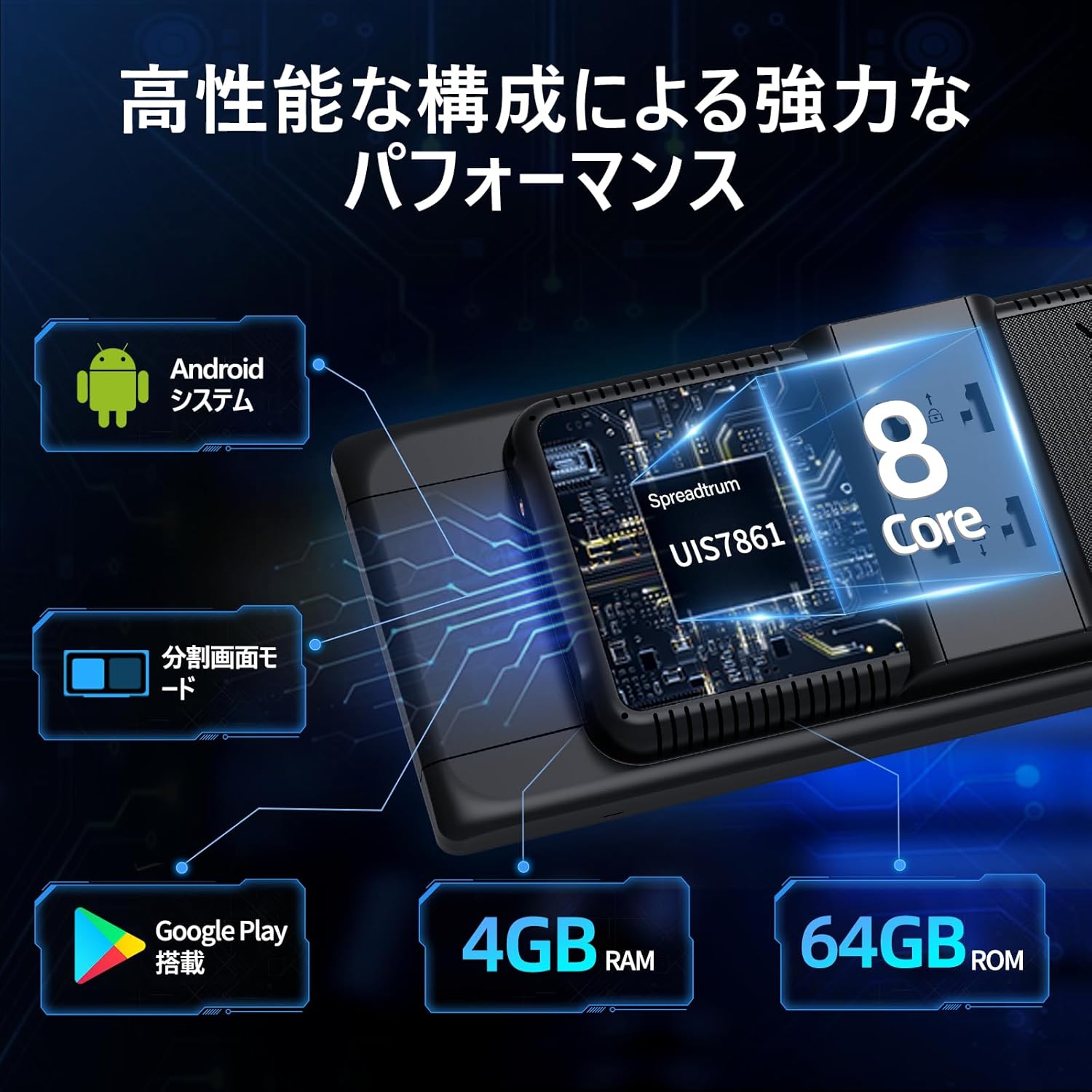
Image: The main interface of the Imagebon car navigation system, showing various app icons and the time display.
Konnektivität (WLAN & Bluetooth)
The unit supports dual-band Wi-Fi (2.4GHz/5GHz) and Bluetooth for seamless connectivity.
- Wi-Fi-Verbindung: Gehen Sie zu Einstellungen > Netzwerk & Internet > WLAN. Wählen Sie das gewünschte Netzwerk aus und geben Sie das Passwort ein.
- Bluetooth-Pairing: Go to Settings > Connected devices > Bluetooth. Turn on Bluetooth and search for available devices. Select your smartphone to pair.

Image: The Imagebon car navigation system demonstrating dual-band Wi-Fi and Bluetooth connectivity, showing a phone call and navigation simultaneously.
Google Play and App Installation
Über den Google Play Store können Sie weitere Anwendungen herunterladen und installieren.
- Stellen Sie sicher, dass das Gerät mit WLAN verbunden ist.
- Tap the "Google Play Store" icon on the home screen.
- Melden Sie sich mit Ihrem Google-Konto an.
- Browse or search for apps and tap "Install" to download.
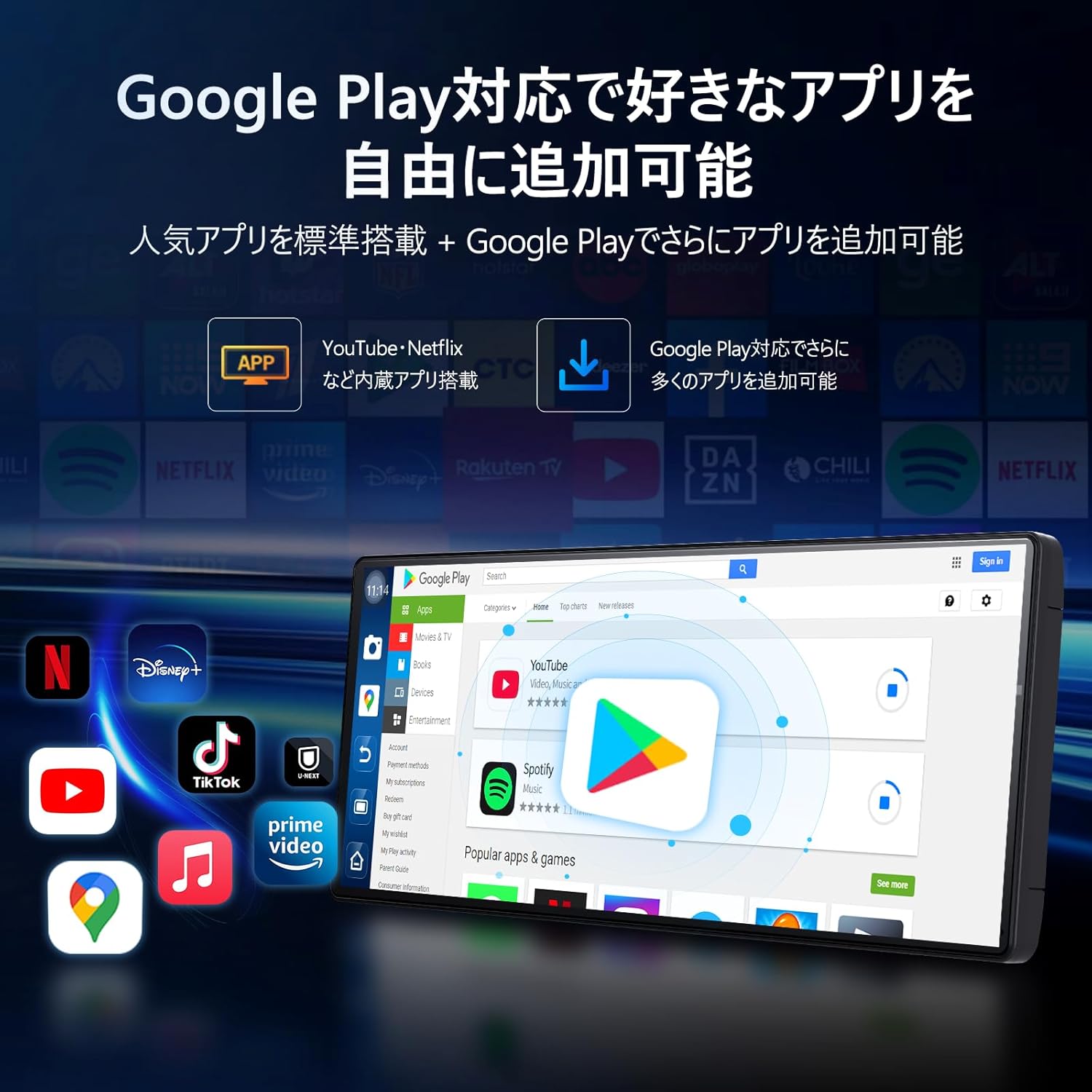
Image: The Imagebon car navigation system displaying the Google Play Store interface, showing various apps available for download.
Navigation (CarPlay / Android Auto / Built-in GPS)
The system offers multiple navigation options.
- CarPlay: Connect your iPhone via Bluetooth. A prompt will appear on your phone to allow CarPlay. Follow the on-screen instructions.
- Android Auto: Connect your Android phone via Bluetooth. A pairing request will appear. Confirm pairing and wait for the screen to cast.
- Eingebautes GPS: Use pre-installed navigation apps or download your preferred ones from Google Play. The system supports both online and offline maps.

Image: The Imagebon car navigation system showing both Google Maps interface and a smartphone connected via CarPlay/Android Auto for navigation.
Split-Screen-Funktionalität
So verwenden Sie den Splitscreen-Modus:
- Öffnen Sie die erste Anwendung, die Sie verwenden möchten.
- Tap the split-screen button (usually represented by two rectangles) or swipe up to view aktuelle Apps.
- Drag the second application to the other half of the screen.
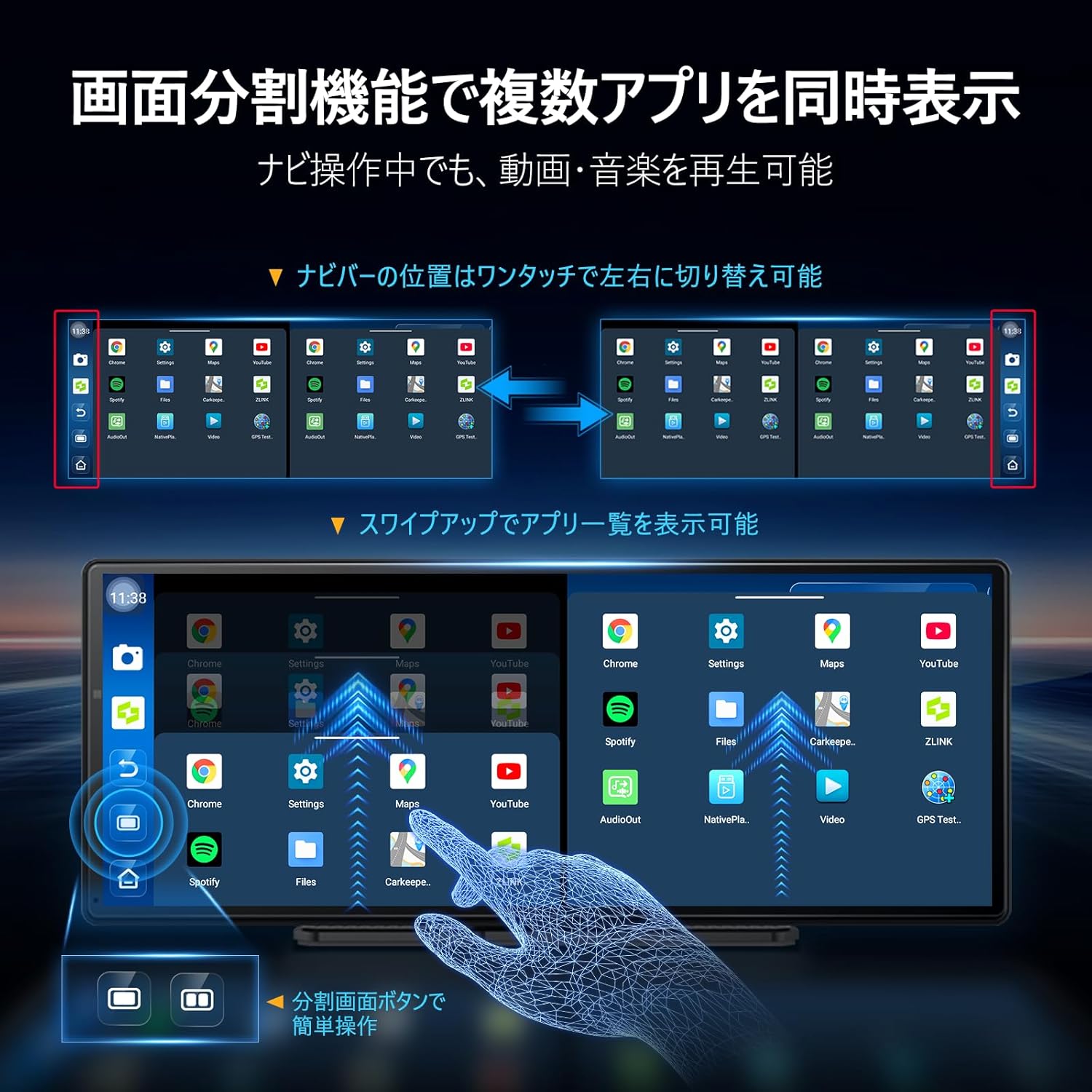
Image: The Imagebon car navigation system demonstrating split-screen functionality, showing two applications running side-by-side.
Sprachsteuerung
Activate voice control by saying "Hey Siri" (for CarPlay) or "OK Google" (for Android Auto/Android system) or by tapping the microphone icon. You can issue commands such as:
- "Navigiere zu [Ziel]"
- "Play [song/artist]"
- "Rufen Sie [Kontaktname] an"
- "Increase/Decrease volume"
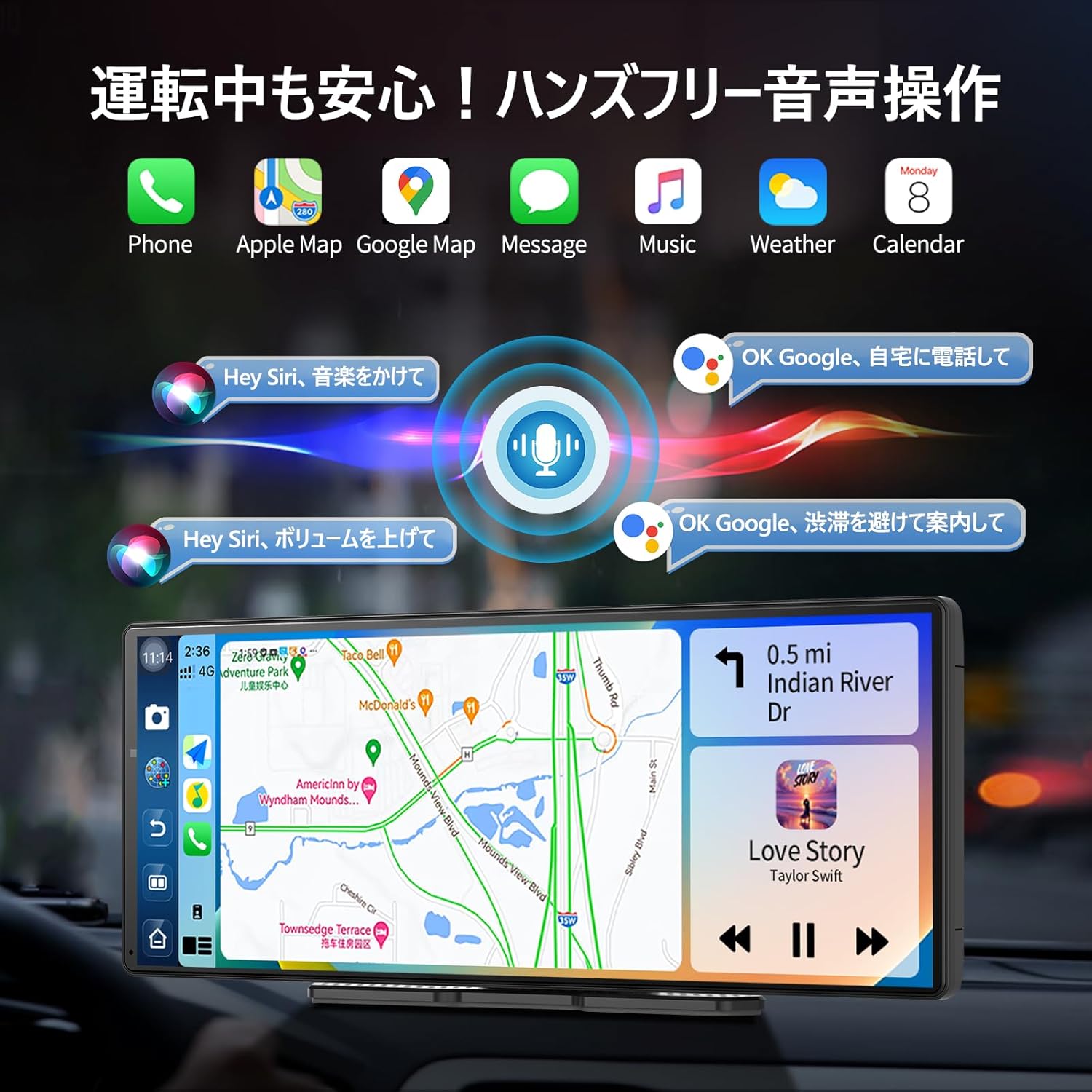
Image: The Imagebon car navigation system illustrating voice control commands for navigation, music, and calls, with a visual representation of sound waves.
Bedienung der Rückfahrkamera
Beim Einlegen des Rückwärtsgangs schaltet das Display automatisch auf die Rückfahrkamera um. view. Adjustable guidelines assist with parking.

Image: The Imagebon car navigation system displaying the 1080P rear camera view with adjustable parking guidelines, showing a car reversing into a parking spot.
OTA-Updates
The system supports Over-The-Air (OTA) updates to keep your software and maps current.
- Stellen Sie sicher, dass das Gerät mit WLAN verbunden ist.
- Go to "App List" > "Settings".
- Select "Updater" from the "Device Information" menu.
- Follow the on-screen prompts to download and install updates. The unit will restart automatically after the update is complete.
Wartung
- Reinigung: Reinigen Sie den Bildschirm und das Gehäuse mit einem weichen, trockenen Tuch. Vermeiden Sie Scheuermittel oder Lösungsmittel.
- Software-Updates: Prüfen Sie regelmäßig, ob OTA-Updates verfügbar sind, und installieren Sie diese, um eine optimale Leistung und den Zugriff auf neue Funktionen zu gewährleisten.
- Temperatur: Vermeiden Sie es, das Gerät extremen Temperaturen auszusetzen.
- Kabelmanagement: Ensure all cables are securely connected and not interfering with vehicle operation.
Fehlerbehebung
| Problem | Mögliche Ursache | Lösung |
|---|---|---|
| Gerät lässt sich nicht einschalten | Power cable not connected or faulty; vehicle's power outlet issue. | Check power cable connection. Ensure vehicle's cigarette lighter socket is functional. |
| Kein GPS-Signal | GPS antenna not properly connected or obstructed view des Himmels. | Stellen Sie sicher, dass die GPS-Antenne sicher angeschlossen und an einem freien Ort angebracht ist. |
| WLAN-/Bluetooth-Verbindungsprobleme | Falsches Passwort; Gerät außerhalb der Reichweite; Störungen. | Verify password. Ensure devices are within range. Restart unit and connecting device. |
| Rückfahrkamera zeigt kein Bild an | Camera cable loose or faulty; vehicle not in reverse. | Check camera cable connection. Ensure vehicle is in reverse gear. |
| Touchscreen reagiert nicht | Vorübergehender Softwarefehler. | Restart the unit. If problem persists, perform a factory reset (data will be lost). |
Technische Daten
| Besonderheit | Detail |
|---|---|
| Bildschirmgröße | 11.3 Zoll |
| Anzeigetyp | QLED |
| Prozessor | 8-Core Android |
| RAM | 4 GB |
| Lagerung | 64 GB |
| Konnektivität | Bluetooth, USB, Wi-Fi (2.4 GHz/5 GHz) |
| Kontrollmethode | Berührung, Stimme |
| Besondere Merkmale | Android Auto, Apple CarPlay, Built-in Bluetooth, Hands-free calling, 1080P Backup Camera |
| Audioausgabemodus | Stereo |
| Artikelgewicht | 0.95 kg |
| Abmessungen (Paket) | 31.1 x 14.7 x 11.2 cm |
| Modellnummer | W60N-JP |
Garantie und Support
This product comes with a standard manufacturer's warranty. For specific warranty details, please refer to the warranty card included in your package or contact Imagebon customer support.
For technical support, troubleshooting assistance, or any questions regarding your Imagebon car navigation system, please contact our customer service team. Contact information can be found on our official webauf der Website oder auf der Produktverpackung.
Produktvideos
Produkt überview
Video: Ein General überview of the Imagebon 11.3-inch QLED Android Car Navigation System, highlighting its main features and design. (Duration: 1:15)
Split-Screen Demonstration
Video: A demonstration of the split-screen functionality, showing how to run two applications simultaneously on the display. (Duration: 0:44)
CarPlay and Android Auto Connectivity
Video: This video illustrates the process of connecting and using Apple CarPlay and Android Auto with the navigation system. (Duration: 2:07)
Sprachsteuerungsfunktionen
Video: A short demonstration of the voice control capabilities, showing how to issue commands for navigation and media playback. (Duration: 0:23)
Funktionalität der Rückfahrkamera
Video: This video showcases the 1080P backup camera in action, including the adjustable guidelines for safe parking. (Duration: 2:00)


