
TABWEE T90
TABWEE T90 11-inch Android 16 Tablet User Manual
Modell: T90 | Marke: TABWEE
1. Einleitung
Welcome to the TABWEE T90 11-inch Android 16 Tablet. This manual provides essential information to help you get started and make the most of your new device. Please read these instructions carefully before using the tablet.

Image: The TABWEE T90 tablet, showcasing sein elegantes Design.
2. Packungsinhalt
Stellen Sie sicher, dass alle Artikel im Paket vorhanden sind:
- Tablet Main Unit
- Tastatur
- Maus
- Schutzhülle
- Bracket (Stand)
- Schutzfolie
- Adapter
- USB-Datenkabel
- Bedienungsanleitung
- Berühren Sie Stift

Image: All included accessories for the TABWEE T90 tablet.
3. Ersteinrichtung
3.1 Aufladen des Tablets
Before first use, fully charge the tablet using the provided adapter and USB cable. The charging port is a versatile Type-C port.

Image: The tablet connected to a charger via its Type-C port.
3.2 Ein-/Ausschalten
- Zum Einschalten: Halten Sie den Netzschalter gedrückt, bis der Bildschirm aufleuchtet.
- To power off: Press and hold the power button, then select "Power off" from the options.
3.3 Erstkonfiguration
Folgen Sie den Anweisungen auf dem Bildschirm, um die Ersteinrichtung abzuschließen, einschließlich Sprachauswahl, WLAN-Verbindung und Anmeldung beim Google-Konto.
4. Hauptmerkmale
4.1 Android 16 OS & Gemini AI Optimization
The TABWEE T90 runs on the latest Android 16 OS, optimized for 64-bit application processing. It features a refreshed UI for improved operability across work, study, and daily use. Enhanced security and privacy management allow fine control over app permissions and communication. The Android 16 AI function automatically adjusts operation and power consumption based on usage, ensuring smooth multitasking and notification handling. Integration with Gemini AI 2.5 enables intuitive document creation, information organization, and image/video processing, boosting efficiency.

Image: Visual representation of Android 16 OS and Gemini AI capabilities.

Bild: Detailliert view of Android 16 user interface and features like security, notifications, and regional optimization.

Image: Gemini AI features for natural language understanding, data analysis, report generation, and translation support.
4.2 11-inch IPS FHD Display & Widevine L1 Support
The TABWEE T90 features a comfortable 11-inch IPS In-Cell TDDI display with a high resolution of 1920x1200, reproducing vivid details and rich colors. Android 16's unique "Full Screen to Edge" function automatically expands applications to the screen edges, providing an immersive viewing experience without black borders. Widevine L1 support allows smooth playback of FHD (1080p) or higher quality video from major streaming services like Netflix and Amazon Prime Video, enhancing your daily entertainment.

Image: The tablet displaying high-definition video, highlighting its 11-inch FHD screen and Widevine L1 support.

Image: Close-up of the tablet screen displaying specifications like 11-inch size, 1920x1200 resolution, and 350 nits brightness.
4.3 Large Capacity RAM & Storage with High-Performance CPU
The TABWEE T90 Android 16 Tablet offers 8GB of RAM, expandable by up to 16GB for a total of 24GB equivalent RAM, ensuring smooth operation. It comes with 128GB of internal storage and supports up to 2TB of expandable storage via an SD card (sold separately). This allows ample space for photos, videos, music, and applications. Powered by the Unisoc T615 Octa-core chip, featuring two high-performance A75 cores at 1.8GHz and six A55 cores, it delivers high-speed processing for smart office tasks, efficient learning, and immersive entertainment. The Mali G57 GPU and intelligent algorithms optimize color and detail expression, providing a beautiful and immersive visual experience for games and video playback.

Image: Visualizing the tablet's 24GB RAM, 128GB ROM, and 2TB expandable storage.

Image: Diagram of the Unisoc T615 Octa-core CPU, highlighting its architecture and performance.

Image: Illustrates the tablet's smooth multitasking capabilities with multiple apps open.
4.4 AI Image Processing, Dual Cameras & Face Recognition
The TABWEE T90 WiFi tablet is equipped with a 5MP front camera and a 13MP auto-focus rear camera, allowing you to capture beautiful photos and videos with ease. The latest Android 16 AI image processing technology ensures natural and vivid images. It also supports HEVC video encoding, maintaining high quality during editing and playback. Smart recognition via Google Lens simplifies scanning, translation, search, and information retrieval. Face recognition provides instant unlocking for a secure and convenient user experience.
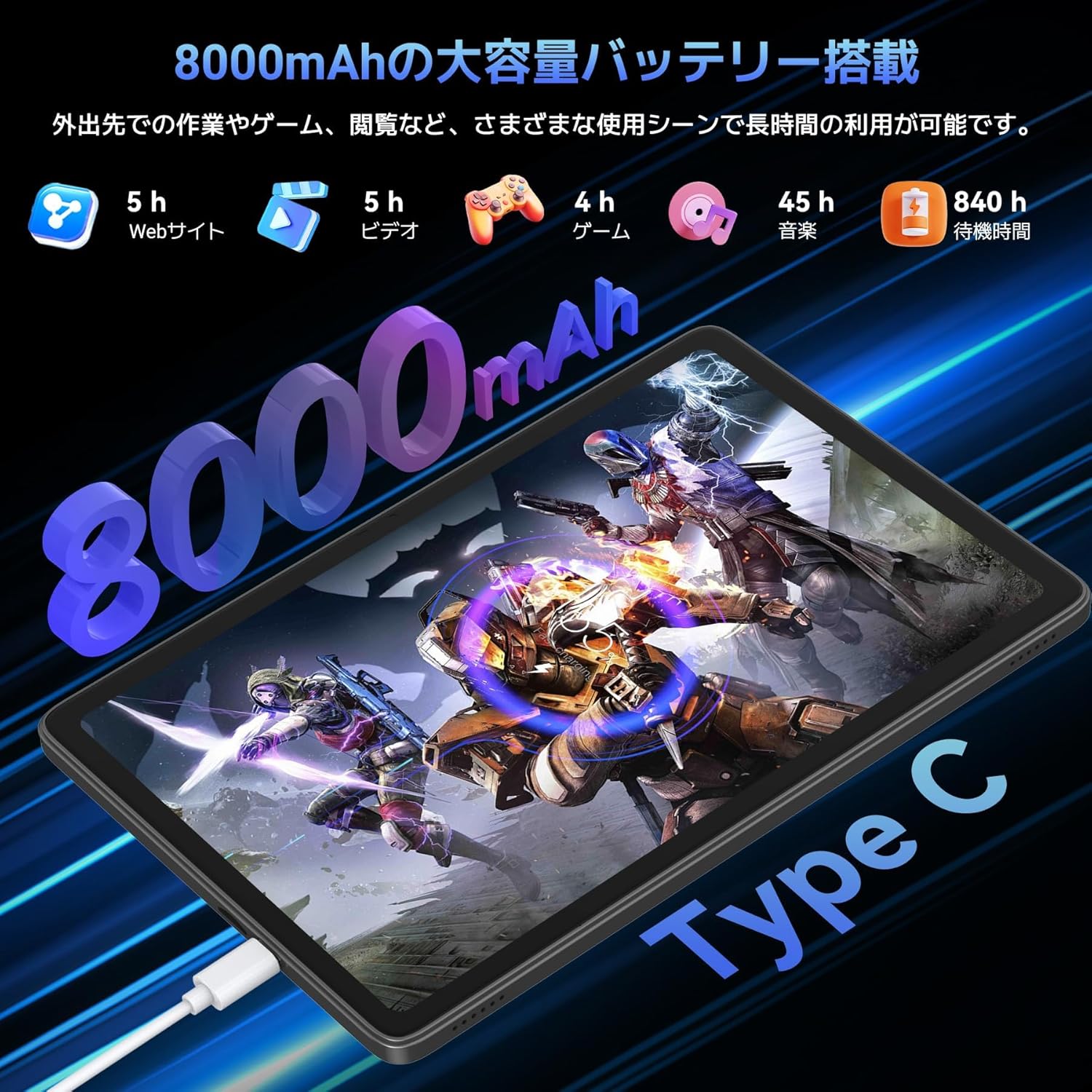
Image: Highlights the 13MP rear camera and 5MP front camera, along with AI image processing and Google Lens features.

Image: Demonstrates various smart scan and recognition features of Google Lens, such as solving math problems, identifying plants, translating foreign languages, and finding similar products.
4.5 8000mAh Large Capacity Battery & Custom Keyboard
The TABWEE T90 Android 16 Tablet offers a large 8000mAh battery, providing extended usage time for commuting, outings, and various daily scenarios without worrying about battery life. The versatile Type-C charging method ensures quick and easy charging. Android 16's custom keyboard function allows you to freely set shortcut keys after connecting a Bluetooth keyboard, enabling one-touch launch of frequently used applications for even more convenient operation.
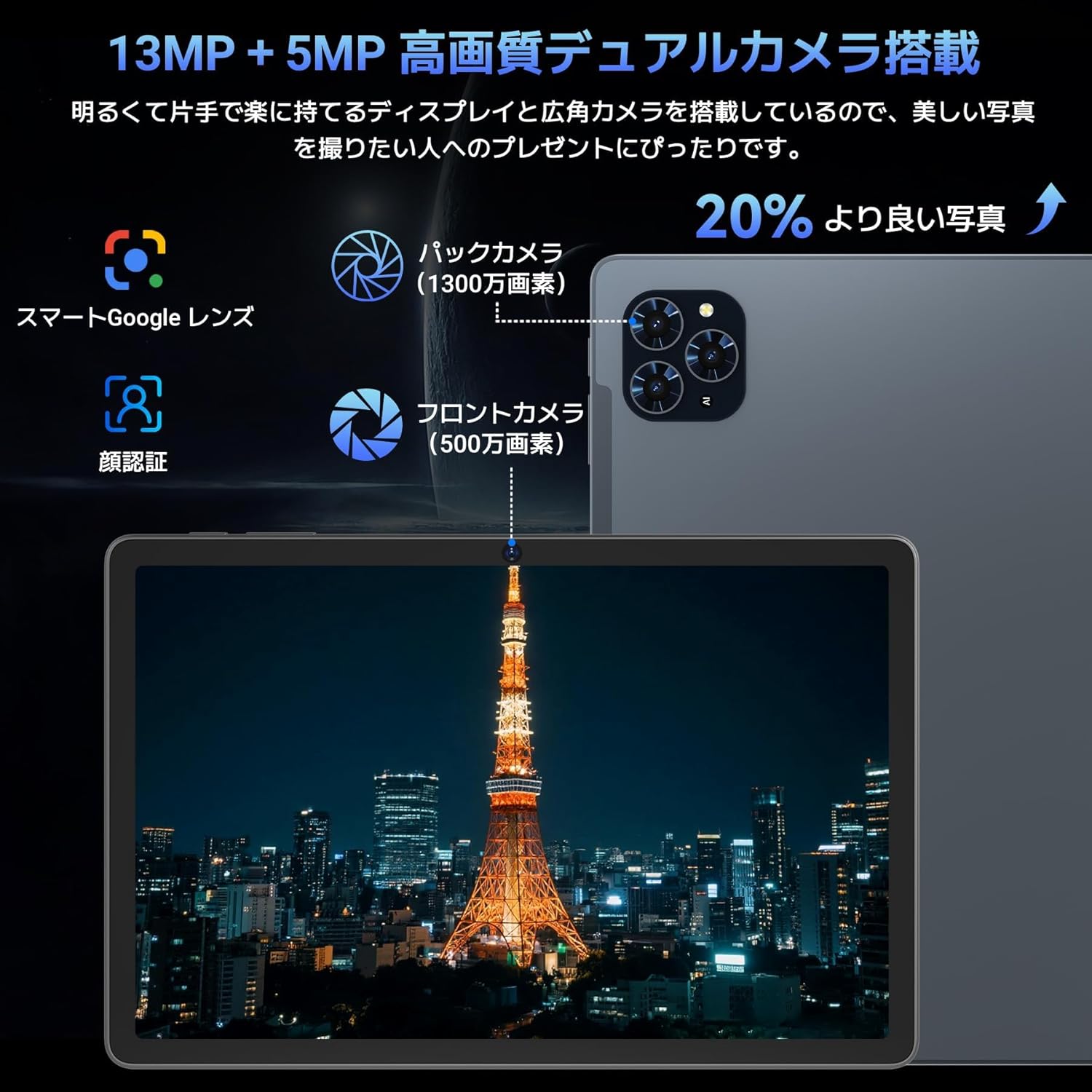
Image: Illustrates the long battery life of the 8000mAh battery for web Surfen, Videos, Spiele und Musik.

Image: Shows custom keyboard shortcuts and the "forced full screen" feature of Android 16.
4.6 Lightweight Design & Versatile Use
This tablet features a lightweight all-metal design with a thickness of just 8.3mm and a weight of approximately 505g. Its 11-inch size is easy to hold with one hand, making it ideal for work, study, and carrying on the go. It supports various scenarios including remote work, online classes, office tasks, video calls, gaming, and photography.

Image: Depicts the tablet being used in various settings such as remote processing, online classes, office work, video calls, gaming, and taking photos.
5. Bedienungsanleitung
5.1 Grundlegende Navigation
- Touch-Gesten: Zum Auswählen tippen, zum Scrollen wischen, zum Zoomen zusammenziehen.
- Startbildschirm: Zugriff auf Apps und Widgets.
- Benachrichtigungen: Wischen Sie vom oberen Bildschirmrand nach unten zu view Benachrichtigungen und Schnelleinstellungen.
- App-Schublade: Wischen Sie vom unteren Bildschirmrand nach oben, um auf alle installierten Anwendungen zuzugreifen.
5.2 Mit WLAN verbinden
- Gehe zu Einstellungen > Netzwerk & Internet > W-lan.
- Schalten Sie WLAN ein.
- Wählen Sie das gewünschte Netzwerk aus und geben Sie gegebenenfalls das Passwort ein.
5.3 Verwendung von Zubehör
- Tastatur maus: Connect via Bluetooth. Refer to the accessory's specific instructions for pairing.
- Touchpen: Use for precise input on the screen, drawing, or navigating.
- Protective Case & Bracket: Use to protect the tablet and provide a stable viewing-Winkel.
6. Wartung
- Reinigung: Reinigen Sie Bildschirm und Gehäuse mit einem weichen, fusselfreien Tuch. Vermeiden Sie aggressive Chemikalien.
- Software-Updates: Prüfen Sie regelmäßig, ob Systemaktualisierungen verfügbar sind, und installieren Sie diese, um optimale Leistung und Sicherheit zu gewährleisten. Gehen Sie zu Einstellungen > System > Systemaktualisierung.
- Batteriepflege: Avoid extreme temperatures. For long-term storage, charge the battery to around 50%.
7. Fehlerbehebung
| Problem | Lösung |
|---|---|
| Das Tablet lässt sich nicht einschalten. | Stellen Sie sicher, dass der Akku geladen ist. Halten Sie den Netzschalter 10–15 Sekunden lang gedrückt, um einen Neustart zu erzwingen. |
| Bildschirm reagiert nicht | Starten Sie das Tablet neu. Sollte das Problem weiterhin bestehen, setzen Sie das Tablet auf die Werkseinstellungen zurück (dabei gehen alle Daten verloren). |
| Probleme mit der Wi-Fi-Verbindung | Starten Sie Ihr Tablet und Ihren WLAN-Router neu. Entfernen Sie das Netzwerk aus den Einstellungen und stellen Sie die Verbindung erneut her. |
| Apps stürzen ab oder frieren ein | Löschen Sie den Cache und die Daten der App in Einstellungen > AppsAktualisieren Sie die App oder installieren Sie sie neu. |
8. Spezifikationen
| Besonderheit | Detail |
|---|---|
| Marke | TABWEE |
| Modellname | TABWEE T90 |
| Betriebssystem | Android 16 |
| Bildschirmgröße | 11 Zoll |
| Bildschirmauflösung | 1920x1200 Pixel |
| CPU-Marke | Unisoc |
| CPU-Geschwindigkeit | 1.8 GHz |
| Grafikkarten | Mali-G57 |
| Speicherkapazität | 128 GB (erweiterbar auf bis zu 2 TB) |
| Auflösung der Frontkamera | 5 Megapixel |
| Auflösung der Rückkamera | 13 MP (Autofokus) |
| Konnektivität | Bluetooth, Wi-Fi (802.11ac) |
| Batteriekapazität | 8000 mAh |
| Tablettengewicht | Ca. 505g |
| Verpackungsabmessungen | 29.1 x 20 x 5.4 cm |
| Modellnummer | JPDYZ+T90+Grey |
| Zertifizierungen | PSE, GMS, Technical Conformity (技適) |
9. Garantie und Support
The TABWEE T90 Android 16 Tablet comes with a standard two-year quality warranty. By contacting TABWEE official email, you can extend the warranty period to four years. If you encounter any issues or defects, please feel free to contact us. We offer 24-hour support.
Kontaktinformationen:
- Official Email: [Please refer to your product packaging or official website for the exact email address]
- LINE ID: @647bgvrm

Image: Details about the 4-year quality warranty and 24-hour support service.
10. Produktvideos
TABWEE T90 Android 16 Tablet Overview
Dieses Video bietet einen allgemeinen Überblickview of the TABWEE T90 Android 16 Tablet, showcasing its design and key functionalities. (Creator: TABWEE Official Store)
Ask a question about this manual
Ask about setup, troubleshooting, compatibility, parts, safety, or missing instructions. Manuals+ will review the question and use this page’s manual context to help answer it.