
Einführung
Thank you for choosing the Surfans F20 Pro Android Hi-Res Music Player. This manual provides essential information for setting up, operating, and maintaining your device. Please read it thoroughly to ensure optimal performance and longevity of your music player.
1. Einrichtung
1.1 Auspacken und Packungsinhalt
Carefully unpack your Surfans F20 Pro. Ensure all components are present.
Das Paket sollte enthalten:
- 1 x Surfans F20 Pro Music Player
- (Other accessories like USB cable, protective case, etc., may be included depending on the specific package.)
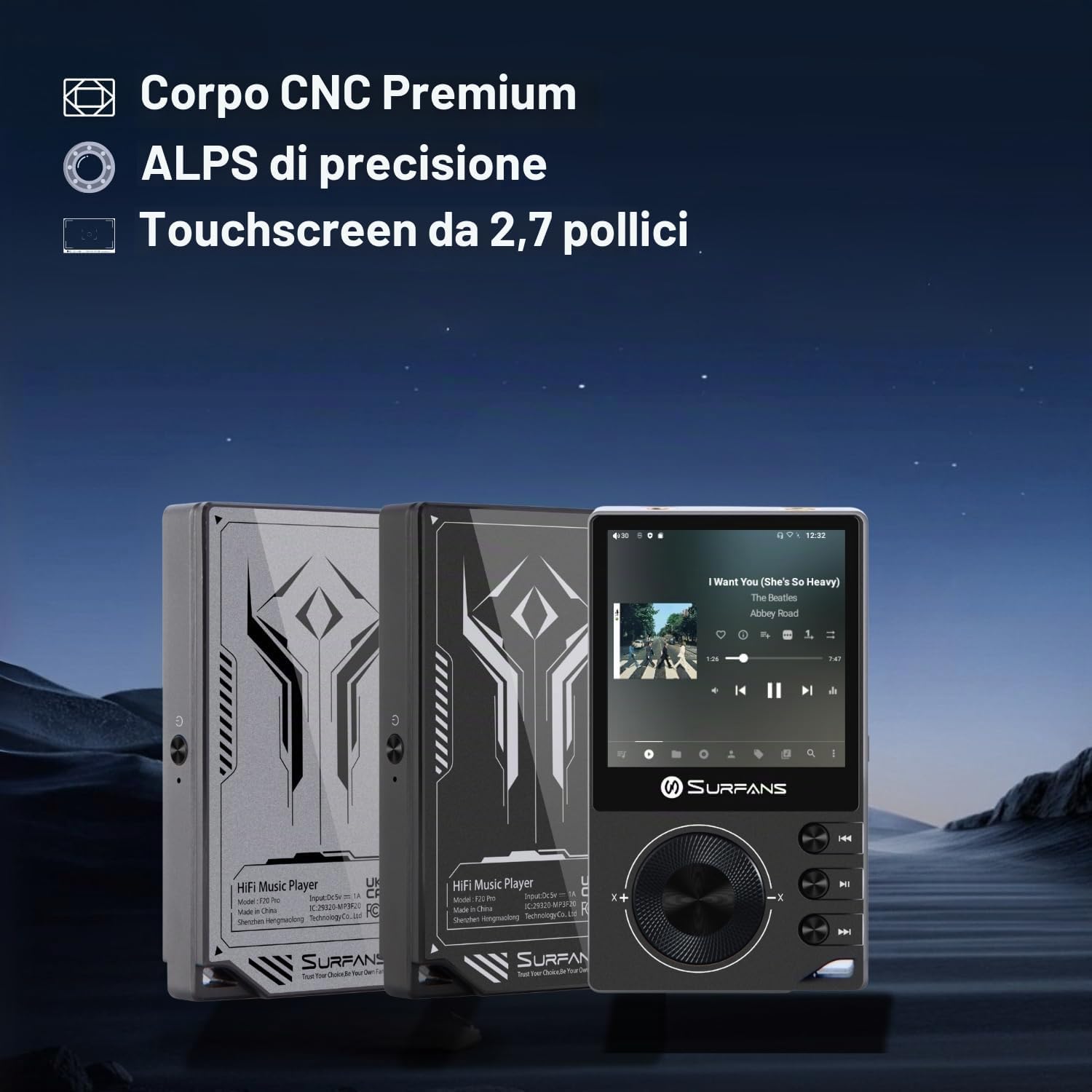
The Surfans F20 Pro features a premium CNC body for durability and aesthetics.
1.2 Aufladen des Geräts
Before first use, fully charge the device. Connect the included USB cable to the player's charging port and to a USB power adapter (not included) or a computer's USB port. The charging indicator will show the charging status. A full charge typically takes approximately 3 hours.
The Surfans F20 Pro features a 1450mAh rechargeable battery, providing up to 15 hours of music playback on a full charge.
1.3 Ein-/Ausschalten
- So schalten Sie das Gerät ein: Halten Sie den Ein-/Ausschalter an der Seite des Geräts gedrückt, bis der Bildschirm aufleuchtet.
- So schalten Sie das Gerät aus: Press and hold the Power button until a power-off menu appears on the screen. Select "Power Off" to shut down the device. A short press will turn the screen on/off.
1.4 Erstkonfiguration
Upon first power-on, you may be guided through an initial setup process. This typically includes:
- Sprachauswahl: Wählen Sie Ihre bevorzugte Sprache.
- Wi-Fi-Einrichtung: Connect to a Wi-Fi network to enable streaming services and software updates. Navigate to Settings > Network & Internet > Wi-Fi.
- Google Benutzerkonto: Melden Sie sich mit Ihrem Google-Konto an, um auf den Google Play Store und andere Google-Dienste zuzugreifen.
1.5 Erweiterung des Speichers
The Surfans F20 Pro comes with 32GB of internal memory. You can expand the storage up to 1TB using a Micro SD card. Insert the Micro SD card into the designated slot on the device.
2. Bedienungsanleitung
2.1 Gerät überview und Navigation
The F20 Pro features a 2.73-inch touchscreen for primary interaction and physical buttons for quick control.

The Surfans F20 Pro features a touchscreen interface for easy navigation and access to various applications.
- Touch-Screen: Tap, swipe, and pinch to navigate menus, select options, and control playback.
- Physische Tasten: Use the side buttons for power, volume control, and playback (play/pause, skip tracks). The scroll wheel provides tactile navigation.
2.2 Musikwiedergabe
The F20 Pro supports various audio formats including MP3, AAC, FLAC, WAV, and DSD. You can play music stored on the device's internal memory or Micro SD card, or stream from online services.
- Lokale Wiedergabe: Use the pre-installed music player app to browse and play your local audio files.
- Streaming: Install and use streaming applications like Spotify, Apple Music, Tidal, or YouTube from the Google Play Store.
2.3 Anschließen von Audiogeräten
The player offers both wired and wireless audio output options.

The F20 Pro features both 3.5mm single-ended and 4.4mm balanced audio output ports for versatile headphone connectivity.
- Kabelgebundene Kopfhörer:
- 3.5 mm einseitig: Connect standard headphones to the 3.5mm port.
- 4.4 mm Ausgewogen: For enhanced audio quality and power, connect compatible balanced headphones to the 4.4mm port. This port provides 500mW of power.
- Bluetooth-Kopfhörer/Lautsprecher:
- The F20 Pro supports Bluetooth 5.0 with LDAC for high-fidelity wireless audio.
- To pair: Go to Settings > Connected devices > Pair new device. Ensure your Bluetooth device is in pairing mode.

The F20 Pro supports Bluetooth 5.0 with LDAC for high-quality wireless audio streaming.
This video demonstrates the process of pairing a Bluetooth device with a music player. The steps shown are generally applicable to the Surfans F20 Pro.
2.4 WLAN-Konnektivität
The device supports dual-band Wi-Fi (2.4GHz and 5GHz) for fast downloads and smooth streaming.

The Surfans F20 Pro supports dual-band Wi-Fi for reliable internet connection and streaming.
- To connect: Go to Settings > Network & Internet > Wi-Fi. Select your network and enter the password.
- Once connected, you can use pre-installed or downloaded streaming apps.
2.5 Anschließen an einen Computer
You can connect the F20 Pro to a computer via USB to transfer files or use it as a USB DAC.
This video illustrates how to easily connect a music player to a PC for file transfer or other functions. The process is similar for the Surfans F20 Pro.
- Schließen Sie den Player mit dem USB-Kabel an Ihren Computer an.
- On the player, swipe down from the top of the screen to access notifications. Tap on the USB connection notification and select "File transfer" or "USB DAC" mode as needed.
3. Wartung
3.1 Gerät reinigen
To keep your F20 Pro in optimal condition:
- Verwenden Sie ein weiches, trockenes, fusselfreies Tuch, um Bildschirm und Gehäuse abzuwischen.
- Avoid using abrasive cleaners, solvents, or aerosol sprays, which can damage the finish.
- Setzen Sie das Gerät keiner übermäßigen Feuchtigkeit aus.
3.2 Batteriepflege
Um die Akkulaufzeit und Leistung zu maximieren:
- Vermeiden Sie extreme Temperaturen.
- Lassen Sie das Gerät nicht über längere Zeit vollständig entladen.
- Für die Langzeitlagerung sollte der Akku auf etwa 50 % geladen und an einem kühlen, trockenen Ort aufbewahrt werden.
3.3 Softwareaktualisierungen
The F20 Pro runs on Android 12. Periodically check for software updates to ensure the best performance and access to new features. Connect to Wi-Fi and go to Settings > System > System update.
4. Fehlerbehebung
4.1 Gerät lässt sich nicht einschalten
- Stellen Sie sicher, dass der Akku geladen ist. Schließen Sie das Gerät für mindestens 30 Minuten an ein Ladegerät an.
- Versuchen Sie, den Netzschalter 10-15 Sekunden lang gedrückt zu halten, um einen Neustart zu erzwingen.
4.2 Keine Tonausgabe
- Check headphone connections (3.5mm or 4.4mm). Ensure they are fully inserted.
- Verify volume levels on the device and any connected Bluetooth audio devices.
- Wenn Sie Bluetooth verwenden, stellen Sie sicher, dass das Gerät ordnungsgemäß gekoppelt und verbunden ist.
- Test with different headphones or speakers to rule out a faulty audio accessory.
4.3 Wi-Fi or Bluetooth Connection Issues
- Ensure Wi-Fi or Bluetooth is enabled in the settings.
- Restart the F20 Pro and your router/Bluetooth device.
- Forget the network/device in settings and try reconnecting.
- Stellen Sie sicher, dass Sie sich in Reichweite des WLAN-Netzwerks oder des Bluetooth-Geräts befinden.
4.4 Langsame Leistung oder App-Abstürze
While the F20 Pro has an Octa-Core processor and 3GB RAM, some apps or heavy multitasking might affect performance.
- Schließen Sie nicht benötigte Hintergrundanwendungen.
- App-Cache leeren (Einstellungen > Apps > [App-Name] > Speicher & Cache > Cache leeren).
- Stellen Sie sicher, dass die Gerätesoftware auf dem neuesten Stand ist.
- If issues persist, consider a factory reset (Settings > System > Reset options > Erase all data), but back up your data first.
5. Spezifikationen
Below are the key technical specifications for the Surfans F20 Pro Music Player:
| Besonderheit | Detail |
|---|---|
| Modellname | F20 Pro |
| Marke | Surfans |
| Betriebssystem | Android 12 |
| Prozessor | Achtkernprozessor |
| RAM | 3 GB |
| Interner Speicher | 32 GB |
| Erweiterbarer Speicher | Bis zu 1 TB über Micro-SD-Karte |
| DAC | Dual ESS9018 |
| Hi-Res-Audio-Unterstützung | DSD512 |
| Konnektivität | AUX, Bluetooth 5.0 (LDAC), USB, Dual-Band Wi-Fi (2.4GHz & 5GHz) |
| Bildschirmgröße | 2.73 Zoll |
| Bildschirmtechnologie | Touch-Screen |
| Unterstützte Audioformate | MP3, AAC, FLAC, WAV, DSD |
| Symmetrischer Ausgang | 4.4mm (500mW) |
| Batteriekapazität | 1450 mAh |
| Akkulaufzeit | Bis zu 15 Stunden Musikwiedergabe |

The Surfans F20 Pro features dual ESS9018 DACs for superior audio decoding.

Internal audio architecture showing dual DACs and multi-stage amplifier design for both single-ended and balanced outputs.
6. Garantie und Support
For warranty information and technical support, please refer to the documentation provided with your purchase or contact the seller directly. The seller for this product is SurfansAudio.
Bewahren Sie Ihren Kaufbeleg für eventuelle Garantieansprüche auf.