
XIAOVV B0FT15FHVZ
XIAOVV 4K Outdoor Security Camera with 4G LTE User Manual
Model: B0FT15FHVZ
1. Einleitung
This manual provides detailed instructions for the installation, operation, and maintenance of your XIAOVV 4K Outdoor Security Camera with 4G LTE. Please read this manual thoroughly before using the product to ensure proper function and safety.

Image: The XIAOVV 4K Outdoor Security Camera with its integrated solar panel, designed for outdoor surveillance.
2. Packungsinhalt
Überprüfen Sie, ob alle Artikel in Ihrem Paket vorhanden sind:
- XIAOVV 4K Outdoor Security Camera
- Integriertes Solarpanel
- Montagehalterung und Schrauben
- SIM-Karte (vorinstalliert oder separat enthalten)
- Benutzerhandbuch (dieses Dokument)
3. Einrichtung
3.1 Physische Installation
The camera is designed for outdoor use and can be mounted on various surfaces. Ensure the solar panel receives adequate direct sunlight for optimal charging.
- Wählen Sie einen Standort: Select a mounting location that provides the desired surveillance coverage and allows the solar panel to receive maximum sunlight exposure throughout the day. Avoid shaded areas.
- Montieren Sie die Halterung: Use the provided screws to securely attach the mounting bracket to the chosen surface (e.g., wall, tree trunk).
- Befestigen Sie die Kamera: Secure the camera unit to the mounting bracket. Adjust the angle of the camera and solar panel for optimal positioning.
- Solarpanel anschließen: Ensure the solar panel cable is securely connected to the camera's power input port.

Bild: Ein Example of the security camera and solar panel mounted on a tree trunk, illustrating outdoor installation.
3.2 SIM Card and Cellular Network Setup
This camera operates using a 4G LTE cellular network. It does not require Wi-Fi connectivity.
- Sim Karte einlegen: If not pre-installed, open the SIM card slot cover on the camera and insert the provided 4G SIM card. Ensure it is correctly oriented.
- Datentarif aktivieren: The camera comes with an initial data allowance. For continued use, you will need to top up the cellular data plan through the V380 Pro application. Only the SIM card provided with the camera is compatible.

Image: The camera and solar panel mounted outdoors, highlighting its 3G/4G network capability without Wi-Fi.

Bild: Eine Nahaufnahme view of the camera's SIM card slot and information regarding cellular data plans.
3.3 App-Installation und erste Kopplung
Zu kontrollieren und view your camera, download the V380 Pro app.
- Lade App herunter: Suchen nach "V380 Pro" in your device's app store (Android or iOS) and install it.
- Benutzerkonto erstellen: Öffnen Sie die App und folgen Sie den Anweisungen auf dem Bildschirm, um ein neues Benutzerkonto zu erstellen.
- Gerät hinzufügen: Power on the camera. In the V380 Pro app, tap the "+" icon to add a new device. Follow the app's instructions to scan the QR code on the camera or manually add it.
- Komplette Einrichtung: Once the camera is successfully added, you can configure initial settings such as device name and time zone.

Image: Logos for downloading the companion application from the Apple App Store and Google Play Store.
4. Bedienung der Kamera
4.1 Schwenk-Neige-Zoom-Steuerung (PTZ)
The camera features 360° pan and tilt rotation, allowing you to adjust the viewing angle remotely via the V380 Pro app.
- Öffnen Sie die Live view in der App.
- Verwenden Sie die Richtungssteuerungen auf dem Bildschirm, um die Kamera zu schwenken (horizontale Bewegung) und zu neigen (vertikale Bewegung).
- Digital zoom can be performed by pinching the screen in the live view.

Image: An illustration demonstrating the camera's 355-degree pan and 90-degree tilt capabilities.
4.2 Bewegungserkennung und Benachrichtigungen
The camera is equipped with motion detection capabilities. You can configure alert settings within the V380 Pro app.
- Bewegungserkennung aktivieren: Navigate to the camera settings in the app and enable motion detection.
- Empfindlichkeit anpassen: Set the motion detection sensitivity to minimize false alarms.
- Benachrichtigungen konfigurieren: Choose how you want to receive alerts (e.g., push notifications to your phone, siren alarm, LED light alarm).
- AI Detection (Optional): Advanced AI features can distinguish between pets, packages, and vehicles. Note that these features may incur additional fees.

Bild: Ein Example of AI detection capabilities, highlighting the identification of a person, a package, and a dog.

Image: A smartphone screen showing a V380 Pro app notification indicating motion detection, with the camera in the background.
4.3 Nachtsichtmodi
The camera offers both full-color and infrared night vision options for clear visibility in low-light conditions.
- Vollfarb-Nachtsicht: Utilizes built-in spotlights to provide color images in dark environments.
- Infrarot Nachtsicht: Uses infrared LEDs for black and white images in complete darkness, offering a discreet surveillance option.
- You can switch between modes or set it to auto-detect within the app.
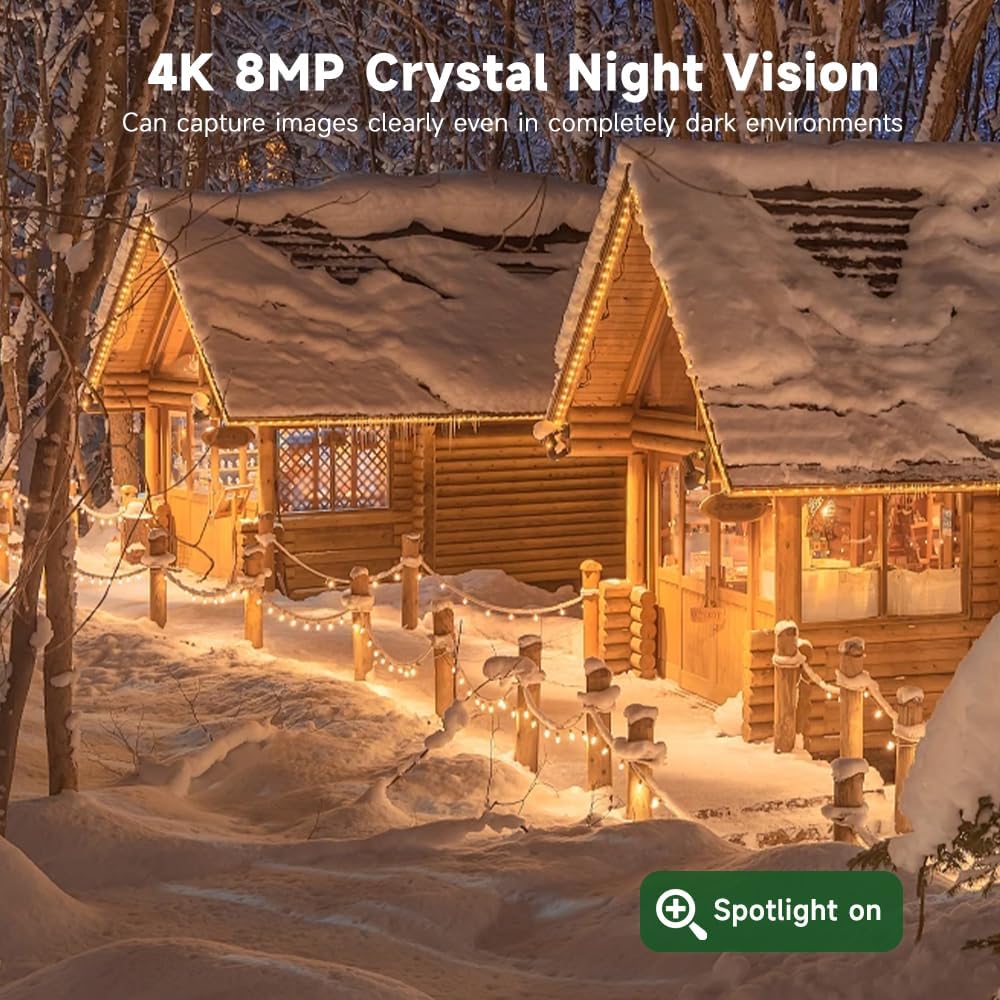
Image: A side-by-side comparison illustrating the difference between color night vision and infrared night vision.
4.4 Zwei-Wege-Audio
The camera includes a built-in microphone and speaker, enabling two-way communication.
- Im Live view of the V380 Pro app, tap the microphone icon to speak through the camera.
- Tippen Sie auf das Lautsprechersymbol, um den Ton vom Kamerastandort abzuspielen.

Image: A person interacting with a delivery driver using the camera's two-way audio feature via a smartphone app.
4.5 Speichermöglichkeiten
Aufgenommen footage kann lokal oder in der Cloud gespeichert werden.
- MicroSD-Karte: The camera supports microSD cards up to 128GB (not included). Insert the card into the designated slot for local storage.
- Cloud-Speicher: Subscribe to a cloud storage plan through the V380 Pro app for secure, remote access to your recordings.

Image: An illustration detailing the two storage options: local MicroSD card storage (up to 128GB) and private cloud storage.
4.6 Fernzugriff und gemeinsame Nutzung
Access your camera feed and controls from anywhere using the V380 Pro app. You can also share access with others.
- Fernbedienung Viewing: Open the V380 Pro app on your smartphone or tablet to view lebe footage and recorded events.
- Gerätefreigabe: In the app settings, locate the device sharing option to invite family members or trusted individuals to view den Kamera-Feed.

Image: A collage showing the camera feed being accessed remotely on a smartphone, laptop, and another smartphone.

Image: A graphic illustrating global remote access and live stream sharing capabilities of the camera.
5. Wartung
5.1 Reinigung
- Reinigen Sie das Kameraobjektiv und das Solarpanel regelmäßig mit einem weichen Tuch.amp Stoff, um eine klare Bildqualität und effizientes Aufladen mit Solarenergie zu gewährleisten.
- Verwenden Sie keine aggressiven Chemikalien oder scheuernden Materialien.
5.2 Wirkungsgrad der Solarmodule
- Ensure the solar panel remains free from obstructions like leaves, dirt, or snow to maintain optimal charging performance.
- Periodically check the solar panel's angle to confirm it is still positioned for maximum sun exposure.
5.3 Firmware-Updates
- Check the V380 Pro app periodically for available firmware updates. Updates can improve performance, add features, and enhance security.
- Follow the in-app instructions to perform firmware updates. Ensure the camera has sufficient battery charge before starting an update.
6. Fehlerbehebung
| Problem | Mögliche Ursache | Lösung |
|---|---|---|
| Die Kamera lässt sich nicht einschalten. | Insufficient solar charge; faulty connection. | Ensure solar panel is clean and receiving direct sunlight. Check cable connections. Allow several hours for initial charge. |
| No 4G signal or connectivity. | SIM card not inserted correctly; no active data plan; poor cellular coverage. | Reinsert SIM card. Check data plan status in V380 Pro app and top up if necessary. Relocate camera to an area with better cellular reception. |
| Bewegungserkennungsalarme erfolgen zu häufig oder werden gar nicht ausgelöst. | Sensitivity settings are too high/low; environmental factors. | Adjust motion detection sensitivity in the V380 Pro app. Ensure detection zone is correctly configured. |
| Schlechte Nachtsichtqualität. | Lens obstruction; incorrect night vision mode. | Clean the camera lens. Switch between full-color and infrared night vision modes in the app to see which performs better for your environment. |
| Cannot access camera remotely. | No 4G connection; app issues. | Verify 4G signal strength. Restart the V380 Pro app or your mobile device. Ensure the app has necessary permissions. |
7. Spezifikationen
- Marke: XIAOVV
- Modell: B0FT15FHVZ
- Auflösung der Videoaufnahme: 4K (8 MP)
- Konnektivitätstechnologie: 4G LTE Mobilfunk
- Energiequelle: Solarbetrieben (8000-mAh-Akku)
- Besondere Merkmale: PTZ (Pan-Tilt-Zoom), Motion Detection, Full-Color Night Vision
- Verwendung im Innen- und Außenbereich: Im Freien
- Wasserbeständigkeit: IP66 Wasserdicht
- Nachtsichtbereich: 100 Meter
- Lagerung: MicroSD-Karte (bis zu 128 GB, nicht im Lieferumfang enthalten), Cloud-Speicher
- Betriebstemperatur: -30°C bis 60°C
- Artikelgewicht: 1.45 Kilogramm
8. Garantie und Support
8.1 Garantieinformationen
Bitte beachten Sie die Produktverpackung oder die offizielle Website von XIAOVV. website for specific warranty details and terms. Keep your purchase receipt as proof of purchase for warranty claims.
8.2 Kundendienst
For technical assistance, troubleshooting, or any questions regarding your XIAOVV 4K Outdoor Security Camera, please contact XIAOVV customer support through their official website or the contact information provided in the V380 Pro app.
Zugehörige Dokumente - B0FT15FHVZ
 |
xiaovv智能全景摄像机快速指南与保修信息 xiaovv智能全景摄像机XVV-1120S-A1的快速安装指南、产品参数、包装清单以及售后服务和保修政策. |
 |
xiaovv USB Webcam-Handbuch: Anschluss, Tipps und Garantie Ausführliches Benutzerhandbuch für den xiaovv USB webKamera. Erfahren Sie, wie Sie Ihr Gerät anschließen, die LED-Anzeigen verstehen und erhalten Sie wichtige Tipps für optimales Live-Streaming und Aufnahmen. Inklusive Garantieinformationen. |
 |
Manual de Usuario: Monitor para Bebés XIAOVV con Wi-Fi Guía de configuración y uso para el monitor para bebés XIAOVV con Wi-Fi. Incluye pasos para la instalación de la aplicación, configuración de red, grabación en tarjeta SD y solución de problemas. |
 |
xiaovv Smart Camera Q3 User Manual User manual and setup guide for the xiaovv Q3 smart camera, including app installation, network configuration, and FCC compliance information. |
 |
Xiaovv Outdoor PTZ-Kamera 2K XVV-3630S-P1: Einrichtungs- und Konfigurationshandbuch Umfassende Anleitung zum Einrichten und Konfigurieren der Xiaovv Outdoor PTZ Camera 2K (Modell XVV-3630S-P1) mit der Mi Home-App. Behandelt das Einschalten, das Hinzufügen des Geräts über einen WLAN-Hotspot, das Scannen von QR-Codes und die PINCODE-Konfiguration für Android und iOS. |
 |
Produktbeschreibung: Xiaovv Outdoor Camera Pro XVV-1120S-B1 Weitere Informationen zu den Videokameras der Xiaovv Outdoor Camera Pro (Modell XVV-1120S-B1) finden Sie hier. |
Ask a question about this manual
Ask about setup, troubleshooting, compatibility, parts, safety, or missing instructions. Manuals+ will review the question and use this page’s manual context to help answer it.