
1. Produktüberschreitungview
The TP-Link Archer GE400 is a high-performance Dual-Band BE6500 WiFi 7 Gaming Router designed to provide a stable and fast network experience, especially for gaming. It features advanced WiFi 7 technology, multi-gigabit ports, and dedicated gaming optimizations to reduce latency and enhance connectivity.
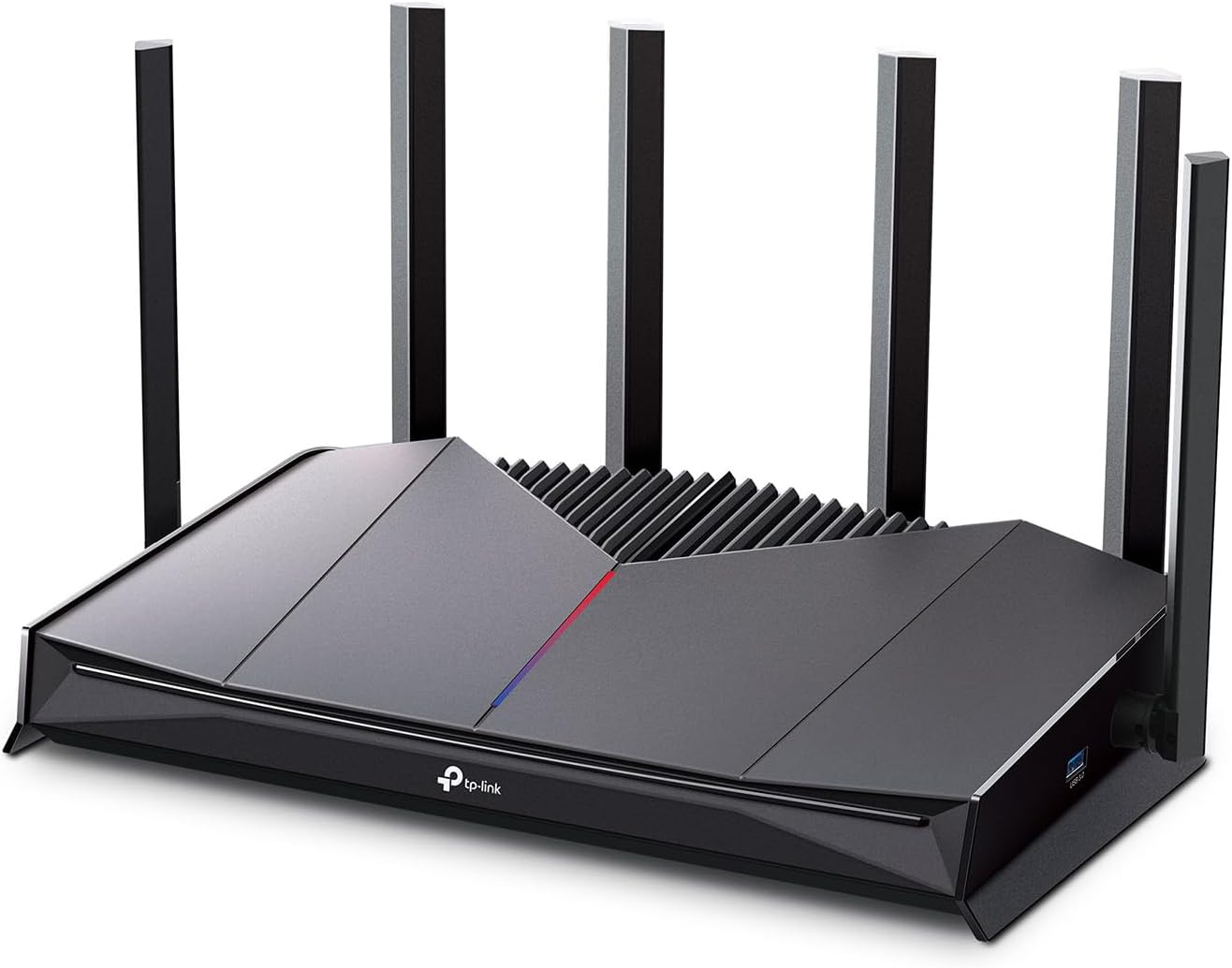
Bild: Vorderseite view of the TP-Link Archer GE400 Dual-Band BE6500 WiFi 7 Gaming Router, showcasing its sleek design and six external antennas.
Hauptmerkmale:
- Dualband-WLAN 7: Offers combined speeds of up to 6.5 Gbps (5765 Mbps on 5 GHz and 688 Mbps on 2.4 GHz) for high-speed data transfer.
- Spielbeschleunigung: Includes a dedicated multi-gig gaming port, Quality of Service (QoS) for prioritizing game traffic, and game server acceleration via WTFast.
- Multi-Gigabit-Anschlüsse: Equipped with 1x 2.5 Gbps WAN/LAN port, 1x 2.5 Gbps LAN port (dedicated gaming port), and 3x 1 Gbps LAN ports for versatile wired connections.
- Umfassende Abdeckung: Provides up to 2,600 sq. ft. of coverage for up to 90 devices, enhanced by 6 antennas and Beamforming technology.
- EasyMesh-Kompatibilität: Allows for seamless expansion of WiFi coverage by adding compatible EasyMesh devices.
- TP-Link HomeShield: Integrated security service offering network protection, parental controls, and IoT device security.
- Intuitives Management: Easy setup and management via the TP-Link Tether app or web Schnittstelle.
2. Lieferumfang
Bevor Sie beginnen, vergewissern Sie sich bitte, dass alle Artikel in Ihrem Paket vorhanden sind:
- 1 x Wi-Fi 7 Router Archer GE400
- 1 x Schnellinstallationsanleitung
- 1 x Netzteil
- 1 x RJ45-Ethernetkabel
3. Installationsanleitung
3.1 Hardware-Anschluss
- Modem ausschalten: Unplug your modem's power to turn it off.
- Router verbinden: Connect the provided Ethernet cable from your modem's Ethernet port to the 2.5 Gbps WAN/LAN port (blue) on your Archer GE400 router.
- Modem einschalten: Plug in and power on your modem. Wait for about 2 minutes for it to restart.
- Router einschalten: Connect the power adapter to the router and plug it into a power outlet. Wait for the router to fully start up.
- Geräte verbinden: For wired connections, connect your gaming PC or console to the dedicated 2.5 Gbps Gaming Port (red) for prioritized traffic, or use any of the 1 Gbps LAN ports for other devices.

Bild: Nahaufnahme view of the rear ports of the Archer GE400 router, highlighting the 2.5 Gbps WAN/LAN port, 2.5 Gbps Gaming Port, and 1 Gbps LAN ports.
3.2 Netzwerkkonfiguration
- Verbindung zum WLAN des Routers herstellen: On your computer or mobile device, connect to the default WiFi network name (SSID) printed on the label at the bottom of the router.
- Start Web Browser: Öffnen Sie ein web Browser und geben Sie
http://tplinkwifi.netor the router's default IP address (usually192.168.0.1or192.168.1.1) in der Adressleiste. - Anmeldepasswort erstellen: Follow the on-screen instructions to create a new login password for the router.
- Follow Quick Setup: The Quick Setup wizard will guide you through basic internet settings and WiFi network configuration.
- Tether-App herunterladen: For easier management, download the TP-Link Tether app from the App Store or Google Play.
Video: An introductory video for the Archer GE400, demonstrating its features and setup process.
4. Bedienungsanleitung
4.1 Spielbeschleunigung
The Archer GE400 is optimized for gaming performance:
- Dedicated Gaming Port: Connect your primary gaming device (PC, console) to the 2.5 Gbps Gaming Port for automatic traffic prioritization.
- Game QoS: Configure Quality of Service settings via the Tether app or web interface to prioritize gaming applications over other network traffic.
- Game Server Acceleration (WTFast): Utilize the integrated WTFast service to optimize connections to game servers, reducing ping and latency.

Image: Diagram illustrating the Archer GE400's gaming features, including Game Applications Boost with QoS, Prioritize Game Devices with the Gaming Port, and Game Server Acceleration by GPN.
4.2 WiFi 7 Connectivity
Leverage the advanced capabilities of WiFi 7 for a superior wireless experience:
- Dualband-Betrieb: The router operates on both 2.4 GHz and 5 GHz bands. The 5 GHz band offers higher speeds for demanding tasks like gaming and 4K/8K streaming, while the 2.4 GHz band provides wider coverage for general use.
- Multi-Link-Betrieb (MLO): WiFi 7's MLO feature allows devices to use multiple frequency bands simultaneously, improving throughput and reducing latency.
- 4K-QAM: This modulation scheme packs more data into each signal, leading to higher speeds and efficiency.
4.3 EasyMesh Integration
Expand your network coverage with TP-Link EasyMesh:
- Nahtloses Roaming: Add EasyMesh-compatible routers or range extenders to create a unified whole-home mesh network. Your devices will automatically switch to the strongest signal as you move around your home.
- Single WiFi Name: Enjoy a single network name (SSID) across your entire home, eliminating the need to manually switch between different networks.

Image: Illustration of an EasyMesh network setup with the Archer GE400, showing how it extends WiFi coverage throughout a home.
4.4 HomeShield-Sicherheit
Protect your network and devices with TP-Link HomeShield:
- Netzwerksicherheit: Scans for network threats and vulnerabilities.
- Kindersicherung: Manage internet access for children, including content filtering and time limits.
- IoT Device Protection: Provides security for smart home devices, preventing unauthorized access.

Image: Visual representation of TP-Link HomeShield features, including network threat scanning, WPA3 encryption, device blocking, and IoT device protection.
4.5 Dedicated Game Panel
Monitor and manage your gaming network with the intuitive Game Panel:
- Real-Time Stats: View network status, router performance, and accelerated game data.
- RGB-Steuerung: Customize the router's RGB lighting settings.
- Gerätepriorisierung: Easily see and manage which devices are prioritized for gaming performance.

Image: Screenshot of the Archer GE400's dedicated game panel, showing network overview, device distribution, and gaming record features accessible via the Tether app.
5. Wartung
To ensure optimal performance and longevity of your Archer GE400 router, follow these maintenance guidelines:
- Firmware-Updates: Überprüfen und installieren Sie regelmäßig Firmware-Updates über die Tether-App oder web Schnittstellenaktualisierungen beinhalten häufig Leistungsverbesserungen und Sicherheitspatches.
- Regelmäßiger Neustart: Reboot your router periodically (e.g., once a month) to clear its memory and refresh network connections.
- Physische Reinigung: Keep the router in a well-ventilated area. Gently clean dust from the vents and surfaces using a soft, dry cloth. Avoid blocking ventilation openings.
- Network Security Scans: Utilize the HomeShield feature to perform regular network security scans to identify and address potential vulnerabilities.
6. Fehlerbehebung
If you encounter issues with your Archer GE400 router, try the following troubleshooting steps:
6.1 Kein Internetzugang
- Kabel prüfen: Stellen Sie sicher, dass alle Ethernet-Kabel fest mit Router und Modem verbunden sind.
- Geräte neu starten: Schalten Sie Modem und Router aus. Warten Sie 30 Sekunden und schalten Sie dann zuerst das Modem ein. Sobald das Modem vollständig verbunden ist, schalten Sie den Router ein.
- Modemstatus überprüfen: Prüfen Sie die Kontrollleuchten an Ihrem Modem, um sicherzustellen, dass eine aktive Internetverbindung besteht.
- Kontakt zum Internetanbieter: If the modem lights indicate no internet, contact your Internet Service Provider (ISP).
6.2 Langsame WLAN-Geschwindigkeiten
- Geräteplatzierung: Ensure the router is centrally located and free from obstructions. Avoid placing it near large metal objects or other electronics that may cause interference.
- Band Auswahl: For high-bandwidth activities, connect your devices to the 5 GHz WiFi band.
- Interferenz: Check for potential sources of wireless interference (e.g., microwaves, cordless phones).
- QoS Settings: Review your QoS settings in the Tether app or web interface to ensure critical applications are prioritized correctly.
6.3 Dropped Connections
- Firmware Update: Stellen Sie sicher, dass die Firmware Ihres Routers auf dem neuesten Stand ist.
- Signalstärke: If connections drop frequently, your device might be too far from the router or experiencing signal interference. Consider using EasyMesh to extend coverage.
- Router zurücksetzen: As a last resort, perform a factory reset. Use a pin to press and hold the Reset button on the back of the router for about 10 seconds until the LEDs flash. Note: This will erase all your custom settings.
7. Spezifikationen
Detailed technical specifications for the TP-Link Archer GE400 router:
| Marke | TP-Link |
| Modellname | Dual-Band GE6500 WiFi 7 Gaming Router |
| Modellnummer | Archer GE400 |
| Frequenzbandklasse | Dualband |
| Drahtloser Kommunikationsstandard | 802.11.be, 802.11ac, 802.11ax, 802.11g, 802.11n |
| Datenübertragungsrate | 6500 Megabit pro Sekunde |
| LAN-Port-Bandbreite | 1 x 2.5 Gbps WAN/LAN, 1 x 2.5 Gbps LAN (Gaming Port), 3 x 1 Gbps LAN |
| Anzahl der Antennen | 6 |
| Abdeckung | Bis zu 2,600 m². |
| Kompatible Geräte | Spielkonsole, PC, Smart-TV, Smartphone, Tablet |
| Security Protocol | WPA-PSK, WPA2-PSK, WPA3 |
| Kontrollmethode | App (TP-Link Tether) |
| Betriebssystem | Linux |
| Artikelabmessungen (L x B x H) | 10.57 Zoll L x 6.02 Zoll B x 2.31 Zoll H |
| Artikelgewicht | 1.43 Pfund |
8. Garantie und Support
8.1 Garantieinformationen
The TP-Link Archer GE400 Dual-Band BE6500 WiFi 7 Gaming Router comes with a 2 Jahre HerstellergarantieBitte bewahren Sie Ihren Kaufbeleg für Garantieansprüche auf.
8.2 Technischer Support
For further assistance, technical support, or to access the latest drivers and firmware, please visit the official TP-Link webWebsite:
You can also find FAQs and community forums on the TP-Link support pages.