
Einführung
Thank you for choosing the ProtoArc KM310 Wireless Mechanical Keyboard and Mouse. This combo offers a responsive typing experience with low-profile linear red switches and versatile multi-device connectivity. The ergonomic mouse is designed for comfort and precision. This manual provides detailed instructions for setup, operation, maintenance, and troubleshooting to ensure optimal performance.
Lieferumfang

Image: Contents of the ProtoArc KM310 package, including the keyboard, mouse, charging cable, and user manual.
- ProtoArc KM310 kabellose mechanische Tastatur
- ProtoArc Kabellose Maus
- USB-C-Ladekabel
- Bedienungsanleitung
Produkt überview
Tastaturfunktionen

Bild: Eine Nahaufnahme view of the ProtoArc KM310 keyboard, highlighting its low-profile keys and linear red switches.
- Low-Profile Mechanische Tasten: Equipped with linear red switches for a smooth, quiet, and responsive typing experience.
- Aluminum Top Case: Provides durability and a sleek, modern aesthetic.
- Verstellbare Neigungsbeine: Ergonomically designed with 2-stage foot mats offering 6° and 9° tilt options for comfortable typing.
- Layout in voller Größe: A 108-key layout suitable for office and business use.
Mausfunktionen

Image: The ProtoArc KM310 mouse being held, showcasing its ergonomic design for a natural grip.
- 63G Ultra-Lightweight: Reduces hand fatigue during extended use and enhances portability.
- Ergonomisches Design: Contoured shape for a comfortable and natural grip.
- Einstellbare DPI: Three DPI levels (1000/1600/2400) for tailored control and precision.
- Leiser Klick: Für einen geräuscharmen Betrieb konzipiert.
- Vorwärts-/Rückwärtstasten: Integrated for seamless browsing.
Konnektivität und Stromversorgung
- Konnektivität mehrerer Geräte: Connects up to 3 devices via 2.4G USB receiver or Dual Bluetooth (BT1, BT2).
- Wiederaufladbar: Both keyboard and mouse feature Type-C charging. The mouse's USB receiver is stored on its bottom.
- Lange Akkulaufzeit: Up to 150-200 days standby time; 2-3 hours for a full charge.
Installationsanweisungen
1. Aufladen der Geräte

Image: The keyboard and mouse are shown connected to power sources via USB-C cables for charging.
- Connect the provided USB-C charging cable to the charging port on the keyboard (located on the top edge) and the mouse (located on the front edge).
- Stecken Sie das andere Ende des Kabels in eine USB-Stromquelle (z. B. USB-Anschluss am Computer, USB-Netzteil).
- The indicator lights will show charging status. Allow 2-3 hours for a full charge.
2. Verbindung zu Geräten herstellen

Image: A desk setup showing the ProtoArc KM310 keyboard and mouse connected to a laptop, monitor, and tablet, illustrating multi-device capability.
The KM310 combo supports three connection modes: 2.4G wireless via USB receiver, Bluetooth 1 (BT1), and Bluetooth 2 (BT2).
2.1. 2.4 G Wireless-Verbindung
- Suchen Sie den USB-Empfänger, der sich im Fach an der Unterseite der Maus befindet.
- Stecken Sie den USB-Empfänger in einen freien USB-Port Ihres Computers.
- Schalten Sie Tastatur und Maus mit den jeweiligen Netzschaltern ein.
- Die Geräte sollten sich automatisch verbinden.
2.2. Bluetooth-Verbindung (BT1 / BT2)
- Schalten Sie Tastatur und Maus ein.
- Drücken Sie auf der Tastatur die BT1 or BT2 key (usually located on the number pad, indicated by orange keycaps) to select the desired Bluetooth channel. The indicator light will flash.
- On your device (computer, tablet, etc.), go to Bluetooth settings and search for "ProtoArc KM310 Keyboard" and "ProtoArc KM310 Mouse".
- Select the devices to pair. The indicator light will stop flashing once connected.
- Wiederholen Sie den Vorgang für ein zweites Bluetooth-Gerät mit dem anderen BT-Kanal.
2.3. Wechseln zwischen Geräten
To switch between connected devices, simply press the corresponding connection key on the keyboard (2.4G, BT1, or BT2) and the channel switch button on the bottom of the mouse.
Bedienungsanleitung
Tastaturnutzung
- Tippen: Der Low-Profifile linear red switches provide a responsive and quiet typing experience.
- Betriebssystemkompatibilität: The keyboard is compatible with Windows and Mac OS. Keys like 'Win' and 'Alt' also show 'Option' and 'Cmd' for Mac users.
- Neigung einstellen: Use the adjustable tilt legs on the underside of the keyboard to set your preferred typing angle (6° or 9°).
Mausnutzung
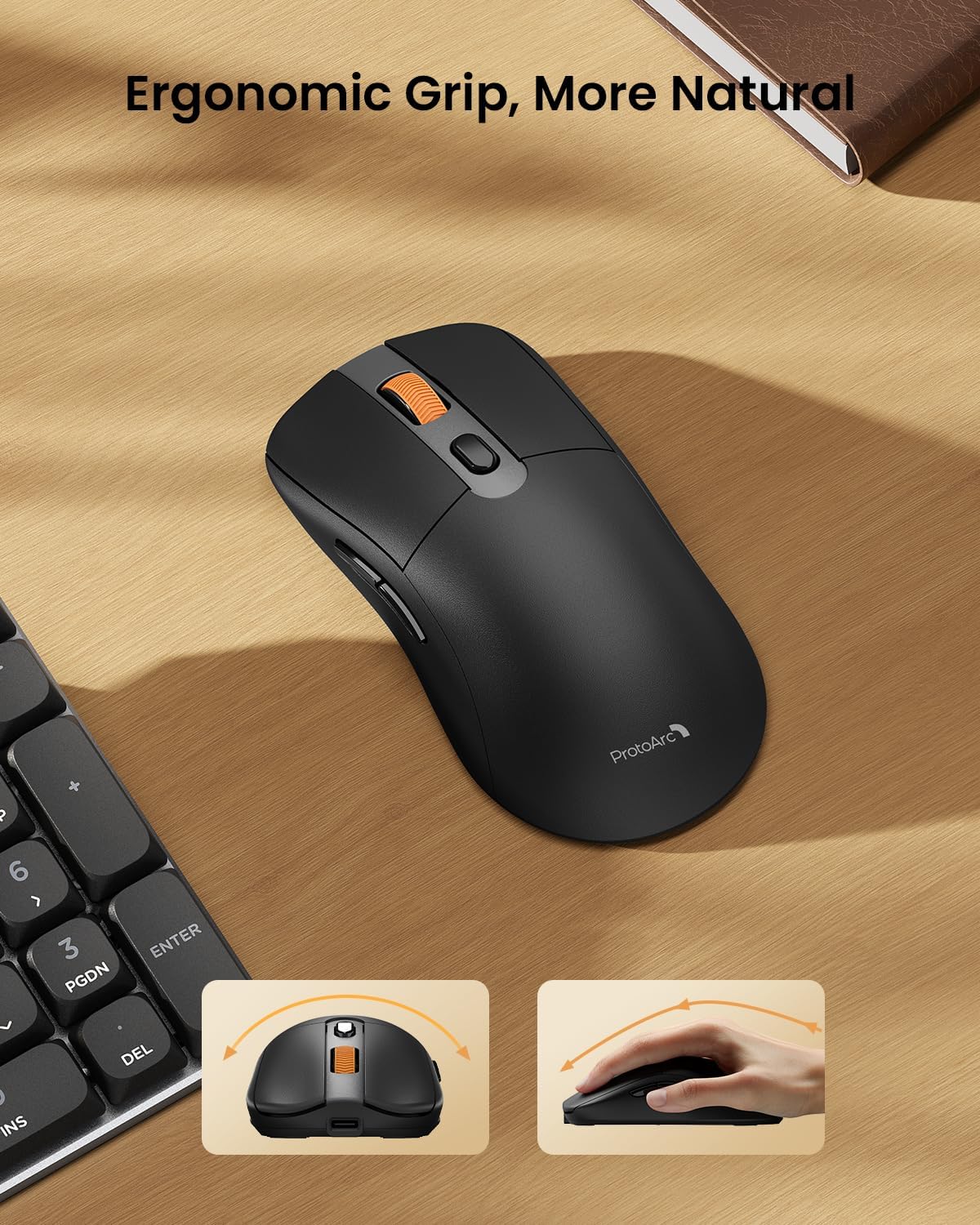
Image: A close-up of the ProtoArc KM310 mouse, illustrating the three adjustable DPI settings (1000, 1600, 2400).
- DPI-Anpassung: Press the DPI switch button (usually located near the scroll wheel) to cycle through the 3 DPI levels (1000/1600/2400) to match your preference for cursor speed and precision.
- Navigationstasten: Verwenden Sie die Vorwärts- und Rückwärtstasten an der Seite der Maus zur schnellen Navigation in web Browser bzw file Entdecker.
- Stille Klicks: Die Maus verfügt über geräuschlose Klicktasten für eine ruhige Arbeitsumgebung.
Wartung
- Reinigung: Verwenden Sie ein weiches, trockenes Tuch, um Tastatur und Maus abzuwischen. Bei hartnäckigem Schmutz verwenden Sie ein leicht feuchtes Tuch.amp Man kann ein Tuch mit milder Seife verwenden, wobei darauf zu achten ist, dass keine Flüssigkeit in das Gerät gelangt.
- Batteriepflege: Recharge the devices when the battery indicator is low. Avoid prolonged exposure to extreme temperatures.
- Lagerung: When not in use for extended periods, turn off the devices to conserve battery life. Store the USB receiver inside the mouse to prevent loss.
Fehlerbehebung
Keyboard/Mouse Not Turning On or Stopping Working
- Batterie prüfen: Ensure both the keyboard and mouse are sufficiently charged. Connect them to a power source using the USB-C cable.
- Geräte neu koppeln:
- For 2.4G connection, ensure the USB receiver is securely plugged in and the devices are set to 2.4G mode.
- For Bluetooth connection, ensure the devices are set to the correct BT channel (BT1 or BT2) and re-pair them through your device's Bluetooth settings.
- Versuchen Sie es mit einem anderen Kabel: If charging issues persist, try using a different USB-C cable to rule out a faulty cable.
- Interferenz: Move the devices closer to your computer or away from other wireless devices that might cause interference.
- Kontaktieren Sie den Support: If the issue persists, please contact ProtoArc customer support for further assistance.
Technische Daten
| Modellnummer | KM310 |
| Marke | ProtoArc |
| Farbe | Space Grau |
| Konnektivitätstechnologie | Bluetooth, USB (2.4-GHz-Funk) |
| Besondere Merkmale | Niedriger Profile Keys, Linear Red Switches, Ergonomic Design, Ultra-Light Mouse, Ergonomic Mouse |
| Kompatible Geräte | Laptop, Personal Computer, Tablet (Windows 7/8/10, Mac OS X 10.12, Android 4.3 or higher) |
| Artikelgewicht | 2.31 Pfund |
| Verpackungsabmessungen | 17.68 x 8.07 x 2.05 Zoll |
Garantie und Support
The ProtoArc KM310 Mechanical Keyboard and Mouse combo comes with a 2 Jahr Garantie.
For any questions, technical support, or warranty claims, please contact ProtoArc customer service:
- E-Mail: support@protoarc.com
- Telefon: +1 866-287-8188
Offizielles Produktvideo
Video: Offizielles Produktvideoasing the features and design of the ProtoArc KM310 Aluminum Mechanical Keyboard and Mouse.