
1. Einleitung
Welcome to the NIMO N15A 15.6" Laptop User Manual. This guide provides essential information for setting up, operating, maintaining, and troubleshooting your new laptop. Please read this manual thoroughly to ensure optimal performance and longevity of your device.
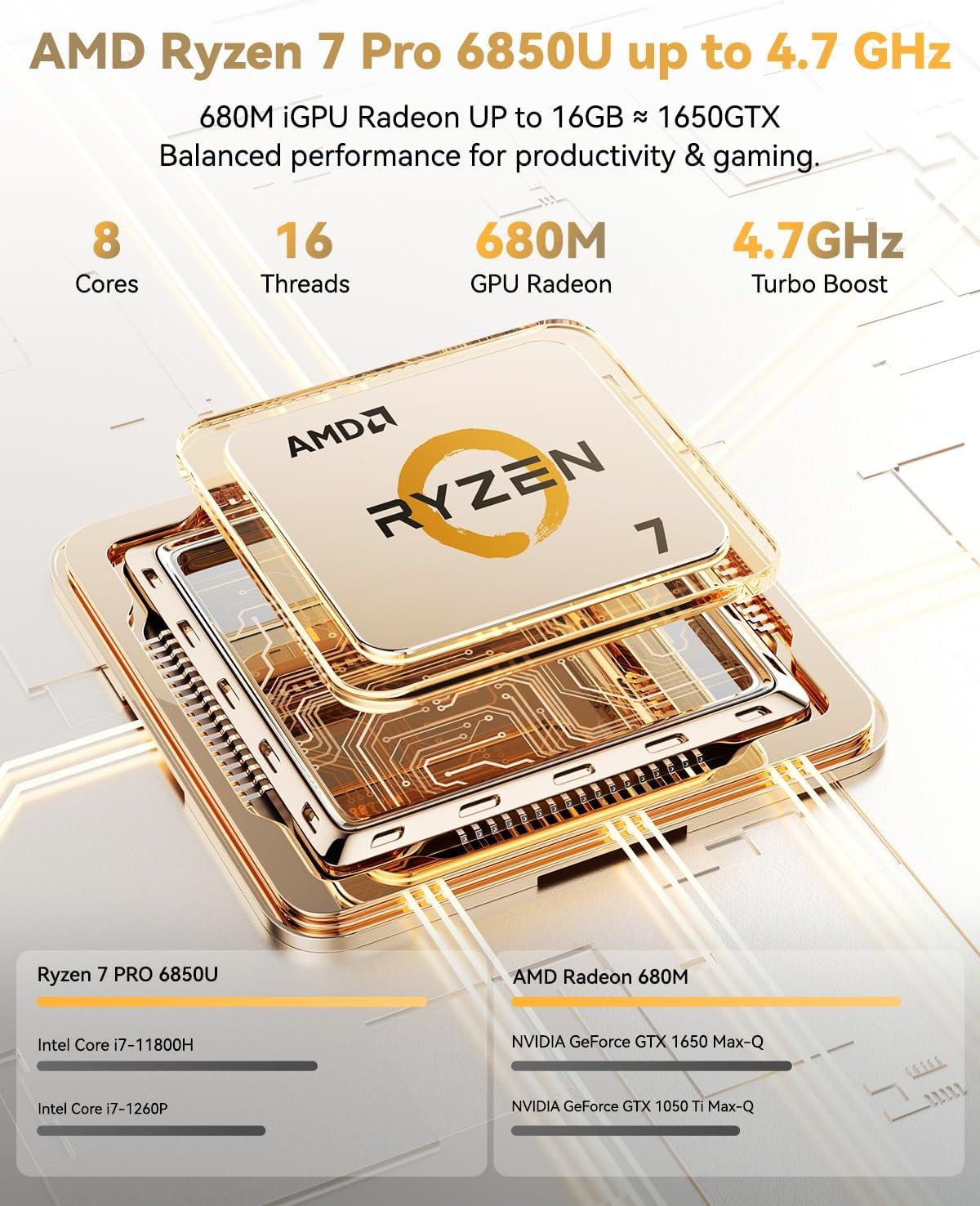
Figure 1: NIMO N15A 15.6" Laptop
2. Sicherheitshinweise
To prevent damage to your NIMO N15A laptop and ensure your safety, please observe the following guidelines:
- Use only original chargers and regularly inspect cables for any signs of damage.
- Handle the laptop by its base and consider using a protective case to prevent physical damage.
- Vermeiden Sie es, schwere Gegenstände auf den Laptop zu stellen.
- Ensure the laptop is placed on a hard, flat surface to allow for proper ventilation and prevent overheating.
- Setzen Sie das Gerät keinen extremen Temperaturen und Feuchtigkeit aus.
- Do not overcharge the battery. Discontinue use immediately if the battery shows signs of swelling or damage.
- Set strong passwords, keep your software updated, use antivirus protection, and regularly back up your data.
- Im Falle eines Flüssigkeitsaustritts ziehen Sie sofort den Netzstecker des Laptops und lassen Sie ihn vollständig trocknen, bevor Sie versuchen, ihn einzuschalten.
- For any issues, consult qualified professionals. Do not attempt to disassemble or repair the laptop yourself, as this may void the warranty and cause further damage.
3. Lieferumfang
Your NIMO N15A laptop package includes the following items:
- 1 x NIMO N15A Laptop
- 1 x Typ-C 100W PD Schnellladegerät
- 1 x Benutzerhandbuch (dieses Dokument)
- Windows 11 Home (vorinstalliert)
- Garantieinformationen (2 Jahre Garantie, 90 Tage Rückgaberecht)
Video 1: Unboxing and Initial Setup of the NIMO 15.6" Laptop. This video demonstrates the contents of the package and the first steps to power on the device.
4. Produktüberschreitungview
4.1. Physikalische Merkmale
The NIMO N15A laptop features a durable metal shell, combining a sleek aesthetic with robust protection. Its slim profile and lightweight design (3.75 lbs) make it highly portable.
4.2. Anschlüsse und Konnektivität
Der Laptop ist mit einer Vielzahl von Anschlüssen für vielseitige Verbindungsmöglichkeiten ausgestattet:
- Micro SD-Kartenleser
- USB 2.0-Anschluss
- USB 3.2 Ports (multiple)
- Kopfhöreranschluss
- Kensington Lock Slot
- HDMI-Anschluss
- Type-C (Multifunction) Ports (multiple, supporting 100W PD fast charging)
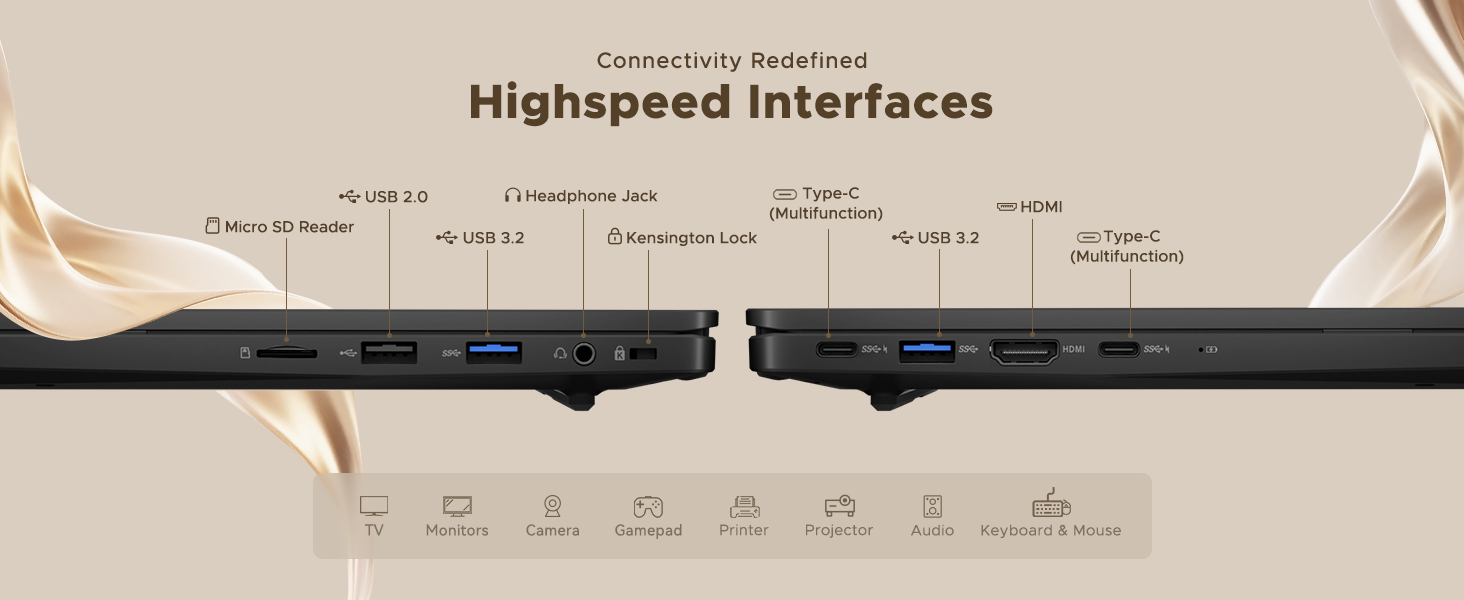
Figure 2: High-Speed Interfaces and Ports
Video 2: NIMO Laptop Overview. This video highlights the laptop's design, display, camera, keyboard, and various ports.
5. Einrichtung
5.1. Erstes Einschalten
- Unpack your NIMO N15A laptop and all accessories from the box.
- Schließen Sie das 100-W-Type-C-PD-Schnellladegerät an den Type-C-Anschluss des Laptops und eine Steckdose an.
- Öffnen Sie den Laptopdeckel. Der Laptop schaltet sich möglicherweise automatisch ein, andernfalls müssen Sie den Netzschalter drücken.
- Folgen Sie den Anweisungen auf dem Bildschirm, um die Einrichtung von Windows 11 Home abzuschließen, einschließlich Sprache, Region, Netzwerkverbindung und Erstellung des Benutzerkontos.
5.2. Verbinden mit Wi-Fi
During the initial setup or at any time, you can connect to a Wi-Fi network:
- Click the Wi-Fi icon in the taskbar (bottom right corner of the screen).
- Wählen Sie das gewünschte WLAN-Netzwerk aus der Liste aus.
- Geben Sie gegebenenfalls das Netzwerkpasswort ein und klicken Sie auf „Verbinden“.
6. Bedienung Ihres Laptops
6.1. Anzeige
The NIMO N15A features a 15.6" Full HD (1920x1080) IPS anti-glare display with an 85% screen-to-body ratio, providing clear and vibrant visuals for work, entertainment, and light gaming.
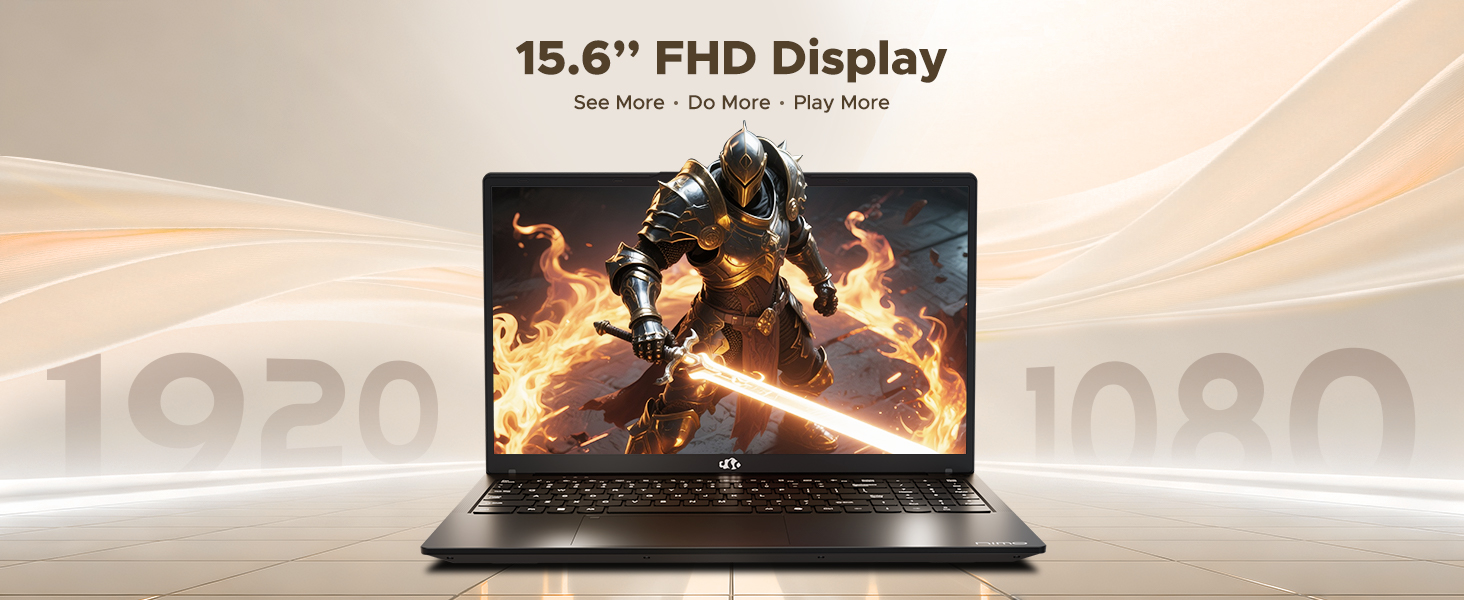
Figure 3: 15.6" FHD IPS Display
6.2. Tastatur und Touchpad
The laptop includes an ergonomic backlit keyboard for comfortable typing in various lighting conditions and a precision gesture touchpad for smooth navigation.
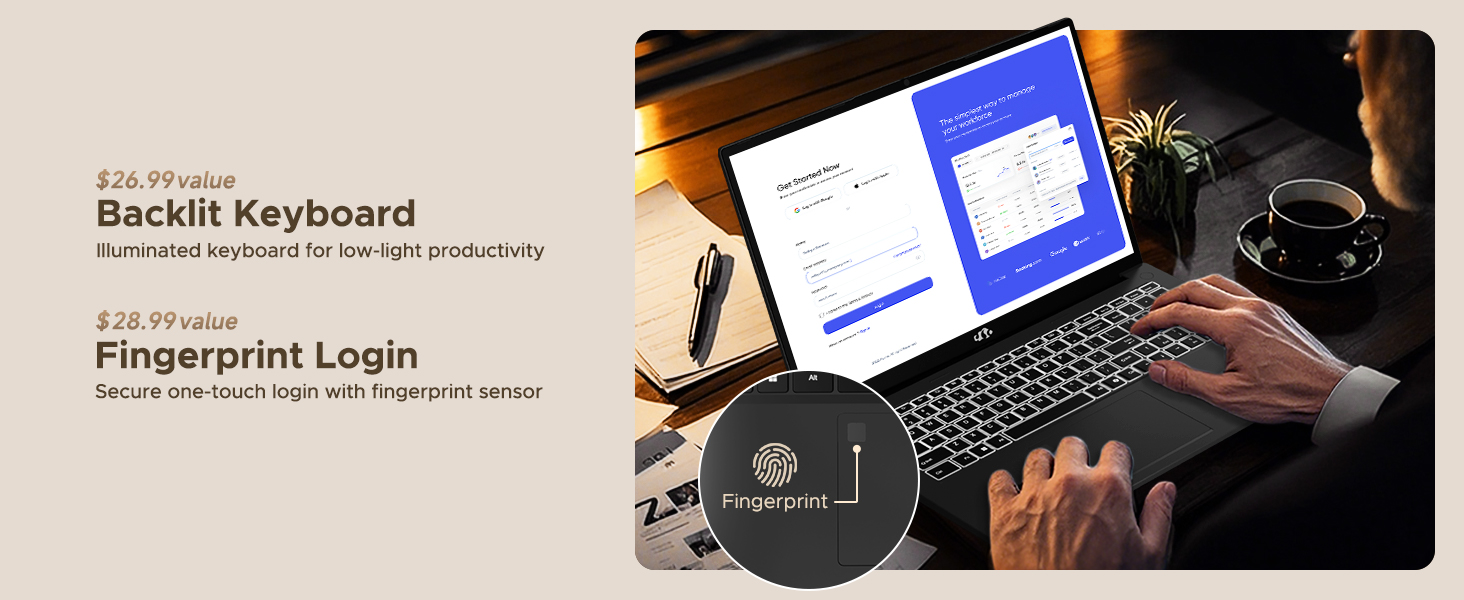
Abbildung 4: Tastatur mit Hintergrundbeleuchtung und Fingerabdrucksensor
6.3. Fingerprint Login
For enhanced security and convenience, the laptop features a fingerprint reader integrated into the touchpad. You can set up fingerprint login through Windows Settings for quick and secure access.
6.4. Kamera
The integrated 2MP front camera is suitable for video calls and online meetings. It includes a privacy shutter for when the camera is not in use.

Figure 5: Privacy-Focused Camera Convenience
6.5. Leistung
Powered by the AMD Ryzen 7 Pro 6850U processor (8 cores, 16 threads, up to 4.7GHz) and AMD Radeon 680M GPU, the NIMO N15A delivers balanced performance for productivity, content creation, and light gaming.
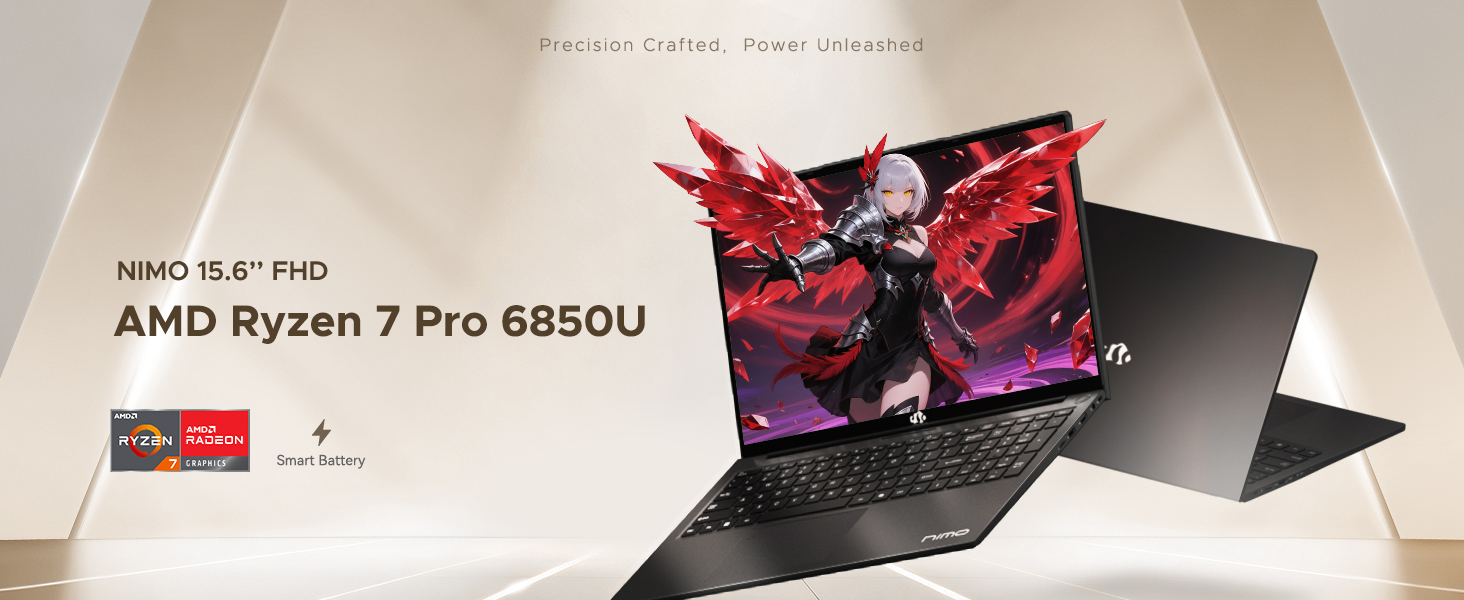
Figure 6: AMD Ryzen 7 Pro 6850U Processor Details
Video 3: NIMO Gaming Laptop Demonstration. This video showcases the laptop's performance in gaming and creative applications.
7. Laden und Akku
The NIMO N15A is equipped with a 53.58 Watt-Hour Lithium Polymer battery, offering up to 9 hours of typical use and 12.75 hours of standby time. It supports 100W USB-C PD fast charging, allowing for approximately 2 hours of use from just a 15-minute charge.
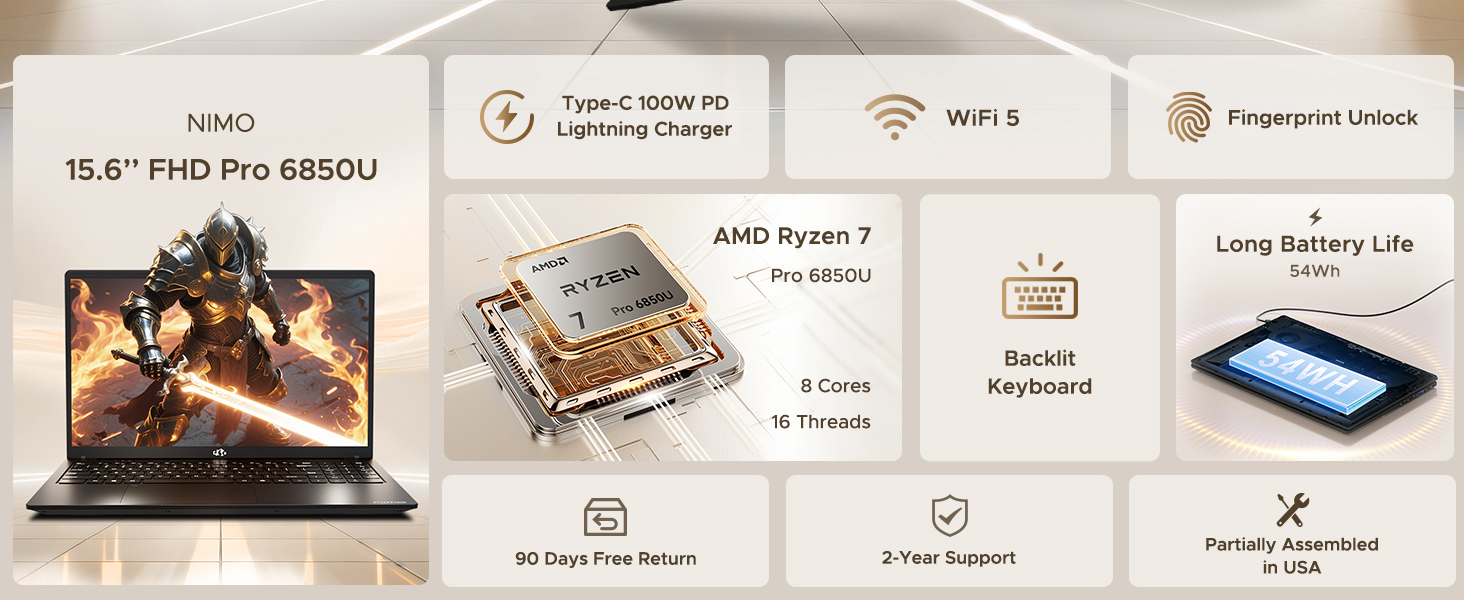
Figure 7: 100W USB-C Fast Charging
8. Speicherung und Speicher
The laptop features 16GB of lightning-fast LPDDR5 RAM (6400 MHz) for seamless multitasking and a pre-installed 1TB PCIe 4.0 SSD for rapid boot times and file Überweisungen.
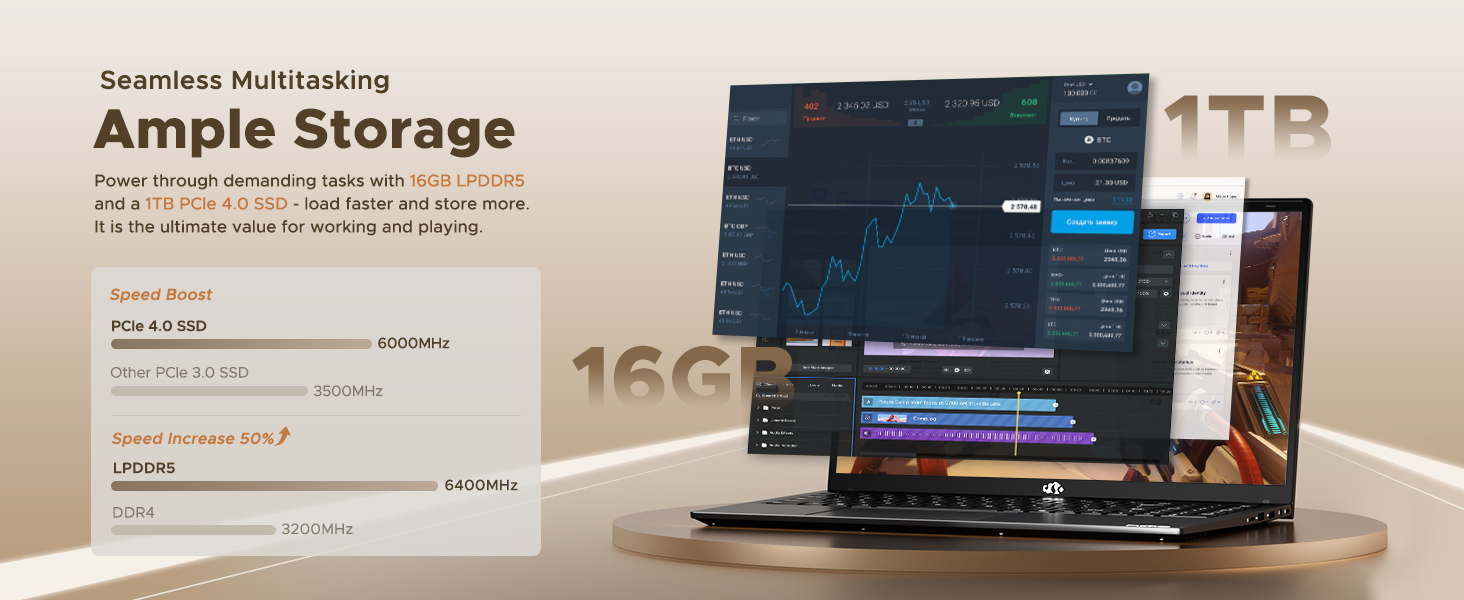
Figure 8: 16GB LPDDR5 RAM and 1TB PCIe 4.0 SSD
9. Wartung
Regular maintenance helps ensure the longevity and optimal performance of your NIMO N15A laptop:
- Reinigung: Verwenden Sie ein weiches, fusselfreies Tuch, um den Bildschirm und das Gehäuse zu reinigen. Hartnäckige Flecken lassen sich leicht mit einem feuchten Tuch entfernen.ampReinigen Sie das Tuch mit Wasser oder einem für Bildschirme geeigneten Reiniger. Vermeiden Sie aggressive Chemikalien.
- Software-Updates: Regularly install operating system and driver updates to ensure security and performance improvements.
- Belüftung: Keep the ventilation openings clear of obstructions to prevent overheating. Avoid using the laptop on soft surfaces like beds or couches for extended periods.
- Batteriepflege: To prolong battery life, avoid fully discharging the battery frequently. If storing the laptop for a long time, charge it to about 50-60%.
- Datensicherung: Periodically back up your important fileUm Datenverlust zu vermeiden, speichern Sie die Daten auf einem externen Laufwerk oder in der Cloud.
10. Fehlerbehebung
If you encounter issues with your NIMO N15A laptop, try the following basic troubleshooting steps:
- Laptop lässt sich nicht einschalten: Ensure the charger is securely connected and the power outlet is functional. Try a different outlet or charger if available.
- Bildschirm ist leer: Connect an external monitor to check if the display is the issue. If the external monitor works, the laptop's screen may require service.
- Langsame Leistung: Schließen Sie unnötige Anwendungen, prüfen Sie auf Schadsoftware, stellen Sie sicher, dass ausreichend Speicherplatz frei ist, und aktualisieren Sie die Treiber.
- Probleme mit der WLAN-Verbindung: Restart your router and modem. Ensure Wi-Fi is enabled on your laptop and try reconnecting to the network.
- Tastatur oder Touchpad reagieren nicht: Restart the laptop. If the issue persists, check for driver updates.
For more complex issues, please refer to the support section or contact NIMO customer service.
11. Spezifikationen
Below are the detailed specifications for the NIMO N15A laptop:
| Besonderheit | Spezifikation |
|---|---|
| Marke | NIMO |
| Modellname | NIMO N15A |
| Bildschirmgröße | 15.6 Zoll |
| Auflösung | 1920 x 1080 Pixel (FHD IPS) |
| Farbe | Schwarz |
| CPU Modell | AMD Ryzen 7 Pro 6850U (8 Kerne, 16 Threads, bis zu 4.7 GHz) |
| Grafik-Coprozessor | AMD Radeon 680M (integriert) |
| Größe des installierten RAM-Speichers | 16 GB LPDDR5 (6400 MHz) |
| Festplattengröße | 1024 GB (1TB PCIe 4.0 SSD) |
| Betriebssystem | Windows 11 Home |
| Besondere Merkmale | Tastatur mit Hintergrundbeleuchtung, Fingerabdruckleser, HD-Audio, Ziffernblock |
| Konnektivitätstechnologie | Bluetooth, Wi-Fi (802.11a/b/g/n/ac) |
| Anzahl USB-Anschlüsse | 5 |
| Gesamtzahl der HDMI-Anschlüsse | 1 |
| Akkulaufzeit | 9 Hours (typical use), 12.75 Hours (standby) |
| Batterieenergieinhalt | 53.58 Wattstunden |
| Webcam Capability | Yes (2 MP Front Camera) |
| Artikelgewicht | 3.75 Pfund |
| Artikelabmessungen (L x B x Dicke) | 14.07 Zoll L x 8.98 Zoll B x 0.76 Zoll T |
12. Garantie und Support
12.1. Garantieinformationen
Ihr NIMO N15A Laptop wird mit einem 2 Jahr Herstellergarantie from NIMO Direct Inc. This warranty covers manufacturing defects and ensures peace of mind for your purchase.
12.2. Rückgaberecht
A 90-Tage-Rückgaberecht ohne Probleme is provided, allowing you to return the product if you are not completely satisfied.
12.3. Kundendienst
For any technical assistance, warranty claims, or support inquiries, please contact NIMO customer service. Our dedicated support team is ready to provide quick and effective assistance.
Please visit the official NIMO website or refer to the contact information provided with your product for the most up-to-date support details.