
1. Einleitung
Vielen Dank für Ihren Einkauf.asing the LG 27G411A UltraGear Gaming Monitor. This manual provides essential information for the safe and efficient use of your monitor. Please read it thoroughly before operating the product and retain it for future reference. This 27-inch Full HD (1920 x 1080) IPS display is designed for an immersive gaming experience, featuring a 144Hz refresh rate, 1ms Motion Blur Reduction (MBR), HDR10 support, and compatibility with NVIDIA G-Sync and AMD FreeSync technologies.
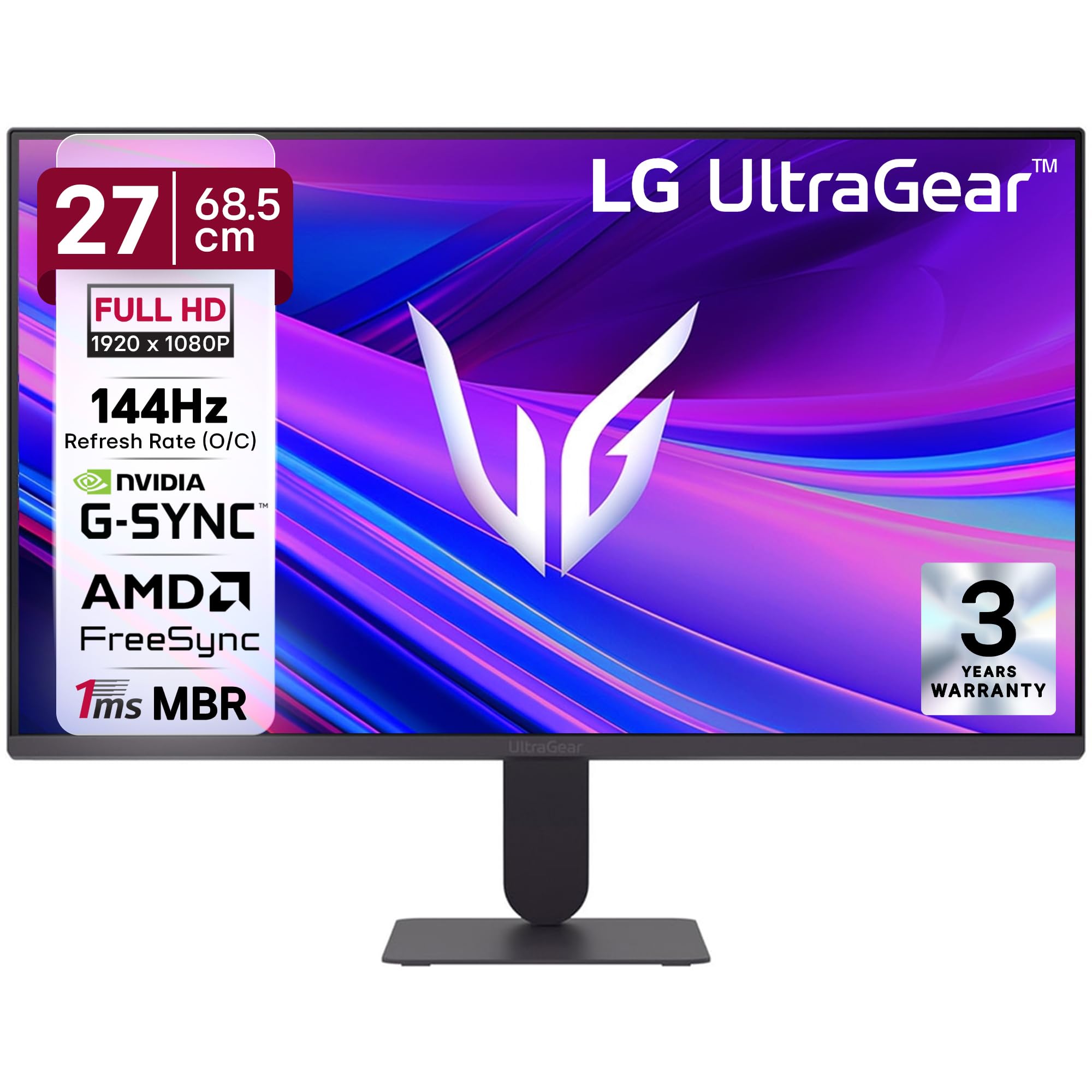
Abbildung 1: Vorderseite view of the LG 27G411A UltraGear Gaming Monitor.
2. Sicherheitshinweise
Beachten Sie die folgenden Sicherheitsvorkehrungen, um Schäden am Produkt oder Verletzungen bei Ihnen selbst und anderen zu vermeiden.
- Leistung: Use only the power cord and adapter supplied with the monitor. Do not overload power outlets.
- Platzierung: Place the monitor on a stable, level surface. Avoid direct sunlight, heat sources, and areas with high humidity or dust. Ensure adequate ventilation around the monitor.
- Handhabung: Do not drop the monitor or subject it to strong impacts. Avoid touching the screen with sharp objects.
- Reinigung: Vor der Reinigung den Netzstecker ziehen. Ein weiches, trockenes Tuch verwenden. Keine flüssigen Reiniger oder Sprays verwenden.
- Reparaturen: Versuchen Sie nicht, dieses Produkt selbst zu warten. Überlassen Sie alle Wartungsarbeiten qualifiziertem Servicepersonal.
3. Packungsinhalt
Prüfen Sie, ob alle Artikel in Ihrer Produktverpackung vorhanden sind:
- LG 27G411A UltraGear Monitor
- Stromkabel
- HDMI-Kabel
- Monitorständer (Fuß und Hals)
- Benutzerhandbuch (dieses Dokument)
4. Einrichtung
4.1 Monitorbaugruppe
Befolgen Sie diese Schritte, um den Monitorständer zusammenzubauen und ihn am Bildschirm zu befestigen.
- Carefully place the monitor face down on a soft cloth or cushion to prevent scratches.
- Attach the stand neck to the base, securing it with the captive screw.
- Align the assembled stand with the mounting slot on the back of the monitor panel and push until it clicks into place.
- Alternatively, the monitor supports VESA 100x100mm wall mounting. Remove the stand if using a wall mount.

Figure 2: Illustration of the monitor's ultra-slim design, tilt adjustment, and VESA wall mount compatibility.
4.2 Anschließen des Monitors
Verbinden Sie Ihre Geräte mit den entsprechenden Kabeln mit dem Monitor.
- Stromanschluss: Schließen Sie das Netzkabel an den Stromeingang des Monitors und anschließend an eine Wandsteckdose an.
- HDMI-Verbindung: Use the supplied HDMI cable to connect your computer or gaming console to the HDMI port on the monitor.
- DisplayPort-Verbindung: For optimal performance, especially for 144Hz refresh rate, connect your computer to the DisplayPort (DP) on the monitor using a DisplayPort cable (not always included).
- Kopfhörerausgang: Connect headphones or external speakers to the 3-pole headphone out port for audio output.

Abbildung 3: Rückseite view of the monitor displaying the power input, HDMI, DisplayPort, and headphone out ports.

Abbildung 4: Ausführlich view of the DisplayPort (DP-IN), HDMI, and Headphone (HP) ports.
5. Bedienungsanleitung
5.1 Ein-/Ausschalten
Press the joystick button located at the bottom center of the monitor to turn it on or off. A short press will bring up the OSD menu, while a long press will power off the monitor.
5.2 Bildschirmmenü (OSD)
Über das OSD-Menü können Sie verschiedene Monitoreinstellungen anpassen. Verwenden Sie den Joystick zur Navigation:
- Bewegen Sie den Joystick nach oben/unten/links/rechts, um durch die Menüoptionen zu navigieren.
- Drücken Sie den Joystick, um eine Option auszuwählen oder eine Einstellung zu bestätigen.
5.3 Bildmodi
The monitor offers several preset picture modes optimized for different content types:
- Brauch: Ermöglicht die manuelle Anpassung aller Bildeinstellungen.
- Gamer1/Gamer2: User-configurable modes for gaming preferences.
- FPS/RTS: Optimized for First-Person Shooter and Real-Time Strategy games.
- Lebendig: Enhances color and contrast for general viewing.
- Leser: Reduziert Blaulicht für angenehmeres Lesen.
- HDR-Effekt: Simuliert HDR-Inhalte für Nicht-HDR-Quellen.
- Farbschwäche: Passt die Farbeinstellungen an, um Benutzern mit Farbsehschwäche zu helfen.
5.4 Gaming Enhancements
The LG 27G411A is equipped with features to enhance your gaming experience:
- 144Hz Refresh Rate & 1ms MBR: Experience fluid motion and reduced ghosting. The monitor supports a native 120Hz refresh rate and up to 144Hz in overclock mode via DisplayPort 1.4 (HDMI 2.0 supports up to 144Hz).
- AMD FreeSync & NVIDIA G-Sync Compatible: Synchronisiert die Bildwiederholfrequenz des Monitors mit der Bildrate Ihrer Grafikkarte, um Tearing und Ruckeln zu vermeiden.
- Schwarzer Stabilisator: Brightens dark areas to help you spot enemies hiding in shadows.
- Dynamische Aktionssynchronisierung (DAS): Minimiert die Eingabeverzögerung für Echtzeitaktionen.
- Fadenkreuz: Platziert ein festes Fadenkreuz in der Mitte des Bildschirms, um das Zielen in FPS-Spielen zu verbessern.
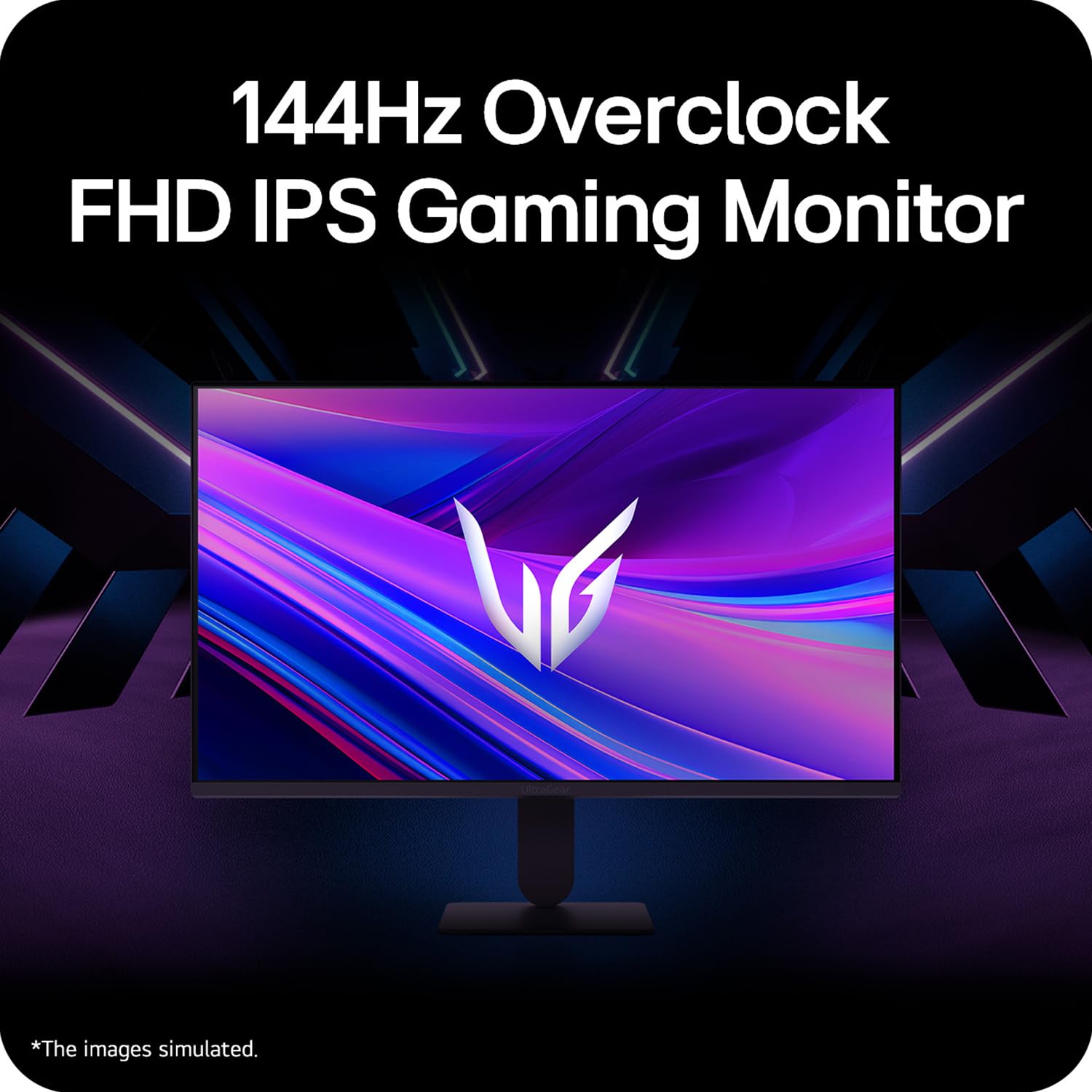
Figure 5: Visual representation of 144Hz overclock for fluid gaming motion.

Figure 6: Illustration of 1ms Motion Blur Reduction (MBR) for fast-paced gaming. Note: 1ms MBR causes lowered luminance and cannot be used with AMD FreeSync/DAS. Flicker may occur during 1ms MBR operation.

Figure 7: The monitor is certified compatible with NVIDIA G-Sync and AMD FreeSync technologies.

Figure 8: Precision Gaming Mode features: Dynamic Action Sync (DAS), Black Stabilizer, and Crosshair.
5.5 Funktionen für die Augenpflege
To reduce eye strain during prolonged use, the monitor includes:
- Flimmersicher: Reduces screen flicker to minimize eye fatigue.
- Lesemodus: Adjusts color temperature and brightness to simulate paper, making it easier on the eyes for reading tasks.
- Farbschwäche: Provides color adjustments for users with color vision deficiencies.
5.6 Smart Convenience (LG Switch App)
The LG Switch app offers enhanced control and customization options for your monitor directly from your computer. Features include Dual mode, Smart screen split, Launch a video call, and Personalized Picture Wizard.

Figure 9: The LG Switch app provides smarter control and seamless switching between various display modes and settings.
6. Wartung
6.1 Reinigung des Monitors
Um das Aussehen und die Leistung des Monitors zu erhalten:
- Vor der Reinigung immer den Netzstecker des Monitors ziehen.
- Verwenden Sie ein weiches, fusselfreies Tuch, um den Bildschirm und die Außenflächen vorsichtig abzuwischen.
- Bei hartnäckigen Flecken leicht andrücken.ampBefeuchten Sie das Tuch mit Wasser oder einem milden, nicht scheuernden Bildschirmreiniger. Sprühen Sie keine Flüssigkeit direkt auf den Bildschirm.
- Avoid using benzene, alcohol, or other volatile solvents, as they may damage the monitor.
7. Fehlerbehebung
Sollten Sie Probleme mit Ihrem Monitor haben, beachten Sie bitte die folgenden gängigen Lösungsansätze:
| Problem | Mögliche Ursache/Lösung |
|---|---|
| Kein Strom | Ensure the power cable is securely connected to the monitor and a working power outlet. Check if the power outlet is functional. |
| Kein Signal / Bildschirm schwarz | Verify that the video cable (HDMI or DisplayPort) is securely connected to both the monitor and your computer/device. Ensure the correct input source is selected in the OSD menu. Check if the computer is powered on and not in sleep mode. |
| Flackerndes oder verzerrtes Bild | Check the video cable for damage or loose connections. Try a different video cable or port. Adjust the refresh rate settings on your computer. Disable 1ms MBR if flicker is observed. |
| Backlight leakage on corners | Minor backlight leakage can be a characteristic of IPS panels, especially visible on a completely black screen in a dark environment. This is generally not considered a defect unless it significantly impacts normal viewing. |
| Monitor not recognized by PC | Update your graphics card drivers. Restart your computer. |
8. Spezifikationen
Key technical specifications for the LG 27G411A UltraGear Gaming Monitor:
- Bildschirmgröße: 27 Zoll (68.5 cm)
- Panel-Typ: IPS
- Auflösung: FHD (1920 x 1080)
- Seitenverhältnis: 16:9
- Aktualisierungsrate: 144 Hz (Overclock)
- Ansprechzeit: 1ms MBR (5ms GTG)
- Helligkeit: 250 cd/m² (typisch)
- Kontrastverhältnis: 1500:1
- Farbumfang: sRGB 99 %
- HDR-Unterstützung: HDR10
- Adaptive Synchronisierung: NVIDIA G-Sync Compatible, AMD FreeSync
- Viewing-Winkel: 178° (H/V)
- Konnektivität: 1 x HDMI, 1 x DisplayPort, 1 x Kopfhörerausgang
- Dimensions (with stand, WxHxD): 61.2 x 45.2 x 22 cm (24.07 x 17.81 x 8.66 Zoll)
- Gewicht (mit Ständer): 3.8 kg
- Energieverbrauch: 20 W (typisch)
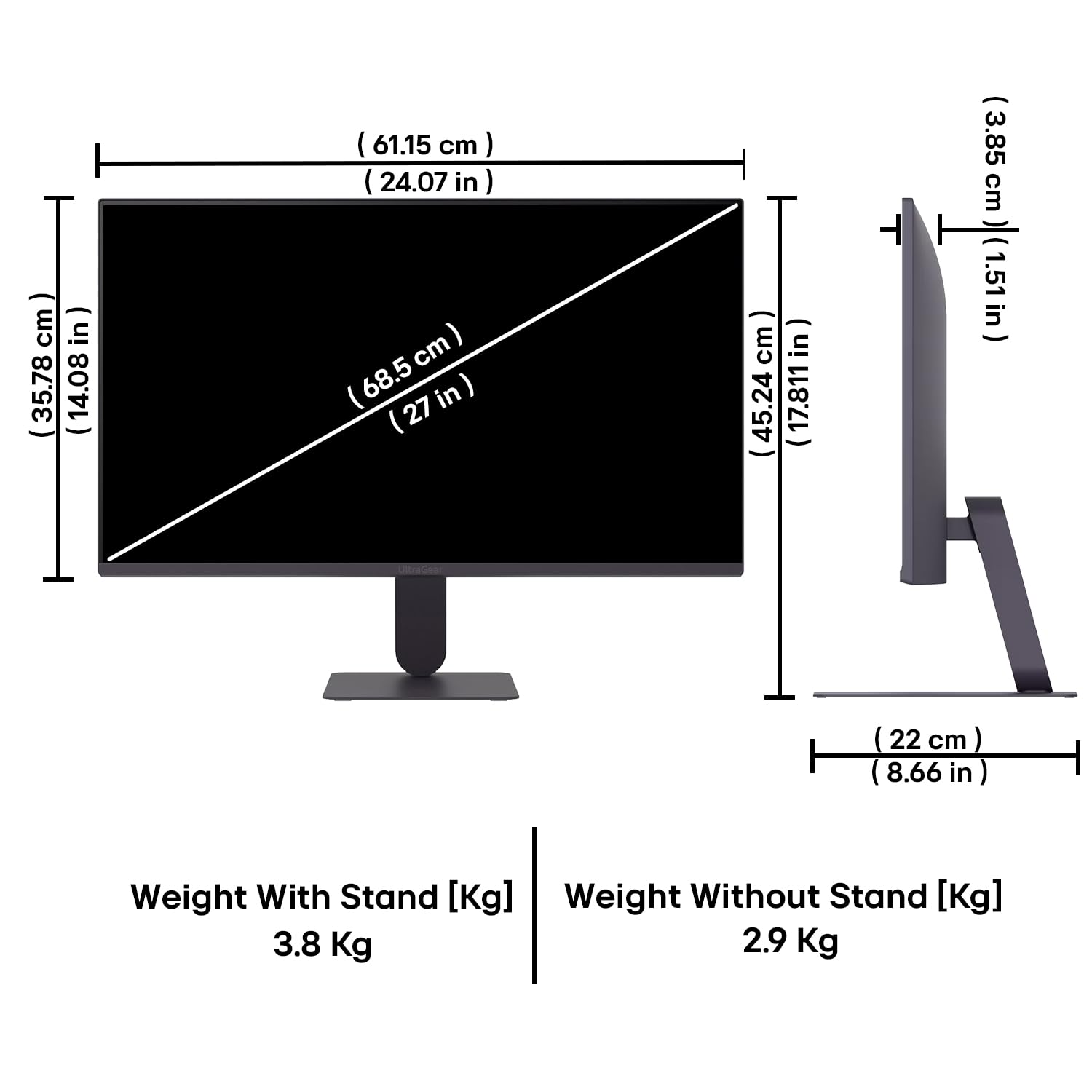
Figure 10: Physical dimensions and weight of the LG 27G411A monitor with and without the stand.
9. Garantieinformationen
This LG 27G411A UltraGear Gaming Monitor comes with a 3 Jahre Herstellergarantie covering parts and labor. Please retain your proof of purchase for warranty claims. For detailed terms and conditions, refer to the warranty card included in your product packaging or visit the official LG webWebsite.
10. Kundendienst
Für weitere Unterstützung, technischen Support oder Serviceanfragen wenden Sie sich bitte an den LG Kundendienst. Die Kontaktdaten finden Sie auf der offiziellen LG-Website. webauf der Website oder in der mit Ihrem Monitor gelieferten Dokumentation.
LG Electronics India Pvt. GmbH.
PLOT NO. A-5, MIDC RANJANGAON.
TALUKA SHIRUR, PUNE, MAHRASHTRA (INDIA), 412220