
Einführung
This manual provides detailed instructions for the installation, operation, maintenance, and troubleshooting of your JOYING Android 13 Car Radio (Model JY-TT193N8). This unit is specifically designed for Toyota Camry models from 2015 to 2017, offering advanced features such as wireless CarPlay, Android Auto, GPS navigation, and 4G connectivity. Please read this manual thoroughly before using the product to ensure proper function and safety.
Produkteigenschaften
- Kabelloses CarPlay & Android Auto: Seamless integration with your smartphone for navigation, music, calls, and messaging without physical connections.
- Plug & Play-Installation: Custom-designed for 2015-2017 Toyota Camry, including all necessary cables for a straightforward installation process.
- Optical Fiber and Coaxial Digital Output: Provides high-quality audio output for connection to external amplifiers with compatible digital inputs.
- Eingebautes 4G-Modul: Insert a SIM card for internet access. Supports FDD-LTE (B2/B4/B5/B7/B12/B13/B14/B17/B25/B26/B38/B66/B71) and TDD-LTE (B41) bands. Note: This module does not support phone calls or SMS.
- GPS Navigation: Equipped with precise GPS engines and an included GPS antenna for accurate real-time navigation. Supports offline maps in areas where data download is available.
- 10.1-Zoll-IPS-Touchscreen: Large, responsive display for clear visuals and easy interaction.
- 8 GB RAM + 128 GB Speicher: Ample memory and storage for smooth operation and app installation.
Setup und Installation
The JOYING Android 13 Car Radio is designed for a plug-and-play installation in compatible Toyota Camry models. Ensure the vehicle's ignition is off and the battery is disconnected before beginning installation.
Packungsinhalt:
- 10.1" Radio Unit
- Single Din Cage
- Linke und rechte Klammern
- WiFi-Antenne
- GPS-Antenne
- 4G-Antennen (x2)
- Externes Mikrofon
- USB-Kabel (x2)
- AR Cable
- Screen Ribbon Cable
- Stromkabel
- Bedienungsanleitung
Installationsschritte:
- Carefully remove the factory radio unit and trim from your Toyota Camry dashboard. Refer to your vehicle's service manual for specific instructions on trim removal.
- Connect the provided power cable harness to the vehicle's wiring and the new head unit. Ensure all connections are secure.
- Connect the GPS antenna, WiFi antenna, and 4G antennas to their respective ports on the back of the head unit. Position the antennas in a location that provides optimal signal reception, away from metal obstructions.
- Connect any additional accessories such as the external microphone, USB cables, and AR cable as needed.
- Mount the new JOYING head unit into the dashboard opening using the provided brackets and single DIN cage. Ensure a secure fit.
- Schließen Sie die Fahrzeugbatterie wieder an und schalten Sie die Zündung ein, um das Gerät zu testen.
- Reinstall the dashboard trim panels.
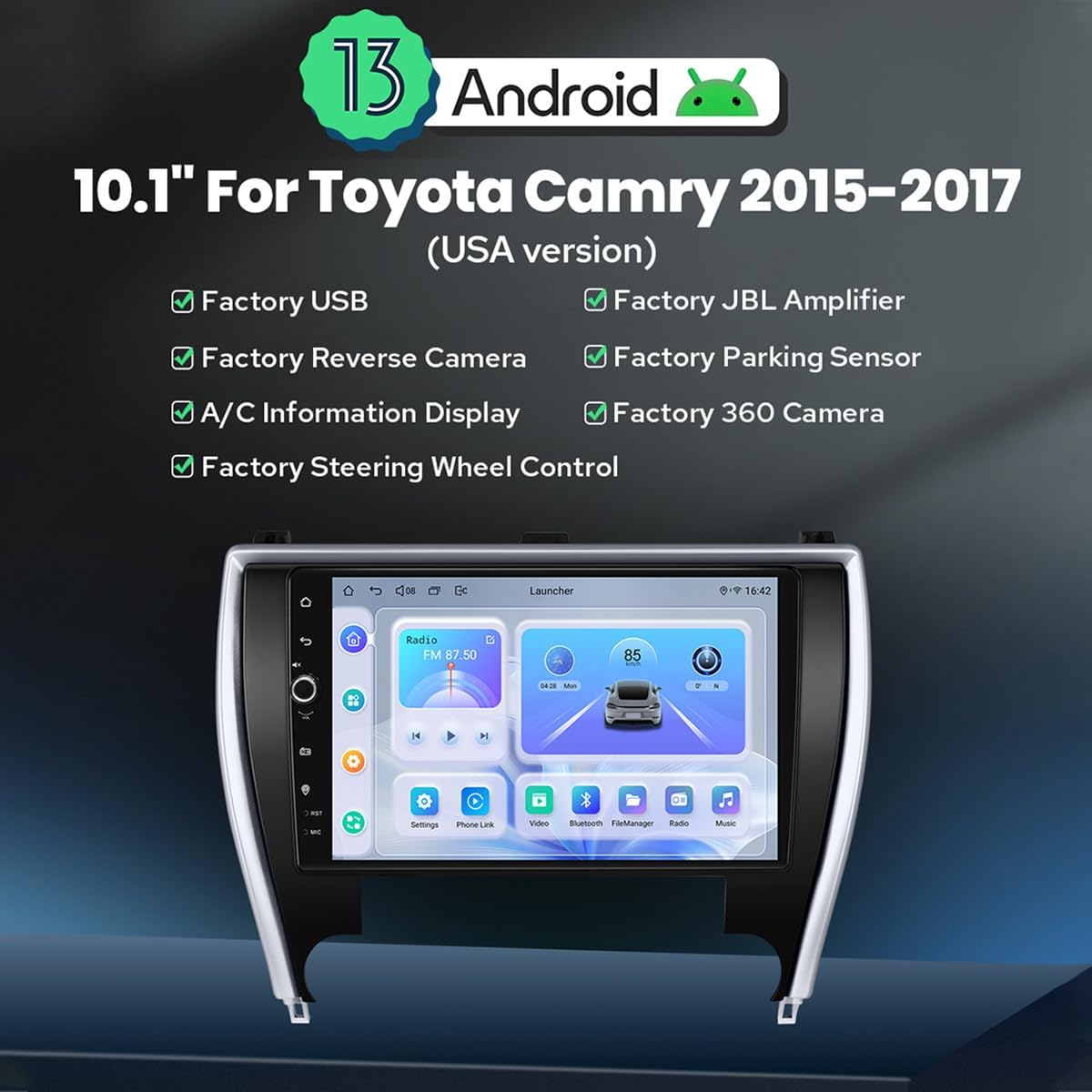
Image: The JOYING Android 13 Car Radio seamlessly integrated into a Toyota Camry dashboard, demonstrating its factory-look design and fitment.

Image: The main unit of the JOYING Android 13 Car Radio, featuring its 10.1-inch display and indicating Android 13 compatibility.
Bedienungsanleitung
Ersteinrichtung:
Upon first power-on, the system will guide you through initial setup steps, including language selection, time zone, and network configuration. Follow the on-screen prompts.
Kabelloses CarPlay / Android Auto:
- Stellen Sie sicher, dass Bluetooth und WLAN auf Ihrem Smartphone aktiviert sind.
- Navigieren Sie im Autoradio zur CarPlay- oder Android Auto-Anwendung.
- Follow the on-screen instructions to pair your phone via Bluetooth. Once paired, the system will automatically establish a Wi-Fi connection for wireless CarPlay or Android Auto.
GPS Navigation:
The unit comes with pre-installed navigation software. You can also download additional navigation apps from the Google Play Store. For offline maps, ensure you download the necessary map data while connected to Wi-Fi. The included GPS antenna enhances signal reception for accurate positioning.
4G-Konnektivität:
To use 4G internet, insert a compatible SIM card into the designated slot on the unit. The system will automatically detect the network. Note that this feature is for data connectivity only and does not support voice calls or SMS.
Audio Settings and Output:
The unit features a TDA7851 DSP chip and a 48-band graphic equalizer for sound customization. Adjust settings via the audio application. For enhanced sound quality with external amplifiers, utilize the Optical Fiber or Coaxial Digital Output ports if your amplifier supports them.

Image: Illustration of the car radio's advanced audio features, including support for aftermarket amplifiers via multiple output options like optical fiber and coaxial digital.
HDMI-Ausgang:
The unit provides an HDMI output for connecting external displays, such as headrest monitors. This allows passengers to view content from the main unit in 1080p resolution without delay. An HDMI cable is not included and must be purchased separately.
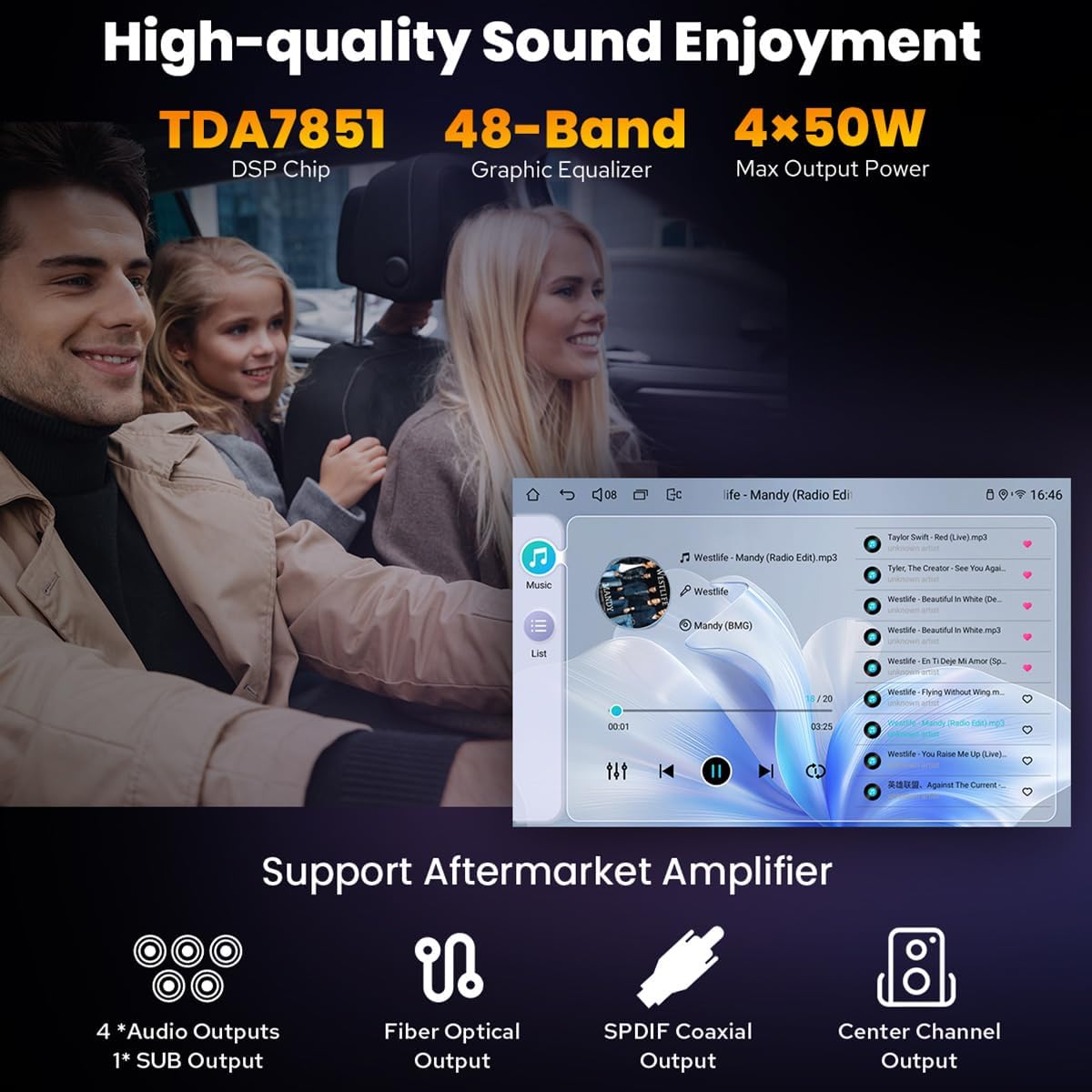
Image: The HDMI output functionality, enabling connection to external screens for synchronized video playback for passengers.
Split-screen Multitasking:
The Android 13 operating system supports split-screen functionality, allowing you to run two applications simultaneously. For example, you can have navigation on one side and music on the other.
- Tippen Sie auf das Symbol für die zuletzt verwendeten Apps (normalerweise ein Quadrat oder drei vertikale Linien).
- Find the app you want to run in split-screen, then tap its icon to bring up the split-screen button. Tap this button.
- The first app will display on the left side. Choose the second app from the recent apps list to display on the right.

Image: Visual guide on how to activate and use the split-screen multitasking feature on the car radio.
Wartung
- Bildschirmreinigung: Mit einem weichen, fusselfreien Tuch leichtampMit Wasser oder einem Siebreiniger abspülen. Scharfe Chemikalien oder scheuernde Materialien vermeiden.
- Software-Updates: Periodically check for software updates through the system settings or the JOYING official webWebsite, um optimale Leistung und Zugriff auf neue Funktionen zu gewährleisten.
- Allgemeine Pflege: Das Gerät sollte vor Staub und extremen Temperaturen geschützt werden. Vermeiden Sie das Verschütten von Flüssigkeiten auf dem Gerät.
Fehlerbehebung
- Kein Strom:
- Überprüfen Sie alle Stromanschlüsse und Sicherungen. Stellen Sie sicher, dass die Fahrzeugbatterie ordnungsgemäß angeschlossen und geladen ist.
- Kein Ton:
- Verify speaker connections. Check volume levels and audio output settings. If using an external ampVergewissern Sie sich, dass der Verstärker eingeschaltet und korrekt angeschlossen ist.
- GPS-Signalprobleme:
- Ensure the GPS antenna is securely connected and positioned with a clear view des Himmels. Vermeiden Sie es, es unter Metallgegenständen zu platzieren.
- Drahtlose CarPlay-/Android Auto-Verbindung wird nicht hergestellt:
- Confirm Bluetooth and Wi-Fi are enabled on your phone and the car radio. Try forgetting the device on both ends and re-pairing. Ensure your phone's operating system is up to date.
- Poor Fitment in Dashboard (e.g., 2016 Camry LE):
- While designed for 2015-2017 Toyota Camry, some specific sub-models or trim levels may experience minor gaps. Double-check the installation and ensure all mounting points are correctly aligned. If significant gaps persist, consult with a professional installer or contact JOYING support.
- System Freezes or Slow Performance:
- Try restarting the unit. Close unnecessary background applications. If the issue persists, consider performing a factory reset (note: this will erase all user data and settings).
Technische Daten
| Besonderheit | Spezifikation |
|---|---|
| Marke | FREUDE |
| Modellnummer | JY-TT193N8 |
| Bildschirmgröße | 10.1 Zoll |
| Betriebssystem | Android 13, iOS (via CarPlay) |
| Speicherkapazität | 128 GB |
| RAM | 8 GB |
| Konnektivitätstechnologie | Bluetooth, Ethernet, USB, Wi-Fi, 4G |
| Besondere Merkmale | Bluetooth, Touchscreen, Wireless CarPlay, Android Auto, GPS Navigation, 4G Module, Optical/Coaxial Digital Output |
| Kartentyp | North America (pre-installed, others downloadable) |
| Audioausgabemodus | Stereo |
| Montagetyp | Im Armaturenbrett |
| Anzeigetyp | LED, Capacitive Touch Screen |
| Kompatible Geräte | Kamera, Smartphone |
| Unterstütztes Satellitennavigationssystem | BeiDou (and others via GPS) |
| Produktabmessungen (L x B x H) | 33L x 15.2B x 33H Zentimeter |
Garantie und Support
JOYING products typically come with a standard manufacturer's warranty. Please refer to the warranty card included with your product or visit the official JOYING webDie genauen Garantiebedingungen finden Sie auf der Website.
For technical support, troubleshooting assistance, or warranty claims, please contact JOYING customer service through their official website or the contact information provided in your product packaging. When contacting support, please have your model number (JY-TT193N8) and purchase details ready.