
1. Einrichtung
1.1 Auspacken und Packungsinhalt
Carefully remove all items from the packaging. Ensure all components are present before proceeding with installation.
- Roku Select Series 55" 4K TV
- Stands and screws
- Fernbedienung
- Bedienungsanleitung

Figure 1: Contents of the Roku Select Series 55-inch TV package.
1.2 Physische Installation
The Roku Select Series TV can be installed using the included stands for table mounting or by using a compatible VESA wall mount (200 x 100 mm, sold separately).
Tischmontage:
- Legen Sie den Fernseher mit dem Bildschirm nach unten auf eine weiche, saubere Oberfläche, um Kratzer zu vermeiden.
- Attach the two TV stands to the designated slots on the bottom of the TV using the provided screws. Ensure they are securely fastened.
- Heben Sie den Fernseher vorsichtig an und stellen Sie ihn auf eine stabile, ebene Fläche.
Installation der Wandhalterung:
For wall mounting, refer to the instructions provided with your VESA 200 x 100 mm compatible wall mount kit. Ensure the wall can support the weight of the television (approximately 20.1 pounds without stand).

Figure 2: TV dimensions and package contents overview.
1.3 Anschließen von Peripheriegeräten
The TV features multiple ports for connecting external devices. Refer to the back panel diagram for port locations.

Figure 3: Rear panel connections including HDMI, USB, and network ports.
- HDMI Ports (3 total): Connect gaming consoles, Blu-ray players, soundbars, or other HDMI-enabled devices.
- USB Port (1 total): Schließen Sie USB-Speichergeräte zur Medienwiedergabe an.
- Ethernet (LAN)-Anschluss: Für eine kabelgebundene Internetverbindung.
- Antennen-/Kabeleingang: Schließen Sie eine Antenne für terrestrische Sendungen oder einen Kabelfernsehanschluss an.
- Optical (S/PDIF) Output: Für die digitale Audioausgabe an ein Soundsystem.
1.4 Erstes Einschalten und Netzwerkverbindung
- Verbinden Sie das Netzkabel mit dem Fernseher und einer Steckdose.
- Drücken Sie die Einschalttaste auf der Fernbedienung, um das Fernsehgerät einzuschalten.
- Follow the on-screen instructions to complete the initial setup, including language selection (English, Spanish, French, Portuguese are supported).
- Select your preferred network connection:
- W-lan: Wählen Sie Ihr WLAN-Netzwerk aus der Liste aus und geben Sie das Passwort ein.
- Ethernet: If an Ethernet cable is connected, the TV will automatically attempt to establish a wired connection.
- The TV will guide you through linking to a Roku account, which is necessary to access streaming channels and features.
2. Bedienungsanleitung
2.1 Fernbedienungsfunktionen
The included voice remote provides intuitive control over your TV. It operates via Bluetooth, eliminating the need for direct line-of-sight.

Figure 4: Roku Voice Remote layout and key functions.
- Netzschalter: Schaltet den Fernseher ein oder aus.
- Directional Pad (OK button in center): Navigiert durch Menüs und wählt Elemente aus.
- Lautstärke erhöhen/verringern: Regelt die Fernsehlautstärke.
- Stummschaltfläche: Schaltet den TV-Ton stumm oder hebt die Stummschaltung auf.
- Sprachtaste: Activates voice search and control.
- Sofortige Wiedergabe: Springt in der Videowiedergabe einige Sekunden zurück.
- Live-TV-Schaltfläche: Accesses the live TV channel guide.
- Schnellstarttasten: Dedicated buttons for popular streaming apps (e.g., Netflix, Disney+, Apple TV, Prime Video). These can be customized for your favorite apps.
- Fernbedienungsfinder: If the remote is misplaced, use the Roku mobile app to activate an audible alert from the remote.
2.2 Home Screen Navigation and Streaming
The Roku home screen provides quick access to all your streaming channels, inputs, and settings.
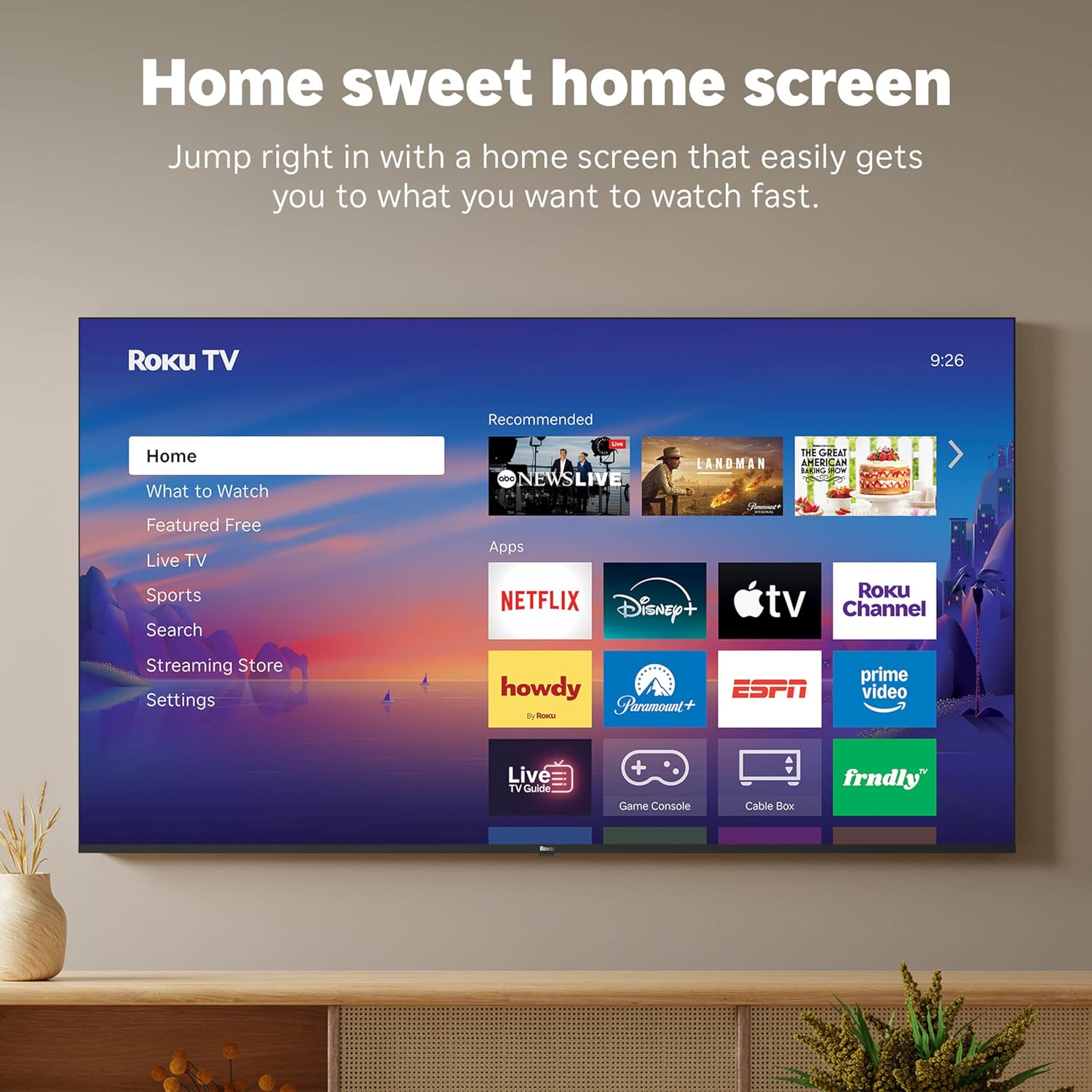
Abbildung 5: Die Benutzeroberfläche des Roku TV-Startbildschirms.
- Use the directional pad on your remote to navigate through the menu options on the left side of the screen (Home, What to Watch, Live TV, Sports, Search, Streaming Store, Settings).
- Select an app icon from the main grid to launch your desired streaming service.
- The TV's fast Wi-Fi and optimized app launch ensure quick access to entertainment.
2.3 Bild- und Toneinstellungen
The Roku Select Series TV offers advanced picture and sound technologies for an enhanced viewErfahrung.
- 4K QLED-Display: Provides sharp 4K resolution and accurate colors.
- HDR10-Unterstützung: Enhances contrast and color depth for compatible content.
- Roku Smart Picture: Automatically optimizes incoming TV signals and selects the appropriate picture mode for content.
- Dolby-Audio: Delivers clear speech and enhanced sound quality through the integrated 2.1 channel speakers (20 Watts maximum output power).
- Bluetooth Headphone Mode: Verbinden Sie Bluetooth-Kopfhörer für ungestörtes Hörvergnügen, ohne andere zu stören.
2.4 Sprachsteuerung und Smart-Home-Integration
Control your TV and integrate it into your smart home ecosystem.

Figure 6: Roku TV's smart home compatibility.
- Roku Voice: Use the voice button on your remote to search for content, launch apps, or control playback.
- Kompatibilität mit intelligenten Assistenten: The TV is compatible with Siri, Alexa, and Google Assistant for voice control through external smart devices.
- Apple AirPlay: Share videos, photos, music, and more from your Apple devices directly to your TV.
2.5 Live TV Access
Access live television channels directly from the home screen.

Figure 7: Live TV channel guide interface.
- Connect an antenna to the TV's Antenna/Cable input.
- Use the 'Live TV' option on the home screen or the dedicated button on the remote to access the channel guide.
- The TV supports ATSC tuner type for digital broadcasts.
3. Wartung
3.1 Reinigung des Fernsehers
- Vor der Reinigung immer den Netzstecker des Fernsehers ziehen.
- Verwenden Sie ein weiches, trockenes, fusselfreies Tuch, um den Bildschirm und das Gehäuse vorsichtig abzuwischen.
- Bei hartnäckigen Flecken leicht andrücken.ampBefeuchten Sie das Tuch mit Wasser oder einem milden, nicht scheuernden Bildschirmreiniger. Sprühen Sie den Reiniger nicht direkt auf den Bildschirm.
- Vermeiden Sie die Verwendung von aggressiven Chemikalien, Scheuerschwämmen oder Lösungsmitteln, da diese die Oberfläche des Fernsehers beschädigen können.
3.2 Softwareaktualisierungen
The Roku TV receives automatic software updates to provide new features and improvements. Ensure your TV is connected to the internet to receive these updates.
4. Fehlerbehebung
If you encounter issues with your Roku TV, consider the following basic troubleshooting steps:
- Kein Strom: Vergewissern Sie sich, dass das Netzkabel fest mit dem Fernseher und einer funktionierenden Steckdose verbunden ist. Versuchen Sie es mit einer anderen Steckdose.
- Kein Bild/Ton: Verify that the correct input source is selected. Check all cable connections (HDMI, antenna, etc.) for looseness.
- Fernbedienung reagiert nicht: Replace the AAA batteries in the remote control. Ensure there are no obstructions between the remote and the TV (though Bluetooth reduces this issue). Re-pair the remote if necessary (refer to Roku support documentation).
- Netzwerkverbindungsprobleme: Gehe zu Einstellungen > Netzwerk > Verbindung prüfen to diagnose network problems. Restart your router and modem.
- App Not Loading/Crashing: Try restarting the app. If the issue persists, remove the app and reinstall it from the Streaming Store.
- Schlechte Bildqualität: Check your internet speed for streaming content. For broadcast TV, adjust your antenna. Ensure the TV's picture settings are appropriate for the content being viewHrsg.
For more detailed troubleshooting or persistent issues, visit the Roku support website or consult the full User Manual PDF available online.
5. Spezifikationen
| Besonderheit | Detail |
|---|---|
| Modellname | Roku 55" Select Series 4K |
| Modellnummer | 55R5D5 |
| Bildschirmgröße | 55 Zoll |
| Display-Technologie | 4K UHD, LED, QLED |
| Auflösung | 4K (3840 x 2160) |
| Bildwiederholrate | 60 Hz |
| HDR-Format unterstützt | HDR10, HDR10+, HLG |
| Picture Quality Enhancement | 4K, Roku Smart Picture |
| Audio-Ausgangsleistung | 20 Watt |
| Integrated Surround Sound | Dolby Audio |
| Konnektivitätstechnologie | Bluetooth, Ethernet, USB C, Wi-Fi |
| HDMI-Anschlüsse | 3 |
| USB-Anschlüsse | 1 |
| Betriebssystem | Roku-Betriebssystem |
| Sprachsteuerung | Roku Voice, Siri, Alexa, Google Assistant |
| Bildschirmspiegelung | AirPlay 2, Miracast |
| Produktabmessungen (T x B x H) | 12.7"T x 48.3"B x 30.5"H |
| Artikelgewicht | 20.5 Pfund |
| VESA-Halterungsstandard | 200 x 100 mm |
| Energieaufnahme | 160 Watt |
| UPC | 829610009322 |
6. Garantie und Support
6.1 Eingeschränkte Garantie
Roku warrants the hardware of this device against defects in materials and workmanship under normal use for a period of ein (1) Jahr from the date of purchase (“Warranty Period”), provided it is used in accordance with the provided documentation.
If Roku determines that the device’s hardware is defective during the Warranty Period, Roku’s sole obligation, and your exclusive remedy, will be to either repair or replace the unit with either a new or rebuilt device, at its option.
Important information about warranty returns and replacements is available on the Roku support site.
6.2 Product Returns
You may return a device for any reason, subject to the terms of the applicable return policy:
- Within thirty (30) days from the date of purchase from Roku.
- Within the applicable return period if purchased from an authorized reseller or distributor.
Additional details regarding product returns can be found on the Roku support site.
6.3 Zusätzlicher Support
For further assistance, including detailed guides and FAQs, please refer to the official Roku support website. A downloadable PDF version of the User Manual is also available for reference: Benutzerhandbuch (PDF).