
1. Einleitung
This manual provides instructions for the TOALLIN 4K AI Webcam, Model AW28F. This webcam is designed for high-quality video conferencing, streaming, and video calls, featuring advanced technologies such as 4K UHD resolution, AI auto-framing, Wide Dynamic Range (WDR), and integrated noise-reducing microphones.

Figure 1: TOALLIN 4K AI Webcam (Model AW28F).
2. Lieferumfang
- 1 x TOALLIN 4K AI WebNocken
- 1 x USB-A-auf-USB-C-Kabel
- 1 x USB-A-zu-USB-C-Adapter
- 1 x Benutzerhandbuch

Figure 2: Included items with the TOALLIN 4K AI WebNocken.
3. Körperliche Übergriffeview
Machen Sie sich mit den Hauptkomponenten Ihres Geräts vertraut. webNocken:
- Kameraobjektiv: The primary optical component for video capture.
- 4K UHD Indicator: Lights up when 4K resolution is active.
- LED-Statuslicht: Zeigt an webcam activity.
- Digital Zoom Touch Button: Controls digital zoom functionality.
- Auto Framing Touch Button: Activates and deactivates AI auto-framing and Picture-in-Picture modes.
- Datenschutzabdeckung: A sliding cover to physically block the lens for privacy.
- Eingebaute Mikrofone: Dual noise-reducing microphones for audio input.
- Montieren: Adjustable clip for securing the webcam to a monitor or laptop, also includes a standard tripod thread.
- USB-C-Schnittstelle: Connection port for the USB cable.

Figure 3: Key components and controls of the webNocken.
4. Einrichtung
The TOALLIN 4K AI Webcam is designed for plug-and-play operation, requiring no additional drivers for most operating systems.
- Montage der WebNocken:
- Open the flexible clip/stand and place the webcam securely on top of your computer monitor or laptop screen.
- Adjust the angle to ensure the camera is stable and facing you correctly.
- Alternatively, use the integrated 1/4-inch tripod thread on the bottom of the mount to attach the webcam to a tripod (not included).
- Anschließen an Ihren Computer:
- Connect one end of the provided USB-A to USB-C cable to the USB-C interface on the back of the webNocken.
- Connect the USB-A end of the cable to an available USB port on your computer. If your computer only has USB-C ports, use the included USB-A to USB-C adapter.
- Der webDie Kamera wird von Ihrem Betriebssystem automatisch erkannt.
- Softwarekonfiguration:
- Open your preferred video conferencing or streaming application (e.g., Zoom, Microsoft Teams, Skype, OBS Studio).
- Navigate to the video and audio settings within the application.
- Select "TOALLIN 4K AI Webcam" as your video device and microphone.
Video 1: A demonstration of the TOALLIN 4K AI Webcam's features, including setup, auto-framing, and WDR.
5. Bedienungsanleitung
5.1. 4K UHD Resolution with WDR
Der webcam features an 8-megapixel 1/2.8" CMOS sensor, capable of outputting clear images up to 3840x2160 resolution and video quality up to 4K at 30 frames per second. Wide Dynamic Range (WDR) technology automatically balances lighting, ensuring clear images in both bright and dark environments. Optimal image quality is achieved in well-lit conditions.

Figure 4: WDR (Wide Dynamic Range) technology optimizes lighting for clear video in varied conditions.
5.2. AI-Powered Auto-Framing
This feature intelligently combines facial and motion tracking to automatically adjust the camera's field of view. When participants enter or leave the frame, the camera will track and zoom to keep them centered. This function works in 1080p mode.
- Aktivierung: Select 1080p mode in your video application, then touch the "Auto Framing" touch button on the top of the camera to turn it on. The indicator light will turn blue.

Figure 5: AI Auto-Framing keeps subjects centered in the video frame.
5.3. Smart Picture-in-Picture (PiP) Mode
This mode allows you to display a smaller, secondary video feed within the main video feed, useful for presentations or showing detailed views.
- Aktivierung: While in Auto-Framing mode, touch and hold the "Auto Framing" button for 3 seconds to enter Picture-in-Picture mode.
- Deaktivierung: Touch the "Auto Framing" button one more time to turn off both Auto-Framing and PiP mode.
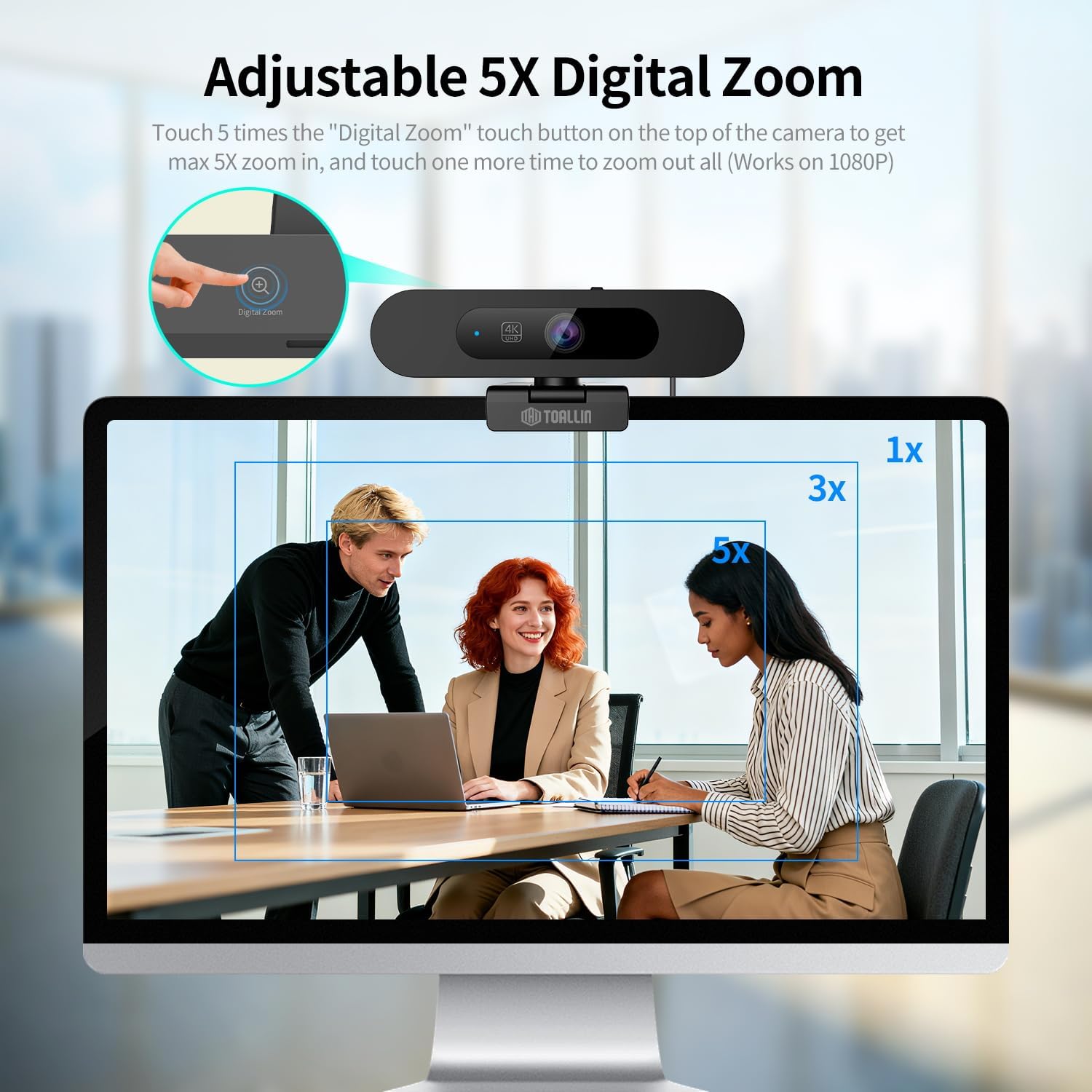
Figure 6: Smart Picture-in-Picture mode for enhanced presentations.
5.4. 5X Adjustable Digital Zoom
Der webcam offers up to 5X digital zoom capability, allowing you to focus on specific areas within the 92° field of view. This feature operates in 1080p mode.
- Vergrößern: In 1080p mode, touch the "Digital Zoom" button on the top of the camera up to 5 times to achieve maximum 5X zoom.
- Rauszoomen: Touch the "Digital Zoom" button one more time after maximum zoom to zoom out completely.

Figure 7: Adjustable 5X Digital Zoom for focusing on details.
5.5. Image Horizontal Mirroring
This function allows you to horizontally mirror the image, which can be useful for specific streaming or presentation scenarios.
- Aktivierung: Touch and hold the "Digital Zoom" button for 3 seconds to activate image horizontal mirroring.
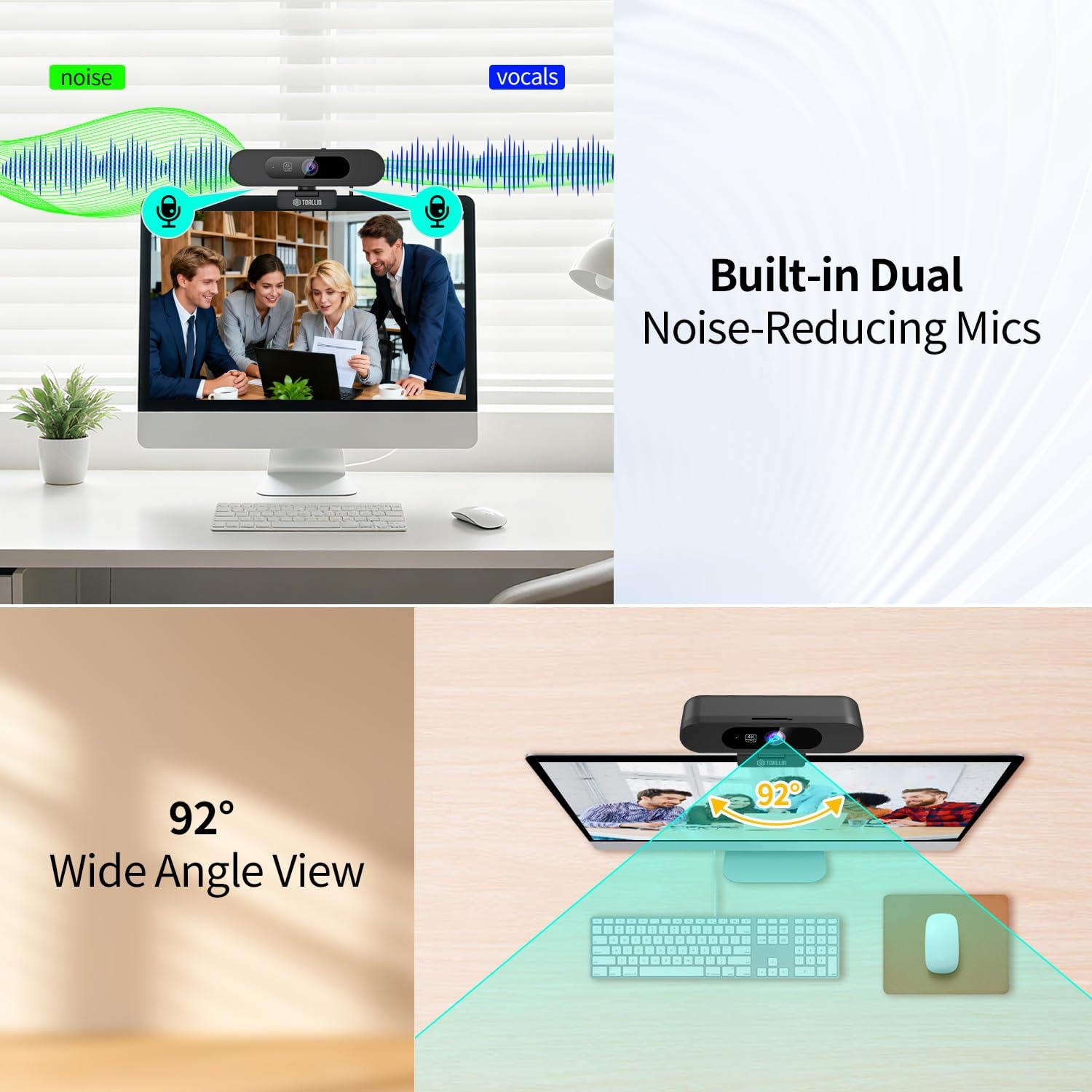
Figure 8: Image Horizontal Mirroring feature.
5.6. Built-in Dual Noise-Reducing Microphones
Der webcam integrates dual microphones with noise-reduction algorithm technology. This feature automatically reduces background noise and amplifies your voice, resulting in clearer conversations during calls.

Figure 9: Dual Noise-Reducing Microphones for clear audio.
5.7. 92° Field of View (Sichtfeld)
Der 92°-Weitwinkel view captures a broad area without distortion, making it suitable for individual use or small group meetings.

Figure 10: 92° Wide Angle View.
5.8. Built-in Sliding Privacy Cover
A physical sliding cover is integrated into the webcam to ensure privacy when the camera is not in use. This allows you to block the lens without disconnecting the device or closing applications.

Figure 11: Built-in Sliding Privacy Cover.
6. Wartung
Um die Langlebigkeit und optimale Leistung Ihres webBeachten Sie bei der Wartung Ihrer Kamera folgende Hinweise:
- Reinigung der Linse: Use a soft, lint-free cloth specifically designed for optics to gently wipe the camera lens. Avoid abrasive materials or harsh chemicals.
- Allgemeine Reinigung: Wischen Sie den Körper des webReinigen Sie die Kamera mit einem weichen, trockenen Tuch. Verwenden Sie keine flüssigen Reinigungsmittel direkt auf dem Gerät.
- Lagerung: When not in use, especially during transport, ensure the privacy cover is closed to protect the lens from dust and scratches. Store the webDie Kamera an einem kühlen, trockenen Ort aufbewahren.
- Kabelpflege: Avoid bending or twisting the USB cable excessively. Disconnect by pulling the plug, not the cable itself.
7. Fehlerbehebung
Sollten Sie Probleme mit Ihrem webCam, beachten Sie die folgenden häufigen Probleme und Lösungen:
| Problem | Mögliche Ursache | Lösung |
|---|---|---|
| WebKamera nicht erkannt | Loose connection, faulty USB port, driver issue | Stellen Sie sicher, dass das USB-Kabel fest angeschlossen ist. Versuchen Sie es mit einem anderen USB-Anschluss oder Computer. Starten Sie Ihren Computer neu. |
| Kein Videoausgang | Privacy cover closed, incorrect software selection, low light | Slide open the privacy cover. Verify the webcam is selected in your application's video settings. Ensure adequate lighting. |
| Poor video quality (grainy, blurry) | Insufficient lighting, dirty lens, software settings | Improve lighting conditions. Clean the camera lens. Check your application's video resolution settings. |
| Kein Ton oder schlechte Tonqualität | Microphone muted, incorrect software selection, background noise | Ensure the microphone is not muted in your system or application settings. Select "TOALLIN 4K AI Webcam" as your audio input. Reduce ambient noise. |
| AI Auto-Framing or PiP not working | Incorrect mode selected, not in 1080p mode | Ensure your video application is set to 1080p resolution. Activate the feature using the touch buttons as described in Section 5. |
8. Spezifikationen
| Besonderheit | Detail |
|---|---|
| Modellnummer | AW28F |
| Auflösung der Videoaufnahme | 4K (3840x2160) bei 30 Bildern pro Sekunde |
| Effektive Standbildauflösung | 8 Megapixel |
| Fotosensor-Technologie | CMOS (1/2.8 Zoll) |
| Fachgebiet View (Sichtfeld) | 92° |
| Digital Zoom | 5X (adjustable in 1080p mode) |
| Mikrofone | Built-in Dual Noise-Reducing Microphones |
| Konnektivität | USB (USB-C interface) |
| Merkmale | AI Auto-Framing, WDR/HDR, Picture-in-Picture, Image Mirroring, Sliding Privacy Cover, Touch Control |
| Kompatible Geräte | Laptop, Personalcomputer |
| Artikelgewicht | 0.21 Kilogramm |
9. Garantie und Support
Garantie: The TOALLIN 4K AI Webcam (Model AW28F) comes with a 1-year manufacturer's warranty from the date of purchase, covering defects in materials and workmanship under normal use.
Unterstützung: For technical assistance, troubleshooting not covered in this manual, or warranty claims, please contact TOALLIN customer support through their official website or the retailer where the product was purchased. Please have your model number (AW28F) and proof of purchase ready.