
1. Einleitung
The FOXWELL NT201 is an On-Board Diagnostics II (OBDII) and European On-Board Diagnostics (EOBD) scanner designed to diagnose engine-related issues in vehicles. This device allows users to read and clear diagnostic trouble codes (DTCs), view live data streams, perform I/M readiness tests, and more. This manual provides detailed instructions for the proper use and maintenance of your NT201 scanner and its accompanying portable carrying case.
2. Sicherheitshinweise
Beachten Sie beim Arbeiten an einem Fahrzeug stets die Sicherheitsvorkehrungen. Unsachgemäße Verwendung von Diagnosegeräten kann zu Verletzungen oder Schäden am Fahrzeug führen. Bitte lesen und befolgen Sie diese Richtlinien:
- Stellen Sie sicher, dass das Fahrzeug auf einer ebenen Fläche steht und die Feststellbremse angezogen ist.
- Geeigneten Augenschutz tragen.
- Keep clothing, hair, hands, tools, and test equipment away from moving engine parts.
- Operate the vehicle in a well-ventilated area to prevent carbon monoxide poisoning.
- Schließen Sie Prüfgeräte nicht an oder trennen Sie sie nicht, während die Zündung eingeschaltet ist oder der Motor läuft.
- Keep the scanner dry and clean. Avoid exposure to extreme temperatures.
3. Packungsinhalt
Überprüfen Sie, ob alle Artikel in Ihrem Paket vorhanden sind:
- FOXWELL NT201 OBD2-Scanner
- Integriertes OBDII-Kabel
- Tragbare Tragetasche
- Benutzerhandbuch (dieses Dokument)
4. Produktüberschreitungview
The NT201 scanner features a clear display and intuitive button layout for easy navigation and operation.

Abbildung 4.1: Front view of the FOXWELL NT201 OBD2 Scanner. This image displays the scanner's screen, which shows 'I/M Readiness' status indicators, and the control buttons including ESC, UP, DOWN, and ENTER, along with the I/M readiness hotkey.
4.1. Gerätelayout
- LCD Anzeige: Shows test results, menu options, and operational information.
- ESC-Taste: Exits current screen or returns to the previous menu.
- AUF/AB-Tasten: Navigiert durch Menüoptionen oder Daten.
- ENTER-Taste: Bestätigt eine Auswahl oder öffnet ein Menü.
- I/M Readiness Hotkey: Provides quick access to the I/M Readiness status.
- OBDII-Anschluss: Verbindet den Scanner mit dem Datenverbindungsstecker (DLC) des Fahrzeugs.
5. Einrichtung
To begin using your NT201 scanner, follow these steps:
- Suchen Sie den 16-poligen Datenverbindungsstecker (DLC) des Fahrzeugs. Dieser befindet sich üblicherweise unter dem Armaturenbrett auf der Fahrerseite.
- Drehen Sie die Zündung des Fahrzeugs in die Position „EIN“ (Motor aus).
- Plug the NT201's OBDII connector into the vehicle's DLC. The scanner will power on automatically.
- The scanner will perform a system check and display the main menu.
6. Bedienungsanleitung
6.1. Read and Clear Fault Codes
This function allows you to retrieve Diagnostic Trouble Codes (DTCs) from the vehicle's engine control unit (ECU) and clear them after repairs.
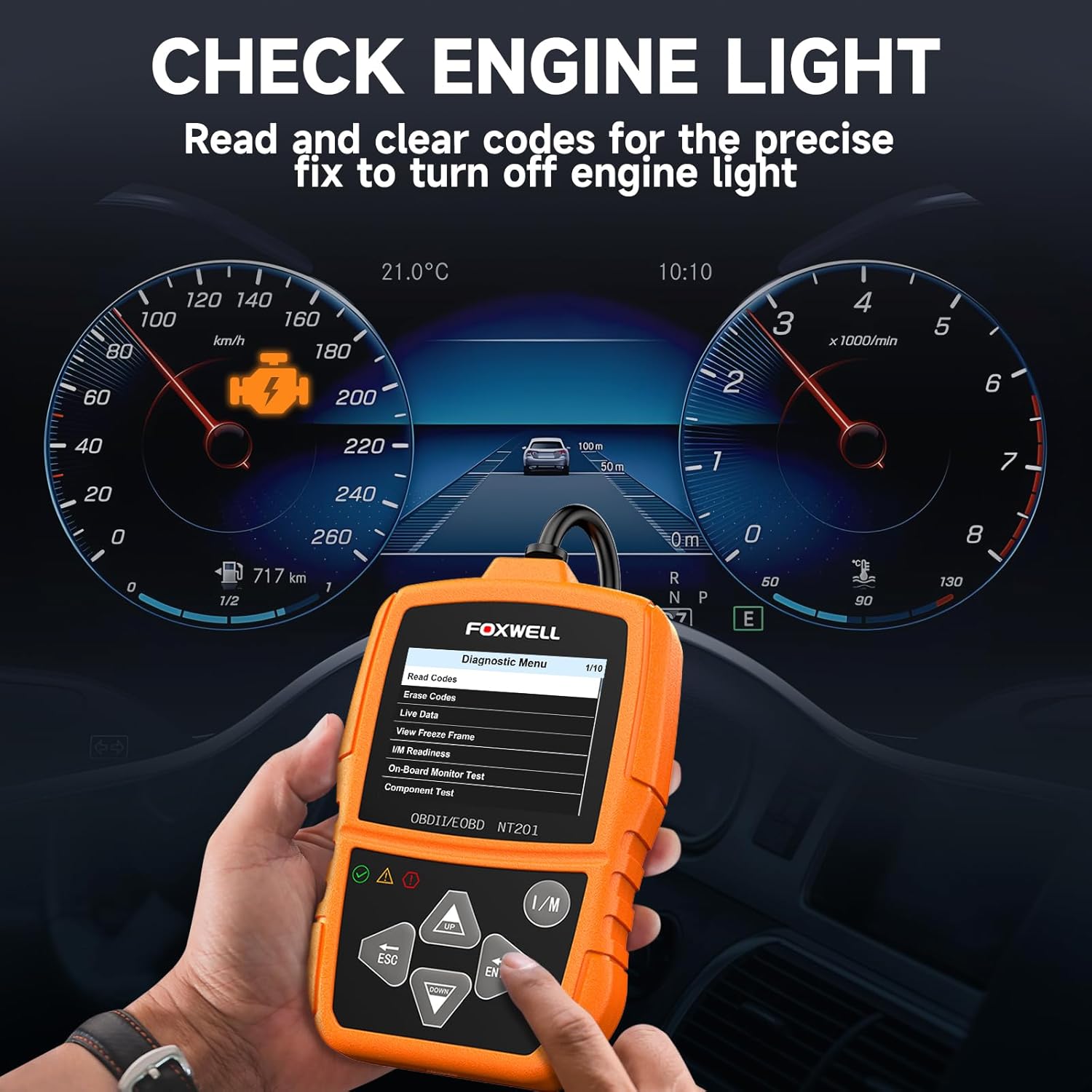
Abbildung 6.1: The FOXWELL NT201 scanner in use, displaying the diagnostic menu with 'Read Codes' highlighted. A vehicle dashboard is visible in the background, showing the check engine light illuminated.
- Verwenden Sie im Hauptmenü die AUF/AB buttons to select "Diagnostic Menu" and press EINGEBEN.
- Wählen Sie „Codes lesen“, um view current, pending, and permanent DTCs. The scanner will display the codes and their definitions.
- After addressing the underlying issue, select "Erase Codes" from the Diagnostic Menu and press EINGEBEN. Confirm the action when prompted. This will turn off the Malfunction Indicator Lamp (MIL) or 'Check Engine Light'.
6.2. Live-Datenstrom
View real-time operational parameters of the vehicle's engine, such as engine RPM, vehicle speed, coolant temperature, and more.

Abbildung 6.2: The FOXWELL NT201 scanner displaying a live data stream. The screen shows various parameters like Engine RPM and Vehicle Speed Sensor data, presented both numerically and graphically, with a car interior visible in the background.
- From the Diagnostic Menu, select "Live Data" and press EINGEBEN.
- Du kannst view data in text format or graphical format. Use the AUF/AB Schaltflächen zum Durchblättern der Parameter.
- Drücken EINGEBEN to select a parameter for detailed viewing or graphing.
6.3. One-Key I/M Readiness Test
Quickly check the vehicle's emission readiness status to determine if it's ready for an emissions test.

Abbildung 6.3: The FOXWELL NT201 scanner with its 'I/M' hotkey prominently displayed and highlighted, indicating its function for a quick smog check. An exhaust pipe is visible in the background, suggesting emissions testing.
- With the scanner connected and powered on, press the dedicated ICH BIN Hotkey.
- The scanner will display the status of various emission-related monitors (e.g., MIL, MIS, FUE, CCM, CAT, O2S, EGR).
- Green indicates the monitor has completed its test, Yellow indicates pending, and Red indicates not ready or a fault.
6.4. O2-Sensor-Test
This function retrieves O2 sensor monitor test results for the most recently completed tests from the vehicle's on-board computer. This helps in diagnosing fuel efficiency and emission-related issues.
- From the Diagnostic Menu, select "O2 Sensor Test" and press EINGEBEN.
- Folgen Sie den Anweisungen auf dem Bildschirm, um view die Testergebnisse.
7. Wartung
7.1. Reinigung des Scanners
Verwenden Sie ein weiches,amp cloth to clean the scanner's exterior. Do not use abrasive cleaners or solvents. Keep the screen free of dust and smudges for optimal visibility.
7.2. Speicherung
When not in use, store the NT201 scanner in its portable carrying case to protect it from dust, moisture, and physical damage. Store in a cool, dry place away from direct sunlight.

Abbildung 7.1: An open portable carrying case designed for the FOXWELL NT201 scanner, showing the scanner and its cable neatly organized within the case's compartments. The case provides organized protection for the device.

Abbildung 7.2: A diagram illustrating the dimensions of the portable carrying case, showing its length, width, and height. This case is suitable for the FOXWELL NT201 and similar diagnostic tools.
8. Fehlerbehebung
If you encounter issues with your NT201 scanner, refer to the following common problems and solutions:
| Problem | Mögliche Ursache | Lösung |
|---|---|---|
| Der Scanner lässt sich nicht einschalten. | Lose Verbindung zum DLC; Zündung des Fahrzeugs nicht eingeschaltet; Fahrzeugbatterie schwach. | Ensure the OBDII cable is securely connected. Turn vehicle ignition to 'ON'. Check vehicle battery voltage. |
| Kommunikationsfehler mit dem Fahrzeug. | Incorrect protocol; Faulty DLC; Vehicle not OBDII compliant. | Verify vehicle is OBDII compliant (1996 or newer for most regions). Check DLC for damage. Try on another compliant vehicle. |
| Screen display is dim or unreadable. | Environmental conditions; Screen damage. | Move to a better lit area. If damaged, contact support. |
9. Spezifikationen
- Anzeige: LCD mit Hintergrundbeleuchtung
- Betriebstemperatur: 0 bis 60 °C (32 bis 140 °F)
- Lagertemperatur: -20 bis 70 °C (-4 bis 158 °F)
- Externe Energie: Die Stromversorgung erfolgt über die Fahrzeugbatterie und beträgt 8.0 bis 18.0 V.
- Unterstützte Protokolle: KWP2000, J1850 VPW, ISO9141, J1850 PWM, CAN
- Kompatibilität: Most 1996 and newer OBDII compliant vehicles (cars, light trucks, SUVs, minivans, hybrids). Does not support electric vehicles or 24V heavy-duty trucks.
10. Garantie und Support
For warranty information or technical support, please refer to the FOXWELL official webBesuchen Sie die Website oder kontaktieren Sie direkt den Kundenservice. Bewahren Sie Ihren Kaufbeleg für Garantieansprüche auf.
FOXWELL Official WebWebsite: www.foxwelltech.com