
1. Einleitung
Thank you for choosing the GNCC GC4 2K Indoor Security Camera. This manual provides essential information for setting up, operating, and maintaining your camera. Please read it thoroughly before use to ensure optimal performance and safety.
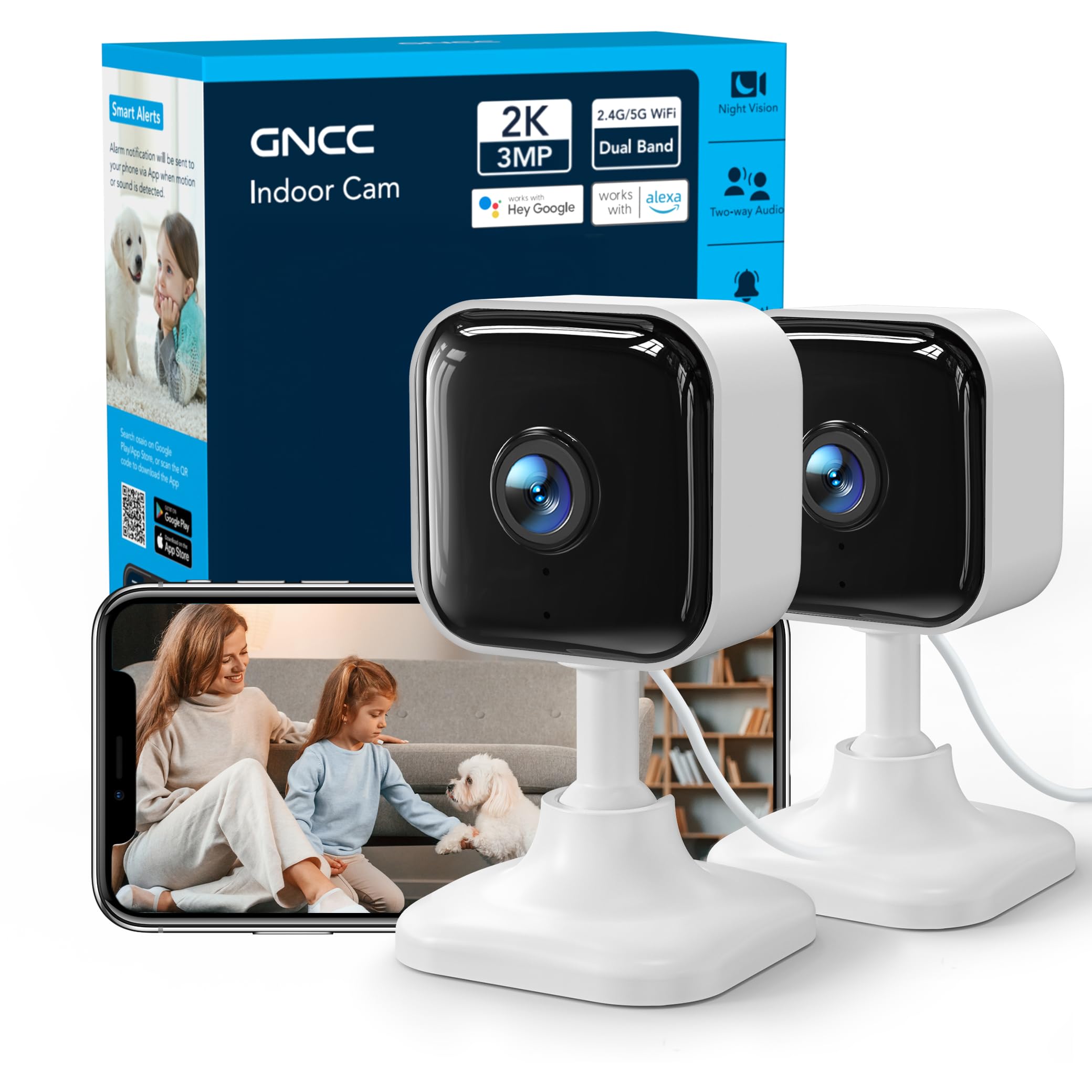
Image: GNCC GC4 2K Indoor Security Camera, a compact white camera with a black lens, shown on a stand.
2. Packungsinhalt
Überprüfen Sie, ob alle Artikel in Ihrem Paket vorhanden sind:
- GNCC GC4 2K Indoor Security Camera
- Netzteil
- USB-Stromkabel (6.5 m)
- Mounting Accessories (Adhesive tape, screws, wall anchors)
- Bedienungsanleitung (Dieses Dokument)
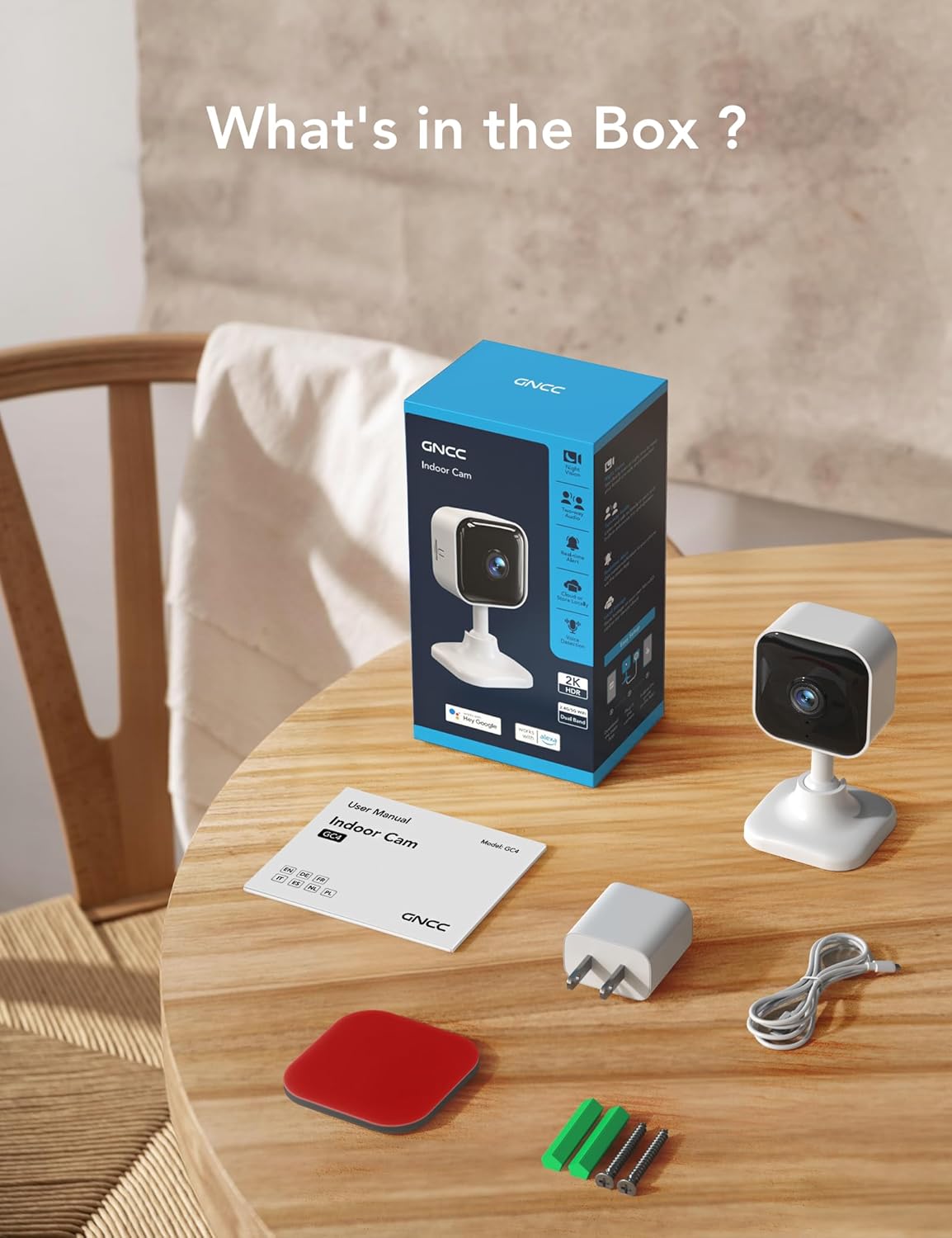
Image: Contents of the GNCC GC4 camera box, including the camera, power adapter, cable, and mounting hardware.
3. Produktüberschreitungview
Machen Sie sich mit den Komponenten der Kamera vertraut:
- Kameraobjektiv: Nimmt 2K Full HD-Videos auf.
- Infrarot-LEDs: Provide 32ft night vision.
- Mikrofon: Für die bidirektionale Audiokommunikation.
- Lautsprecher: Für bidirektionale Audiokommunikation und Benachrichtigungen.
- MicroSD-Kartensteckplatz: Unterstützt lokalen Speicher bis zu 128 GB (Karte nicht im Lieferumfang enthalten).
- Reset-Taste: Wird verwendet, um die Kamera auf die Werkseinstellungen zurückzusetzen.
- USB-Stromanschluss: Zum Anschluss des Netzkabels.

Image: Diagram highlighting key features of the GNCC GC4 camera, such as 2.4G/5G WiFi, 2K FHD resolution, IR Night Vision, Motion Detection, 2-Way Audio, and Local/Cloud Storage.
4. Einrichtung
4.1 Initial Power-Up and Reset
- Plug the camera into a power outlet using the provided power adapter and USB cable.
- Warten Sie, bis die Kamera eingeschaltet ist.
- Locate the reset button (usually near the MicroSD card slot). Use a pin or a thin object to press and hold the reset button for approximately 5-10 seconds until the indicator light blinks red. This indicates the camera is ready for pairing.
4.2 App-Download und Kopplung
- Laden Sie die Osaio App aus dem App Store Ihres Smartphones (iOS oder Android).
- Öffne die Osaio-App und erstelle ein Konto oder melde dich an.
- Stellen Sie sicher, dass Ihr Telefon mit einem 2.4-GHz- oder 5-GHz-WLAN-Netzwerk verbunden ist.
- Aktivieren Sie Bluetooth auf Ihrem Telefon.
- In the Osaio app, tap the '+' icon to add a new device. The app should automatically detect the GC4 camera.
- Follow the on-screen prompts to connect the camera to your Wi-Fi network by entering your Wi-Fi password.
- Sobald die Verbindung hergestellt ist, können Sie Ihrer Kamera einen Namen geben und sie in Betrieb nehmen.
Video: A step-by-step guide on how to connect the GNCC GC4 Camera to the Osaio App.

Image: Visual guide showing the steps to set up the GNCC GC4 camera using the Osaio app, from plugging in to successful device naming.

Image: GNCC GC4 camera illustrating its dual-band 2.4G/5G Wi-Fi connectivity for a stable connection.
5. Bedienungsanleitung
5.1 Live View und Zwei-Wege-Audio
Open the Osaio app and select your camera to view the live feed. Use the microphone icon to speak through the camera and the speaker icon to listen to audio from the camera's location.

Image: A child and a dog in a living room, with speech bubbles indicating two-way audio communication through the GNCC GC4 camera.
5.2 Bewegungs- und Geräuscherkennung
The camera features human, motion, and sound detection. When triggered, the app will send notifications to your smartphone. Sensitivity settings can be adjusted within the Osaio app.
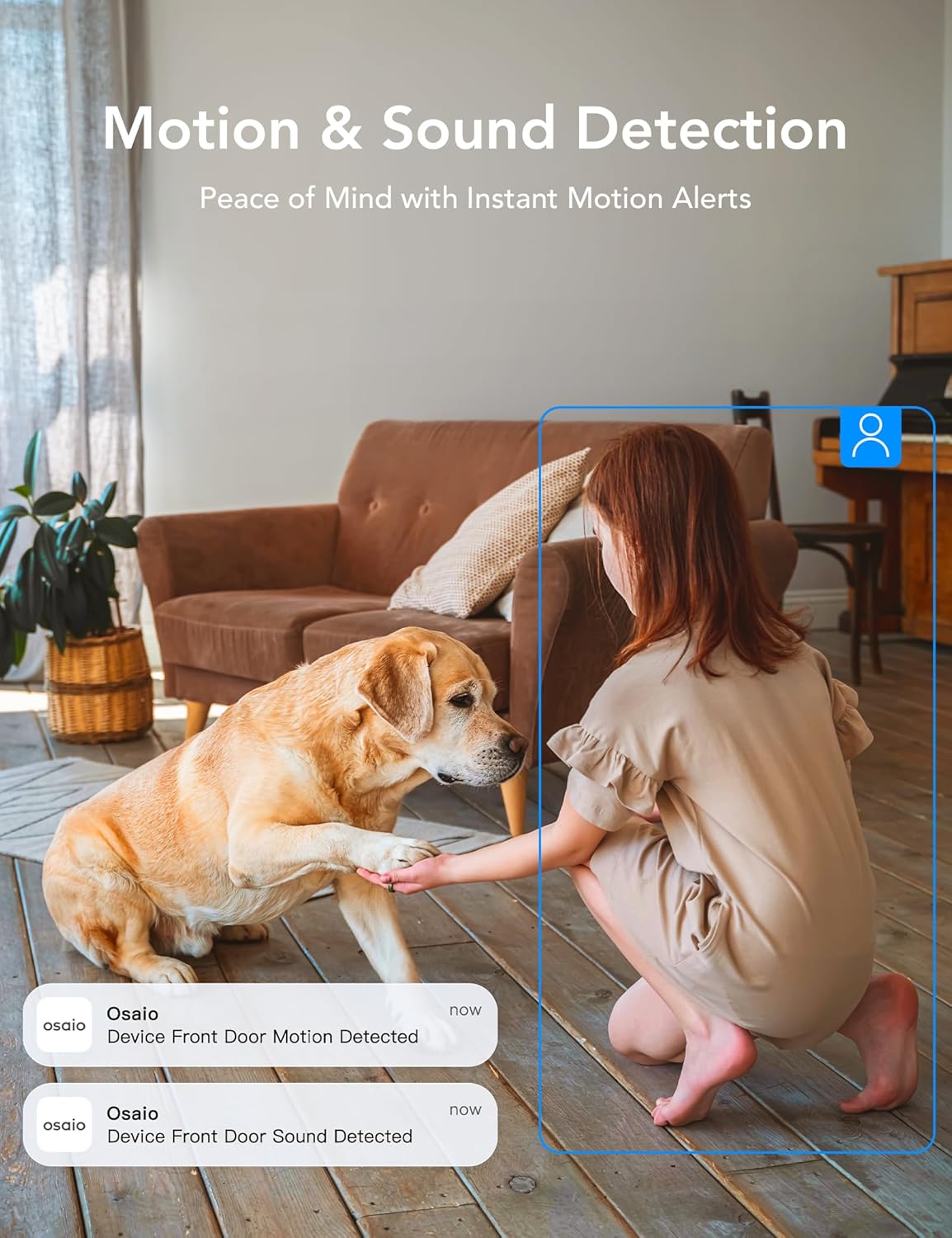
Image: A girl and a dog in a living room, with app notifications indicating motion and sound detection by the Osaio device.
5.3 Infrarot-Nachtsicht
Die Kamera schaltet bei schlechten Lichtverhältnissen automatisch auf Infrarot-Nachtsicht um und liefert klare Schwarzweißvideos bis zu einer Entfernung von 32 Metern.
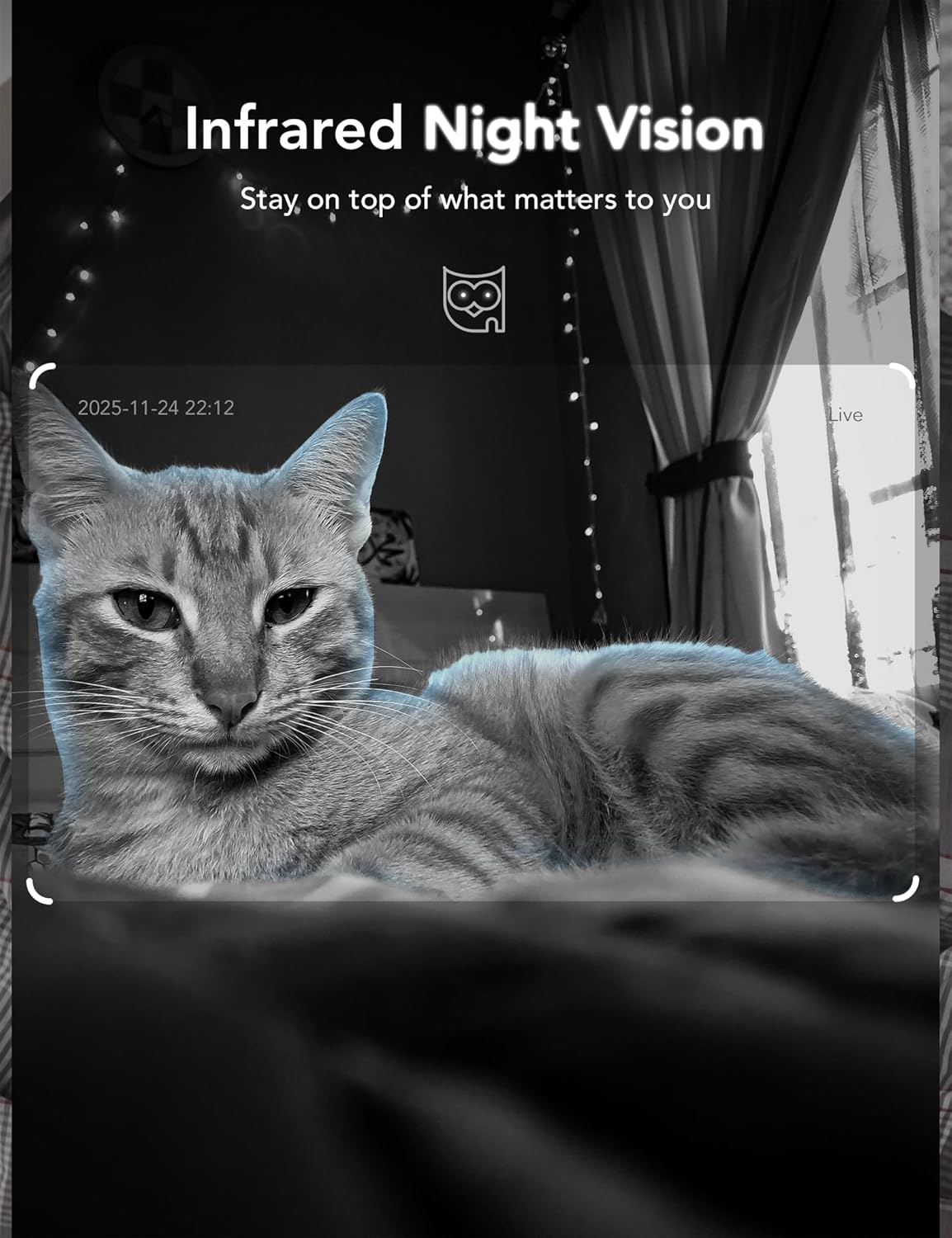
Image: A cat captured in infrared night vision by the GNCC GC4 camera, demonstrating clear visibility in darkness.
5.4 Speichermöglichkeiten
The GC4 camera supports two storage methods:
- Lokaler Speicher: Insert a MicroSD card (up to 128GB, not included) into the camera's slot for 24/7 continuous recording. Ensure the camera is powered off before inserting or removing the card.
- Cloud-Speicher: The Osaio app offers secure, encrypted cloud storage with a 14-day free trial for one camera per account. Subscription is required after the trial period.
Video: Demonstration of inserting a MicroSD card into the GNCC GC4 camera for local storage.
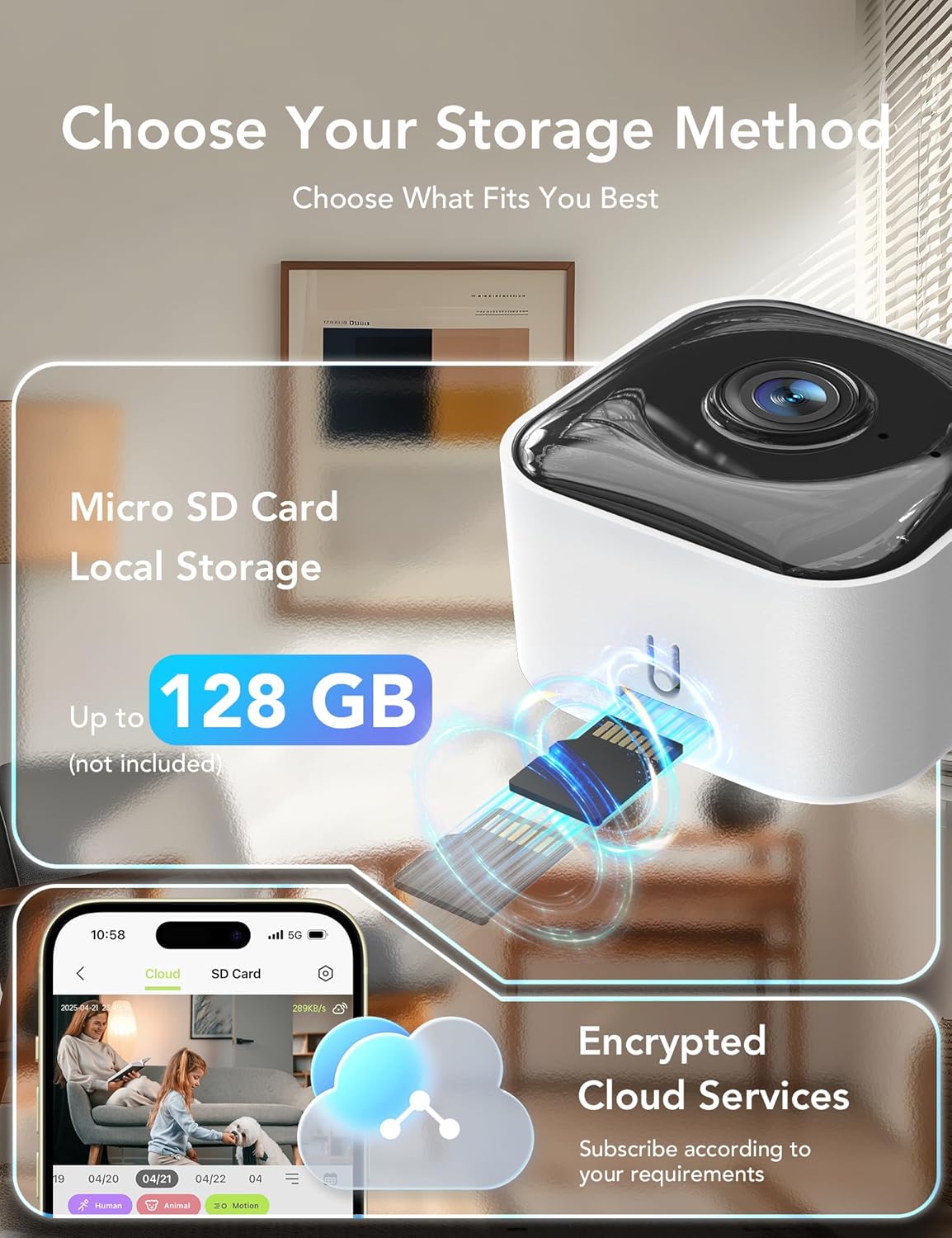
Image: Visual representation of the GNCC GC4 camera's storage options, including MicroSD card local storage (up to 128GB) and encrypted cloud services via the Osaio app.
6. Installationsmethoden
The GNCC GC4 camera offers flexible installation options:
- Freistehend: Place the camera on any flat surface like a shelf or table.
- Wandhalterung: Use the included adhesive tape or screws and wall anchors to securely mount the camera to a wall.
Video: Demonstration of three different installation methods for the GNCC GC4 camera.
7. Smart Home Integration
The GNCC GC4 camera is compatible with Amazon Alexa and Google Assistant, allowing for voice control and live feed viewauf kompatiblen Smart-Displays.
7.1 Connecting with Amazon Alexa
- Open the Alexa app and log in to your account.
- Tap 'More' in the lower right corner, then choose 'Skills & Games'.
- Tap the search icon in the upper right corner and search for 'Osaio'.
- Tap 'OSAIO' and click 'ENABLE TO USE'.
- Sign in to your Osaio account to link it with Alexa.
- Tap 'Authorize' and then 'Close'.
- Alexa will discover your devices. Once complete, you can use voice commands like "Alexa, show me the [camera name]".
Video: A guide on connecting the GNCC GC4 camera to Amazon Alexa for voice control.

Image: A woman in a kitchen interacting with an Alexa device to view the GNCC GC4 camera feed, demonstrating smart home integration.
8. Wartung
- Reinigung: Reinigen Sie Objektiv und Gehäuse der Kamera mit einem weichen, trockenen Tuch. Vermeiden Sie aggressive Chemikalien oder Scheuermittel.
- Firmware-Updates: Regularly check the Osaio app for firmware updates to ensure your camera has the latest features and security enhancements.
- Platzierung: Ensure the camera is placed in a location with good Wi-Fi signal strength and away from direct sunlight or heat sources.
- Datenschutzmodus: Utilize the privacy mode feature in the Osaio app to temporarily disable recording and live view when privacy is desired.

Image: A bedroom scene with the GNCC GC4 camera's privacy mode activated, indicated by a green toggle switch in the app interface.
9. Fehlerbehebung
- Kamera verbindet sich nicht mit WLAN: Ensure your Wi-Fi password is correct and the camera is within range of your router. Try resetting the camera and repeating the pairing process.
- Offline status: Check your Wi-Fi connection and the camera's power supply. Restart the camera by unplugging and replugging it.
- Schlechte Videoqualität: Ensure a strong Wi-Fi signal. If using a MicroSD card, check its health and ensure it's not full.
- Keine Bewegungs-/Geräuschalarme: Verify that detection settings are enabled and sensitivity is adjusted appropriately in the Osaio app. Check app notification permissions on your phone.
- Probleme mit der Zwei-Wege-Audioübertragung: Ensure your phone's microphone and speaker are working and that the app has necessary permissions. Check the camera's volume settings.
10. Spezifikationen
| Besonderheit | Detail |
|---|---|
| Modellnummer | GC4 |
| Videoauflösung | 2K (3 MP) |
| Nachtsichtbereich | Up to 32 feet (Infrared) |
| Wi-Fi-Konnektivität | 2.4 GHz / 5 GHz Dualband |
| Speicheroptionen | MicroSD Card (up to 128GB), Cloud Storage (Subscription) |
| Audio | Zwei-Wege-Audio |
| Erkennung | Personen-, Bewegungs- und Geräuscherkennung |
| Smart Home Kompatibilität | Amazon Alexa, Google Assistant |
| Stromquelle | Kabelgebundene Elektrik |
| Abmessungen (L x B x H) | 1.96 x 1.37 x 3.74 Zoll |
| Gewicht | 11.7 Unzen |
11. Garantieinformationen
GNCC products come with a limited warranty from the date of purchase. Please refer to the warranty card included in your package or visit the official GNCC website for detailed terms and conditions. This warranty typically covers manufacturing defects but does not cover damage caused by misuse, accidents, or unauthorized modifications.
12. Kundendienst
If you encounter any issues or have questions regarding your GNCC GC4 camera, please contact our customer support team:
- E-Mail: [E-Mail-Adresse des Kundensupports hier einfügen]
- Telefon: [Hier die Telefonnummer des Kundendienstes einfügen]
- WebWebsite: Visit the GNCC Store on Amazon
Our support team is available to assist you with technical issues, warranty claims, and general inquiries.


