
1. Produktüberschreitungview
The DAYTECH WiFi Smart Fridge Freezer Thermometer provides real-time temperature and humidity monitoring for refrigerators, freezers, and other environments. It features app alerts, a clear digital display, and remote monitoring capabilities via a 2.4GHz Wi-Fi connection. This device helps ensure optimal storage conditions and prevents spoilage due to temperature fluctuations.

Image: The main unit of the DAYTECH WiFi Smart Fridge Freezer Thermometer with its external probe. The unit displays temperature and humidity, and the probe is designed for internal appliance monitoring.
2. Packungsinhalt
- DAYTECH WiFi Smart Fridge Freezer Thermometer Main Unit
- Externer Temperaturfühler
- 3 AAA-Batterien (vorinstalliert oder separat enthalten)
- Suction Cup for Probe Installation
- Magnetic Sticker for Main Unit Installation
- Benutzerhandbuch (dieses Dokument)
3. Einrichtung und Installation
3.1 Einlegen der Batterie
The device requires 3 AAA batteries. If not pre-installed, open the battery compartment on the back of the main unit and insert the batteries, observing the correct polarity. The device will power on automatically.

Image: Illustration of the battery compartment with three AAA batteries inserted, highlighting the 12-month battery life and low battery reminder feature.
3.2 Physische Platzierung
- Haupteinheit: Place the main unit outside the refrigerator or freezer. It can be rested on top of the appliance or attached to its side using the provided magnetic sticker. Ensure it is within range of your 2.4GHz Wi-Fi network.
- Temperaturfühler: Secure the probe inside your refrigerator or freezer using the included suction cup. The probe cable is thin enough to run along the door gasket without affecting the seal. Ensure the probe tip is positioned to accurately measure the internal temperature.

Image: The main unit of the thermometer positioned on top of a refrigerator, displaying temperature and humidity. The external probe is shown installed inside the refrigerator with a suction cup.

Bild: Eine Nahaufnahme view of the temperature probe secured inside a refrigerator using a suction cup, demonstrating proper installation.
3.3 App-Verbindung (Smart Life App)
- Lade App herunter: Download and install the "Smart Life" app from your smartphone's app store (iOS or Android).
- Bluetooth aktivieren: Stellen Sie sicher, dass Bluetooth auf Ihrem Telefon aktiviert ist.
- Gerät hinzufügen: Open the Smart Life app, tap the "+" icon to add a new device.
- Kopplungsmodus aktivieren: On the thermometer main unit, press and hold the top button (often labeled "Set Key" or similar) until the Wi-Fi icon on the display blinks.
- Mit WLAN verbinden: In the app, select the device type (usually "Temperature Sensor" or "Hygrometer"). Enter your 2.4GHz Wi-Fi network name and password. Note: The device only supports 2.4GHz Wi-Fi networks.
- Verbindung bestätigen: Follow the on-screen prompts in the app to complete the connection. Once successful, the Wi-Fi icon on the thermometer's display will stop blinking and remain solid.

Image: A visual guide illustrating the six steps to connect the DAYTECH thermometer to the Smart Life mobile application, including enabling Bluetooth, adding the device, and entering Wi-Fi credentials.
4. Bedienungsanleitung
4.1 Informationen anzeigen
The LCD display on the main unit shows the current room temperature, probe temperature, and humidity. The Wi-Fi status and battery level are also indicated.
4.2 Schalttemperatureinheiten (°C/°F)
To switch between Celsius (°C) and Fahrenheit (°F) on the device display, quickly press the "reset button" (often the same as the "Set Key" used for pairing) two times.

Image: A hand pressing the button on the thermometer, with text explaining that two quick presses switch the temperature unit between Celsius and Fahrenheit.
4.3 Fernüberwachung und Warnmeldungen
Sobald die Verbindung zur Smart Life App hergestellt ist, können Sie:
- View Echtzeitdaten: Check current room temperature, probe temperature, and humidity from anywhere via the app.
- Set Temperature Ranges: Configure custom high and low temperature thresholds for both the room and probe sensors.
- Receive Instant Alerts: The app will send push notifications to your phone if the temperature or humidity goes outside the preset ranges. This feature does not require a subscription.
- Access Data History: The app automatically records temperature and humidity data, allowing you to view trends and export up to one year of historical data.
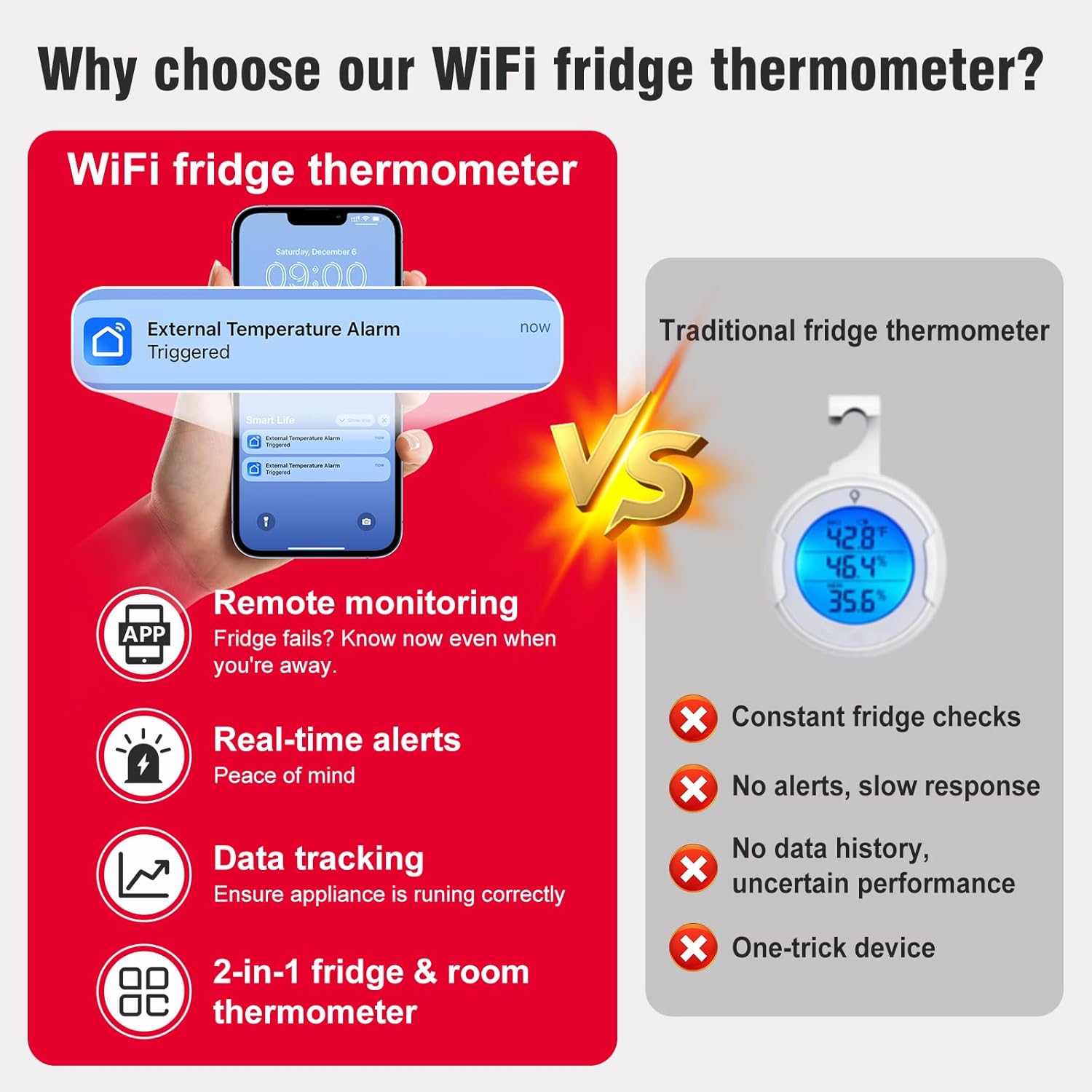
Image: A smartphone screen showing a "Smart Life" app notification for an "External Temperature Alarm Triggered," demonstrating the real-time alert feature.

Image: The Smart Life app interface displaying temperature alert settings with adjustable upper and lower limits, alongside a graph showing historical probe temperature data over several days.

Image: A person sitting at a desk, viewing temperature data on both a computer spreadsheet and a smartphone app, illustrating the data tracking and export capabilities.
5. Wartung
5.1 Batteriewechsel
The device has a battery life of approximately 12 months. The app will provide low-power reminders. When the battery icon on the display or in the app indicates low power, replace the 3 AAA batteries. Refer to section 3.1 for battery installation instructions.
5.2 Reinigung
Wipe the main unit and probe with a soft, dry cloth. Do not use abrasive cleaners or immerse the main unit in water. The probe can be gently cleaned with a damp mit einem sauberen Tuch abwischen.
6. Fehlerbehebung
- Gerät verbindet sich nicht mit WLAN:
- Stellen Sie sicher, dass Ihr WLAN-Netzwerk mit 2.4 GHz arbeitet. Das Gerät unterstützt keine 5-GHz-Netzwerke.
- Überprüfen Sie, ob das WLAN-Passwort in der App korrekt eingegeben wurde.
- Stellen Sie sicher, dass sich das Gerät in Reichweite Ihres WLAN-Routers befindet.
- Restart the device by removing and reinserting the batteries, then try the pairing process again.
- Ungenaue Temperaturmesswerte:
- Ensure the probe is properly positioned and not obstructed.
- Allow sufficient time (e.g., 30 minutes) for the probe to stabilize to the ambient temperature of the appliance.
- Kalibrierung: If you suspect consistent inaccuracy, the probe temperature can be calibrated via the Smart Life app.
- In the app, tap the list icon in the upper-right corner of the device page, then select "Setting".
- Find "Probe Temp Calibration" and adjust the value as needed.
- Bestätigen Sie die Änderungen.

Image: A five-step visual guide demonstrating how to access the settings in the Smart Life app to calibrate the probe temperature.
- Keine App-Benachrichtigungen:
- Check if temperature alert ranges are correctly set in the app.
- Ensure your phone's notification settings allow alerts from the Smart Life app.
- Verify the device is connected to Wi-Fi and reporting data.
- Limited Account Access: The device can typically be added to one primary Smart Life account. Sharing access with other family members may require specific app features or workarounds, which can vary by app version.
7. Spezifikationen
| Besonderheit | Spezifikation |
|---|---|
| Modellnummer | TY-TH02-1PC |
| Geräteabmessungen | 2.2 x 2.2 x 0.9 Zoll (5.6 x 5.6 x 2.3 cm) |
| Sondenkabellänge | 39.37 Zoll (100 cm) |
| Temperaturbereich der Sonde | -40°F bis 248°F (-40°C bis 120°C) |
| Temperaturgenauigkeit | ±0.9 °F / 0.5 °C |
| Feuchtigkeitsgenauigkeit | ±5% relative Luftfeuchtigkeit |
| Aktualisierungshäufigkeit | 2 Sekunden |
| Konnektivität | 2.4-GHz-WLAN (IEEE 802.11 b/g/n) |
| Stromquelle | 3 x AAA-Batterien (im Lieferumfang enthalten) |
| Akkulaufzeit | Ungefähr 12 Monate |
| Anzeigetyp | LCD Bildschirm |
| Material | Acrylnitril-Butadien-Styrol (ABS) |
| Verwendung im Innen- und Außenbereich | Innenbereich |
8. Garantie und Support
DAYTECH provides customer support for any questions or issues encountered during the use or connection of the thermometer. If you experience any problems, please contact DAYTECH customer service via Amazon email for assistance. They aim to provide a satisfactory reply to all inquiries.
For specific warranty details, please refer to the product packaging or contact DAYTECH directly.