
1. Einleitung
This manual provides essential information for the safe and effective use of your NBD 8K 64MP Digital Camera. Please read this manual thoroughly before using the camera and retain it for future reference. This camera is designed for capturing high-resolution photos and videos, featuring an 8K video recording capability, 64MP still image resolution, 16X digital zoom, and a 180-degree flip screen for versatile shooting.
2. Sicherheitshinweise
- Do not expose the camera to water or moisture. This device is not water-resistant.
- Vermeiden Sie es, die Kamera fallen zu lassen oder starken Stößen auszusetzen.
- Halten Sie die Kamera von starken Magnetfeldern fern.
- Versuchen Sie nicht, die Kamera zu zerlegen oder zu verändern. Reparaturen dürfen nur von autorisiertem Servicepersonal durchgeführt werden.
- Use only NBD-approved batteries and chargers.
- Bewahren Sie die Kamera bei Nichtgebrauch an einem kühlen, trockenen Ort auf.
- Außerhalb der Reichweite von Kindern aufbewahren.
3. Packungsinhalt
Bitte überprüfen Sie, ob alle unten aufgeführten Artikel in Ihrem Paket enthalten sind:
- NBD S100F 8K Camera
- 52-mm-Weitwinkelobjektiv
- 52 mm Makroobjektiv
- Rechargeable Lithium-Ion Batteries (x2)
- Ladegerät
- Camera Neck Rope (Strap)
- Black Leather Bag (Pouch)
- 64GB Memory Card (TF Card)
- USB-Kabel
- Kartenleser
- Bedienungsanleitung
- Objektiv-Reinigungstuch

Abbildung 3.1: Mitgeliefertes Zubehör
4. Kamerakomponenten
Familiarize yourself with the main parts and controls of your NBD 8K 64MP Digital Camera.
4.1-Vorderseite View
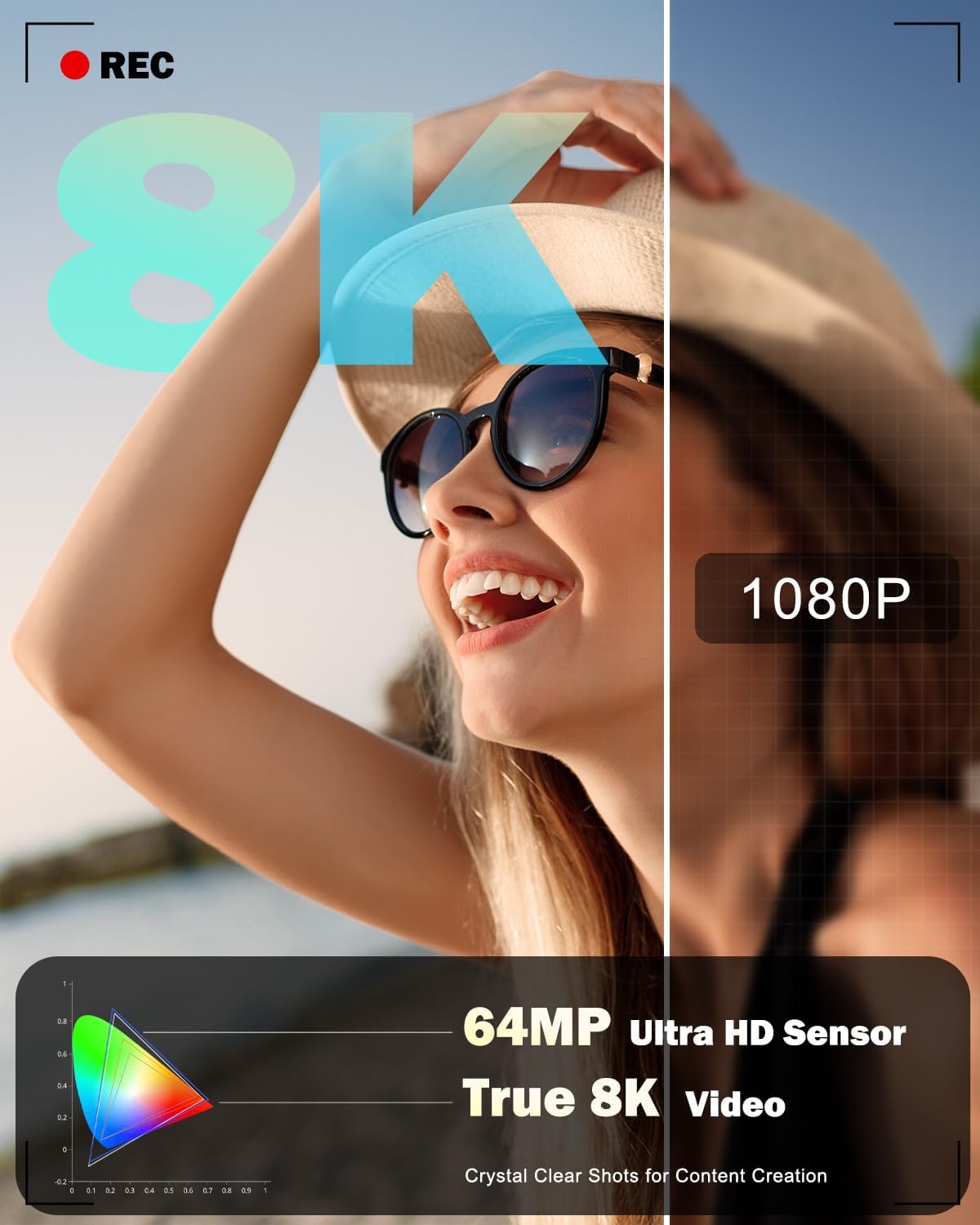
Abbildung 4.1: Vorderseite View der Kamera
This image displays the front of the camera, highlighting the main lens, built-in flash, and the NBD branding.
4.2 Rückseite View and Flip Screen

Abbildung 4.2: Rückseite View with Flip Screen
Das Heck view shows the 3-inch IPS 180-degree flip screen, which can be rotated for selfies or vlogging, along with various control buttons for menu navigation and settings adjustment.
4.3 Nach oben View

Abbildung 4.3: Oben View der Kamera
The top of the camera features the mode dial for selecting different capture modes, the shutter button, and the zoom control lever.
4.4 Abmessungen

Abbildung 4.4: Kameraabmessungen
The camera is designed to be compact and portable, with approximate dimensions of 4.5 inches by 2.7 inches, making it easy to carry.
5. Einrichtung
5.1 Einlegen und Laden der Batterie
- Öffnen Sie die Abdeckung des Batteriefachs an der Unterseite der Kamera.
- Insert a fully charged Lithium-Ion battery, ensuring the correct orientation as indicated inside the compartment.
- Schließen Sie den Batteriefachdeckel fest.
- To charge the battery, insert it into the provided charger and connect the charger to a power source. The indicator light on the charger will show the charging status.
5.2 Installation der Speicherkarte
- Locate the memory card slot, typically near the battery compartment or on the side of the camera.
- Insert the 64GB microSD card (TF card) into the slot with the contacts facing the correct direction until it clicks into place.
- Zum Entfernen der Karte diese vorsichtig hineindrücken, bis sie herausspringt.
5.3 Anbringen von Objektiven
The camera comes with a 52mm Macro Lens and a detachable wide-angle lens. To attach:
- Align the threads of the desired lens (macro or wide-angle) with the threads on the camera's main lens.
- Gently screw the lens clockwise until it is securely fastened. Do not overtighten.
- Zum Entfernen gegen den Uhrzeigersinn abschrauben.
5.4 Erstes Einschalten und Grundeinstellungen
- Halten Sie die Einschalttaste gedrückt, um die Kamera einzuschalten.
- Upon first use, you may be prompted to set the date, time, and language. Follow the on-screen instructions using the navigation buttons and the 'OK' button.
- Format the memory card before first use to ensure optimal performance. Navigate to the 'Settings' menu, find 'Format Card', and confirm.
6. Bedienung der Kamera
6.1 Ein-/Ausschalten
Press the power button to turn the camera on or off. The camera will automatically power off after a period of inactivity to conserve battery life.
6.2 Basic Photography (Still Images)
- Turn the mode dial to the 'Photo' icon.
- Mit dem 3-Zoll-Klappbildschirm können Sie Ihr Bild optimal gestalten.
- Press the shutter button halfway down to activate autofocus. The focus frame will appear on the screen.
- Once focus is achieved, press the shutter button fully to capture the image.
6.3 Videoaufzeichnung
- Turn the mode dial to the 'Video' icon.
- Press the shutter button to start recording. A 'REC' indicator will appear on the screen.
- Drücken Sie den Auslöser erneut, um die Aufnahme zu stoppen.
6.4 Using Capture Modes
The camera offers various capture modes accessible via the mode dial:

Figure 6.1: Camera Capture Modes
- Fotomodus: Standardmäßige Standbildaufnahme.
- Pausenfoto: Captures a series of photos at set intervals.
- Videomodus: Standard video recording (up to 8K resolution).
- Zeitlupenvideo: Records video for slow-motion playback.
- Interval Video: Records video clips at set intervals for time-lapse effects.
- Wiedergabemodus: Review aufgenommene Fotos und Videos.
6.5 Autofocus Operation
The camera features an autofocus system. Half-pressing the shutter button will engage the autofocus, indicated by a green frame on the screen when focus is achieved. The camera also supports face detection for improved portrait photography.

Figure 6.2: Autofocus in Action

Figure 6.3: Face Detection Autofocus
6.6 Digitalzoom
The camera features 16X digital zoom. Use the zoom lever (typically around the shutter button) to zoom in or out. Note that digital zoom magnifies the image electronically and may result in some loss of image quality compared to optical zoom.

Figure 6.4: Digital Zoom Levels
6.7 Verwendung des Klappbildschirms
The 180-degree flip screen allows for flexible viewing angles. Rotate the screen to face forward for self-portraits or vlogging. The camera can also function as a PC webcam when connected via USB, utilizing the flip screen for monitoring.

Figure 6.5: Camera as PC WebNocken
6.8 Blitzbetrieb
The camera includes a built-in flash for illuminating subjects in low-light conditions. The flash can be set to automatic or forced-on modes via the camera's menu settings.

Figure 6.6: Built-in Flash Effect
6.9 WLAN-Verbindung und App-Steuerung
The camera supports WiFi connectivity for remote control and image transfer to smartphones or computers.
- Enable WiFi on the camera via the settings menu.
- Download the dedicated NBD camera app on your smartphone.
- Verbinden Sie Ihr Smartphone mit dem WLAN-Netzwerk der Kamera.
- Use the app for remote framing, transferring photos and videos, and sharing content to social media platforms.

Figure 6.7: WiFi and USB Connectivity
7. Wartung
7.1 Cleaning the Camera and Lenses
- Use the provided lens cleaning cloth or a soft, lint-free cloth to gently wipe the camera body and screen.
- For lenses, use a lens brush to remove dust, then gently wipe with a lens cleaning cloth. Do not use abrasive materials or harsh chemicals.
7.2 Batteriepflege
- Akkus vor Gebrauch vollständig aufladen.
- Remove batteries from the camera if it will not be used for an extended period.
- Lagern Sie Batterien an einem kühlen, trockenen Ort.
7.3 Speicherung
When storing the camera, ensure it is turned off, and the lens cap is attached. Place it in the provided pouch or a camera bag to protect it from dust and scratches.
8. Fehlerbehebung
Sollten Sie Probleme mit Ihrer Kamera haben, beachten Sie bitte die folgenden häufigen Probleme und Lösungen:
| Problem | Mögliche Ursache | Lösung |
|---|---|---|
| Die Kamera lässt sich nicht einschalten. | Die Batterie ist leer oder falsch eingesetzt. | Laden Sie den Akku vollständig auf und vergewissern Sie sich, dass er richtig eingesetzt ist. |
| Es dürfen keine Fotos/Videos aufgenommen werden. | Die Speicherkarte ist voll, nicht eingelegt oder beschädigt. | Legen Sie eine Speicherkarte ein und löschen Sie unnötige Dateien. files oder formatieren Sie die Karte (sichern Sie vorher die Daten). |
| Bilder sind verschwommen. | Autofokusfehler, Verwacklungen oder verschmutzte Linse. | Ensure autofocus locks before shooting, hold camera steady, or clean the lens. |
| WLAN-Verbindungsprobleme. | Incorrect password, camera WiFi not enabled, or app issues. | Verify WiFi password, enable WiFi on camera, restart app/camera. |
| No sound in recorded videos. | Microphone settings, or external microphone not connected properly. | Check camera audio settings. Ensure any external microphone is securely connected and functional. |
If the problem persists, please contact NBD customer support.
9. Spezifikationen
| Besonderheit | Spezifikation |
|---|---|
| Modellname | NBD-8K64MP |
| Fotosensor-Technologie | CMOS |
| Effektive Standbildauflösung | 64 Megapixel |
| Videoauflösung | 8K (7680x4320), 5K (5120x2880 @ 25 FPS) |
| Digital Zoom | 16X |
| Objektivtyp | 52mm Macro Lens, Detachable Wide-Angle Lens |
| Anzeige | 3-inch IPS 180° Flip LCD Screen |
| Autofokus | Ja (Hybrid-Autofokus) |
| ISO-Bereich | 100-3200 |
| Speichermedien | microSD (64GB card included) |
| Konnektivität | USB, WLAN |
| Akku-Typ | Lithium Ion (x2 included) |
| Unterstützt File Formate | JPEG, MP4 |
| Aufnahmemodi | Easy, Landscape, Movie, Portrait, Sports, Interval Photo, Interval Video, Slow Motion |
| Montagetyp | Stativ |
| Wasserbeständigkeit | Nicht wasserfest |
10. Garantie und Support
Your NBD 8K 64MP Digital Camera is covered by a manufacturer's warranty. Please refer to the warranty card included in your package for specific terms and conditions. For technical support, troubleshooting assistance, or warranty claims, please visit the official NBD website or contact NBD customer service through the contact information provided in your product documentation.
No official product videos from the seller were found to embed in this manual.