
1. Einleitung
The SONOFF AirGuard PM2.5 Smart Indoor Air Quality Monitor (Model SAWF-07P) is designed to provide real-time monitoring of indoor air quality. It detects particulate matter (PM2.5 and PM10), temperature, and humidity, offering comprehensive environmental insights. This device is Matter-compatible, allowing seamless integration into various smart home ecosystems.
This manual provides essential information for setting up, operating, maintaining, and troubleshooting your AirGuard monitor to ensure optimal performance and accurate readings.
2. Packungsinhalt
Bitte überprüfen Sie, ob alle unten aufgeführten Artikel in Ihrem Paket enthalten sind:
- SONOFF AirGuard PM2.5 Monitor (SAWF-07P)
- USB-C-Kabel
- Bedienungsanleitung
Note: A USB-A power adapter is required but not included in the package.
3. Produktüberschreitungview
3.1 Gerätekomponenten
The AirGuard monitor features a compact design with a clear display and intuitive controls.


3.2 Tasten und Anzeigen
| Schaltflächenname | Funktion |
|---|---|
| Wi-Fi-Taste | Long-press for 5 seconds to enter Network Pairing Mode. |
| "+"-Schaltfläche | In Menu Mode: Switch temperature unit (°C/°F), Calibrate temperature value (+0.1°C)/humidity value (+0.1%). |
| Schaltfläche „Einstellungen“ | Short-press once to enter Menu Mode. In Menu Mode: Cycle through adjustable parameters, Switch detection mode (PM2.5/PM10). |
| Summerschalter | Short-press to Enable/Disable Sound Alarm (when not alarming). Short-press once to completely turn off sound alarm (when alarming). Short-press once to mute for 30 minutes (if air quality remains poor after 30 minutes, alarm resumes). Short-press twice to completely turn off sound alarm. |
| Anzeigelichtschalter | Long-press for 3 seconds to Enable/Disable Indicator Light. |
| "-" Taste | In Menu Mode: Calibrate temperature value (-0.1°C)/humidity value (-0.1%). |
4. Einrichtung
4.1 Einschalten
- Connect the provided USB-C cable to the monitor's USB-C port.
- Plug the other end of the USB-C cable into a 5V/1A USB-A power adapter (not included).
- The device will power on automatically and display current readings.
4.2 App-Installation und -Kopplung
The SONOFF AirGuard PM2.5 monitor supports Matter for broad smart home compatibility and can also be managed via the eWeLink app.
- Laden Sie die eWeLink-App herunter: Suchen nach "eWeLink" in your smartphone's app store (App Store for iOS or Google Play Store for Android) and install it.
- Kopplungsmodus aktivieren: Long-press the Wi-Fi button on the top of the device for 5 seconds until the Wi-Fi icon on the display starts flashing. This indicates the device is in network pairing mode.
- Gerät in der App hinzufügen: Open the eWeLink app, tap the "+" icon to add a device, and select the option to scan a QR code. Scan the QR code located on the back of your AirGuard monitor.
- Folgen Sie den Anweisungen auf dem Bildschirm: Complete the pairing process by following the instructions in the eWeLink app. This will connect your device to your 2.4GHz Wi-Fi network.
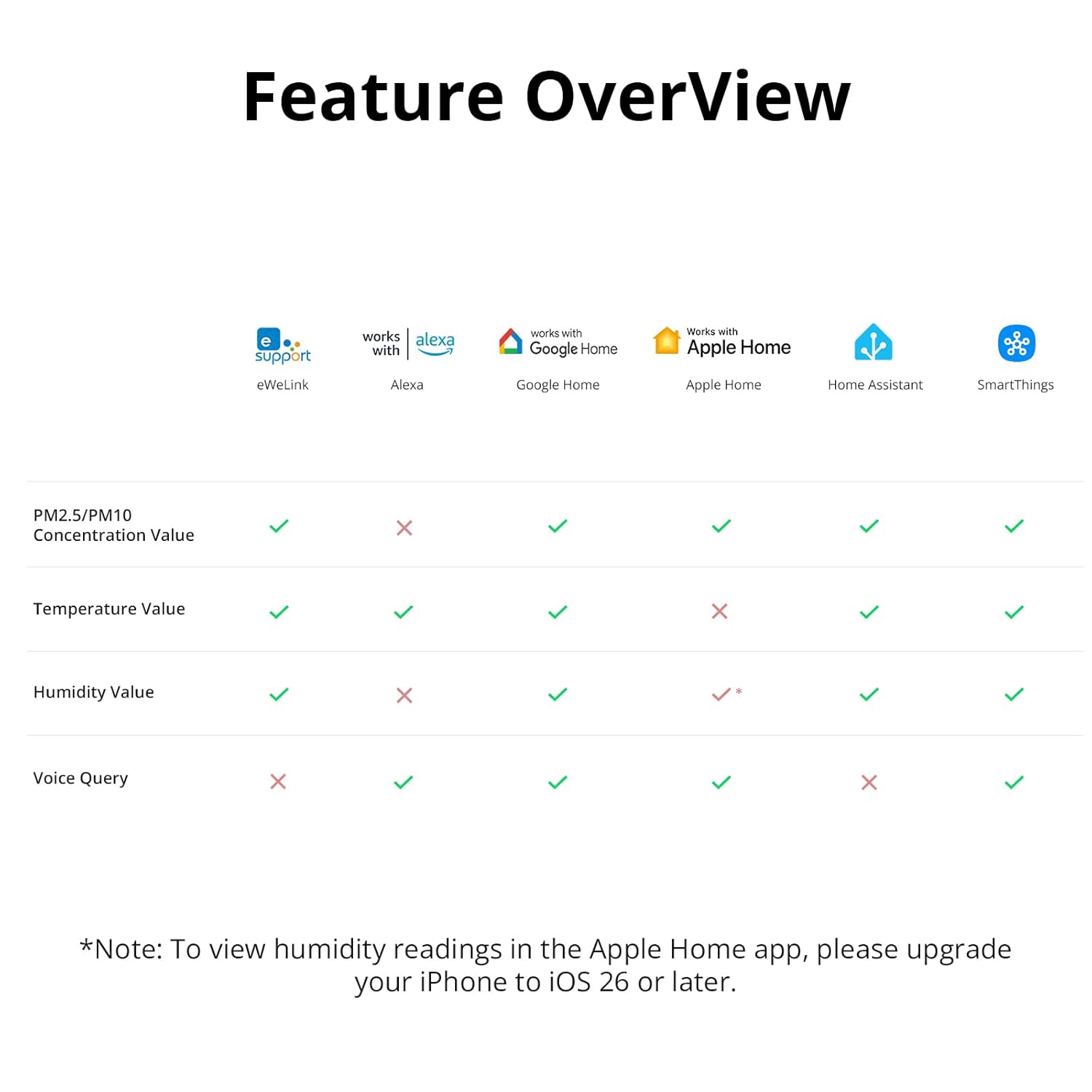
- Materieintegration (optional): If you wish to integrate with other Matter-compatible smart home platforms (e.g., Apple Home, Amazon Alexa, Google Home, SmartThings, Home Assistant), ensure you have a Matter hub. Once paired with eWeLink, you can usually initiate Matter pairing from your preferred smart home app by following its specific instructions for adding Matter devices.

Einrichtungsvideoanleitung
For a visual guide on unboxing, powering up, and adding the device, please watch the official SONOFF tutorial video:
Video Description: This official SONOFF video provides a quick-start tutorial for the AirGuard PM2.5 monitor, covering unboxing, power-up, adding the device to the eWeLink app, and basic menu and alarm settings. It demonstrates the physical buttons and the app interface for initial setup.
5. Bedienungsanleitung
5.1 Ablesen des Displays
The 3.73-inch screen provides real-time readings for:
- PM2.5: Particulate matter with a diameter of 2.5 micrometers or less (µg/m³).
- PM10: Particulate matter with a diameter of 10 micrometers or less (µg/m³).
- Temperatur: Ambient temperature (°C/°F).
- Luftfeuchtigkeit: Relative humidity (%).
5.2 Menu Mode and Calibration
You can adjust certain settings directly on the device using the Menu Mode:
- Menümodus aufrufen: Short-press the Settings Button (gear icon) once. The temperature unit will start flashing.
- Temperatureinheit wechseln: While the temperature unit is flashing, short-press the "+" or "-" button to switch between Celsius (°C) and Fahrenheit (°F).
- Calibrate Temperature: While the temperature value is flashing (after cycling through units), short-press the "+" or "-" button to manually calibrate the temperature in 0.1°C increments.
- Schaltererkennungsmodus: Short-press the Settings Button again to cycle to the detection mode. When the target item (PM2.5 or PM10) begins to flash, short-press the "+" or "-" button to switch between PM2.5 and PM10 display.
- Calibrate Humidity: Short-press the Settings Button again to cycle to the humidity value. While the humidity value is flashing, short-press the "+" or "-" button to manually calibrate the humidity in 0.1% increments.
- Exit Menu Mode: If there is no button operation for 3 seconds, the device will automatically save the current settings and exit Menu Mode. Alternatively, you can exit by pressing the Settings Button again after cycling through all available parameters.
5.3 Warnsystem
The AirGuard monitor features a triple-alert system to notify you of air quality changes:
- Tonalarm: An audible alert when thresholds are exceeded. Use the Buzzer Switch to enable/disable, mute for 30 minutes, or turn off completely.
- Multi-color LED Indicator: An LED light changes color (e.g., green for safe, yellow for cautionary, red for unhealthy) based on air quality levels. Long-press the Indicator Light Switch for 3 seconds to turn it on or off.
- App-Benachrichtigungen: Customizable notifications sent to your eWeLink app when PM2.5, PM10, temperature, or humidity exceed defined thresholds.

5.4 Data Tracking and Export
The eWeLink app allows you to track and analyze historical air quality data:
- Access up to 12 months of historical data for PM2.5, PM10, temperature, and humidity.
- View clear, graphical charts directly in the app to identify trends.
- Export data for deeper analysis or sharing.

5.5 Sprachsteuerung
Integrate your AirGuard monitor with voice assistants for hands-free air quality checks:
- Use simple voice commands through Siri or Google Assistant to inquire about PM2.5 and PM10 levels.
- Requires connection to a compatible smart home platform (e.g., Apple Home, Google Home) via Matter.

6. Wartung
6.1 Reinigung
- Gently wipe the device with a soft, dry cloth.
- Do not use liquid cleaners or abrasive materials, as these can damage the sensors or display.
6.2 Platzierung
Optimal placement is crucial for accurate readings:
- Place the monitor on a flat surface using its retractable stand.
- Ensure the device is not mounted directly against a wall or obstructed, as the back and sides contain air vents essential for gas detection and accurate air sampLeng.
- Avoid placing the device near strong air currents (e.g., open windows, air conditioners) or heat sources, which can affect temperature and humidity readings.

7. Fehlerbehebung
- Gerät lässt sich nicht einschalten: Ensure the USB-C cable is securely connected to both the monitor and a functional 5V/1A power adapter. Try a different cable or adapter.
- Unable to Connect to Wi-Fi/App:
- Stellen Sie sicher, dass Ihr WLAN-Netzwerk mit 2.4 GHz arbeitet. Das Gerät unterstützt keine 5-GHz-Netzwerke.
- Confirm the device is in pairing mode (flashing Wi-Fi icon).
- Check your Wi-Fi password.
- Move the device closer to your Wi-Fi router.
- Restart your router and the AirGuard monitor. - Ungenaue Messwerte:
- Ensure the device is placed in an area with good air circulation, away from direct drafts, heat sources, or excessive humidity.
- Allow the device to stabilize for a few minutes after initial power-on or relocation.
- Perform manual calibration for temperature and humidity via the Menu Mode if you have a trusted reference sensor. PM2.5/PM10 sensors are factory calibrated. - Alarm Triggering Frequently: Adjust the alert thresholds in the eWeLink app settings to suit your environment and preferences.
- No Data in App History: Ensure the device is continuously powered and connected to Wi-Fi. Data is recorded and uploaded to the cloud via the eWeLink app.
8. Spezifikationen
| Parameter | Wert |
|---|---|
| Modell | SAWF-07P |
| Kabellose Verbindung | IEEE 802.11 b / g / n 2.4GHz |
| Schnittstellentyp | USB Typ C |
| Eingang | 5 V # 1 A |
| Temperaturerfassungsbereich | 0 ~ 50 °C / 32 ~ 122 °F |
| Temperaturgenauigkeit | ± 0.5 ° C / ± 1 ° F |
| Feuchtigkeitserkennungsbereich | 5-95%RH, nicht kondensierend |
| Feuchtigkeitsgenauigkeit | ± 3% RH |
| PM2.5-Erkennungsbereich | 0 ~ 500µg/m³ |
| PM2.5 Genauigkeit | ±10µg/m³ (0-100µg/m³), ±10% (100-500µg/m³) |
| PM10-Erkennungsbereich | 0 ~ 500µg/m³ |
| PM10 Genauigkeit | ±10µg/m³ (0-100µg/m³), ±10% (100-500µg/m³) |
| Arbeitstemperatur | -10°C bis 50°C |
| Arbeitsfeuchtigkeit | 5-95%RH, nicht kondensierend |
| Bildschirmgröße | 3.73 Zoll |
| Nettogewicht | 127.6g |

9. Garantie und Support
9.1 Garantieinformationen
The SONOFF AirGuard PM2.5 Smart Indoor Air Quality Monitor comes with a Zwei Jahre Garantie ab Kaufdatum. Bitte bewahren Sie Ihren Kaufbeleg für Garantieansprüche auf.
9.2 Kundendienst
For any technical assistance, troubleshooting, or warranty inquiries, please contact SONOFF Customer Support:
- E-Mail: support@itead.cc
- Online-Ressourcen: Besuchen Sie die offizielle SONOFF-Website. webWebsite mit häufig gestellten Fragen, aktualisierten Handbüchern und Community-Foren.