
Einführung
Thank you for choosing the Salange 2026 Mini Projector. This portable smart projector is designed to deliver a high-quality visual experience with its 4K support, Android 14 operating system, and advanced connectivity features like WiFi 6 and Bluetooth 5.4. This manual provides essential information for safe and efficient use of your device. Please read it thoroughly before operation and retain it for future reference.
Sicherheitshinweise
- Schauen Sie nicht direkt in die Projektorlinse, wenn der lamp ist eingeschaltet.
- Sorgen Sie für eine ausreichende Belüftung rund um den Projektor, um eine Überhitzung zu vermeiden.
- Verwenden Sie ausschließlich das mit dem Projektor gelieferte Netzteil.
- Halten Sie den Projektor von Wasser, Feuchtigkeit und brennbaren Materialien fern.
- Stellen Sie den Projektor nicht auf instabile Oberflächen.
- Versuchen Sie nicht, den Projektor selbst zu zerlegen oder zu reparieren. Wenden Sie sich an qualifiziertes Servicepersonal.
Aufstellen
1. Auspacken und erste Platzierung
Carefully remove the projector and all accessories from the packaging. Place the projector on a stable, flat surface. For optimal viewing, position the projector perpendicular to the projection surface. The projector features a 270° rotatable design for flexible placement.
2. Stromanschluss
Connect the power cord to the projector's power input port and then plug it into a power outlet. The projector will typically power on automatically or can be turned on using the power button on the device or remote control.

Bild: Rückseite view of the Salange 2026 Mini Projector with power, HDMI, and USB ports.
3. Fokus- und Trapezkorrektur
The Salange 2026 Mini Projector supports manual focus adjustment. Rotate the focus ring on the projector to achieve a sharp image. It also features automatic vertical keystone correction (±45°) to eliminate image distortion, ensuring a rectangular picture even when the projector is not perfectly aligned. For more precise adjustments, 4-point correction may be available in the settings.

Image: Automatic vertical keystone correction and manual focus adjustment.
4. Netzwerkverbindung (WiFi 6)
Navigate to the settings menu on the projector. Select 'Network' or 'Wi-Fi' and choose your desired network from the list. Enter the password if prompted. The projector supports dual-band (2.4 GHz + 5 GHz) Wi-Fi 6 for stable and fast connections.
5. Bluetooth-Kopplung
To connect Bluetooth audio devices, go to the settings menu and select 'Bluetooth'. Turn on Bluetooth and search for available devices. Select your device from the list to pair. This allows for wireless audio output to speakers or headphones.
Bedienungsanleitung
1. Ein-/Ausschalten
Press the power button on the projector or the remote control to turn the device on or off. A short press typically puts the projector into standby mode, while a long press performs a full shutdown.
2. Navigation auf der Android 14-Oberfläche
The projector runs on Android 14.0, providing access to a wide range of applications. Use the remote control to navigate through the home screen, app drawer, and settings. The interface is similar to a smart TV, allowing for intuitive use.
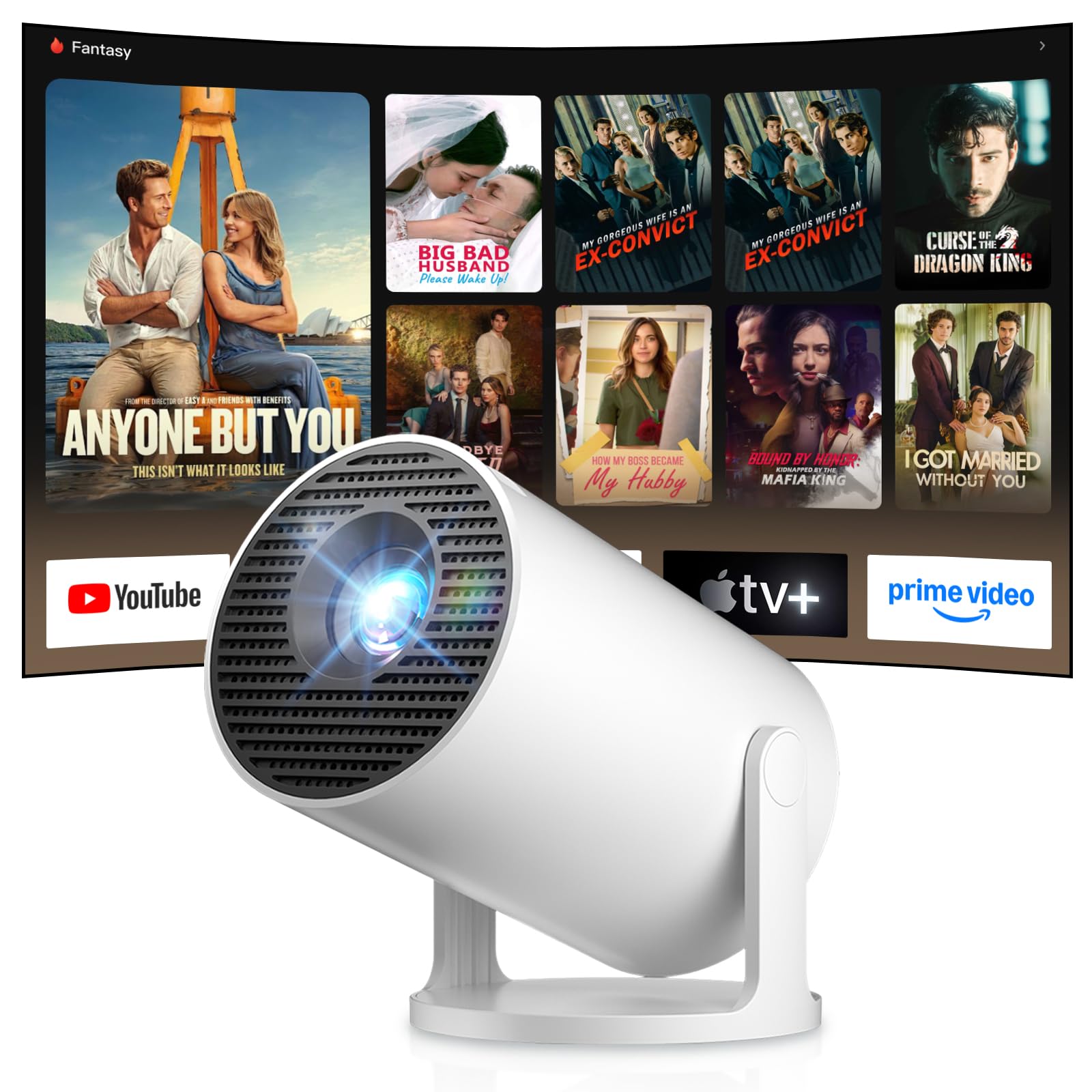
Image: Android TV 14.0 interface with streaming applications.
3. App-Installation
With Android 14, you can install over 8,000 applications directly onto the projector. Access the app store (e.g., Google Play Store) from the home screen, search for desired apps (video players, games, office software), and install them.
4. Bildschirmspiegelung (iOS/Android)
The projector supports screen mirroring for both iOS and Android devices. Ensure your mobile device and the projector are connected to the same Wi-Fi network. On your mobile device, activate the screen mirroring function (e.g., AirPlay for iOS, Cast for Android) and select the projector from the list of available devices.

Image: Wireless casting from mobile devices to the projector.
5. Connecting External Devices (HDMI, USB)
Use the HDMI port to connect devices such as laptops, game consoles (PS5, Switch), or TV sticks. Use the USB port to connect USB drives for media playback or other peripherals. Select the appropriate input source from the projector's input menu.
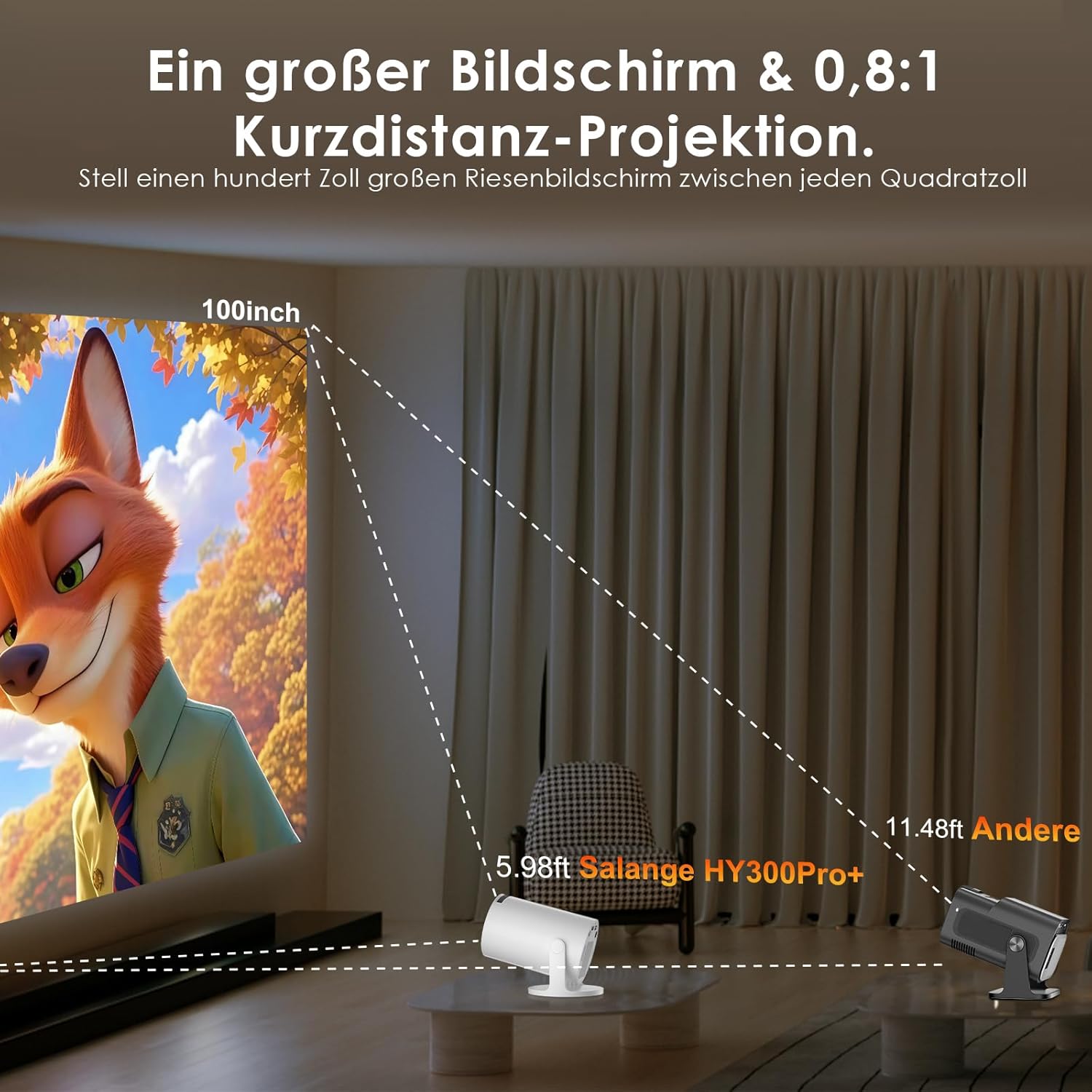
Image: Connectivity options for HDMI, Audio, and USB devices.
6. Audioausgang
The projector has built-in speakers. For enhanced audio, connect external speakers or headphones via Bluetooth or the 3.5mm audio jack.
Wartung
1. Reinigung der Linse
Use a soft, lint-free cloth specifically designed for optical lenses to gently wipe the projector lens. Avoid using abrasive cleaners or excessive pressure, which can scratch the lens.
2. Reinigung der Außenseite
Wischen Sie das Gehäuse des Projektors mit einem weichen, trockenen Tuch ab. Bei hartnäckigem Schmutz kann ein leicht dämpfendes Tuch hilfreich sein.amp Ein Tuch kann verwendet werden, anschließend mit einem trockenen Tuch nachwischen. Keine scharfen Chemikalien oder Lösungsmittel verwenden.
3. Speicherung
Bei längerer Nichtbenutzung sollte der Projektor kühl, trocken und staubfrei gelagert werden. Verwenden Sie die Originalverpackung oder eine Schutzhülle, um Beschädigungen zu vermeiden.
Fehlerbehebung
- Kein Strom: Vergewissern Sie sich, dass das Netzkabel fest mit dem Projektor und der Steckdose verbunden ist. Versuchen Sie es mit einer anderen Steckdose.
- Kein Bild: Check if the projector is powered on. Verify the input source is correctly selected (e.g., HDMI 1, USB). Ensure the lens cap is removed.
- Verschwommenes Bild: Adjust the manual focus ring until the image is sharp. Check if the projector is too close or too far from the screen.
- Image Distortion (Trapezoid): The projector has automatic keystone correction. If manual adjustment is needed, check the display settings for keystone correction options.
- Kein Ton: Check the volume level on both the projector and the connected source device. Ensure external audio devices are correctly connected and selected as the output.
- Probleme mit der WLAN-/Bluetooth-Verbindung: Ensure the projector is within range of your router or Bluetooth device. Restart the projector and your network devices. Re-pair Bluetooth devices.
- Fernbedienung reagiert nicht: Prüfen Sie die Batterien in der Fernbedienung. Stellen Sie sicher, dass sich keine Hindernisse zwischen der Fernbedienung und dem Infrarotempfänger des Projektors befinden.
Produktspezifikationen
| Besonderheit | Spezifikation |
|---|---|
| Hersteller | Salange |
| ASIN | B0G43FF84L |
| Ursprungsland | China |
| Empfohlene Verwendung | Wirtschaft, Heimkino, Gaming, Bildung |
| Besondere Merkmale | Wi-Fi Compatible, Digital Keystone Correction, Lightweight, Portable |
| Konnektivitätstechnologie | Bluetooth, HDMI, USB, WLAN |
| Native Bildschirmauflösung | 1280 x 720 Pixel |
| Maximale Bildschirmauflösung | 3840 x 2160 pixels (4K supported) |
| Anzeigetyp | LCD |
| Produktabmessungen (L x B x H) | 10.1 x 10.1 x 17 cm |
| Formfaktor | Tragbar |
| Montagetyp | Tischmontage |
| Helligkeit | 8000 Lumen |
| Farbe | Weiß |
| Kompatible Geräte | Game Console, Speaker, Laptop, Smartphone, Television |
| Kontrastverhältnis | 1500:1 |
| Maximale Bildgröße | 150 Zoll |
| Minimale Bildgröße | 30 Zoll |
| Videokodierung | H.265 |
| Bildverbesserungstechnologie | HDR |
| Lieferumfang | 1 Projector, 1 Power Cord, 1 Remote Control, 1 User Manual |
Garantieinformationen
The Salange 2026 Mini Projector comes with a standard manufacturer's warranty. Please refer to the warranty card included in your product packaging for specific terms, conditions, and duration. Keep your proof of purchase for warranty claims.
Kundenservice
For technical assistance, troubleshooting, or any questions regarding your Salange 2026 Mini Projector, please contact Salange customer support. Contact details can typically be found on the official Salange website or in the warranty information provided with your product.