
1. Einleitung
Thank you for choosing the Picun G2 Wireless Gaming Headset. This manual provides detailed instructions for setting up, operating, and maintaining your headset to ensure optimal performance and an immersive gaming experience. Please read this manual thoroughly before use.
Lieferumfang
- 1 x Picun G2 Wireless Gaming Headset
- 1 x USB-A & Type-C 2-in-1 Wireless Dongle
- 1 x USB-C Ladekabel
- 1 x 3.5-mm-Audiokabel.
- 1 x Benutzerhandbuch
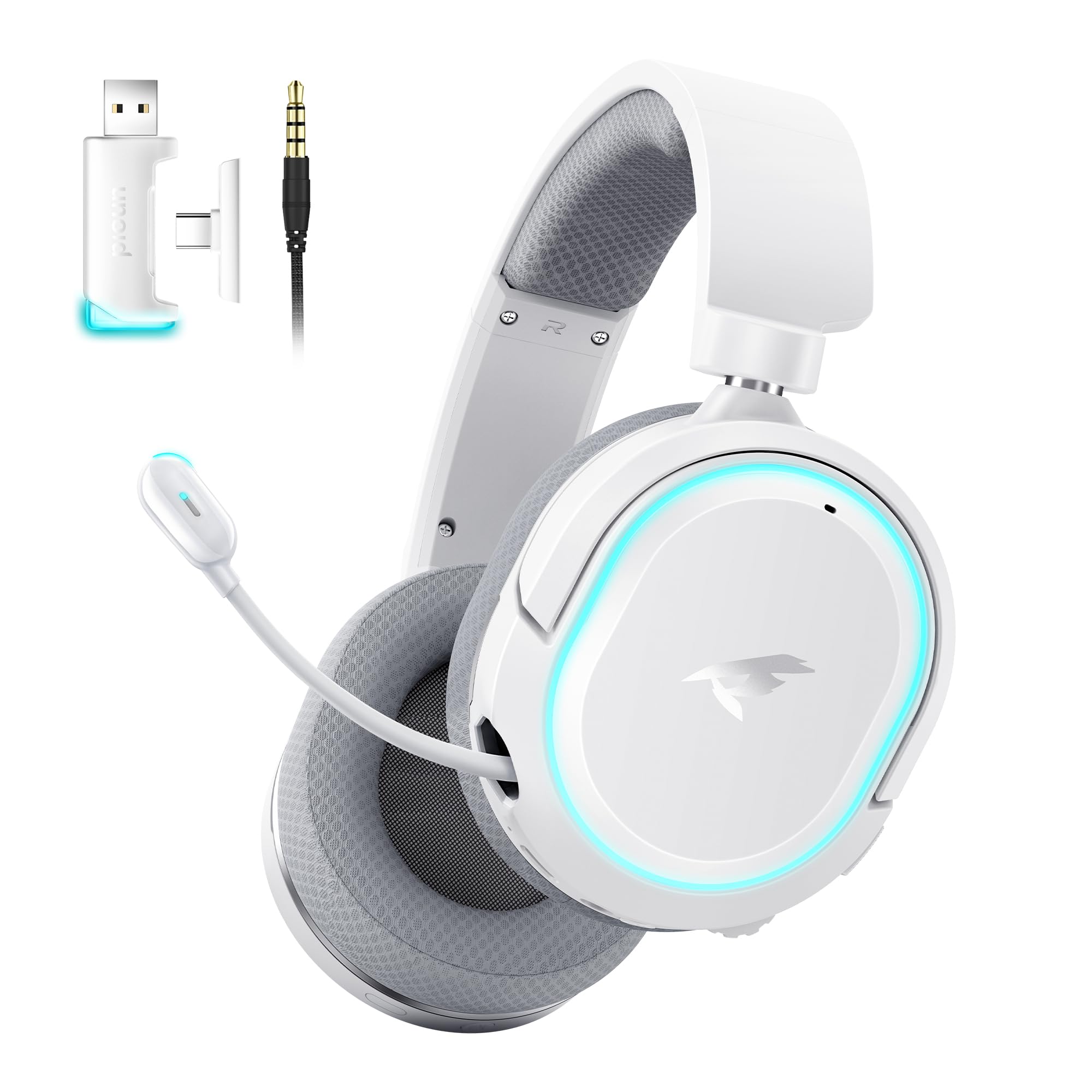
Image: Picun G2 Wireless Gaming Headset (Grey)
2. Produktüberschreitungview
Familiarize yourself with the various components and controls of your Picun G2 headset.

Image: Headset Controls Diagram
- 7.1 Mode Light Control: Button to activate/deactivate 7.1 virtual surround sound and control RGB lighting.
- Ladeanschluss: USB-C port for charging the headset.
- 3.5-mm-Audioanschluss: Für den kabelgebundenen Anschluss über das mitgelieferte 3.5-mm-Audiokabel.
- Netzschalter: Press and hold to power on/off. Short press for play/pause in Bluetooth mode.
- Lautstärkerad: Scroll up or down to adjust the volume.
- Mikrofon stumm: Slide switch to mute or unmute the microphone.
3. Einrichtung und Verbindung
3.1 Aufladen des Headsets
Before first use, fully charge the headset using the provided USB-C charging cable. Connect the USB-C end to the headset's charging port and the USB-A end to a power source (e.g., computer USB port, USB wall adapter).
3.2 Connecting via 2.4GHz Wireless (Dongle)
For ultra-low latency gaming on PC, PS5, PS4, or Nintendo Switch (docked mode):
- Insert the 2.4GHz USB-A/Type-C dongle into an available USB port on your device.
- Schalten Sie das Headset ein. Es verbindet sich automatisch mit dem Dongle.
- Stellen Sie sicher, dass das Headset in den Soundeinstellungen Ihres Geräts als Audioausgabe- und -eingabegerät ausgewählt ist.
3.3 Verbindung über Bluetooth 5.4
For wireless connection to smartphones, tablets, and other Bluetooth-enabled devices:
- With the headset powered off, press and hold the Power Button until the LED indicator flashes blue and red, indicating pairing mode.
- On your device, enable Bluetooth and search for "Picun G2".
- Select "Picun G2" to pair. The LED will turn solid blue once connected.
3.4 Connecting via 3.5mm Wired
For universal compatibility with devices featuring a 3.5mm audio jack:
- Verbinden Sie ein Ende des 3.5-mm-Audiokabels mit dem 3.5-mm-Audioanschluss des Headsets.
- Verbinden Sie das andere Ende mit der 3.5-mm-Audiobuchse Ihres Geräts.
- Note: Microphone functionality may vary or be unavailable in wired mode depending on the device.

Image: Multiple Connection Options
4. Bedienungsanleitung
4.1 Ein-/Ausschalten
- Einschalten: Halten Sie die Power-Taste 3 Sekunden lang gedrückt.
- Ausschalten: Halten Sie die Power-Taste 3 Sekunden lang gedrückt.
4.2 Lautstärkeregelung
- Drehen Sie den Volumenrad upwards to increase volume.
- Drehen Sie den Volumenrad downwards to decrease volume.
4.3 Microphone Usage (Retractable ENC Noise-Canceling Mic)
- Extend/Retract Mic: Gently pull out or push in the microphone from the left earcup.
- Stummschalten/Stummschaltung aufheben: Verwenden Sie die Mikrofon stummschalten slide switch located on the earcup.

Image: Retractable ENC Noise-Canceling Microphone
4.4 7.1 Virtual Surround Sound Activation
- Drücken Sie die 7.1 Moduslichtsteuerung button to toggle 7.1 virtual surround sound on or off.
- The RGB lighting will indicate the status of the 7.1 mode.

Image: 7.1 Surround Sound Activation
5. Batterieinformationen
The Picun G2 headset offers extended battery life for prolonged usage.
- Up to 100 hours playtime in Bluetooth mode (RGB off).
- Approximately 42-45 hours playtime via 2.4GHz wireless (RGB on).
- Eine vollständige Aufladung dauert in der Regel 2-3 Stunden.
- The headset supports charging while in use.

Abbildung: Akkulaufzeit und Aufladen
6. Komfort und Design
The Picun G2 is designed for comfort during extended gaming sessions.
- Verstellbares Kopfband: Customize the fit for various head sizes.
- Drehbare Ohrmuscheln: Allows for flexible positioning and storage.
- Soft Memory Sponge Cushions: Breathable fabric earcups and headband provide comfort and reduce pressure.

Image: Comfort Features
7. Fehlerbehebung
If you encounter any issues with your Picun G2 headset, please refer to the following common solutions:
| Problem | Lösung |
|---|---|
| Kein Ton aus dem Headset |
|
| Mikrofon funktioniert nicht |
|
| Verbindung über 2.4-GHz-Funk nicht möglich |
|
| Verbindung über Bluetooth nicht möglich |
|
| Kurze Akkulaufzeit |
|
8. Spezifikationen
| Besonderheit | Detail |
|---|---|
| Marke | Picun |
| Modellname | Picun-G2 |
| Konnektivitätstechnologie | 2.4-GHz-Funkverbindung, Bluetooth 5.4, 3.5-mm-Kabelanschluss |
| Platzierung des Ohrs | Über dem Ohr |
| Audiotreibertyp | Dynamischer Treiber (40 mm) |
| Impedanz | 32 Ohm |
| Frequenzbereich | 20 Hz – 20,000 Hz |
| Audio-Latenz | 5 Millisekunden (2.4 GHz) |
| Bluetooth-Version | 5.4 |
| Bluetooth-Reichweite | 10 Meter |
| Akkulaufzeit | Up to 100 Hours (Bluetooth, RGB off) / 42-45 Hours (2.4GHz, RGB on) |
| Ladezeit | 2-3 Stunden |
| Mikrofon | Retractable ENC Noise-Canceling Omnidirectional Mic |
| Kompatible Geräte | PC, Mac, Laptop, Desktop, Phone, Pad, Tablet, PlayStation 4/5/pro/Slim, Gaming Consoles, Switch, Nintendo Switch (microphone invalid on Switch via 3.5mm) |
| Material | ABS, Breathable Fabric, PC, Soft Memory Sponge Cushions |
| Zusätzliche Merkmale | 7.1 Virtual Surround Sound, RGB Lighting, Adjustable Headband, Rotatable Earcups |
9. Garantie und Support
9.1 Garantieinformationen
The Picun G2 Wireless Gaming Headset comes with a 1 Jahr Garantie Diese Garantie gilt ab Kaufdatum und deckt Herstellungsfehler ab. Sie gewährleistet, dass das Produkt bei normalem Gebrauch frei von Material- und Verarbeitungsfehlern ist. Bitte bewahren Sie Ihren Kaufbeleg für Garantieansprüche auf.
Von der Garantie ausgeschlossen sind:
- Schäden, die durch Missbrauch, unsachgemäße Verwendung, Unfälle oder Fahrlässigkeit verursacht wurden.
- Nicht autorisierte Reparatur oder Änderung.
- Normale Abnutzung.
9.2 Kundendienst
For technical assistance, warranty claims, or any questions regarding your Picun G2 Wireless Gaming Headset, please contact Picun customer support through the following channels:
- E-Mail: support@picun.com (Examp(eigentliche E-Mail-Adresse nicht angegeben)
- WebWebsite: Visit the official Picun webWebsite mit häufig gestellten Fragen und Support-Ressourcen.
Please have your model number (Picun-G2) and proof of purchase ready when contacting support.