
1. Einleitung
This manual provides instructions for the proper setup, operation, and maintenance of your Amazon Renewed Symbol TC26 Wireless Android Handheld Barcode Scanner. The TC26 is a versatile device designed for efficient 2D, 1D, and QR code barcode scanning, offering robust wireless connectivity including WiFi, Cellular (unlocked, bring your own SIM & Plan), and GPS. It operates on Android 14, providing access to the Google Play Store for extended functionality.
As an Amazon Renewed product, this device has been professionally inspected, tested, and cleaned by Amazon-qualified suppliers to ensure it is fully functional and in excellent condition.
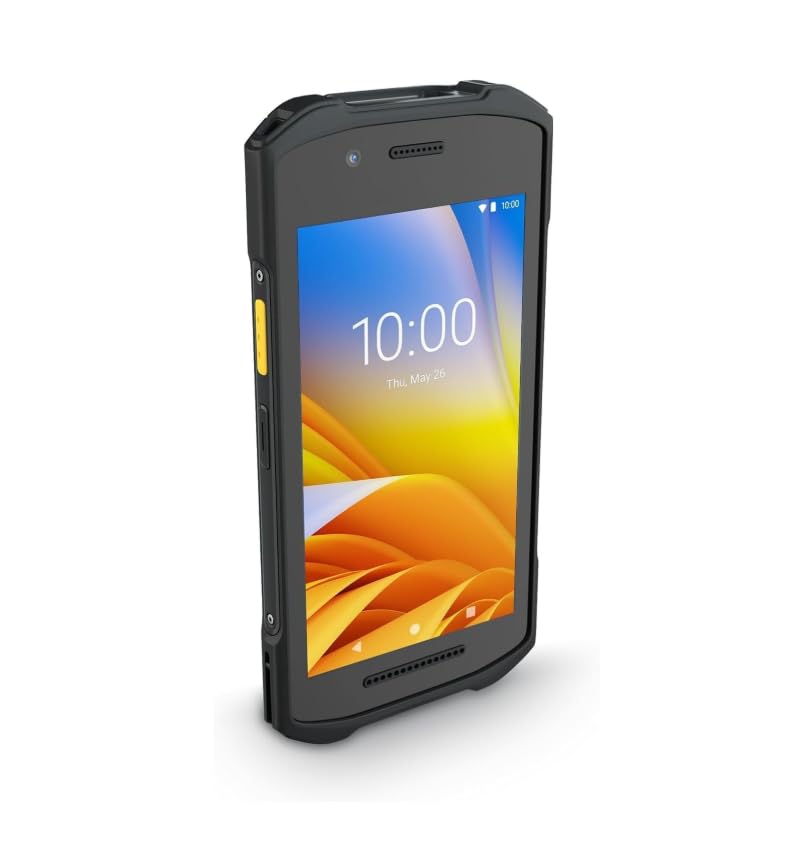
Figure 1: Symbol TC26 Wireless Android Handheld Barcode Scanner.
2. Einrichtung
2.1. Aufladen des Geräts
The TC26 device comes with a USB-C charger. Before initial use, fully charge the device battery.
- Connect the USB-C cable to the charging port on the bottom of the TC26 device.
- Stecken Sie das andere Ende des USB-C-Kabels in das mitgelieferte Netzteil.
- Stecken Sie das Netzteil in eine normale Steckdose.
- The charging indicator will illuminate. Allow the device to charge until the indicator shows a full charge.
2.2. Initial Power-On and Android Setup
- Press and hold the power button (typically located on the side of the device) until the screen illuminates.
- Follow the on-screen prompts to complete the initial Android setup, including language selection, Wi-Fi connection, and Google account setup.

Abbildung 2: Seite view of the TC26 device, illustrating the power button location.
2.3. Einlegen einer SIM-Karte (optional)
If cellular connectivity is required, insert a nano-SIM card into the designated slot. Refer to the device's physical diagram for the exact location, usually under the battery cover or in a side tray.
3. Bedienungsanleitung
3.1. Ein-/Ausschalten
- So schalten Sie das Gerät ein: Press and hold the power button until the device vibrates and the screen lights up.
- So schalten Sie das Gerät aus: Press and hold the power button until a power menu appears on the screen. Select "Power Off".
- Neustarten: Wählen Sie im Ein-/Ausschaltmenü die Option „Neustart“.
3.2. Barcode-Scanning
The TC26 is capable of scanning 1D, 2D, and QR codes.
- Öffnen Sie die Scan-Anwendung auf Ihrem Gerät.
- Point the scanner window at the barcode. Ensure the barcode is within the scanner's field of view.
- Press the scan trigger button (usually a dedicated button on the side or front of the device).
- A successful scan is typically indicated by an audible beep and/or a visual confirmation on the screen.

Figure 3: TC26 device demonstrating barcode scanning functionality.
3.3. Konnektivität
- W-lan: Access Wi-Fi settings through the Android system menu to connect to available networks.
- Mobilfunk: If a SIM card is installed, configure cellular data settings via the Android system menu.
- Bluetooth: Pair with Bluetooth-enabled accessories (e.g., headsets, printers) through Android Bluetooth settings.
- Geographisches Positionierungs System: Location services can be enabled or disabled in Android settings.
- NFC: Near Field Communication can be used for quick pairing or data exchange with compatible devices.
4. Wartung
4.1. Reinigen des Geräts
- Mit einem weichen, fusselfreien Tuch leichtampened with water or a mild cleaning solution to clean the exterior of the device.
- For the scanner window, use a lens cleaning cloth and solution to avoid scratches and ensure optimal scanning performance.
- Do not immerse the device in liquid or use abrasive cleaners.
4.2. Batteriepflege
- The device uses a Lithium Ion battery. For optimal battery life, avoid extreme temperatures.
- Charge the battery regularly and avoid letting it fully discharge for extended periods.
- If the battery needs replacement, use only approved replacement batteries.
4.3. Software-Updates
Regularly check for and install system updates to ensure your device has the latest features, security patches, and performance improvements. These can typically be found in the Android system settings under "System" or "About phone".
5. Fehlerbehebung
- Gerät lässt sich nicht einschalten: Ensure the battery is charged. Connect the device to the charger and wait a few minutes before attempting to power on again. If the issue persists, perform a soft reset by holding the power button for an extended period (e.g., 10-15 seconds).
- Probleme beim Scannen:
- Ensure the scanner window is clean and free of obstructions.
- Prüfen Sie, ob der Barcode beschädigt oder schlecht gedruckt ist.
- Check the scanning application settings to ensure the correct barcode types are enabled.
- Verbindungsprobleme (WLAN/Mobilfunk):
- Stellen Sie bei WLAN-Verbindungen sicher, dass Sie sich in Reichweite eines bekannten Netzwerks befinden und das richtige Passwort eingegeben haben.
- For Cellular, verify the SIM card is correctly inserted and your plan is active. Check network signal strength.
- Try toggling Wi-Fi or Cellular data off and on in the settings.
- Gerät reagiert nicht: If the device becomes unresponsive, perform a forced restart by holding the power button for approximately 10-15 seconds until the device powers off and restarts.
6. Spezifikationen
| Besonderheit | Detail |
|---|---|
| Modellnummer | TC26 |
| Hersteller | Symbol |
| Barcode-Scannen | 2D, 1D, QR Code |
| Betriebssystem | Android 14 (with Play Store Access) |
| Konnektivitätstechnologie | Wireless, WiFi, Bluetooth, GPS, Cellular, NFC |
| Stromquelle | Batteriebetrieben |
| Akku-Typ | 1 Lithium-Ionen-Akku (im Lieferumfang enthalten) |
| Ladegerät | USB-C Charger (included) |
| UPC | 611393752553 |
7. Garantie und Support
7.1. Amazon Renewed-Garantie
This product is covered by the Amazon Renewed Guarantee. Your purchase is eligible for Amazon Renewed coverage in conjunction with Amazon's Return Policy and the A-to-z Guarantee. This typically includes a 90-day refund or replacement policy if the product does not work as expected.

Figure 4: Explanation of Amazon Renewed benefits and guarantee.
7.2. Technischer Support
For technical assistance, troubleshooting beyond this manual, or warranty claims, please contact Amazon Customer Service or the Amazon Renewed support team. Refer to your purchase documentation for specific contact details.
7.3. Protection Plans (Optional)
Optional extended protection plans, such as 4-Year Protection Plans or Complete Protect monthly plans, may be available for purchase to provide additional coverage beyond the standard Amazon Renewed Guarantee.