
1. Einleitung
This manual provides essential information for setting up, operating, maintaining, and troubleshooting your CHUWI Hi10 X2 2-in-1 Laptop Tablet. Please read it thoroughly before using your device.
Lieferumfang
- Hi10 X2 Tablet
- Magnetische Tastatur
- Koffer mit Ständer
- Ladegerät-Set
- Benutzerhandbuch (dieses Dokument)

Image 1.1: CHUWI Hi10 X2 Tablet with Magnetic Keyboard and Case.
2. Einrichtung
2.1 Erstaufladung
Before first use, fully charge your CHUWI Hi10 X2 tablet using the provided charger set. Connect the charger to the Type-C port on the tablet and plug it into a power outlet. The charging indicator light will illuminate.
2.2 Attaching the Magnetic Keyboard and Case
Align the tablet with the magnetic connectors on the keyboard. The magnets will secure the tablet in place. The case with stand can be adjusted to your preferred viewing-Winkel.
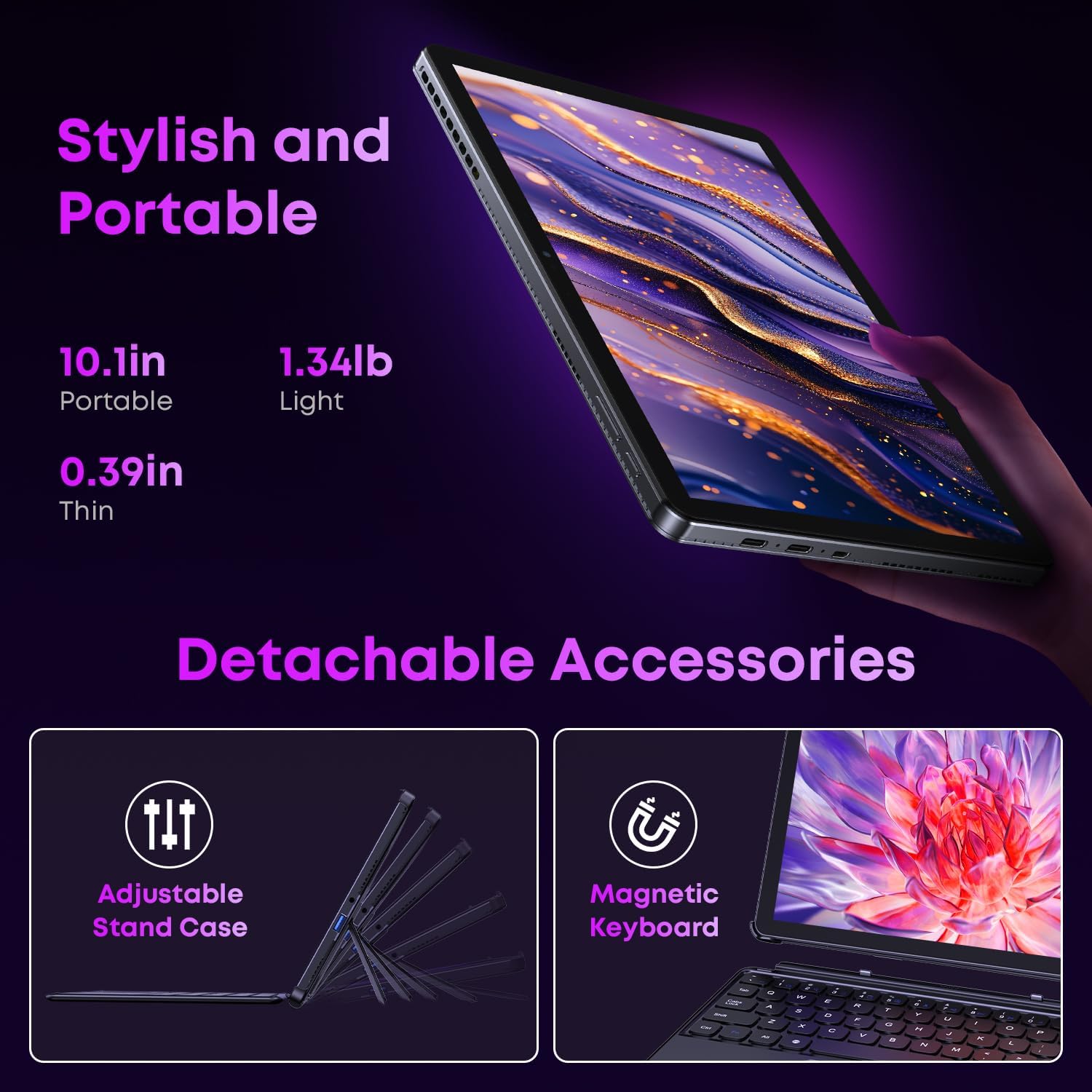
Image 2.1: Detachable accessories including the magnetic keyboard and adjustable stand case.
2.3 First Boot-Up and Windows Activation
Press and hold the power button until the screen turns on. Follow the on-screen instructions to complete the initial Windows 11 setup. If your Windows system arrives unactivated, please send the serial number (located on the back of the device) to CHUWI support via Amazon for your activation key.
2.4 Mit WLAN verbinden
During setup, you will be prompted to connect to a Wi-Fi network. Select your network and enter the password. The device supports Wi-Fi 6 for fast and stable connections.
3. Bedienungsanleitung
3.1 Ein-/Ausschalten und Schlafmodus
- Einschalten: Halten Sie den Ein-/Ausschalter gedrückt, bis der Bildschirm aufleuchtet.
- Ausschalten: From the Windows Start menu, select Power > Shut down.
- Schlafmodus: Briefly press the power button to enter or exit sleep mode.
3.2 Verwendung des Touchscreens
The 10.1-inch HD touchscreen supports 10-point multi-touch gestures. Use taps, swipes, and pinches for navigation and interaction with applications.

Image 3.1: The 10.1-inch HD touchscreen display.
3.3 Laptop and Tablet Modes
The magnetic keyboard allows for seamless switching between laptop and tablet modes. Attach the keyboard for typing and productivity, or detach it for a pure tablet experience.
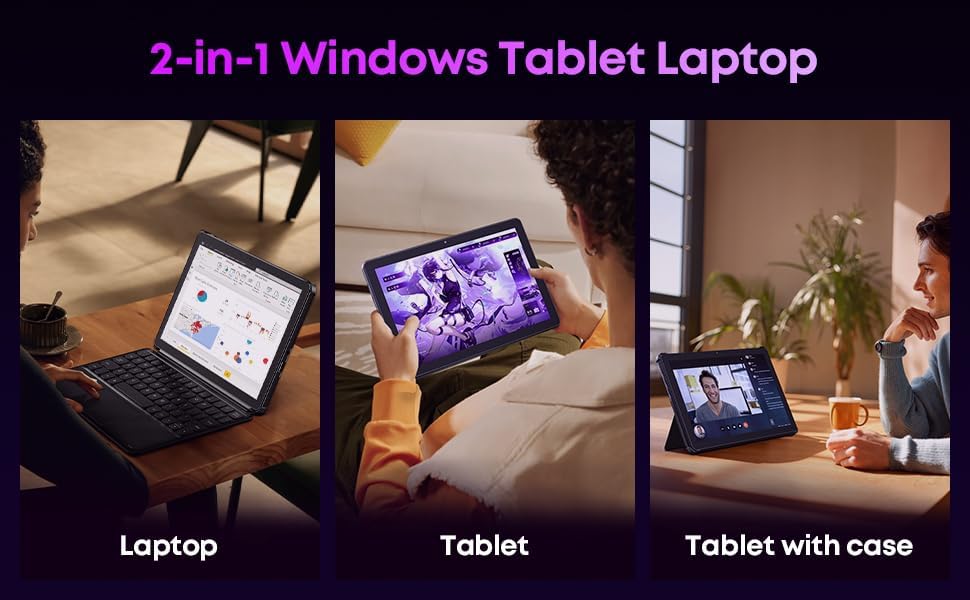
Image 3.2: Usage scenarios demonstrating laptop, tablet, and tablet with case modes.
3.4 Konnektivität
- USB-Anschlüsse: The tablet features a full-featured Type-C port and a USB 3.2 Gen1 port for data transfer and connecting peripherals.
- Mikro-HDMI: Connect to external monitors or TVs using the Micro HDMI port for extended display options, supporting up to 4K video output.
- Bluetooth 5.3: Pair with wireless headphones, mice, and other Bluetooth accessories.
- WLAN 6: Enjoy high-speed internet connectivity for streaming and browsing.
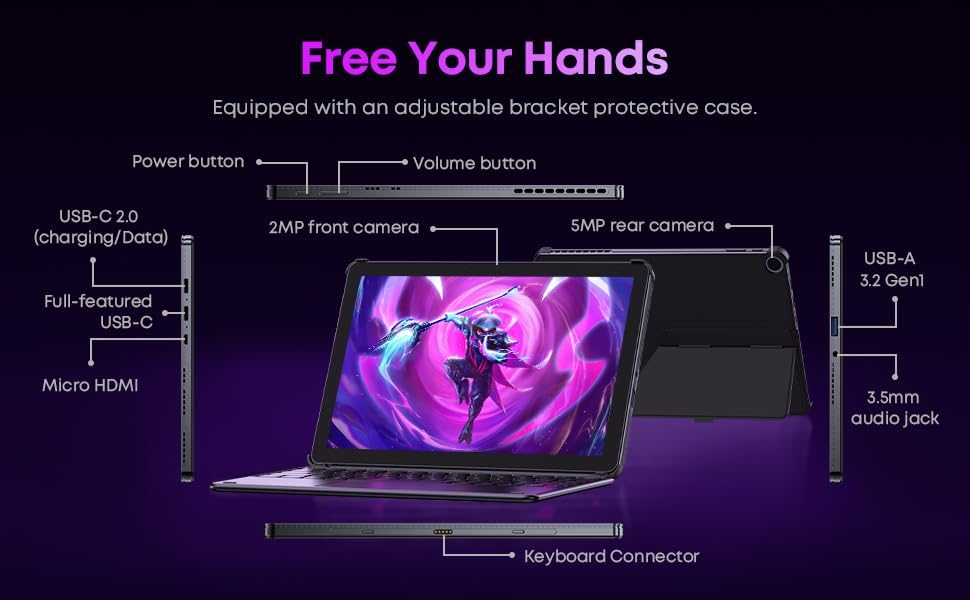
Abbildung 3.3: Detailansicht view of the tablet's ports and connectors.
3.5 Kameranutzung
The tablet is equipped with a 5MP autofocus rear camera for capturing photos and videos, and a 2MP front camera for video calls and selfies.

Image 3.4: Camera and wireless connectivity features.
3.6 Processor and Storage
Powered by a 10th Gen Intel Core i3 processor (up to 3.9GHz) and 8GB RAM, the tablet handles multitasking efficiently. The 256GB SSD provides ample storage and fast access to your files.

Image 3.5: Intel 10th Gen Core i3 Processor details.
3.7 Produktüberschussview Video
Video 3.6: Ein überview of the CHUWI Hi10 X2 2-in-1 Laptop Tablet, highlighting its features and functionality.
4. Wartung
4.1 Gerät reinigen
Reinigen Sie Bildschirm und Gehäuse des Tablets mit einem weichen, fusselfreien Tuch. Hartnäckige Flecken lassen sich leicht mit einem feuchten Tuch entfernen.ampBefeuchten Sie das Tuch mit Wasser oder einem Bildschirmreinigungsmittel. Vermeiden Sie aggressive Chemikalien oder Scheuermittel.
4.2 Batteriepflege
To prolong battery life, avoid exposing the tablet to extreme temperatures. It is recommended to keep the battery charge between 20% and 80% for optimal longevity. Avoid fully discharging the battery frequently.
4.3 Softwareaktualisierungen
Regularly check for and install Windows updates to ensure your system has the latest security patches and performance improvements. Go to Settings > Windows Update.
4.4 Speicherverwaltung
In regelmäßigen Abständenview und löschen Sie unnötige files and applications to free up storage space on the 256GB SSD. This helps maintain optimal device performance.
5. Fehlerbehebung
5.1 Gerät lässt sich nicht einschalten
- Ensure the device is fully charged. Connect the charger and wait a few minutes before attempting to power on.
- Um einen Hard-Reset durchzuführen, halten Sie den Netzschalter 10-15 Sekunden lang gedrückt.
5.2 Probleme mit der WLAN-Verbindung
- Starten Sie Ihren WLAN-Router und das Tablet neu.
- Prüfen Sie, ob sich andere Geräte mit demselben WLAN-Netzwerk verbinden können.
- Forget the network in Windows settings and reconnect.
5.3 Screen Not Responding to Touch
- Starten Sie das Tablet neu.
- Stellen Sie sicher, dass der Bildschirm sauber und frei von Verunreinigungen ist.
5.4 Tastatur funktioniert nicht
- Ensure the tablet is correctly aligned and securely connected to the magnetic keyboard.
- Starten Sie das Tablet neu.
Weitere Hilfestellungen finden Sie im Support-Bereich.
6. Spezifikationen
| Besonderheit | Spezifikation |
|---|---|
| Marke | CHUWI |
| Modellname | Hi10 X2 |
| Prozessor | Intel Core i3 (10th Gen, up to 3.9 GHz) |
| Betriebssystem | Windows 11 Home |
| RAM | 8 GB |
| Lagerung | SSD mit 256 GB |
| Bildschirmgröße | 10.1 Zoll |
| Bildschirmauflösung | 1280x800 Pixel |
| Konnektivität | Wi-Fi 6, Bluetooth 5.3 |
| Häfen | Full-featured Type-C, USB 3.2 Gen 1, Micro HDMI, 3.5mm Audio Jack |
| Kameras | 5MP Autofocus Rear, 2MP Front |
| Gewicht | 1.3 Pfund (ca. 0.59 kg) |
| Abmessungen (L x B x T) | 9.6" x 6.49" x 0.39" |
| Batteriekapazität | 3400 mAh |
7. Garantieinformationen
The CHUWI Hi10 X2 2-in-1 Laptop Tablet comes with a 1 Jahr eingeschränkte GarantieDiese Garantie deckt Herstellungsfehler und Funktionsstörungen bei normalem Gebrauch ab. Bitte bewahren Sie Ihren Kaufbeleg für Garantieansprüche auf.
For detailed warranty terms and conditions, please refer to the official CHUWI webWebsite oder wenden Sie sich an den Kundendienst.
8. Unterstützung
If you encounter any issues not covered in the Troubleshooting section, or require assistance with Windows activation, please contact CHUWI customer support. You can typically find support contact information on the official CHUWI website or through your purchase platform (e.g., Amazon seller messaging).
When contacting support, please have your device's serial number and proof of purchase readily available.