
1. Einleitung
Thank you for choosing the ELECROW 5-inch IPS Touch Screen Monitor. This compact display offers a high-definition visual experience with responsive touch functionality, designed for a wide range of applications including single-board computers and mini PCs. This manual provides essential information for the proper installation, operation, and care of your device.

The ELECROW 5-inch IPS Touch Screen Monitor, a versatile display solution.
Zu den Hauptmerkmalen gehören:
- HD Display Experience: 5-inch IPS capacitive touchscreen with a 1024 x 600 resolution, 178° viewing angle, and support for up to 1080P signal input.
- Reaktionsschnelle Berührung: Supports 5-point multi-touch on Windows and single-touch on Raspberry Pi/Jetson Nano.
- Einfaches Plug-and-Play: No additional drivers required for most compatible systems.
- Professionelle Funktionen: Features a headphone jack for audio output and a built-in OSD menu for display adjustments.
2. Lieferumfang
Bitte überprüfen Sie, ob alle unten aufgeführten Artikel in Ihrem Paket enthalten sind:
- 1x 5-Zoll-Touchscreen-Monitor
- 1x HD Cable (1m)
- 1x USB-A to USB-C Cable (1m)
- 1x Micro-HD Adapter (for Raspberry Pi 4B & 5)
- 4x Hexagonal Copper Standoff Kit (M2.5)
- 2x Pro Stand
- 1x Schraubendreher
- 1x Benutzerhandbuch (Schnellstartanleitung)
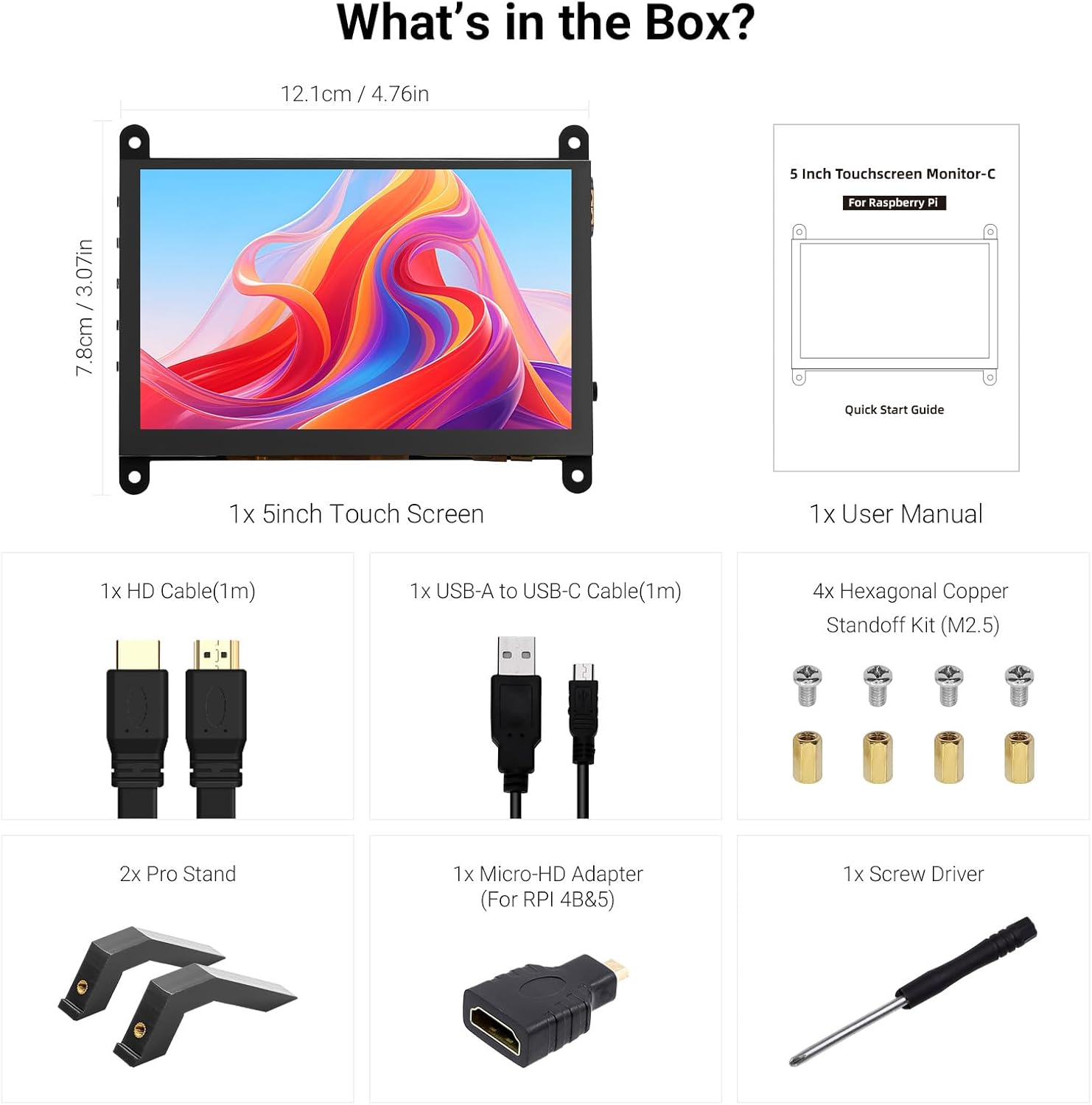
Alle im Produktpaket enthaltenen Komponenten.
3. Produktüberschreitungview
Familiarize yourself with the ports and buttons on your ELECROW 5-inch Touch Screen Monitor:

Detaillierte view der Anschlüsse und Bedienknöpfe des Monitors.
- HD Input Port: Für Videosignaleingang.
- USB-C-Anschluss: For power supply and touch signal transmission.
- 3.5mm Kopfhörerbuchse: Für Audioausgabe.
- Menü-Schaltfläche: Öffnet das On-Screen-Display-Menü (OSD).
- Linke/Oben-Taste: Navigates left or up in the OSD menu.
- Rechte/Untere Taste: Navigates right or down in the OSD menu.
- Zurück-Taste: Exits a menu or returns to the previous option.
- Netzschalter: Schaltet die Anzeige ein oder aus.
- 20P-FPC-0.5mm Display Port: For flexible cable expansion in embedded systems.
4. Einrichtungsanweisungen
Follow these steps to connect your ELECROW 5-inch Touch Screen Monitor to a compatible device:
4.1 Verbindung zum Raspberry Pi
- Connect HD Cable: Use the provided HD cable to connect the monitor's HD Input Port to the HDMI port on your Raspberry Pi. If using Raspberry Pi 4B or 5, use the included Micro-HD adapter.
- USB-Kabel anschließen: Connect the USB-C port on the monitor to a USB-A port on your Raspberry Pi using the provided USB-A to USB-C cable. This supplies power to the monitor and enables touch functionality.
- Einschalten: Power up your Raspberry Pi. The display should automatically detect the signal and power on.
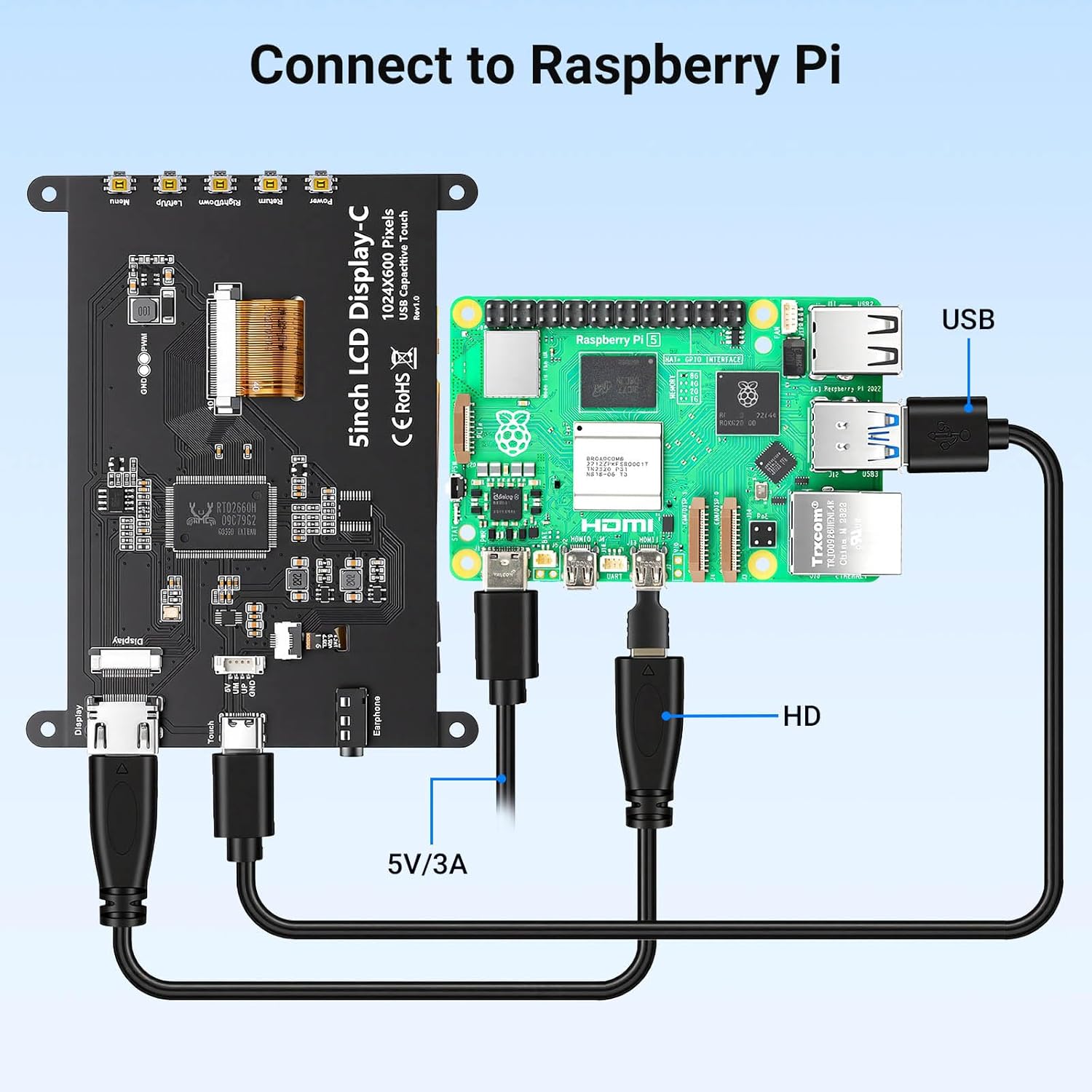
Connection diagram for Raspberry Pi.
4.2 Connecting to Windows PC/Laptop
- Connect HD Cable: Use the provided HD cable to connect the monitor's HD Input Port to the HDMI port on your PC/laptop.
- USB-Kabel anschließen: Connect the USB-C port on the monitor to a USB-A port on your PC/laptop using the provided USB-A to USB-C cable. This provides power and enables touch functionality.
- Einschalten: Power on your PC/laptop. The display should be recognized automatically. No additional drivers are typically required for Windows 7/8/10/11.
5. Bedienungsanleitung
5.1 Grundlegende Bedienung
- Ein-/Ausschalten: Press the Power Button (8) to turn the display on or off.
- Touch-Funktionalität: The monitor features a capacitive touchscreen. On Windows systems, it supports 5-point multi-touch. On Raspberry Pi (Raspbian, Ubuntu, Kali, Retropie) and Jetson Nano, it supports single-touch operation.

Responsive touch experience for various devices.
5.2 OSD-Menünavigation
The On-Screen Display (OSD) menu allows you to adjust various display settings:
- Drücken Sie die Menu Button (4) um das OSD-Menü zu öffnen.
- Verwenden Sie die Left/Up Button (5) Und Right/Down Button (6) um durch die Menüoptionen zu navigieren.
- Drücken Sie die Menu Button (4) erneut, um eine Option auszuwählen oder eine Einstellung zu bestätigen.
- Drücken Sie die Zurück-Taste (7) to exit the current menu or return to the previous level.
Common adjustable settings include Brightness, Contrast, and other display parameters.
5.3 Audioausgang
Schließen Sie Kopfhörer oder externe Lautsprecher an das Gerät an. 3.5mm Headphone Jack (3) for audio output from the connected device.
6. Kompatibilität
The ELECROW 5-inch Touch Screen Monitor offers broad compatibility with various operating systems and hardware platforms:
- Betriebssysteme: Raspbian, Ubuntu, Kali, Retropie, Windows 7/8/10/11, Windows 10 IoT.
- Kompatible Geräte: Raspberry Pi 5, Raspberry Pi 4, Raspberry Pi 3 B+, BB Black, Banana Pi, Jetson Nano, PS4, Xbox.

Broad compatibility with popular operating systems and devices.
7. Spezifikationen
| Besonderheit | Detail |
|---|---|
| Marke | ELEKTROKREUZ |
| Modellnummer | DLH04950B |
| Bildschirmgröße | 5 Zoll |
| Auflösung | 1024 x 600 Pixel |
| Anzeigetyp | IPS |
| Viewing-Winkel | 178 Grad |
| Helligkeit | 410 cd/m² |
| Bildwiederholrate | 60 Hz |
| Ansprechzeit | 2 Millisekunden |
| Konnektivität | HDMI, USB Typ C |
| Bandtage | 5 Volt |
| Abmessungen (B x H) | 12.1 cm x 7.8 cm (4.76 Zoll x 3.07 Zoll) |
| Zusätzliche Merkmale | Portable, Touchscreen, Headphone Jack, OSD Menu |

Visual representation of key display specifications.
8. Wartung
Proper care and maintenance will ensure the longevity and optimal performance of your monitor:
- Reinigen des Bildschirms: Mit einem weichen, fusselfreien Tuch leichtampMit Wasser oder einem Siebreinigungsmittel abspülen. Scharfe Chemikalien, scheuernde Materialien und übermäßige Feuchtigkeit vermeiden.
- Allgemeine Reinigung: Wipe the exterior of the monitor with a dry, soft cloth.
- Lagerung: Bei längerer Nichtbenutzung sollte der Monitor an einem kühlen, trockenen Ort, geschützt vor direkter Sonneneinstrahlung und extremen Temperaturen, aufbewahrt werden.
- Handhabung: Avoid dropping the monitor or subjecting it to strong impacts. Do not apply excessive pressure to the screen.
- Belüftung: Ensure the monitor has adequate ventilation to prevent overheating. Do not block any vents.
9. Fehlerbehebung
If you encounter issues with your ELECROW 5-inch Touch Screen Monitor, refer to the following common problems and solutions:
9.1 Kein Bild / Schwarzer Bildschirm
- Verbindungen prüfen: Ensure the HD cable is securely connected to both the monitor and the source device.
- Stromversorgung: Verify that the USB-C cable is properly connected and providing sufficient power (5V). Try a different USB port or power adapter if available.
- Quellgerät: Confirm that your source device (e.g., Raspberry Pi, PC) is powered on and outputting a video signal.
- Auflösungseinstellungen: Ensure the output resolution of your source device is compatible with the monitor (1024x600 or a resolution that can be scaled).
9.2 Touch-Funktion funktioniert nicht
- USB-Verbindung: The USB-C cable is essential for touch functionality. Ensure it is connected to both the monitor and the source device.
- Betriebssystem-Support: Verify that your operating system supports touch input and that necessary drivers (if any, though usually plug-and-play) are installed. For Raspberry Pi, ensure the OS is configured for touch.
- Neukalibrierung: Bei einigen Betriebssystemen ist möglicherweise eine Touchscreen-Kalibrierung erforderlich. Anweisungen dazu finden Sie in der Dokumentation Ihres Betriebssystems.
9.3 Probleme mit der Bildqualität (Flimmern, Farbverfälschung)
- Kabelintegrität: Try a different HD cable to rule out a faulty cable.
- Quellsignal: Test the monitor with a different source device to determine if the issue is with the monitor or the source.
- OSD-Einstellungen: Adjust brightness, contrast, and other color settings via the OSD menu.
10. Garantie und Support
10.1 Garantieinformationen
This ELECROW 5-inch Touch Screen Monitor comes with a 1 Jahre Herstellergarantie. This warranty covers defects in materials and workmanship under normal use. It does not cover damage caused by misuse, accident, modification, or unauthorized repair.
10.2 Technischer Support
For technical assistance, troubleshooting beyond this manual, or warranty claims, please contact ELECROW customer support through their official website or the platform where you purchased the product. Please have your model number (DLH04950B) and purchase details ready when contacting support.