
1. Einleitung
This manual provides essential instructions for the safe and efficient operation of your TMY 4K Support Outdoor Smart Projector. Please read this manual thoroughly before using the projector and retain it for future reference. The projector offers native 1080P Full HD resolution, supporting 4K input, and features built-in Android TV for direct access to various applications. Its 270° rotatable design, electric focus, and auto keystone correction ensure flexible placement and optimal image quality.
2. Sicherheitshinweise
- Schauen Sie nicht direkt in die Projektorlinse, wenn der lamp ist eingeschaltet. Das intensive Licht kann Augenschäden verursachen.
- Sorgen Sie für ausreichende Belüftung um den Projektor herum. Blockieren Sie keine Lüftungsöffnungen.
- Um einen Stromschlag zu vermeiden, halten Sie den Projektor von Wasser und anderen Flüssigkeiten fern.
- Verwenden Sie ausschließlich das mit dem Projektor gelieferte Netzteil.
- Stellen Sie den Projektor nicht auf instabile Oberflächen.
- Versuchen Sie nicht, den Projektor selbst zu öffnen oder zu reparieren. Überlassen Sie alle Wartungsarbeiten qualifiziertem Fachpersonal.
- Halten Sie den Projektor von Wärmequellen wie Heizkörpern, Heizlüftern, Öfen oder anderen Geräten fern, die Wärme erzeugen.
3. Packungsinhalt
Überprüfen Sie, ob alle Artikel im Paket vorhanden sind:
- TMY 4K Support Outdoor Smart Projector
- Netzteil
- Fernbedienung
- Bedienungsanleitung
4. Produktüberschreitungview
The TMY 4K Support Outdoor Smart Projector is a versatile device designed for various entertainment and presentation needs. It features a compact, rotatable body and delivers native 1080P Full HD visuals with support for 4K input, ensuring vibrant colors and sharp details.

Bild: Frontansicht view of the TMY Smart Projector, showcasing its compact, modern design in white with a prominent dark lens. The image highlights the device's aesthetic and its rotating base.
Machen Sie sich mit den Komponenten und Anschlüssen des Projektors vertraut.
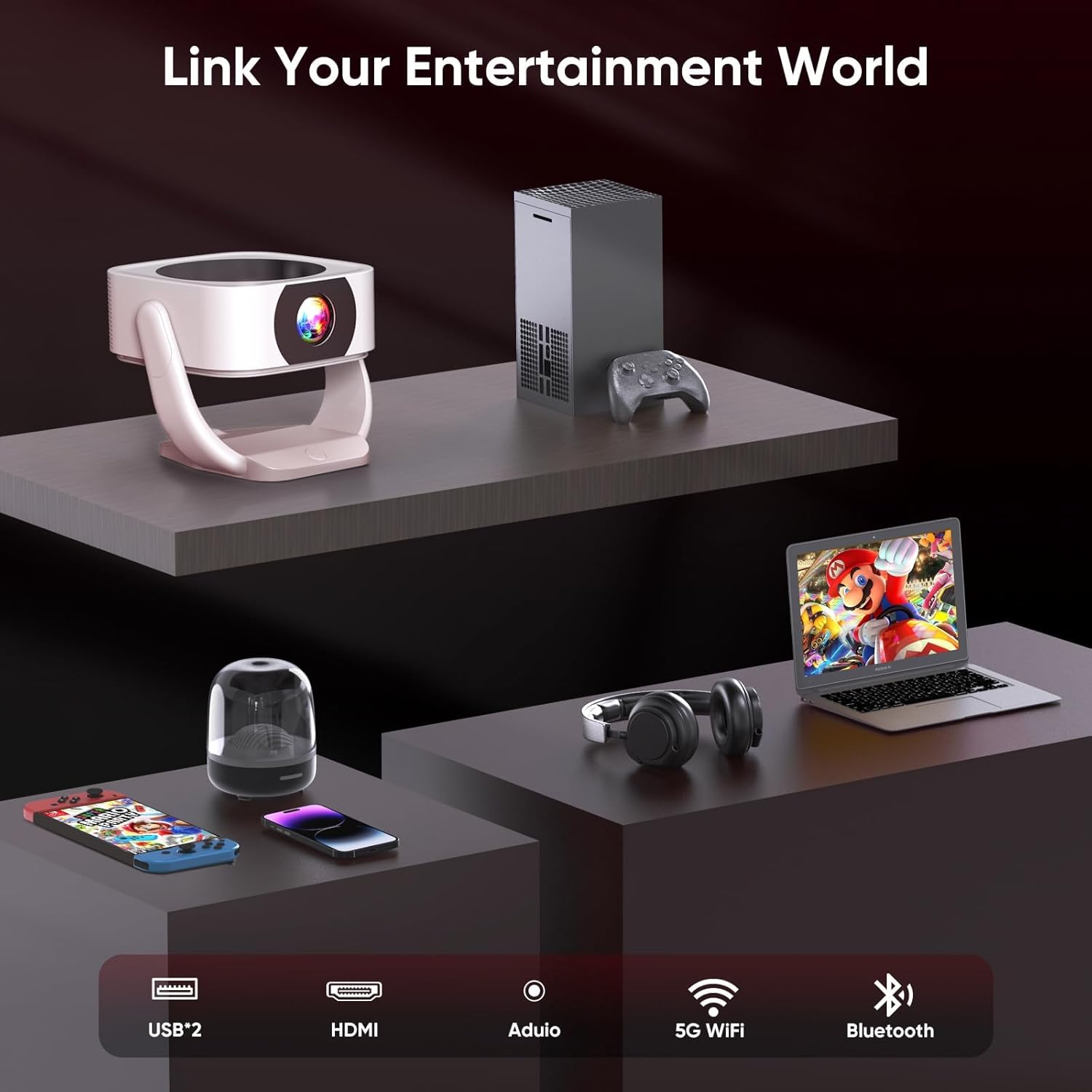
Bild: Hinteren view of the TMY Smart Projector showing its connectivity options. These include USB ports, an HDMI input, an audio output, and indicators for 5G WiFi and Bluetooth connectivity. This allows for a wide range of external device connections.

Bild: A visual comparison demonstrating the projector's superior color reproduction. One side, labeled 'Ours', displays vibrant and rich colors, while the other side, labeled 'Others', shows muted and less dynamic hues, highlighting the projector's ability to 'Bring Colors to Life'.
5. Einrichtung
5.1 Platzierung
The TMY Smart Projector's 270° rotatable design and adjustable stand allow for flexible placement. You can project onto walls, ceilings, or even outdoors. Position the projector at a distance between 1 meter (minimum) and 9.98 meters (maximum) from your desired projection surface to achieve the optimal screen size.

Bild: Two TMY Smart Projectors demonstrating multi-angle projection. One projects onto a wall screen, and the other projects onto the ceiling, illustrating the device's flexibility for various viewing-Setups.

Bild: A TMY Smart Projector shown with its rotating base, highlighting its 270-degree rotatable design for versatile projection angles.
5.2 Stromanschluss
Connect the provided power adapter to the projector's power input port, then plug the adapter into a standard electrical outlet.
5.3 Erstes Einschalten
Drücken Sie den Ein-/Ausschalter am Projektor oder auf der Fernbedienung, um das Gerät einzuschalten. Der Projektor fährt hoch und zeigt den Startbildschirm an.
5.4 Fokus- und Trapezkorrektur
The projector features remote electric focus and automatic keystone correction.
- Elektrischer Fokus: Use the remote control to adjust the focus until the image appears sharp and clear.
- Automatische Trapezkorrektur: The projector will automatically correct distorted images (trapezoidal effect) to ensure a rectangular projection. Manual adjustments may be available in the settings menu if needed.

Bild: A family enjoying a movie projected by the TMY Smart Projector. This image highlights the ease of achieving a brilliant image with E-focus and Auto Keystone correction, even when projecting from a casual position.
6. Bedienungsanleitung
6.1 Intelligente Funktionen und Navigation
Your TMY Smart Projector comes with built-in Android TV, providing access to hundreds of applications directly from the device.
- Use the remote control's directional buttons to navigate through the Android TV interface.
- Select applications like YouTube, Netflix, Prime Video, etc., from the home screen to start streaming content.
- Access the app store to download and install additional applications.
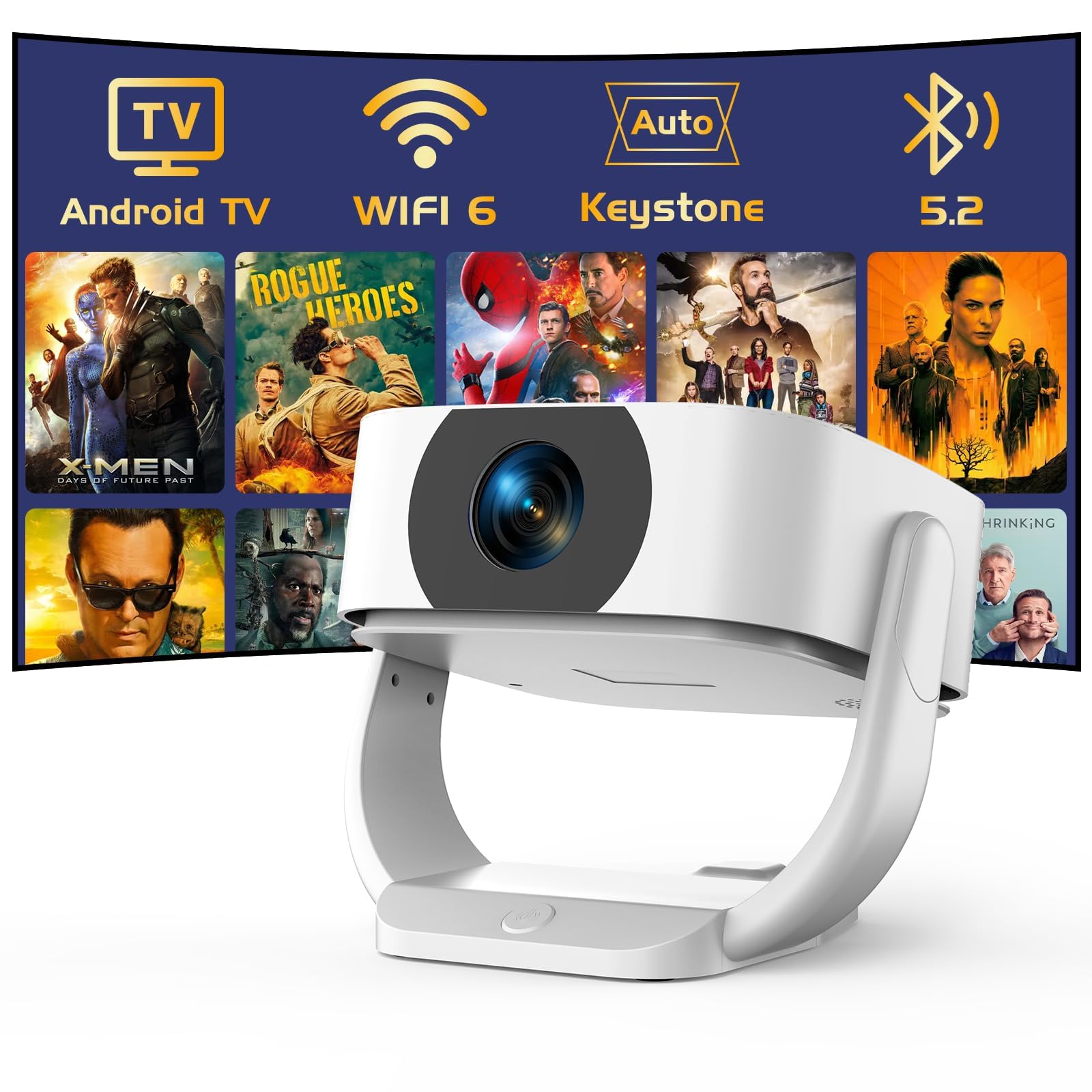
Bild: The TMY Smart Projector's interface showing a wide array of built-in streaming applications, including HBO Max, YouTube, Netflix, and Prime Video, demonstrating its capability to provide endless entertainment without external devices.
6.2 WLAN-Konnektivität
Connect your projector to a wireless network for internet access and streaming.
- Go to the "Settings" menu on the home screen.
- Select "Network & Internet" or "WiFi Settings".
- Schalten Sie WLAN ein und wählen Sie das gewünschte Netzwerk aus der Liste aus.
- Geben Sie gegebenenfalls das Passwort ein und stellen Sie die Verbindung her.
6.3 Bluetooth-Konnektivität
The projector supports two-way Bluetooth 5.2, allowing it to connect to external Bluetooth speakers or headphones, or function as a standalone Bluetooth speaker.
- Anschluss externer Lautsprecher:
- Gehen Sie zu „Einstellungen“ > „Bluetooth“.
- Bluetooth aktivieren und nach Geräten suchen.
- Wählen Sie Ihren Bluetooth-Lautsprecher/Kopfhörer aus der Liste aus, um ihn zu koppeln.
- Using as a Standalone Bluetooth Speaker:
Refer to the specific instructions in the projector's settings or a dedicated mode for activating its Bluetooth speaker function. This allows you to play audio from your smartphone or other devices through the projector's speakers.

Bild: A visual representation of the projector's two-way Bluetooth 5.2 capabilities. It shows the projector connecting wirelessly to an external Bluetooth speaker and also receiving audio from a smartphone, demonstrating its versatility as both a source and a receiver for audio.
6.4 Bildschirmspiegelung
Mirror your smartphone (iOS/Android) screen to the projector wirelessly.
- Ensure both your smartphone and the projector are connected to the same WiFi network.
- On the projector, select the "Screen Mirroring" or "Cast" application.
- Aktivieren Sie auf Ihrem Smartphone die Bildschirmspiegelungsfunktion (z. B. „Smart“). View" on Android, "Screen Mirroring" on iOS Control Center).
- Select the projector from the list of available devices on your phone.
6.5 Anschluss externer Geräte (HDMI, USB)
Connect devices such as laptops, gaming consoles, or USB drives.
- HDMI: Connect an HDMI cable from your external device to the HDMI port on the projector. Select the HDMI input source from the projector's input menu.
- USB: Insert a USB flash drive or external hard drive into the USB port. The projector's media player will typically detect the device, allowing you to browse and play media files.
6.6 Electric Zoom
Adjust the screen size without moving the projector using the electric zoom function, which allows for 50%-100% scaling.
- Access the "Picture Settings" or "Projection Settings" menu.
- Locate the "Zoom" or "Scaling" option.
- Passen Sie den Prozentsatz antage to reduce or enlarge the projected image as desired.

Bild: A visual comparison demonstrating the TMY Smart Projector's ability to create a large 300-inch screen, significantly larger than a 75-inch TV. It also illustrates the 50% and 100% electric zoom capabilities, allowing users to adjust the screen size without physically moving the projector.
7. Wartung
- Reinigung der Linse: Gently wipe the projector lens with a soft, lint-free cloth. For stubborn smudges, use a lens cleaning solution designed for optical surfaces.
- Reinigung des Casing: Use a soft, dry cloth to clean the projector's exterior. Do not use abrasive cleaners or solvents.
- Belüftung: Periodically check and clean the ventilation openings to ensure proper airflow and prevent overheating.
- Lagerung: Bei längerer Nichtbenutzung sollte der Projektor an einem kühlen, trockenen Ort aufbewahrt werden, geschützt vor Staub und direkter Sonneneinstrahlung.
8. Fehlerbehebung
| Problem | Mögliche Ursache | Lösung |
|---|---|---|
| Kein Bild angezeigt | Netzkabel nicht angeschlossen; Falsche Eingangsquelle; Projektor im Standby-Modus. | Check power connection; Select correct input source (HDMI, USB, etc.); Press power button to wake up. |
| Bild ist verschwommen | Fokus nicht eingestellt; Projektor zu nah/zu weit von der Leinwand entfernt. | Use remote control for electric focus adjustment; Adjust projector distance. |
| Das Bild ist verzerrt (trapezförmig). | Projektor nicht senkrecht zur Leinwand. | Auto keystone correction should activate; Check manual keystone settings if available. |
| Kein Ton | Lautstärke zu niedrig; Stummgeschaltet; Externes Audiogerät nicht angeschlossen/ausgewählt. | Increase volume; Unmute; Check Bluetooth connection or external audio cable. |
| Fernbedienung funktioniert nicht | Batterien leer; Blockade zwischen Fernbedienung und Projektor. | Batterien austauschen; Hindernisse beseitigen; Sichtlinie sicherstellen. |
9. Spezifikationen
- Marke: TMY
- Modell: B0G63V4R3R
- Native Auflösung: 1080P Full HD (4K Support)
- Besondere Merkmale: Built-In Wi-Fi 6, Built-in Android TV, Electric Focus, Auto Keystone Correction, 270° Rotatable Design, Two-way Bluetooth 5.2
- Seitenverhältnis: 16:9
- Aktualisierungsrate: 120 Hz
- Minimale Projektionsentfernung: 1 Meter
- Maximale Wurfweite: 9.98 Meter
- Konnektivität: HDMI, USB, Audio Out, WiFi 6, Bluetooth 5.2
- Leistung: Wechselstrom 100-240 V, 50/60 Hz (über Netzteil)
- Abmessungen (Paket): 24.7 x 22.4 x 18.7 cm
- Gewicht (Paket): 1.61 kg
- Ursprungsland: China
10. Garantie und Support
For warranty information and technical support, please refer to the warranty card included with your product or visit the official TMY webWebsite.
Kontaktinformationen für den Support sind in der Regel auf der Website des Herstellers zu finden. webWebsite oder in der Produktverpackung.