
Einführung
Thank you for choosing the MEETION C9990 Wireless Bluetooth Keyboard and Mouse combo. This product offers versatile connectivity options (2.4GHz USB and dual Bluetooth channels), an ergonomic design for comfort, and rechargeable batteries for extended use. This manual will guide you through the setup, operation, and maintenance of your new device.
Packungsinhalt
- MEETION C9990 Wireless Keyboard
- MEETION Kabellose Maus
- USB-Empfänger (im Batteriefach der Maus aufbewahrt)
- USB-C-Ladekabel
- Bedienungsanleitung
Produkt überview
Tastaturfunktionen
- Layout in voller Größe: Includes a numeric pad for comprehensive data entry.
- Low-Noise Scissor-Switch Keys: Bietet ein ruhiges und komfortables Tipperlebnis.
- Multimedia-Tasten: Dedicated function keys for quick access to media controls and system functions.
- Fixed Anti-Slip Stand: Ensures stability and an ergonomic typing angle.
- Ultraschlankes Design: Ästhetisch ansprechendasing und platzsparend.

Image: Close-up of the keyboard keys, illustrating the low-noise scissor-switch design for quiet and comfortable typing.

Image: The keyboard features a fixed-angle anti-slip stand for enhanced stability and typing comfort.
Mausfunktionen
- Ergonomisch geformtes Design: Contoured shape supports natural wrist and hand posture.
- Einstellbare DPI: Four DPI settings (800-2400) for precise cursor control.
- Tilt-Scroll Wheel: Allows for horizontal and vertical scrolling.
- Modusschalter: Easily switch between 2.4GHz and Bluetooth modes.

Image: The mouse features an ergonomic sculpted design to provide comfort during extended use.

Image: Detailed diagram of the mouse highlighting its various components and functions, including buttons, scroll wheel, and switches.
Installationsanweisungen
1. Aufladen der Geräte
Both the keyboard and mouse are equipped with built-in rechargeable batteries. Before first use, or when the battery indicator shows low power, charge both devices using the provided USB-C cable.
- Verbinden Sie das USB-C-Ende des Ladekabels mit dem Ladeanschluss an Tastatur und Maus.
- Verbinden Sie das USB-A-Ende des Ladekabels mit einer USB-Stromquelle (z. B. einem USB-Anschluss am Computer oder einem USB-Netzteil).
- Die Ladeanzeigeleuchte leuchtet während des Ladevorgangs und erlischt, sobald der Akku vollständig geladen ist.
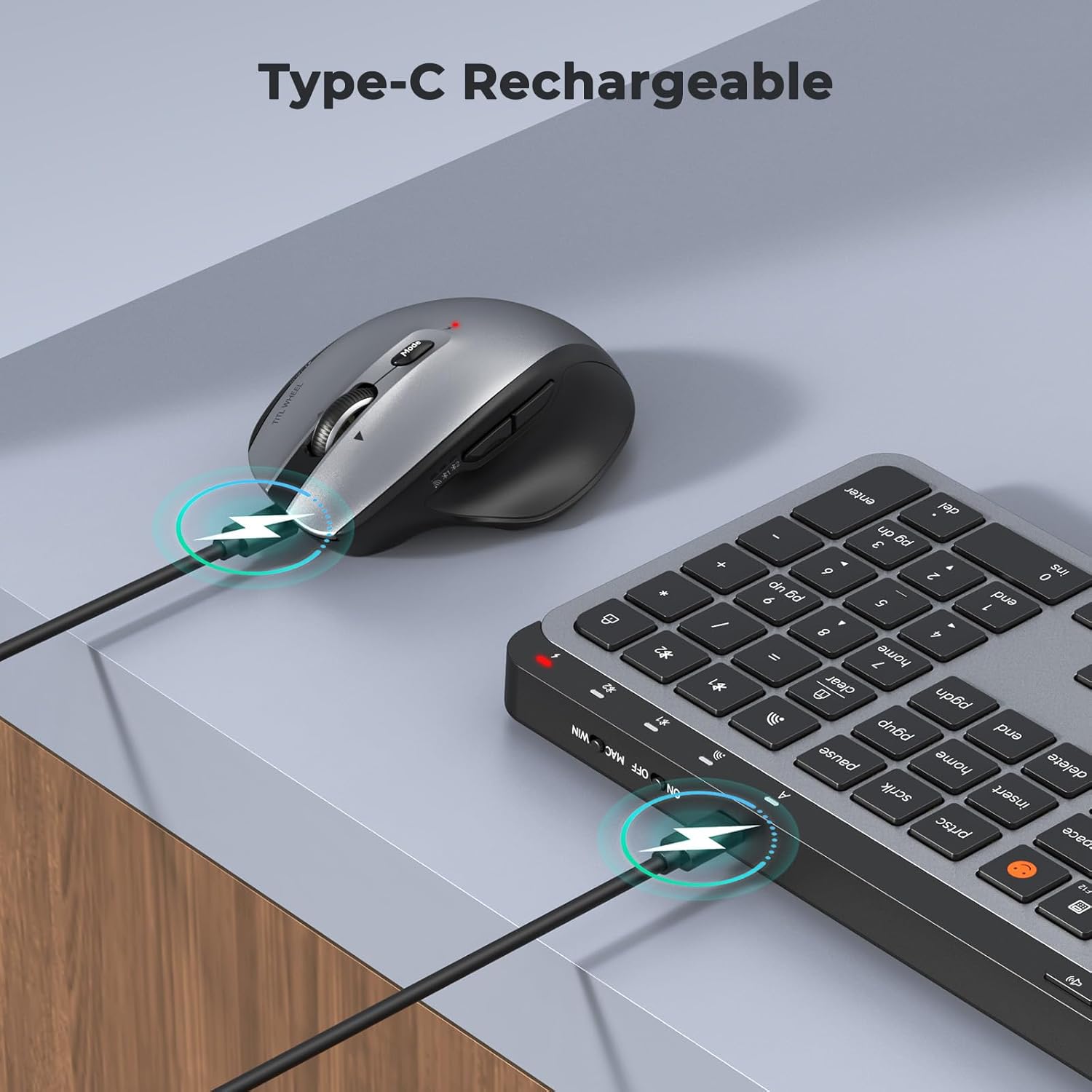
Image: Both the keyboard and mouse are rechargeable via USB-C, ensuring convenience and eliminating the need for disposable batteries.
2. Verbindung zu Geräten herstellen
The C9990 combo supports three connection modes: 2.4GHz wireless (via USB receiver) and two Bluetooth channels (BT1, BT2).
2.1. 2.4-GHz-Funkverbindung
- Suchen Sie den USB-Empfänger, der sich normalerweise im Batteriefach der Maus befindet.
- Stecken Sie den USB-Empfänger in einen freien USB-Port Ihres Computers.
- Schalten Sie Tastatur und Maus mit den jeweiligen Netzschaltern ein.
- Drücken Sie für die Tastatur die Taste 2.4 G button (usually indicated by a USB icon) to switch to 2.4GHz mode.
- For the mouse, switch the mode selector to the 2.4 G Position.
- Die Geräte sollten sich automatisch verbinden.
2.2. Bluetooth-Verbindung (BT1 / BT2)
- Schalten Sie Tastatur und Maus ein.
- Für Tastatur: Halten Sie die BT1 or BT2 button for 3-5 seconds until the indicator light flashes rapidly, indicating pairing mode.
- Für die Maus: Switch the mode selector to the BT1 or BT2 position, then press and hold the Bluetooth pairing button (often located on the underside) until the indicator light flashes.
- Gehen Sie auf Ihrem Gerät (Laptop, Tablet, Smartphone) zu den Bluetooth-Einstellungen und suchen Sie nach neuen Geräten.
- Select "MEETION Keyboard" and "MEETION Mouse" from the list to pair.
- Repeat for the second Bluetooth channel (BT2) if connecting to another device.
3. Wechseln zwischen Geräten
The C9990 allows seamless switching between up to three connected devices (one 2.4GHz and two Bluetooth).
- Für Tastatur: Drücken Sie die entsprechende 2.4 G, BT1, oder BT2 button to switch to the desired connected device.
- Für die Maus: Use the mode switch on the underside of the mouse to select 2.4 G, BT1, oder BT2.

Image: The keyboard and mouse can switch between three devices (PC, tablet, phone) with a single click, indicated by the Bluetooth and 2.4G icons.
Bedienungsanleitung
Tastaturfunktionen
- Multimedia Keys (F1-F12): These keys provide quick access to functions like brightness control, display window, home, dictation, sleep, app switcher, screen mirroring, screen capture, music player, email, and calculator. Functions may vary slightly depending on the operating system.
- Emoji-Legende: The dedicated emoji key supports Windows, macOS, iPad (iPadOS), and Android Samsung devices. It does not support iPhone (iOS).

Image: The keyboard features a row of multimedia keys (F1-F12) for quick access to various system functions.
Mausfunktionen
- DPI-Anpassung: Press the DPI switch button (usually located near the scroll wheel) to cycle through the available DPI settings (800, 1200, 1600, 2400). Adjust to your preference for cursor speed and precision.
- Tilt-Scroll Wheel: In addition to vertical scrolling, tilt the scroll wheel left or right for horizontal scrolling in applications that support it (e.g., spreadsheets).
- Vorwärts-/Rückwärtstasten: Verwenden Sie die seitlichen Tasten zur schnellen Navigation in web Browser und file Entdecker.
Wartung
- Reinigung: Reinigen Sie die Oberflächen von Tastatur und Maus mit einem weichen, trockenen Tuch. Bei hartnäckigem Schmutz leicht andrücken.ampBefeuchten Sie das Tuch mit Wasser oder einer milden Reinigungslösung. Vermeiden Sie scharfe Chemikalien oder scheuernde Materialien.
- Batteriepflege: To prolong battery life, avoid fully discharging the devices frequently. Charge them when the low battery indicator appears. If storing for an extended period, charge them to about 50% and recharge every few months.
- Lagerung: Lagern Sie die Geräte an einem kühlen, trockenen Ort, geschützt vor direkter Sonneneinstrahlung und extremen Temperaturen.
Fehlerbehebung
Verbindungsprobleme
- Gerät verbindet sich nicht: Ensure both the keyboard and mouse are powered on and fully charged. Check that the correct connection mode (2.4G, BT1, or BT2) is selected on both devices. For Bluetooth, ensure your host device's Bluetooth is enabled and the devices are in pairing mode.
- Unterbrechungsverbindung: Move the devices closer to your computer. Avoid using them near strong electromagnetic interference sources (e.g., Wi-Fi routers, other wireless devices).
- 2.4GHz receiver not recognized: Try plugging the USB receiver into a different USB port. Ensure the receiver is fully inserted.
Funktionsprobleme
- Tasten oder Maus reagieren nicht: Recharge the devices. Restart your computer or device. Re-pair the devices if using Bluetooth or re-insert the USB receiver for 2.4GHz.
- Mauszeiger unregelmäßig: Clean the mouse sensor. Ensure you are using the mouse on a suitable surface (not highly reflective or transparent). Adjust DPI settings.
Technische Daten
| Modellnummer | C9990 |
| Konnektivitätstechnologie | Bluetooth, USB (2.4GHz Wireless) |
| Tastaturlayout | QWERTY, Full Size |
| Mausbewegungserkennung | Optisch |
| Maus-DPI-Einstellungen | 800, 1200, 1600, 2400 |
| Stromquelle | Batteriebetrieben (wiederaufladbar über USB-C) |
| Kompatible Betriebssysteme | Windows, macOS, Linux, Chrome OS, Android |
| Artikelgewicht | 1.16 Kilograms (combined) |
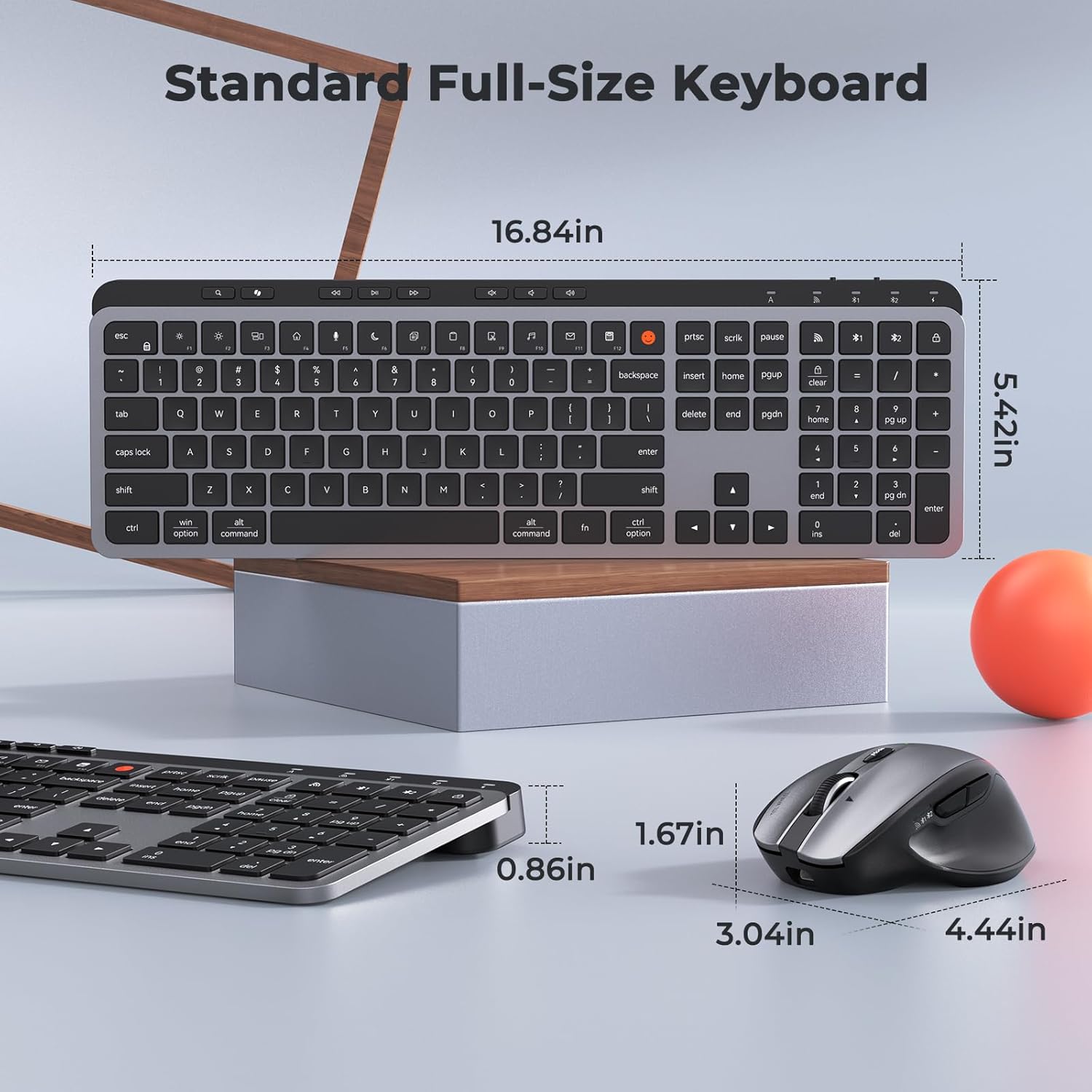
Image: Dimensions of the MEETION C9990 keyboard and mouse for reference.
Garantie und Support
The MEETION C9990 Wireless Bluetooth Keyboard and Mouse comes with a 1 Jahr Garantie Ab Kaufdatum. Diese Garantie deckt Herstellungsfehler bei normalem Gebrauch ab.
For technical support, troubleshooting assistance, or warranty claims, please contact MEETION customer service through the retailer where you purchased the product or visit the official MEETION webWebsite für Kontaktinformationen.
Sicherheitshinweise
- Die Geräte dürfen weder Wasser, Feuchtigkeit noch extremen Temperaturen ausgesetzt werden.
- Vermeiden Sie es, die Geräte fallen zu lassen oder starken Stößen auszusetzen.
- Do not attempt to disassemble or repair the devices yourself. Refer to qualified service personnel.
- Außerhalb der Reichweite von Kindern aufbewahren.
- Batterien und elektronische Bauteile sind gemäß den örtlichen Vorschriften verantwortungsvoll zu entsorgen.