
1. Einrichtung
1.1 Packungsinhalt
Bitte überprüfen Sie vor der Montage, ob alle Komponenten im Paket vorhanden sind:
- KTC H24F7 24 Inch 240Hz Monitor
- Monitorbasis
- Monitor Stand
- Netzteil
- HDMI-Kabel
- Kurzanleitung (QSG)
1.2 Montageanleitung
Befolgen Sie diese Schritte, um Ihren Monitor zusammenzubauen:
- Nehmen Sie den Monitor und alle Komponenten vorsichtig aus der Verpackung.
- Attach the monitor stand to the monitor base. Ensure it clicks securely into place.
- Connect the assembled stand and base to the back of the monitor. The stand is designed for easy snap-in installation.
- Stellen Sie den Monitor auf eine stabile, ebene Fläche.

1.3 VESA-Halterungsinstallation
The KTC H24F7 monitor supports VESA 100mm x 100mm mounting for alternative stand or wall mount solutions. Ensure you use M4-0.7 x 10mm screws (not included) for secure installation.

1.4 Mit Geräten verbinden
Schließen Sie Ihren Computer oder andere Geräte mit den entsprechenden Kabeln an den Monitor an.
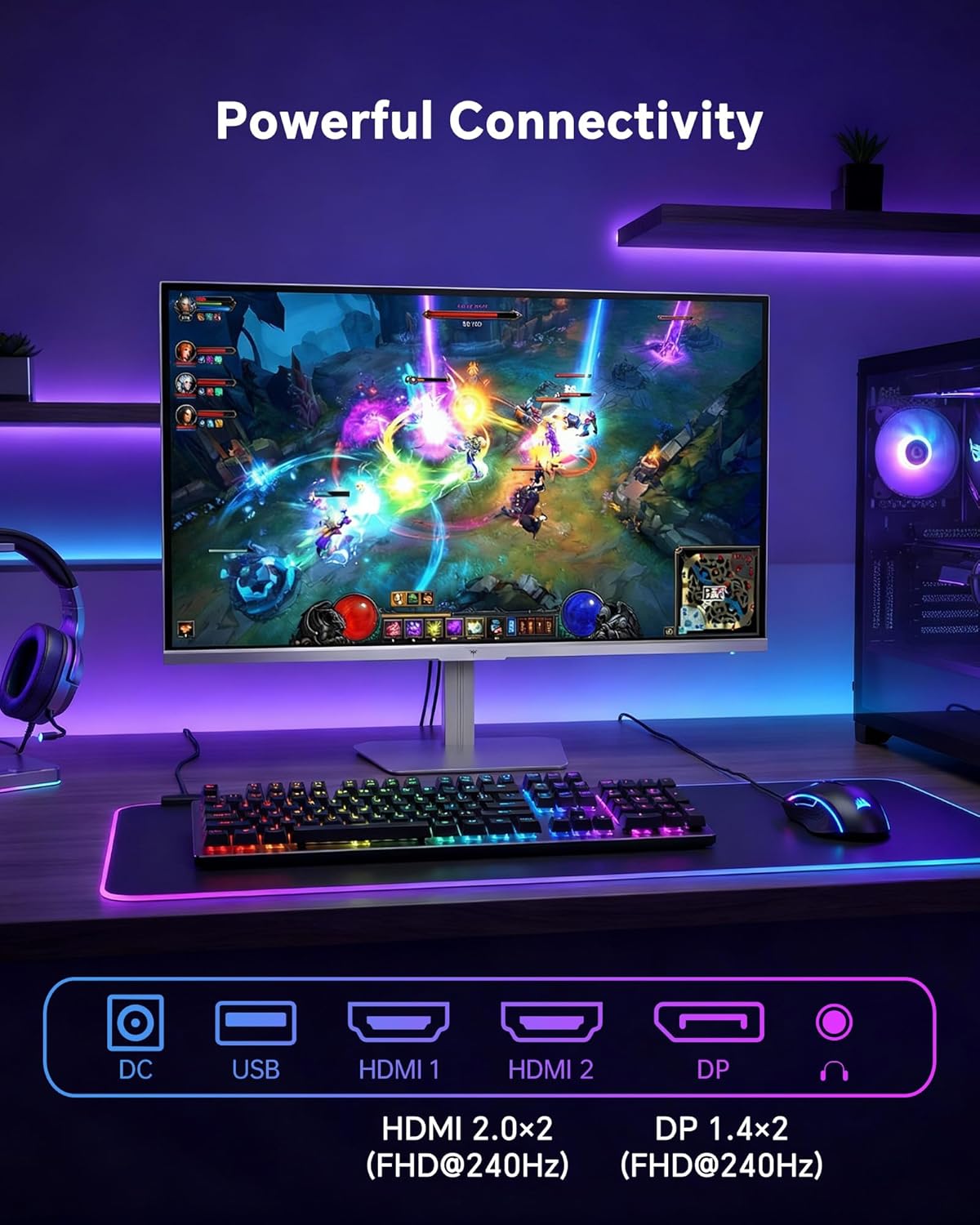
- HDMI: Use an HDMI cable to connect to devices with HDMI output. The monitor has two HDMI 2.0 ports, supporting FHD at 240Hz.
- DisplayPort: Use a DisplayPort cable for devices with DisplayPort output. The monitor has one DisplayPort 1.4, supporting FHD at 240Hz.
- Leistung: Connect the power adaptor to the DC input on the monitor and then to a power outlet.
- USB: A USB 2.0 port is available for connecting peripherals.
- Audio Ausgang: A 3.5mm audio jack is available for connecting headphones or external speakers.
2. Bedienungsanleitung
2.1 Ein-/Ausschalten
Drücken Sie den Netzschalter am Monitor, um ihn ein- oder auszuschalten. Die Betriebsanzeige leuchtet, wenn der Monitor eingeschaltet ist.
2.2 Bildschirmmenü (OSD)
The OSD menu allows you to adjust various monitor settings. Use the control buttons (typically located on the back or bottom of the monitor) to navigate the menu and select options. Refer to the Quick Start Guide for specific button functions.
2.3 Anzeigeeinstellungen
Optimieren Sie Ihre viewVerbessern Sie Ihr Nutzererlebnis durch Anpassen der folgenden Einstellungen:
- Aktualisierungsrate: The monitor supports a 240Hz refresh rate for smooth motion. Ensure your graphics card settings are configured to utilize this rate.

- Adaptive Synchronisierung: This technology synchronizes the monitor's refresh rate with your graphics card's frame rate to eliminate screen tearing and stuttering. Enable Adaptive Sync in the OSD menu and ensure it is also enabled in your graphics card control panel (FreeSync/G-Sync compatible).

- HDR 400: High Dynamic Range 400 provides enhanced contrast and color accuracy, delivering brighter highlights and deeper shadows. Activate HDR in the OSD menu and your operating system display settings for compatible content.

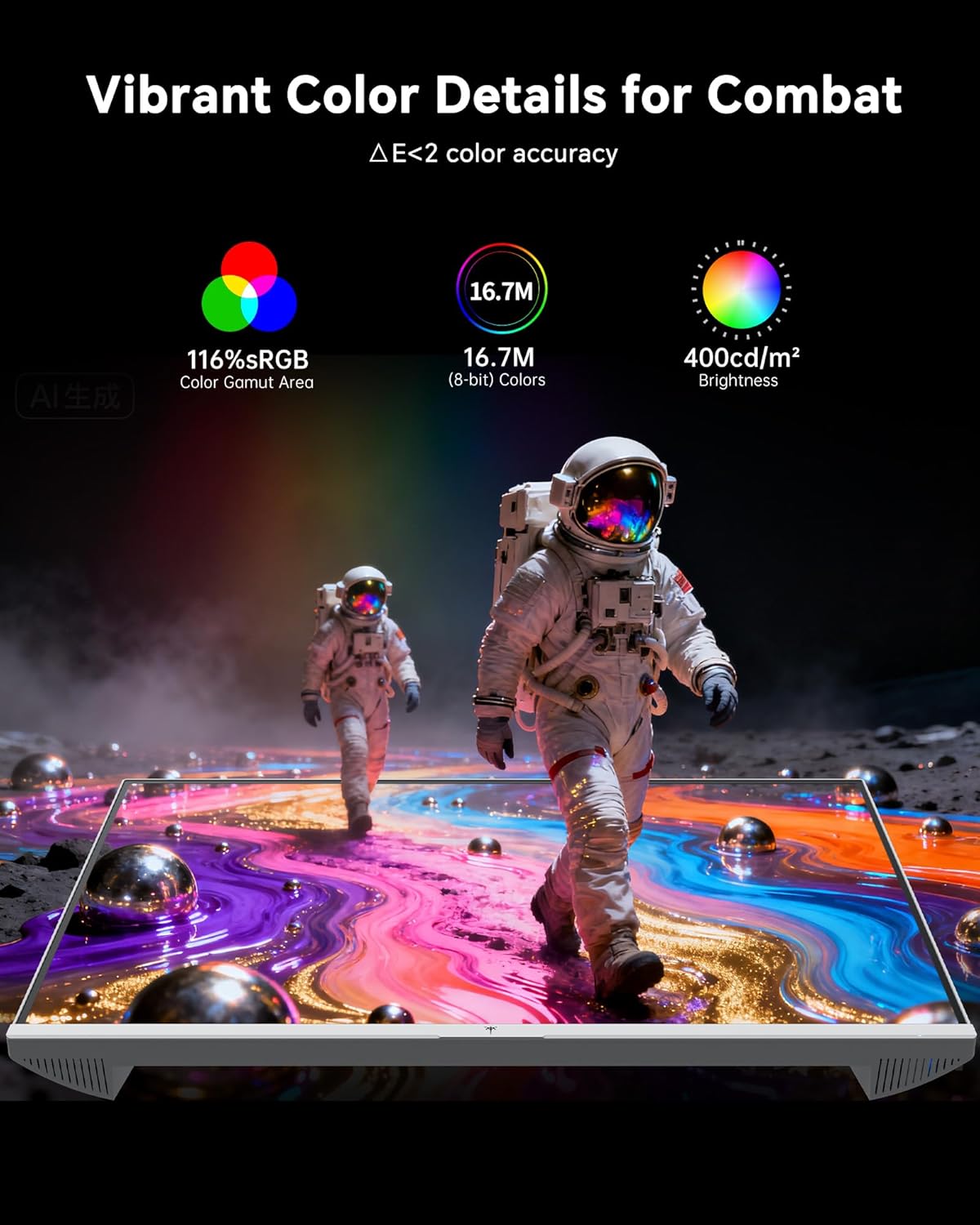
- Farbeinstellungen: The monitor offers 116% sRGB color gamut and 16.7 million colors. Adjust brightness (up to 400 cd/m²) and color temperature through the OSD menu to suit your preference.
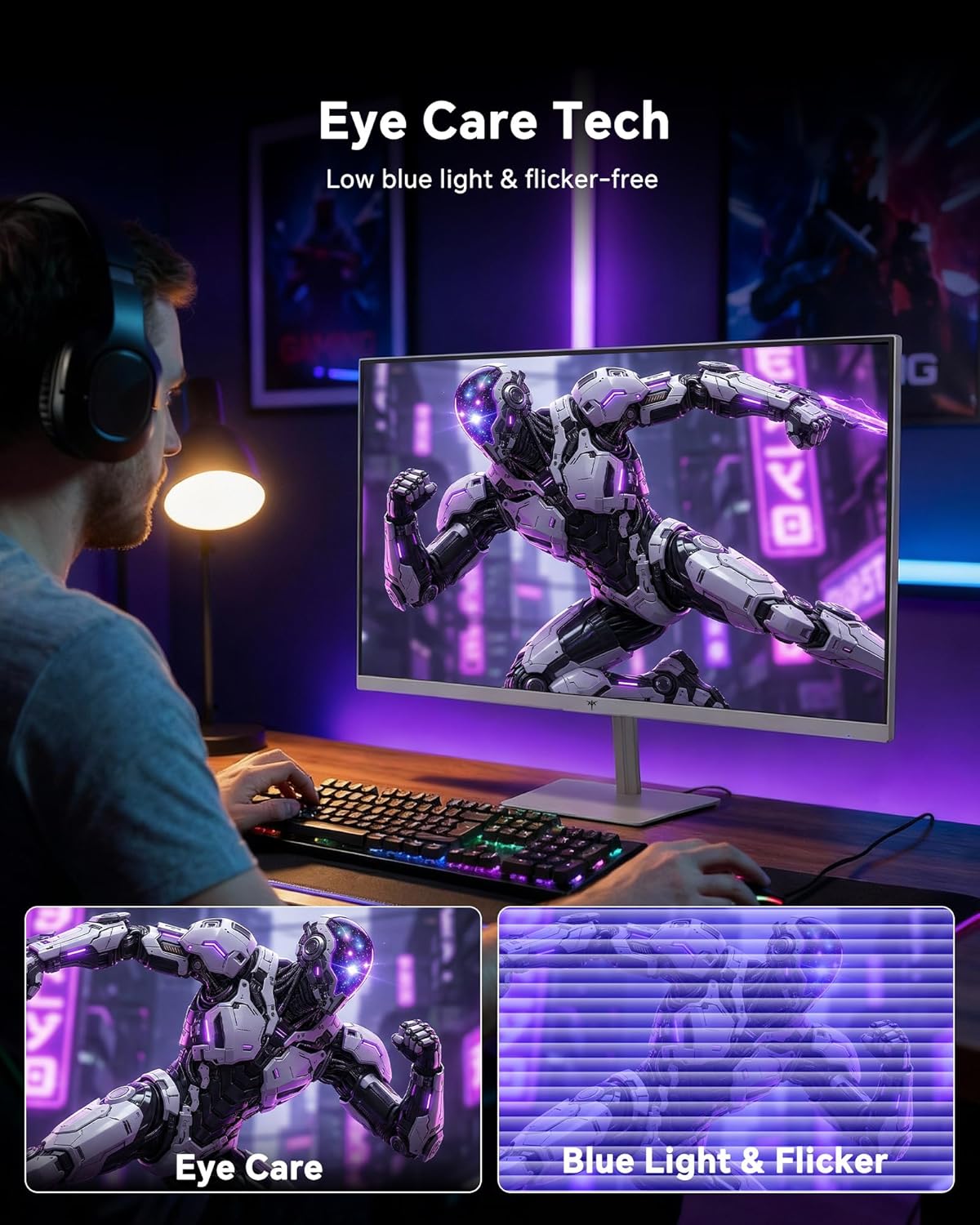
- Augenpflegetechnologie: The monitor features low blue light and flicker-free technology to reduce eye strain during prolonged use. These settings can typically be adjusted or enabled within the OSD menu.
2.4 Monitor Tilt Adjustment
The monitor supports tilt adjustment from -5° to 15° (±3°). Gently adjust the monitor panel to your desired viewing-Winkel.
3. Wartung
3.1 Reinigung des Monitors
Um den Monitorbildschirm und c zu reinigenasing:
- Vor der Reinigung den Monitor immer ausschalten und das Netzkabel abziehen.
- Mit einem weichen, fusselfreien Tuch leichtampMit Wasser oder einem milden, nicht scheuernden Bildschirmreiniger abspülen.
- Wischen Sie den Bildschirm vorsichtig ab, um Staub und Fingerabdrücke zu entfernen. Vermeiden Sie übermäßigen Druck.
- Für die casing, use a dry, soft cloth. Do not use alcohol, ammonia, or abrasive cleaners, as these can damage the surface.
3.2 Allgemeine Pflege
- Vermeiden Sie es, schwere Gegenstände auf den Monitor oder dessen Kabel zu stellen.
- Setzen Sie den Monitor keiner direkten Sonneneinstrahlung, übermäßiger Hitze oder extremer Kälte aus.
- Keep the monitor away from liquids and high humidity.
- Sorgen Sie für eine ausreichende Belüftung rund um den Monitor, um eine Überhitzung zu vermeiden.
4. Fehlerbehebung
If you encounter issues with your KTC H24F7 monitor, refer to the following common problems and solutions:
| Problem | Mögliche Ursache | Lösung |
|---|---|---|
| Kein Bild auf dem Bildschirm | Power cable disconnected; Video cable disconnected or loose; Incorrect input source selected; Monitor is off. | Ensure power cable is securely connected and monitor is on. Check video cable connections (HDMI/DisplayPort) at both the monitor and computer. Press the input source button on the monitor to cycle through inputs. |
| Bildflackern oder -risse | Adaptive Sync not enabled; Graphics card driver issues; Faulty video cable. | Enable Adaptive Sync in the OSD menu and your graphics card control panel. Update graphics card drivers. Try a different video cable. If using DisplayPort 1, try DisplayPort 2 or HDMI if available, as some units may experience issues with specific ports. |
| Die Farben wirken falsch oder verwaschen. | Color settings incorrect; HDR not properly configured; Faulty video cable. | Adjust color settings (brightness, contrast, color temperature) in the OSD menu. Ensure HDR is enabled in both the OSD and your operating system for HDR content. Try a different video cable. |
| Der Monitor erreicht keine 240 Hz. | Graphics card limitations; Incorrect display settings in OS; Cable bandwidth limitations. | Ensure your graphics card supports 240Hz at 1080p. Verify display settings in your operating system (e.g., Windows Display Settings or NVIDIA/AMD control panel) are set to 240Hz. Use the provided HDMI cable or a certified DisplayPort 1.4 cable. |
| Stuck or dead pixels | Herstellungsfehler. | A small number of stuck or dead pixels (typically 1-3) may be considered normal for LCD panels. If the issue is severe or persistent, contact customer support. |
5. Spezifikationen
| Besonderheit | Detail |
|---|---|
| Marke | KTC |
| Modellnummer | H24F7 |
| Bildschirmgröße | 24 Zoll |
| Auflösung | FHD 1080p (1920 x 1080 Pixel) |
| Panel-Typ | Schnelles IPS |
| Bildwiederholrate | 240 Hz |
| Ansprechzeit | 1 Millisekunde (MPRT) |
| Seitenverhältnis | 16:9 |
| Helligkeit | 400 Candela pro Quadratmeter |
| Kontrastverhältnis | 1000:1 |
| Farbumfang | 116 % sRGB |
| HDR-Unterstützung | HDR 400 |
| Adaptive Synchronisierung | FreeSync, G-Sync Compatible |
| Konnektivität | 2x HDMI 2.0, 1x DisplayPort 1.4, 1x USB 2.0, 1x Audio Out (3.5mm) |
| Augenpflegefunktionen | Low Blue Light, Flicker-Free, Anti-Glare Screen |
| Anpassungen | Neigung (-5° bis 15°) |
| VESA-Montierung | 100mm x 100mm |
| Abmessungen (T x B x H) | 5.39"T x 21.25"B x 15.74"H |
| Artikelgewicht | 3.2 Kilogramm |
| Farbe | Weiß |
6. Garantie und Support
6.1 Garantieinformationen
The KTC H24F7 monitor comes with a three-year manufacturer warranty. Diese Garantie deckt Material- und Verarbeitungsfehler bei normalem Gebrauch ab.
Bitte bewahren Sie Ihren Kaufbeleg für Garantieansprüche auf.
6.2 Kundendienst
For technical assistance, warranty claims, or any questions regarding your KTC H24F7 monitor, please contact KTC customer support. KTC aims to provide responsive customer support and typically responds within 12 hours.
You can usually find contact information on the official KTC website or through the retailer where you purchased the product. When contacting support, please have your monitor model number (H24F7) and purchase details ready.