
1. Einrichtung
This section guides you through the initial setup of your CHUWI CoreBook X laptop.
1.1 Auspacken und erstmaliges Einschalten
- Nehmen Sie den Laptop und sämtliches Zubehör vorsichtig aus der Verpackung.
- Connect the provided USB-C power adapter to the laptop's USB-C port (PD Charging/USB 2.0) and then to a power outlet.
- Open the laptop lid. The laptop may power on automatically or you may need to press the power button located on the keyboard.
- Folgen Sie den Anweisungen auf dem Bildschirm, um die Ersteinrichtung von Windows 11 Pro abzuschließen, einschließlich Sprachauswahl, Netzwerkverbindung und Erstellung des Benutzerkontos.
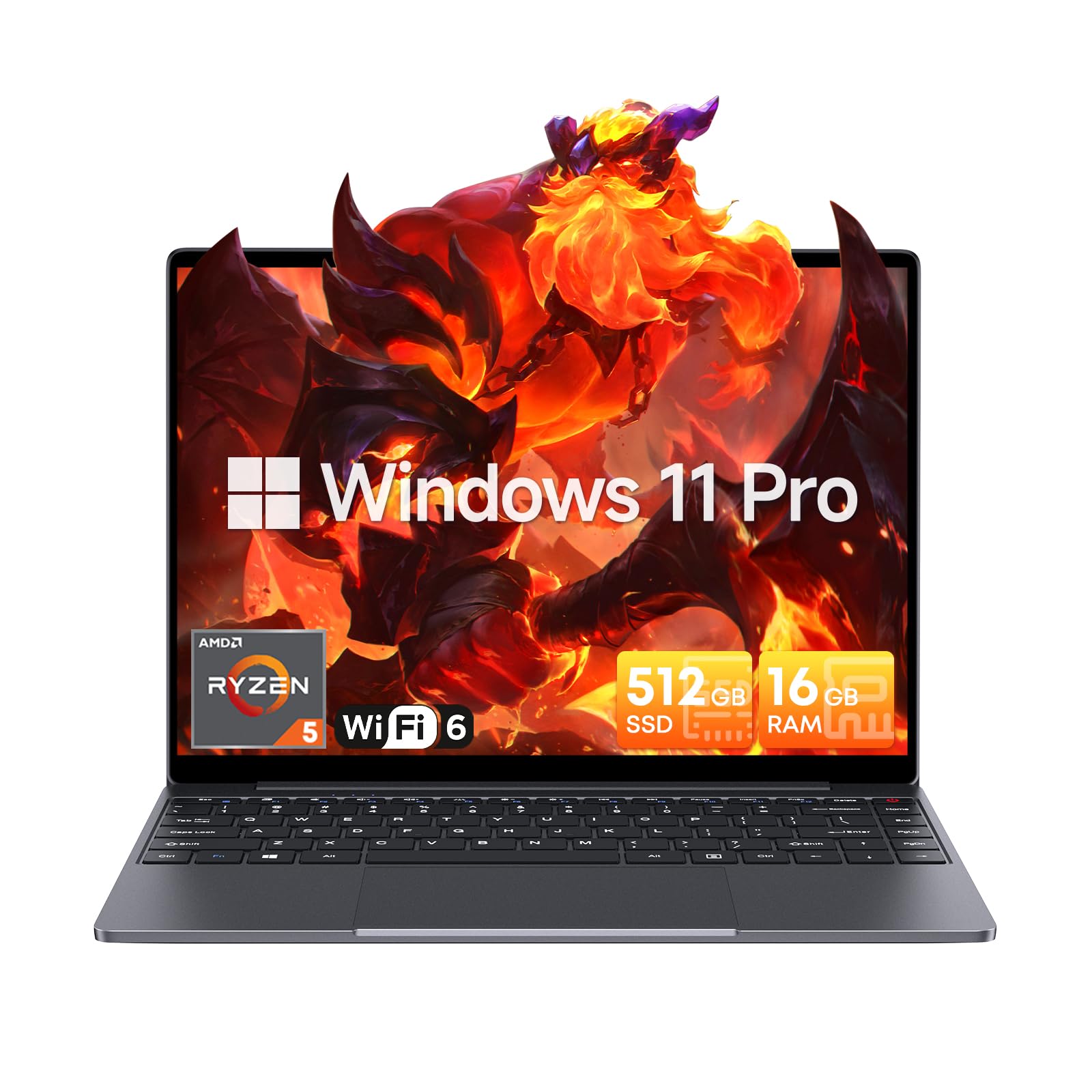
Image: The CHUWI CoreBook X laptop open on a desk, ready for use.
1.2 Anschließen von Peripheriegeräten
- USB-Geräte: Connect USB mice, keyboards, or external storage devices to the available USB 3.0 ports.
- Externe Anzeige: Use the HDMI 1.4 port or the full-featured USB Type-C port to connect an external monitor.
- Audiogeräte: Schließen Sie Kopfhörer oder externe Lautsprecher an die 3.5-mm-Audiobuchse an.
- TF-Karte: Insert a TF card into the TF card slot for additional storage.

Bild: Detailliert view of the laptop's ports, including TF Card Slot, 3.5mm Headphone Jack, USB 3.0 Port, Lock Slot, USB Type-C (PD Charging/USB 2.0), HDMI 1.4, and Full-featured USB Type-C Port.
1.3 Netzwerk- und Bluetooth-Verbindung
- WLAN 6: Um eine Verbindung zu einem drahtlosen Netzwerk herzustellen, klicken Sie auf das Wi-Fi-Symbol in der Taskleiste, wählen Sie Ihr Netzwerk aus und geben Sie das Passwort ein.
- Bluetooth 5.2: To pair Bluetooth devices, go to Windows Settings > Bluetooth & devices, turn on Bluetooth, and select your device to pair.
2. Betrieb
This section covers the basic operation of your CHUWI CoreBook X laptop.
2.1 Energieverwaltung
- Einschalten: Drücken Sie die Einschalttaste.
- Schlafmodus: Close the lid or select "Sleep" from the Start menu.
- Abschalten: Select "Shut down" from the Start menu.
- Neustart: Select "Restart" from the Start menu.
2.2 Tastatur und Touchpad
- The laptop features a full-sized backlit keyboard with white illumination. Use the function keys (Fn) in combination with other keys for shortcuts like adjusting brightness, volume, or toggling the backlight.
- The large touchpad supports multi-touch gestures for navigation. Refer to Windows settings for customizing touchpad gestures.

Bild: Eine Nahaufnahme view of the laptop's backlit keyboard and large touchpad, highlighting its navigation features.
2.3 Anzeige und Audio
- The 14-inch IPS display offers a 2160*1440 resolution. Adjust display settings (brightness, resolution, scaling) through Windows Display Settings.
- The laptop is equipped with stereo speakers. Volume can be controlled via the keyboard function keys or the Windows sound settings.
- An HD webcam is integrated for video conferencing.

Image: The laptop's 14-inch 2K IPS display showcasing vibrant colors and a comparison of 3:2 and 16:9 aspect ratios.
2.4 Video Overview
Video: An official product video demonstrating various features and usage scenarios of the CHUWI CoreBook X laptop, including its performance, display, and connectivity options.
3. Wartung
Durch sachgemäße Wartung wird die Langlebigkeit und optimale Leistung Ihres Laptops sichergestellt.
3.1 Reinigung
- Verwenden Sie ein weiches, fusselfreies Tuch, um den Bildschirm zu reinigen. Bei hartnäckigen Flecken dampBefeuchten Sie das Tuch leicht mit Wasser oder einem für Bildschirme geeigneten Reiniger.
- Wipe the chassis and keyboard with a soft, dry cloth. Avoid using harsh chemicals or abrasive materials.
- Periodically use compressed air to clear dust from the vents to maintain efficient cooling.
3.2 Batteriepflege
- Avoid fully discharging the battery frequently. Charge the laptop when the battery level is low.
- Bewahren Sie den Laptop an einem kühlen, trockenen Ort auf, wenn er längere Zeit nicht benutzt wird. Der Akku sollte dabei zu etwa 50-70 % geladen sein.
- Use only the original or certified compatible USB-C PD charger.
3.3 Speicher- und Arbeitsspeichererweiterungen
The laptop supports RAM and SSD upgrades.
- The 16GB DDR4 RAM can be expanded up to 64GB via 2 SODIMM slots.
- The 512GB PCIe SSD can be expanded up to 2TB using the M.2 2280 PCIe slot.
- A convenient detachable bottom cover allows for easier access to upgrade components without removing the entire back panel.

Image: The underside of the laptop with the detachable cover removed, revealing the dual-channel SO-DIMM slot for RAM upgrades.
4. Fehlerbehebung
Dieser Abschnitt bietet Lösungen für häufig auftretende Probleme.
4.1 Häufige Probleme und Lösungen
- Laptop lässt sich nicht einschalten:
- Stellen Sie sicher, dass das Netzteil sowohl mit dem Laptop als auch mit einer funktionierenden Steckdose fest verbunden ist.
- Überprüfen Sie, ob die Steckdose funktioniert.
- Versuchen Sie, den Netzschalter 10-15 Sekunden lang gedrückt zu halten, um einen Hard-Reset durchzuführen.
- Anzeigeprobleme (kein Bild, Flackern):
- Adjust screen brightness using function keys.
- Falls ein externer Monitor angeschlossen ist, versuchen Sie, diesen zu trennen.
- Starten Sie den Laptop neu.
- Probleme mit der WLAN- oder Bluetooth-Verbindung:
- Stellen Sie sicher, dass WLAN/Bluetooth in den Windows-Einstellungen aktiviert ist.
- Starten Sie Ihren Router/Ihr Modem neu, falls es WLAN-Probleme gibt.
- Bluetooth-Geräte entfernen und erneut koppeln.
- Update network and Bluetooth drivers through Device Manager.
- Langsame Leistung:
- Schließen Sie unnötige Anwendungen, die im Hintergrund laufen.
- Prüfen Sie, ob Windows-Updates und Treiberaktualisierungen verfügbar sind.
- Stellen Sie sicher, dass auf der SSD ausreichend freier Speicherplatz vorhanden ist.
- Führen Sie einen Malware-Scan durch.
If you encounter issues not covered here or require further assistance, please refer to the Support section.
5. Spezifikationen
Detailed technical specifications for the CHUWI CoreBook X laptop.

Image: An illustration of the AMD Ryzen 5 processor, highlighting its core count, threads, and clock speed.
| Besonderheit | Spezifikation |
|---|---|
| Modellname | Corebook X |
| Prozessor | AMD Ryzen 5 (6 Cores, 12 Threads, up to 4.3 GHz) |
| Grafik | AMD Radeon Graphics (1800MHz, Max 2GB Memory) |
| RAM | 16GB DDR4 (Expandable up to 64GB via 2 SODIMM slots) |
| Lagerung | 512GB PCIe SSD (Expandable up to 2TB via M.2 2280 PCIe slot) |
| Anzeige | 14-inch IPS, 2160*1440 Resolution, 100% sRGB Color Gamut |
| Betriebssystem | Windows 11 Pro |
| Konnektivität | Wi-Fi 6 (802.11ax), Bluetooth 5.2 |
| Häfen | USB Type-C (PD Charging/USB 2.0), USB 3.0, HDMI 1.4, Full-featured USB Type-C, 3.5mm Audio Jack, TF Card Slot, Lock Slot |
| Batterie | 46.2Wh Lithium-Ion Battery, 65W USB-C PD Fast Charging |
| Tastatur | Full-sized Backlit Keyboard with White Illumination |
| Touchpad | Large Touchpad, Multi-touch |
| WebNocken | HD WebNocken |
| Maße | 12.2"L x 9"W x 0.67"Th (17mm thin) |
| Gewicht | 2.2 Pfund (1.4 kg) |
6. Gewährleistung
The CHUWI CoreBook X laptop comes with a 1 Jahr Herstellergarantie.
This warranty covers defects in materials and workmanship under normal use. It does not cover damage caused by accidents, misuse, unauthorized repairs, or modifications. Please retain your proof of purchase for warranty claims.
7. Unterstützung
For technical assistance, warranty claims, or further inquiries, please contact CHUWI customer support.
- Herstellersupport: Visit the official CHUWI webWebsite mit Support-Ressourcen, FAQs und Kontaktinformationen.
- Verkäufersupport: If purchased through a retailer, you may also contact the seller for assistance.