
1. Einleitung
Thank you for choosing the AULA G7 Pro Wireless Gaming Headset. This manual provides detailed instructions for setting up, operating, and maintaining your headset to ensure optimal performance and an immersive audio experience. Please read this manual thoroughly before using the product.
2. Produktüberschreitungview
2.1 Packungsinhalt
The AULA G7 Pro package includes the following items:
- AULA G7 Pro Wireless Gaming Headset
- Abnehmbares Boom-Mikrofon
- USB-C zu USB-A Ladekabel
- 3.5-mm-Audiokabel
- 2.4G Wireless USB-A Receiver
- USB-C auf USB-A Adapter
- Bedienungsanleitung
2.2 Headset-Komponenten und Bedienelemente
Familiarize yourself with the various parts and controls of your AULA G7 Pro headset.
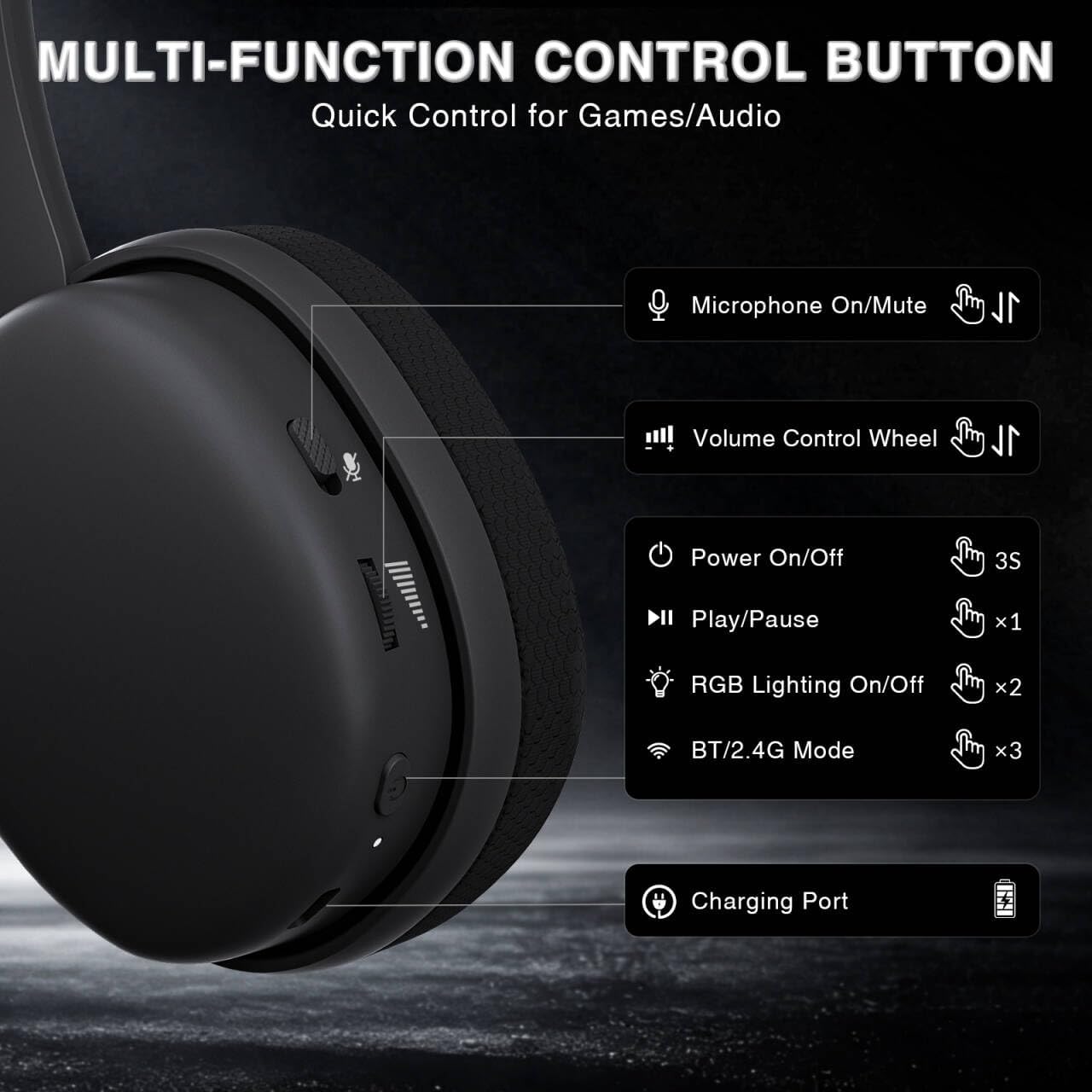
Image: Multi-function control buttons on the AULA G7 Pro headset, showing the microphone on/off toggle, volume control wheel, power switch, play/pause button, RGB lighting on/off button, BT/2.4G mode switch, and charging port.
- Microphone On/Off Toggle: Schieben Sie, um das Mikrofon stummzuschalten bzw. die Stummschaltung aufzuheben.
- Lautstärkeregler: Regelt die Lautstärke des Audioausgangs.
- Stromschalter: Zum Ein-/Ausschalten 3 Sekunden lang gedrückt halten.
- Wiedergabe-/Pause-Taste: Einmal drücken, um Audio abzuspielen oder anzuhalten.
- RGB-Beleuchtung ein/aus: Press twice to toggle RGB lighting.
- BT/2.4G Mode Switch: Press three times to switch between Bluetooth and 2.4G wireless modes.
- Ladeanschluss: USB-C port for charging the headset.
- 3.5-mm-Audiobuchse: Für kabelgebundene Verbindungen.
- Mikrofonanschluss: Zum Anbringen des abnehmbaren Mikrofonarms.
Video: Ein überview of the AULA G7 Pro Wireless Gaming Headset, showcasing its design, features, and different color options (black and pink).
3. Einrichtung und Konnektivität
3.1 2.4G Wireless Connection (PC, PS5, PS4, Switch)
For low-latency gaming, use the 2.4G wireless connection.
- Insert the 2.4G USB-A receiver into an available USB port on your PC, PS5, PS4, or Nintendo Switch dock. If your device only has USB-C ports, use the provided USB-C to USB-A adapter.
- Power on the AULA G7 Pro headset by pressing and holding the power button for 3 seconds.
- The headset will automatically attempt to connect to the receiver. The indicator light on the headset will show a stable color once connected.
- On your device, ensure the audio output is set to the AULA G7 Pro headset.

Image: The AULA G7 Pro headset demonstrating its tri-mode connectivity options: 3.5mm wired, Bluetooth 5.3, and 2.4G wireless with USB-C and USB-A receivers, compatible with various devices including PC, PS5, PS4, Switch, and smartphones.
3.2 Bluetooth 5.3 Connection (PC, Smartphones, Tablets)
Connect your headset via Bluetooth for general use with compatible devices.
- Power on the AULA G7 Pro headset.
- Press the BT/2.4G mode switch three times to enter Bluetooth pairing mode. The indicator light will flash.
- On your device (PC, smartphone, tablet), go to Bluetooth settings and search for available devices.
- Select "AULA G7 Pro" from the list to pair. The indicator light on the headset will become stable once connected.
3.3 3.5mm Wired Connection (Xbox, PC, PS5, PS4, Switch, Smartphones)
Use the 3.5mm audio cable for a universal wired connection, especially for Xbox consoles.
- Verbinden Sie ein Ende des 3.5-mm-Audiokabels mit der 3.5-mm-Audiobuchse am Headset.
- Connect the other end of the 3.5mm audio cable to the audio output port of your device (e.g., Xbox controller, PC audio jack).
- The headset will operate in wired mode. Note that some advanced features like virtual 7.1 surround sound may not be available in wired mode, depending on the device.
4. Bedienungsanleitung
4.1 Mikrofonnutzung
The AULA G7 Pro features a detachable noise-canceling microphone.
- Anbringen des Mikrofons: Align the 3.5mm plug of the boom microphone with the microphone port on the headset and insert it firmly.
- Stummschalten/Stummschaltung aufheben: Use the microphone on/off toggle switch on the headset to quickly mute or unmute your microphone.
- Geräuschunterdrückung: The 360° omnidirectional microphone filters out approximately 80% of background noise. For enhanced noise cancellation and voice clarity, install the driver software (Windows 2.4G mode only).
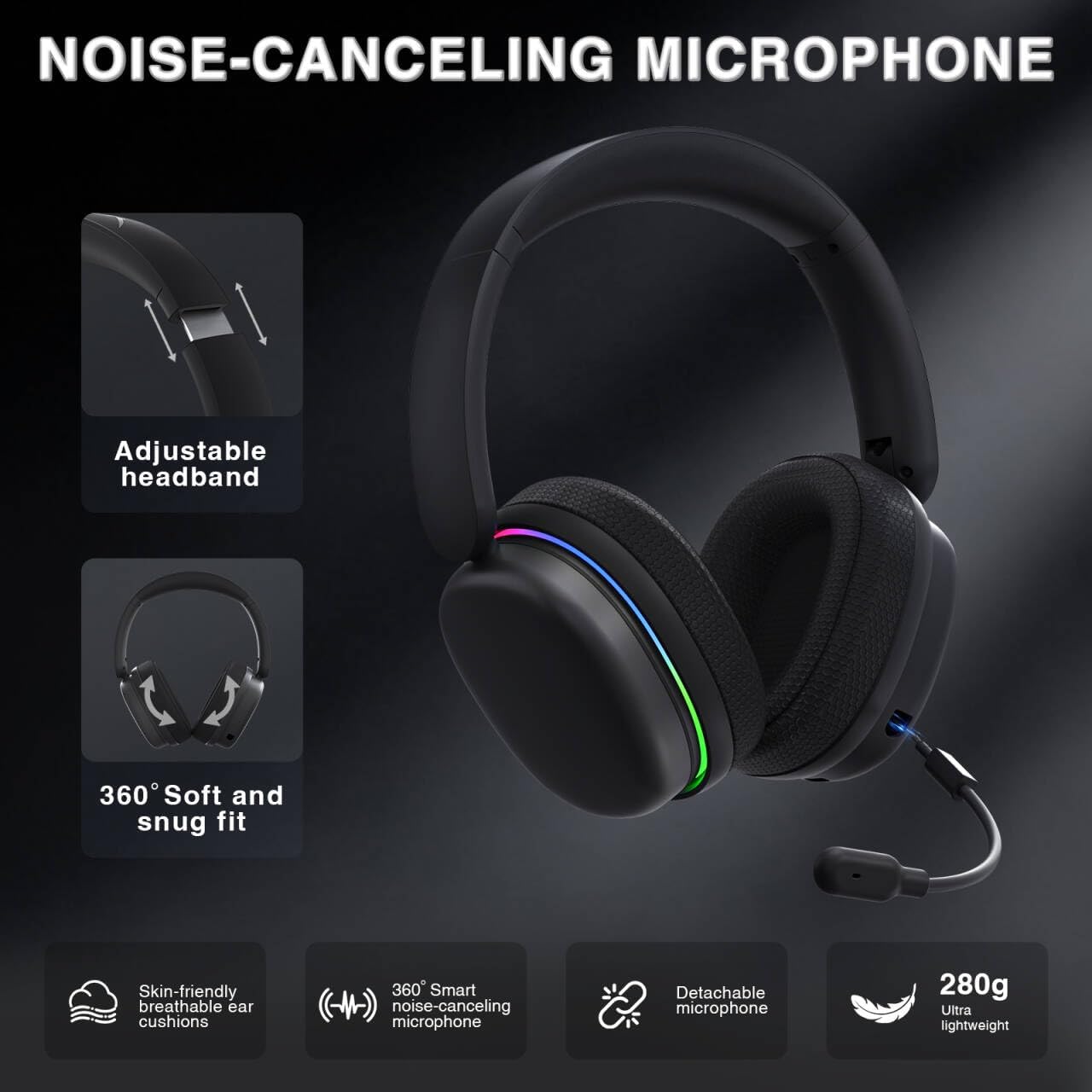
Image: The AULA G7 Pro headset highlighting its adjustable headband, soft and snug fit, skin-friendly breathable ear cushions, 360° smart noise-canceling microphone, detachable microphone, and ultra-lightweight 280g design.
4.2 Virtual 7.1 Surround Sound and EQ Software
Experience immersive audio with virtual 7.1 surround sound and customize your sound profile.
- Virtueller 7.1-Surround-Sound: Available in Windows 2.4G mode, this feature provides precise audio positioning for gaming.
- EQ Software: Laden Sie den Treiber herunter und installieren Sie ihn von soaidriver.com (Windows 2.4G mode only). The software allows for customizable EQ settings, dynamic bass boost, vocal enhancement, and voice morphing.
- Installationshinweis: First, insert the 2.4G receiver into your computer, then install the driver. After entering the driver interface, right-click the icon on the left side of the screen to access the audio settings menu.
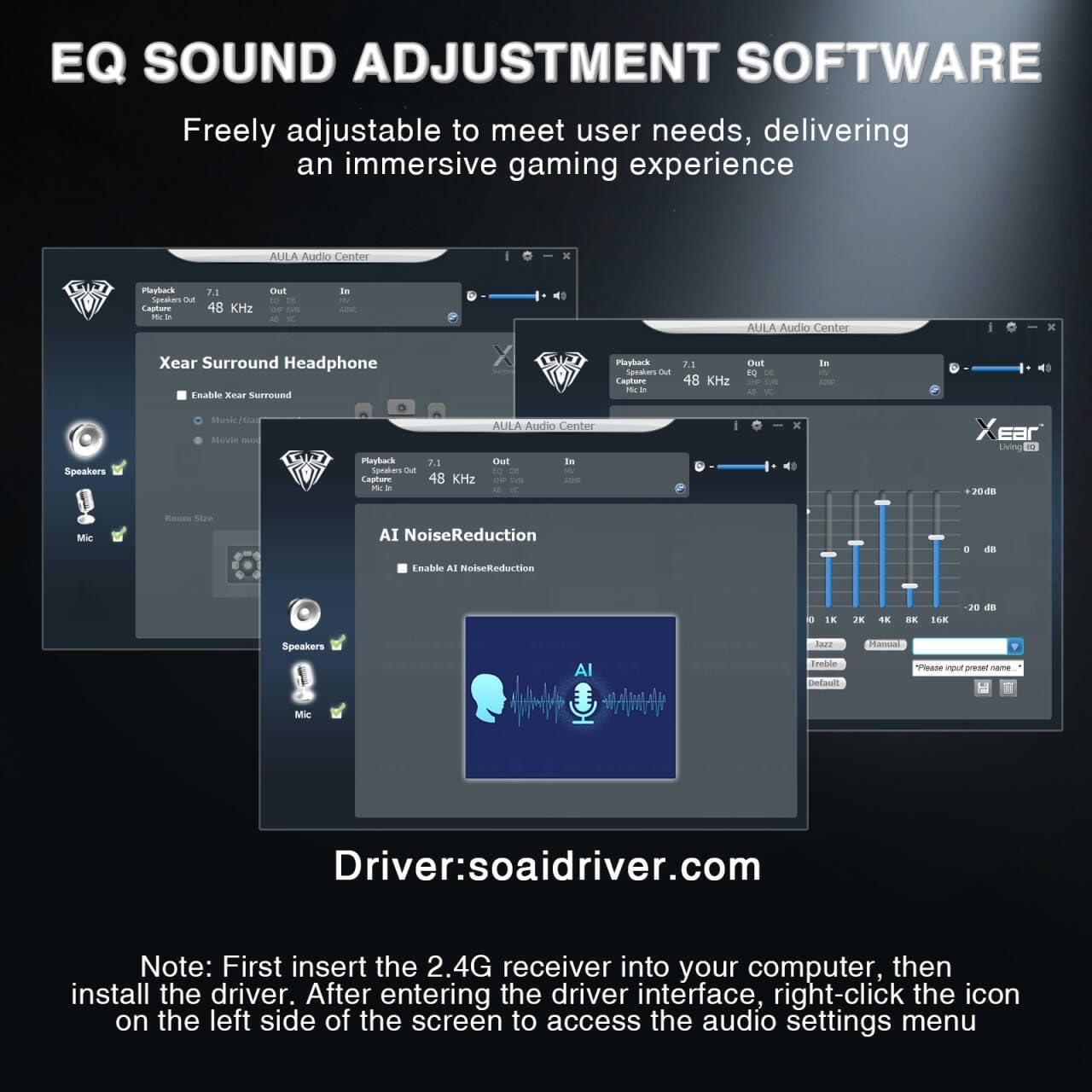
Image: Screenshots of the AULA Audio Center software interface, showing options for Xear Surround Headphone, AI Noise Reduction, and Equalizer settings for sound customization.
4.3 RGB-Beleuchtung
The headset features 16 million-color RGB lighting.
- RGB umschalten: Press the RGB Lighting On/Off button twice to activate or deactivate the lighting.
- Synchronisation: RGB lighting can synchronize with gaming peripherals for an immersive atmosphere.
5. Laden und Akkulaufzeit
The AULA G7 Pro is equipped with a 1000mAh rechargeable battery.
- Laden: Connect the USB-C charging cable to the headset's charging port and the other end to a USB power source (e.g., computer, wall adapter). The indicator light will show charging status.
- Akkulaufzeit: Up to 65 hours of playback with RGB lighting off, and approximately 20 hours with RGB lighting activated.
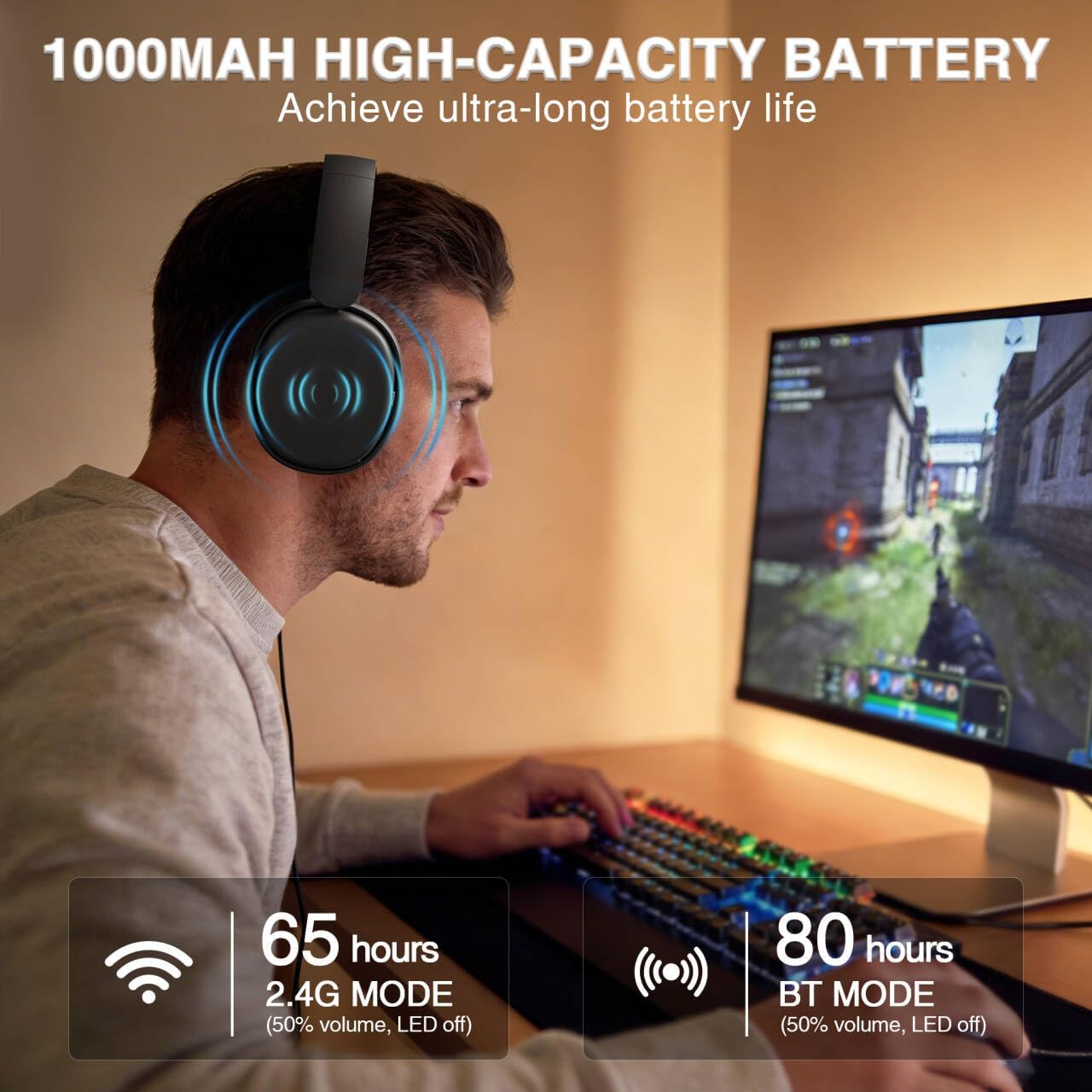
Image: A user wearing the AULA G7 Pro headset while gaming, illustrating the 65 hours of battery life in 2.4G mode (50% volume, LED off) and 80 hours in BT mode (50% volume, LED off).
6. Komfort und Design
The headset is designed for extended wear comfort.
- Leicht: Weighing 280g, the headset is designed to minimize pressure during long gaming sessions.
- Ergonomische Passform: Features an ergonomic headband with protein leather padding and breathable mesh ear cushions.
- Einstellbar: An 8-position adjustable steel frame and 360° acoustic chamber conform to facial contours, with micro-adjustable horizontal angles for a personalized fit.
7. Spezifikationen
| Besonderheit | Detail |
|---|---|
| Marke | AULA |
| Modellname | für G7 |
| Konnektivitätstechnologie | 2.4G Wireless, BT5.3, Wired (3.5mm Jack) |
| Bluetooth-Version | 5.3 |
| Größe des Audiotreibers | 40 Millimeter |
| Impedanz | 32 Ohm |
| Lärmschutz | Aktive Geräuschunterdrückung (Mikrofon) |
| Batteriekapazität | 1000 mAh |
| Akkulaufzeit (RGB aus) | Up to 65 Hours (2.4G Mode), Up to 80 Hours (BT Mode) |
| Gewicht | 280g |
| Kompatible Geräte | PC, PS5, PS4, Switch, Smartphones, Xbox (wired mode only) |
8. Fehlerbehebung
If you encounter issues with your AULA G7 Pro headset, refer to the following common solutions:
- Kein Ton:
- Stellen Sie sicher, dass das Headset eingeschaltet und aufgeladen ist.
- Check that the correct audio output device is selected in your system settings.
- Verify the volume control wheel on the headset is not at minimum.
- For 2.4G/BT modes, ensure the headset is properly paired/connected. Try re-pairing if necessary.
- For wired mode, ensure the 3.5mm cable is fully inserted into both the headset and the device.
- Mikrofon funktioniert nicht:
- Stellen Sie sicher, dass das abnehmbare Mikrofon fest angebracht ist.
- Check the microphone on/off toggle switch on the headset is in the 'on' position.
- Verify the correct microphone input device is selected in your system settings.
- Ensure the microphone is not muted in your operating system or communication software.
- Verbindungsprobleme (2.4G/Bluetooth):
- Ensure the headset is within range of the receiver/device.
- Vermeiden Sie starke elektromagnetische Störungen durch andere drahtlose Geräte.
- Versuchen Sie, sowohl das Headset als auch das angeschlossene Gerät neu zu starten.
- For 2.4G, try plugging the receiver into a different USB port.
- 7.1 Surround-Sound funktioniert nicht:
- Ensure you are in 2.4G wireless mode on a Windows PC.
- Verify that the AULA driver software is installed and configured correctly.
9. Wartung
Um die Langlebigkeit und optimale Leistung Ihres Headsets zu gewährleisten, beachten Sie bitte folgende Wartungshinweise:
- Reinigung: Reinigen Sie das Headset mit einem weichen, trockenen Tuch. Verwenden Sie keine Scheuermittel oder Lösungsmittel.
- Lagerung: Bewahren Sie das Headset an einem kühlen, trockenen Ort fern von direkter Sonneneinstrahlung und extremen Temperaturen auf.
- Kabelpflege: Um Beschädigungen zu vermeiden, sollten Sie die Kabel nicht scharf biegen oder übermäßig daran ziehen.
- Batteriepflege: For optimal battery life, avoid fully discharging the battery frequently. Charge the headset regularly, even if not in use for extended periods.
10. Garantie und Support
10.1 Garantieinformationen
The AULA G7 Pro Wireless Gaming Headset comes with a 1 Jahr Garantie Diese Garantie gilt ab Kaufdatum und deckt Herstellungs- und Verarbeitungsfehler bei normalem Gebrauch ab. Sie deckt keine Schäden ab, die durch Missbrauch, Unfälle, nicht autorisierte Änderungen oder normale Abnutzung verursacht wurden.
10.2 Kundendienst
For technical assistance, warranty claims, or any questions regarding your AULA G7 Pro headset, please contact AULA customer support through the retailer where you purchased the product or visit the official AULA webWebsite für Kontaktinformationen.
Please have your purchase receipt and product model number (G7 Pro) ready when contacting support.