
Einführung
This manual provides detailed instructions for the GOWENIC Wireless Keyboard, model GOWENICryt20kq5je. This compact 61-key keyboard offers versatile connectivity options including 2.4G wireless, Bluetooth, and USB wired modes, designed for various computing environments.
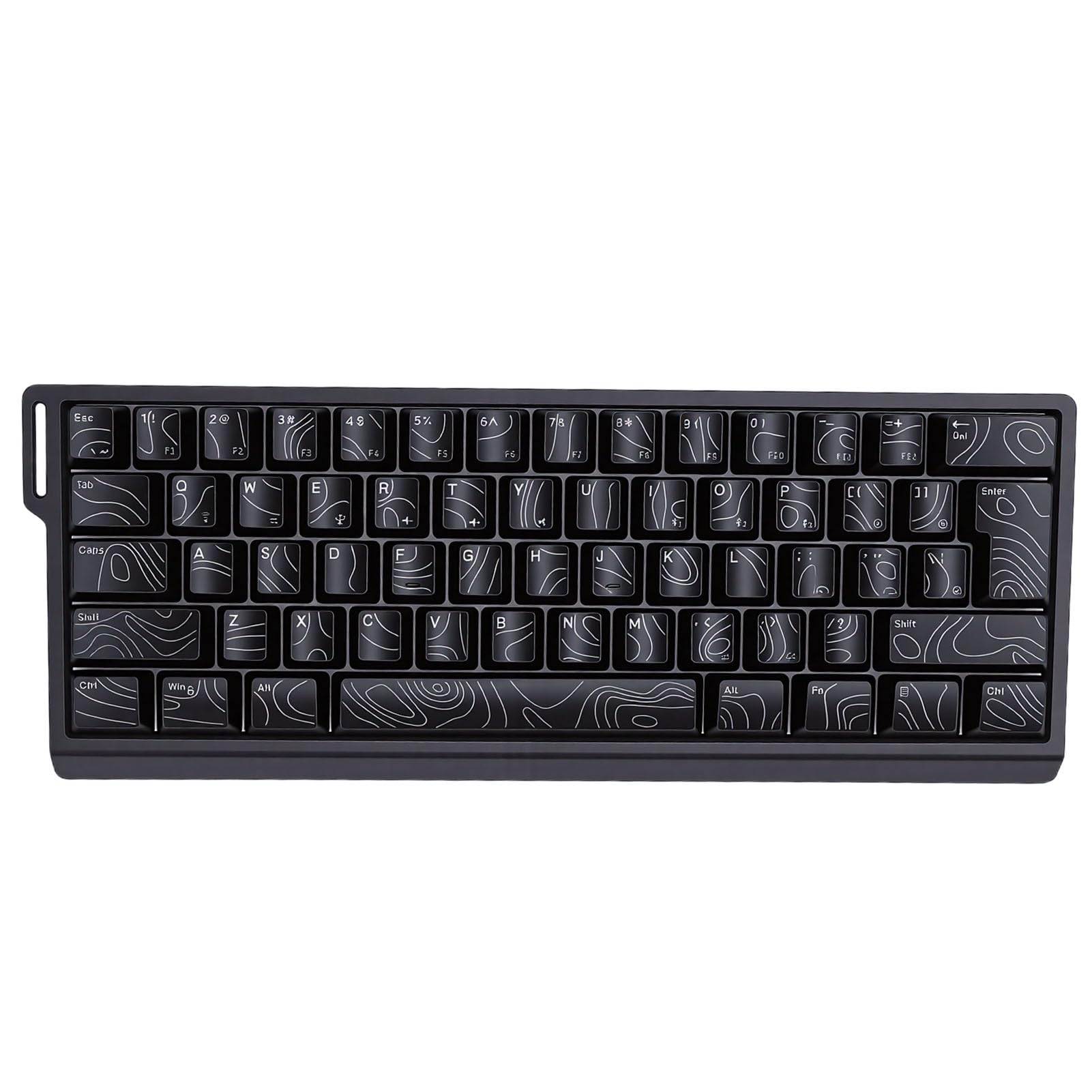
Image: GOWENIC Wireless Keyboard demonstrating its tri-mode connection capability with multiple devices like a laptop, desktop, and tablet.
Packungsinhalt
Bitte überprüfen Sie, ob alle unten aufgeführten Artikel in Ihrem Paket enthalten sind:
- 1 x GOWENIC Wireless Keyboard
- 1 x USB-Empfänger (für 2.4-GHz-Funkverbindung)
- 1 x USB Cable (for wired connection and charging)
- 1 x Benutzerhandbuch
- 1 x Ribbon (Lanyard)

Image: The GOWENIC Wireless Keyboard displayed with its USB cable, USB receiver, and ribbon lanyard.
Technische Daten
| Modellname | GOWENICryt20kq5je |
| Schlüssel | 61 Tasten |
| Konnektivität | 2.4-GHz-Funk, Bluetooth, USB-Kabel |
| Material | ABS |
| Batterie | Built-in 2000mAh Li-Ion Polymer Battery |
| Schlüssel-Rollover | 25-Key Anti-ghosting |
| Kompatibilität | PC (98SE, Me, 2000, XP, VISTA, Win 7, Win10), OS X systems |
| Tastaturbeschreibung | Mechanisch |

Image: Diagram illustrating the internal structure of the keyboard, including ABS keycaps, positioning plate, silicone conductive film, light-emitting board, and ABS bottom shell.
Installationsanweisungen
The GOWENIC Wireless Keyboard supports three connection modes: 2.4G wireless, Bluetooth, and USB wired. Choose the mode that best suits your device and needs.
1. Kabelgebundene USB-Verbindung
- Schließen Sie das mitgelieferte USB-Kabel an den USB-Anschluss der Tastatur an.
- Stecken Sie das andere Ende des USB-Kabels in einen freien USB-Anschluss Ihres Computers.
- The keyboard will be automatically recognized and ready for use. This mode also charges the keyboard's internal battery.
2. 2.4 G Wireless-Verbindung
- Locate the USB receiver included in the package.
- Stecken Sie den USB-Empfänger in einen freien USB-Port Ihres Computers.
- Ensure the keyboard is powered on and in 2.4G wireless mode (refer to keyboard's mode switch, if present, or combination keys for mode selection).
- Die Tastatur sollte sich automatisch verbinden.
3. Bluetooth-Verbindung
- Ensure the keyboard is powered on and in Bluetooth pairing mode (refer to keyboard's mode switch or combination keys for Bluetooth mode selection and pairing initiation).
- On your device (PC, laptop, tablet, etc.), enable Bluetooth and search for new devices.
- Select "GOWENIC Keyboard" or a similar name from the list of available devices to pair.
- Befolgen Sie die Anweisungen auf dem Bildschirm, um den Kopplungsvorgang abzuschließen.

Image: The GOWENIC Wireless Keyboard positioned on a desk, highlighting its 60% compact layout and portability, suitable for various setups.
Bedienungsanleitung
Once connected, the GOWENIC Wireless Keyboard functions as a standard keyboard. Below are some key operational aspects:
Wichtige Funktionen
- Standard-Typografie: Use the keys for text input as you would with any conventional keyboard.
- Funktionstasten: Due to the 60% compact layout, some function keys (F1-F12) and navigation keys may be accessed via a combination with the Fn Die Tastenbelegung gibt Auskunft über die spezifischen Tastenkombinationen.
- 25 Tasten Anti-Ghosting: This feature ensures that up to 25 keys can be pressed simultaneously without input conflicts, providing accurate and responsive input, especially beneficial for gaming and fast typing.
- Ergonomische Tastenkappen: The contoured keycap design is intended to provide a comfortable typing experience, fitting the natural curve of your fingertips.
Aufladen der Tastatur
Die Tastatur ist mit einem eingebauten Akku ausgestattet. Zum Aufladen:
- Schließen Sie das mitgelieferte USB-Kabel an den Ladeanschluss der Tastatur an.
- Plug the other end into a USB power source (e.g., computer USB port, USB wall adapter).
- An indicator light on the keyboard will typically show charging status and turn off or change color when fully charged.

Bild: Eine detaillierte view of the keyboard's keycaps, highlighting the clear and transparent characters and contoured design for improved readability and comfort.
Wartung
Proper maintenance ensures the longevity and optimal performance of your GOWENIC Wireless Keyboard.
- Reinigung: Verwenden Sie ein weiches, trockenes Tuch, um die Oberfläche der Tastatur abzuwischen. Bei hartnäckigem Schmutz leicht andrücken.ampBefeuchten Sie das Tuch mit Wasser oder einem milden, nicht scheuernden Reinigungsmittel. Vermeiden Sie übermäßige Feuchtigkeit.
- Staubentfernung: Verwenden Sie Druckluft, um Staub und Schmutz zwischen den Tastenkappen zu entfernen.
- Lagerung: Bei längerer Nichtbenutzung sollte die Tastatur an einem kühlen, trockenen Ort, fern von direkter Sonneneinstrahlung und extremen Temperaturen, aufbewahrt werden.
- Batteriepflege: To preserve battery life, avoid fully discharging the keyboard frequently. Charge it regularly, especially if it will be stored for a long time.
Fehlerbehebung
If you encounter issues with your GOWENIC Wireless Keyboard, refer to the following common solutions:
Tastatur reagiert nicht
- Überprüfen Sie die Leistung: Ensure the keyboard is powered on and has sufficient battery charge. Connect it via USB cable to charge.
- Verbindungsmodus: Verify that the keyboard is in the correct connection mode (2.4G, Bluetooth, or Wired) for your device.
- USB Receiver (2.4G): For 2.4G mode, ensure the USB receiver is securely plugged into a working USB port on your computer. Try a different USB port.
- Bluetooth-Pairing: For Bluetooth mode, ensure the keyboard is properly paired with your device. If not, unpair and re-pair the keyboard. Ensure Bluetooth is enabled on your device.
- Kabelverbindung: If using wired mode, ensure the USB cable is firmly connected to both the keyboard and the computer. Try a different USB cable if available.
Tasten funktionieren nicht richtig
- Saubere Tasten: Remove any debris or dust that might be stuck under the keycaps using compressed air.
- Softwareprobleme: Restart your computer to rule out any temporary software glitches.
- Test auf einem anderen Gerät: If possible, test the keyboard on another computer or device to determine if the issue is with the keyboard or the original device.
Garantie und Support
The GOWENIC Wireless Keyboard (Model: GOWENICryt20kq5je) comes with a manufacturer warranty for 90 days from the date of purchase.
For technical support, warranty claims, or further assistance, please refer to the contact information provided with your purchase documentation or visit the official GOWENIC webBitte halten Sie Ihre Modellnummer und Kaufdetails bereit, wenn Sie den Support kontaktieren.