
1. Einleitung
This manual provides detailed instructions for the installation, operation, and maintenance of your Lemorele 4K HDMI Video Capture Card with USB3.0. This device is designed for high-quality video capture and passthrough, supporting resolutions up to 4K@60Hz for passthrough and 1080p for capture. It is compatible with various gaming consoles, cameras, and computers, making it suitable for streaming, recording, and live presentations.
2. Packungsinhalt
Bitte überprüfen Sie, ob alle Artikel in Ihrem Paket vorhanden sind:
- Lemorele 4K HDMI Video Capture Card (Model: 4K60HZ)
- USB-C-auf-USB-A-Kabel
- Bedienungsanleitung

Image: The Lemorele 4K HDMI Video Capture Card, USB-C cable, and user manual are shown together, indicating the typical package contents.
3. Produktüberschreitungview
The Lemorele 4K HDMI Video Capture Card features a durable aluminum alloy body and multiple ports for versatile connectivity.
3.1. Gerätelayout
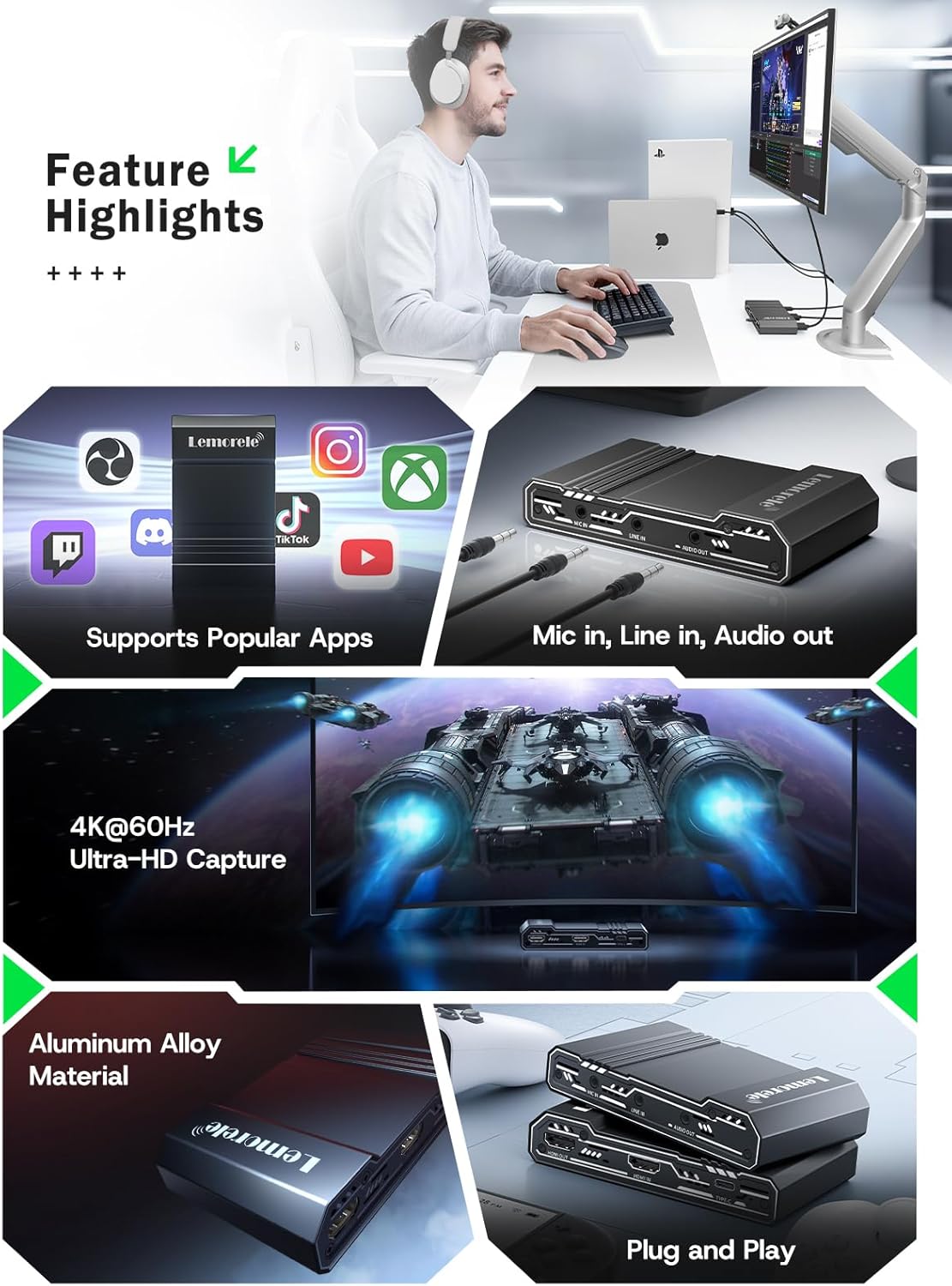
Bild: Oben view of the capture card highlighting the HDMI OUT, HDMI IN, and Type-C ports. The HDMI OUT port is for looping out the display, HDMI IN is for the device being captured, and Type-C is for connecting to the acquisition device (computer).

Abbildung: Seite view of the capture card highlighting the MIC IN, LINE IN, and AUDIO OUT ports. These ports are used for connecting external microphones, mixers, and audio output devices respectively.
3.2. Portbeschreibungen
- HDMI-AUSGANG: Connects to a display (monitor, TV, projector) for zero-latency passthrough.
- HDMI-IN: Connects to the source device (gaming console, camera, laptop) for video input.
- TYP-C: Connects to your computer (laptop, PC, Mac, iPad Pro) for data transfer and power.
- MIC-EINGANG: Connects to an external microphone for audio input.
- LINE-IN: Connects to an audio mixer or instrument for additional audio input.
- AUDIO AUSGANG: Connects to headphones or speakers for audio monitoring.
4. Einrichtung
Follow these steps to set up your Lemorele 4K HDMI Video Capture Card:
- Quellgerät anschließen: Connect your HDMI source device (e.g., Nintendo Switch dock, PS5, Xbox, camera) to the HDMI IN Anschluss an die Aufnahmekarte über ein HDMI-Kabel.
- Anschlussdisplay (optional): If you wish to monitor your gameplay or video feed without latency, connect your display (monitor, TV) to the HDMI-Ausgang Anschluss an die Aufnahmekarte über ein HDMI-Kabel.
- Mit Computer verbinden: Connect the capture card to your computer (laptop, PC, Mac, iPad Pro) using the provided USB-C to USB-A cable. Plug the USB-C end into the TYP C port on the capture card and the USB-A end into an available USB 3.0 port on your computer.
- Audio anschließen (optional): For external audio input, connect your microphone to the MIC IN port or an audio mixer to the LINE IN port. For audio monitoring, connect headphones or speakers to the AUDIO OUT Hafen.
- Software-Setup: Install and open your preferred video capture software (e.g., OBS Studio, Zoom, Twitch, YouTube). The capture card should be recognized as a video input device.
Video: This video demonstrates the connection process for the Lemorele AC09 video capture card, showing how to connect the HDMI IN, HDMI OUT, and Type-C ports to a Nintendo Switch dock, a monitor, and a laptop for capturing game footage using OBS Studio.

Image: A visual diagram illustrating the connection of the capture card to a gaming console (PS5), a monitor, and a laptop for streaming and recording.
5. Bedienungsanleitung
Once the capture card is set up, you can begin capturing or streaming your content.
5.1. Using with OBS Studio (Example)
- Öffnen Sie OBS Studio auf Ihrem Computer.
- Klicken Sie im Bereich „Quellen“ auf „+' icon and select 'Videoaufnahmegerät'.
- Create a new source or select an existing one. In the device dropdown, choose your Lemorele capture card (it may appear as 'USB Video' or similar).
- Configure resolution, FPS, and audio input settings as needed. Ensure 'Use custom audio device' is checked and select the capture card's audio input.
- Click 'OK' to add the source. You should now see your video feed in OBS.
- Adjust the video source size and position within the preview Fenster.
- To start recording or streaming, click the 'Start Recording' or 'Start Streaming' button in OBS Studio.
5.2. Audiosteuerung
The capture card features dedicated MIC IN and LINE IN ports for advanced audio integration. Ensure your capture software is configured to use these audio inputs for optimal sound quality.
Video: Dieses Video bietet einen Überblick überview of the Lemorele 4K HDMI Video Capture Card, showcasing its features and various applications in gaming, streaming, and professional settings.

Image: A user is shown actively streaming a game, with the capture card connected to a console and a laptop running streaming software, demonstrating a typical usage scenario.
6. Funktionen
- 4K@60Hz Ultra HD Passthrough: Supports 4K@60Hz zero-lag passthrough to a display while capturing video at 1080p, ensuring a smooth viewing experience for the user and high-quality capture for the audience.
- Erweiterte Audiosteuerung: Dedicated MIC IN and LINE IN ports allow direct connection to external microphones, mixers, or instruments, facilitating professional audio integration for various content creation needs.
- Comprehensive I/O Connectivity: Equipped with HDMI IN & OUT, USB-C, and AUDIO OUT ports, providing flexible setup options for connecting gaming consoles, cameras, laptops, and monitors.
- Stable & Reliable Performance: The durable aluminum alloy body ensures efficient heat dissipation and anti-interference protection, supporting continuous operation during extended streaming or recording sessions.
- Plug-and-Play Wide Compatibility: Works seamlessly with Windows, macOS, and iPad Pro, and supports popular software such as OBS Studio, Zoom, Twitch, and YouTube. Compatible with PS5, Xbox Series X/S, Nintendo Switch, and DSLR cameras.

Image: This graphic highlights key features of the capture card, including support for popular streaming applications, dedicated audio input/output ports, 4K@60Hz Ultra-HD capture, durable aluminum alloy construction, and plug-and-play functionality.
7. Fehlerbehebung
Sollten Sie auf Probleme stoßen, konsultieren Sie bitte die folgenden häufigen Probleme und Lösungen:
- Kein Videosignal:
- Stellen Sie sicher, dass alle HDMI-Kabel fest mit den richtigen Anschlüssen verbunden sind (HDMI IN von der Quelle, HDMI OUT zum Display).
- Verify the source device is powered on and outputting video.
- Check your capture software settings to ensure the correct video capture device is selected and configured.
- Disable HDCP on your source device (e.g., PS5 settings) if you are experiencing a blank screen.
- Kein Ton:
- Confirm audio cables are correctly connected to MIC IN, LINE IN, or AUDIO OUT ports.
- In your capture software, ensure the audio input device is correctly selected and not muted.
- Überprüfen Sie die Audioeinstellungen Ihres Quellgeräts.
- Video ruckelt oder verzögert:
- Stellen Sie sicher, dass Ihr Computer die Mindestsystemanforderungen für Videoaufnahme und -streaming erfüllt.
- Use a USB 3.0 port for connecting the capture card to your computer.
- Schließen Sie unnötige, im Hintergrund laufende Anwendungen, um Systemressourcen freizugeben.
- Verringern Sie die Aufnahmeauflösung oder die Bildrate in Ihren Softwareeinstellungen.
- Gerät nicht erkannt:
- Versuchen Sie, die Aufnahmekarte an einen anderen USB-Anschluss Ihres Computers anzuschließen.
- Starten Sie Ihren Computer neu.
- Stellen Sie sicher, dass Ihr Betriebssystem auf dem neuesten Stand ist.
8. Spezifikationen
| Besonderheit | Detail |
|---|---|
| Marke | Lemorele |
| Modell | 4K60HZ |
| Hardware-Schnittstelle | 3.5mm Audio, HDMI, USB 3.0 Type C |
| Max HDMI Input Resolution | 4K bei 60 Hz |
| Maximale HDMI-Passthrough-Auflösung | 4K bei 60 Hz |
| Maximale Aufnahmeauflösung | 1080p |
| Artikelgewicht | 9.8 Unzen |
| Verpackungsabmessungen | 6.1 x 4.02 x 1.42 Zoll |
| Material | Aluminiumlegierung |
| Kompatibilität | Windows, macOS, iPad Pro, OBS Studio, Zoom, Twitch, YouTube, PS5, Xbox Series X/S, Nintendo Switch, DSLR cameras |
9. Wartung
To ensure the longevity and optimal performance of your capture card, follow these maintenance guidelines:
- Reinigung: Reinigen Sie die Außenseite des Geräts mit einem weichen, trockenen Tuch. Vermeiden Sie die Verwendung von flüssigen Reinigungsmitteln oder Scheuermitteln.
- Lagerung: Bewahren Sie das Gerät an einem kühlen, trockenen Ort fern von direkter Sonneneinstrahlung und extremen Temperaturen auf.
- Handhabung: Behandeln Sie das Gerät vorsichtig, um Beschädigungen zu vermeiden. Vermeiden Sie es, es fallen zu lassen oder starken Stößen auszusetzen.
- Belüftung: Ensure the device has adequate ventilation during operation to prevent overheating, especially during long streaming sessions. The aluminum alloy body is designed for efficient heat dissipation.
10. Garantie und Support
Lemorele products are designed for reliability and performance. This product comes with a standard manufacturer's warranty. For specific warranty details, please refer to the warranty card included in your package or visit the official Lemorele webWebsite.
For technical support, troubleshooting assistance, or any inquiries regarding your Lemorele 4K HDMI Video Capture Card, please contact our customer support team:
- E-Mail: support@lemorele.com
- WebWebsite: Visit the Lemorele official webWebsite mit häufig gestellten Fragen und weiterführenden Informationen.


