
1. Einleitung
The LAUNCH X431 CRP919EBT is a professional automotive diagnostic scanner designed for comprehensive vehicle system analysis. This device features bi-directional control, advanced ECU coding capabilities, and over 35 special service functions. It supports a wide range of vehicle makes and models, offering both wireless Bluetooth and wired USB connectivity for the VCI (Vehicle Communication Interface) adapter.
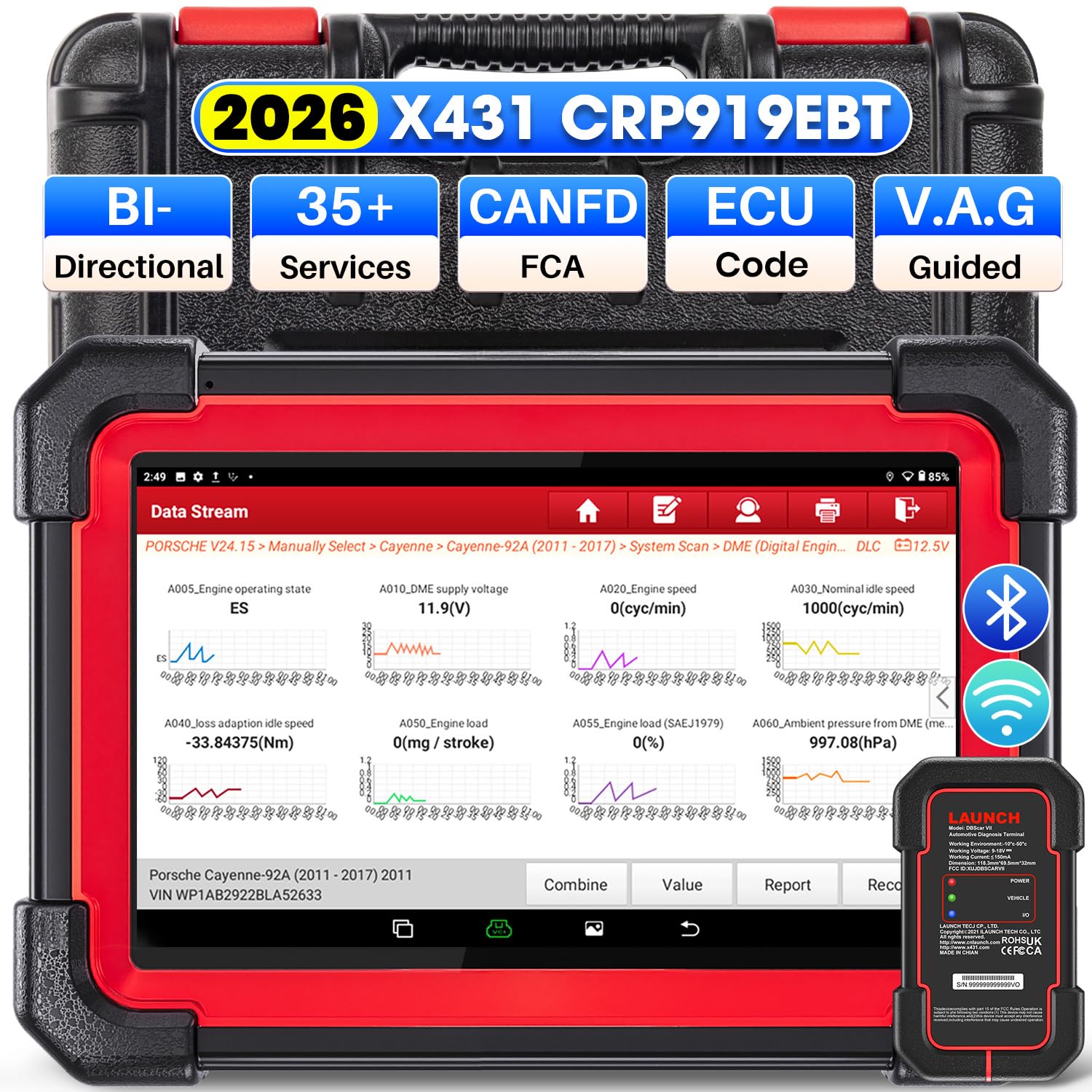
Image 1.1: LAUNCH X431 CRP919EBT Diagnostic Scanner main unit and VCI adapter.
2. Lieferumfang
Packen Sie den Inhalt vorsichtig aus und vergewissern Sie sich, dass alle Artikel vorhanden sind:
- LAUNCH X431 CRP919EBT Main Unit (Tablet)
- DBSCAR VII VCI Connector
- Diagnostic Cable (OBD-II)
- Netzteil
- USB-Kabel Typ A auf Typ C
- Benutzerhandbuch / Schnellstartanleitung
- Aufbewahrungskoffer

Bild 2.1: Überview of the LAUNCH X431 CRP919EBT package contents, including the main unit, VCI, cables, and power adapter.
3. Einrichtung
3.1 Erstaufladung
Before first use, fully charge the CRP919EBT main unit using the provided power adapter. Connect the adapter to the device's charging port and plug it into a power outlet. The charging indicator will show the charging status.
3.2 VCI Connection to Vehicle
- Suchen Sie den OBD-II-Diagnoseanschluss des Fahrzeugs, der sich üblicherweise unter dem Armaturenbrett auf der Fahrerseite befindet.
- Plug the DBSCAR VII VCI connector into the vehicle's OBD-II port. Ensure a secure connection.
- Once connected, the VCI's LEISTUNG indicator will illuminate solid red. The FAHRZEUG indicator will illuminate green and flash when communicating with the vehicle.
3.3 VCI Connection to Main Unit
The DBSCAR VII VCI adapter supports both wireless (Bluetooth) and wired (USB) connections to the CRP919EBT main unit.
- Bluetooth Verbindung: The VCI will automatically attempt to pair with the main unit via Bluetooth. The Ein-/Ausgabe indicator on the VCI will illuminate blue when wirelessly communicating with the tablet. This allows for a diagnostic range of 33-67 feet (10-20 meters).
- USB-Verbindung: For a wired connection, use the provided Type-A to Type-C USB cable to connect the VCI to the main unit. The Ein-/Ausgabe indicator on the VCI will illuminate red when connected via USB cable.
Image 3.1: DBSCAR VII VCI Connector showing power, vehicle, and I/O indicators, along with USB and Bluetooth connectivity options.
4. Bedienungsanleitung
4.1 Vehicle Selection and AutoVIN
- Turn on the CRP919EBT main unit.
- Wählen Sie im Hauptmenü die Option „Diagnose“.
- Choose 'AutoVIN' to automatically identify the vehicle's make, model, and year. Alternatively, select 'Manual Choose Model & Year' if AutoVIN is not successful.
4.2 Vollständige Systemdiagnose
This function allows for a comprehensive scan of all available electronic control modules (ECMs) in the vehicle, including Engine, ABS, SRS, Transmission, TPMS, and more.
- Nach der Fahrzeugidentifizierung wählen Sie „Vollständiger Systemscan“.
- The tool will scan all systems and display any detected Diagnostic Trouble Codes (DTCs).
- You can then select a specific system to view detailed information, read/clear fault codes, and access live data streams.
- The device supports 8-in-1 live data streams, allowing for simultaneous monitoring of multiple parameters.

Image 4.1: Display illustrating the full system diagnostic process and bi-directional control capabilities.
4.3 Bidirektionale Steuerung (Aktive Tests)
Bi-directional control allows the diagnostic tool to send commands to vehicle ECUs to perform specific tests and functions, verifying component functionality without using the vehicle's controls. This includes activating components like fuel pumps, cycling ABS solenoids, or performing injector tests.
- From the diagnostic menu for a specific system, select 'Active Test' or 'Bi-directional Control'.
- Choose the component or system you wish to test.
- Follow the on-screen prompts to execute the test and observe the component's response.
4.4 Special Functions (Service Resets)
The CRP919EBT offers over 35 special service functions for various maintenance and reset procedures. These functions are typically found under 'Special Functions' within a specific vehicle system.
- Öl zurücksetzen
- Bremsen-Reset
- SAS (Lenkwinkelsensor) Kalibrierung
- ABS-Blutung
- Batterie-Reset
- Injektorkodierung
- Drosselklappenanpassung
- TPMS zurücksetzen
- DPF-Regeneration
- Getriebeanpassung
Note: The availability and specific procedures for these functions vary by vehicle make, model, and year. Always confirm compatibility before performing any service.

Image 4.2: Visual representation of various special service functions available on the diagnostic tool.
4.5 ECU Coding Functions
The device supports advanced ECU coding capabilities, allowing for customization and maintenance of electronic control units.
- Online-Programmierung: Supported for VW, Audi, Skoda, and Seat vehicles.
- Online-Kalibrierung: Für präzise Einstellungen.
- Online Account Service Login: For accessing manufacturer-specific functions.
- ECU Replacement/Recode/Matching: For adapting new or replacement ECUs.
- PMI-Funktion: Allows transferring data from an original module to a new unit for module replacement (specific to Ford, Lincoln, Mazda).
- Versteckte Funktionen freischalten: Access and activate dormant features in certain vehicles.

Image 4.3: Illustration of various ECU coding and component matching functions.
4.6 Advanced Protocols and Features
- CANFD & DOIP: Compatible with newer vehicle communication protocols, including GM (2019+), Volvo (2018+), BMW (2017+), Land Rover (2017+), and Jaguar (2017+).
- FCA AutoAuth: Supports secure access to FCA (Fiat Chrysler Automobiles) vehicles from 2018-2026 (Fiat, Chrysler, Alfa Romeo, Dodge, Jeep, etc.) via registered AutoAuth.
- VAG-geführte Funktion: Provides step-by-step instructions for performing complex functions on VW, Audi, Seat, and Skoda vehicles.

Bild 4.4: Überview of advanced protocol support and guided functions for various car brands.
5. Wartung
5.1 Softwareaktualisierungen
The CRP919EBT includes 2 years of free software updates. Regular updates ensure access to the latest vehicle coverage, bug fixes, and new features. Connect the device to a Wi-Fi network and navigate to the 'Software Update' section in the main menu to check for and install updates.
5.2 Reinigung und Lagerung
- Reinigen Sie den Bildschirm und das Gehäuse des Geräts mit einem weichen, fusselfreien Tuch.amp Mit einem Tuch abwischen. Vermeiden Sie scheuernde Reiniger oder Lösungsmittel.
- Keep the VCI connector clean and free of debris.
- Store the device and its accessories in the provided storage case in a cool, dry place when not in use.
5.3 Batteriepflege
Um die Akkulaufzeit zu verlängern, vermeiden Sie häufiges vollständiges Entladen des Geräts. Laden Sie das Gerät regelmäßig auf, insbesondere wenn es längere Zeit gelagert wird.
6. Fehlerbehebung
If you encounter issues with your CRP919EBT, refer to the following common troubleshooting tips:
- Gerät lässt sich nicht einschalten: Ensure the device is fully charged. Connect it to the power adapter and try again.
- VCI stellt keine Verbindung zum Fahrzeug her: Verify the VCI is securely plugged into the OBD-II port. Check the vehicle's ignition status (usually needs to be ON).
- VCI not connecting to main unit (Bluetooth): Ensure Bluetooth is enabled on the main unit. Try re-pairing the VCI in the device settings. Ensure the VCI is within the 33-67 feet range.
- Keine Kommunikation mit dem Fahrzeug: Check all connections. Ensure the vehicle's battery is adequately charged. Verify the vehicle's make, model, and year selection is correct.
- Softwareprobleme: Führen Sie ein Software-Update durch, um sicherzustellen, dass Sie die neueste Version verwenden.
For persistent issues or advanced technical support, please contact LAUNCH customer service.
7. Spezifikationen
The following table outlines the key specifications of the LAUNCH X431 CRP919EBT diagnostic scanner:

Image 7.1: Comparison chart highlighting the specifications of the CRP919EBT model.
| Besonderheit | Spezifikation |
|---|---|
| Marke | START |
| Modell | CRP919EBT |
| Betriebssystem | Android 10.0 |
| Prozessor | 4-Core High-efficiency Processor |
| RAM/ROM | 4 GB RAM / 64 GB ROM |
| Bildschirmgröße | 7 Zoll |
| Batteriekapazität | 6300 mAh |
| Konnektivität | Bluetooth (DBSCAR VII VCI), USB |
| W-lan | 5G & 2.4 GHz Dual WiFi |
| Kamera | 8MP Rückfahrkamera |
| Fahrzeugabdeckung | 150+ Brands (1996-2026) |
| Sonderfunktionen | 35+ Service Resets |
| Aktualisierungszeitraum | 2 Jahre kostenlose Updates |
| Unterstützte Protokolle | CANFD, DOIP, OBDII/EOBD |
| Sprachen | 23+ Sprachen |
8. Garantie und Support
8.1 Softwareaktualisierungen
The LAUNCH X431 CRP919EBT includes 2 years of free software updates from the date of activation. After this period, updates may be available for purchase.
8.2 Optional Extension Modules
The CRP919EBT supports integration with various optional extension modules to expand its functionality:
- VSP600 Endoscope
- BST360 Battery Tester
- iTPMS/TSGUN TPMS Tool
- X-PROG3 Tool
8.3 Technischer Support
For technical assistance, product inquiries, or warranty claims, please refer to the contact information provided in your product packaging or visit the official LAUNCH webSite für Supportressourcen.


