
1. Einleitung
The EPOMAKER TH108 V2 PRO is a full-size mechanical keyboard designed for versatility and performance. It features multi-mode connectivity (Bluetooth, 2.4GHz wireless, and wired USB-C), a customizable screen and knob, hot-swappable switches, RGB lighting, and a gasket-mounted design for a comfortable typing experience. This manual provides instructions for setting up, operating, maintaining, and troubleshooting your keyboard.
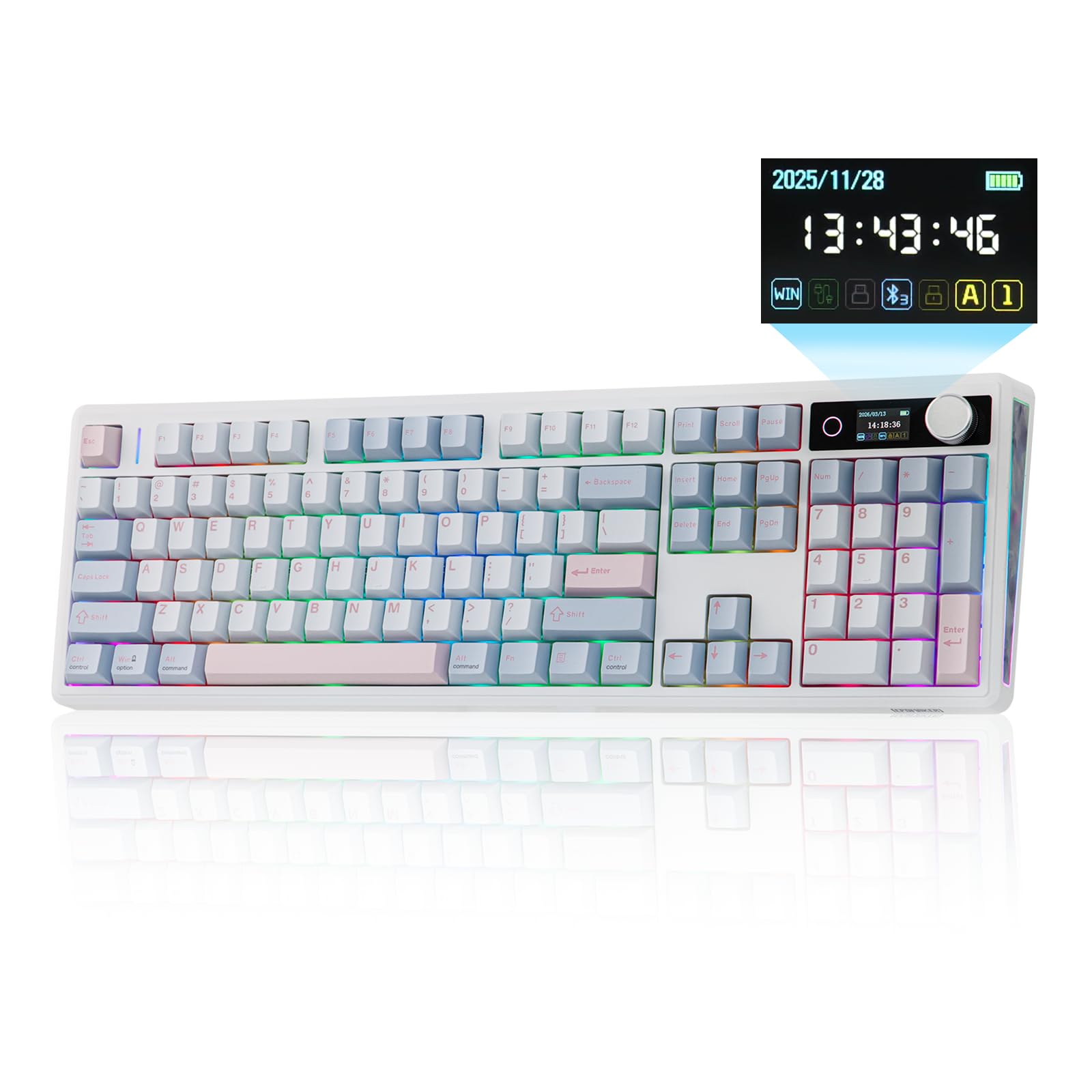
Figure 1.1: EPOMAKER TH108 V2 PRO Mechanical Keyboard
2. Lieferumfang
- EPOMAKER TH108 V2 PRO Full-Sized Gaming Keyboard
- Detachable USB A-to-C Cable
- Wireless 2.4Ghz Receiver (stored under the left kick-stand)
- Extra Switch
- 2-in-1 Switch-and-Keycap Puller
- Summarized Multilingual Manual and Product Card

Figure 2.1: Location of the 2.4Ghz Wireless Receiver
3. Produktüberschreitungview
The TH108 V2 PRO keyboard integrates several features for enhanced user experience:
- Multimodale Konnektivität: Supports Bluetooth, 2.4GHz wireless, and wired USB-C connections.
- Customizable Screen & Knob: A 1.06-inch functional glass screen displays real-time keyboard information, backlight settings, and supports custom GIFs or images. The rotary knob controls volume and screen pages, and is customizable.
- Hot-Swap-fähige Schalter: Ermöglicht den einfachen Austausch mechanischer Schalter ohne Löten.
- Dichtungsmontage-Design: Mehrere Klangschichtenampening materials (PORON, latex, IXPE, silicone, foams) provide a soft, bouncy typing feel and a deep acoustic profile.
- RGB-Beleuchtung: Features per-key adjustable south-facing LEDs, an integrated light bar, and a custom decor panel for vibrant lighting effects.
- Lange Akkulaufzeit: Equipped with a 10000mAh battery, providing up to 200 hours of continuous use.
- Mac/Windows-Kompatibilität: Includes dedicated Mac modifier keycaps for seamless switching between operating systems.

Figure 3.1: Cushioned Gasket Structure

Figure 3.2: Pre-Lubed Linear Switches

Figure 3.3: Mac Modifier PBT Keycaps

Abbildung 3.4: Lebendige RGB-Beleuchtung
Produktvideos
Video 3.1: Comparison between TH108 PRO and TH108 V2 PRO, highlighting key differences and improvements.
Video 3.2: Demonstrates the typing sound and feel of Creamy Jade and Sea Salt Silent V2 switches on the TH108 V2 PRO.
Video 3.3: Provides close-up views of various components and design elements of the TH108 V2 PRO keyboard.
4. Einrichtung
4.1 Konnektivitätsoptionen
The TH108 V2 PRO supports three connection modes:
- Kabelgebundener Modus: Connect the keyboard to your device using the provided USB A-to-C cable.
- 2.4-GHz-Wireless-Modus: Insert the 2.4GHz USB receiver (found under the left kick-stand) into your device's USB port. Switch the keyboard's mode selector to 2.4G.
- Bluetooth-Modus: Switch the keyboard's mode selector to BT. Press FN + Q/W/E Um einen Bluetooth-Kanal auszuwählen. Die Kontrollleuchte blinkt und signalisiert damit den Kopplungsmodus. Suchen nach "TH108 V2 PRO" on your device and connect.
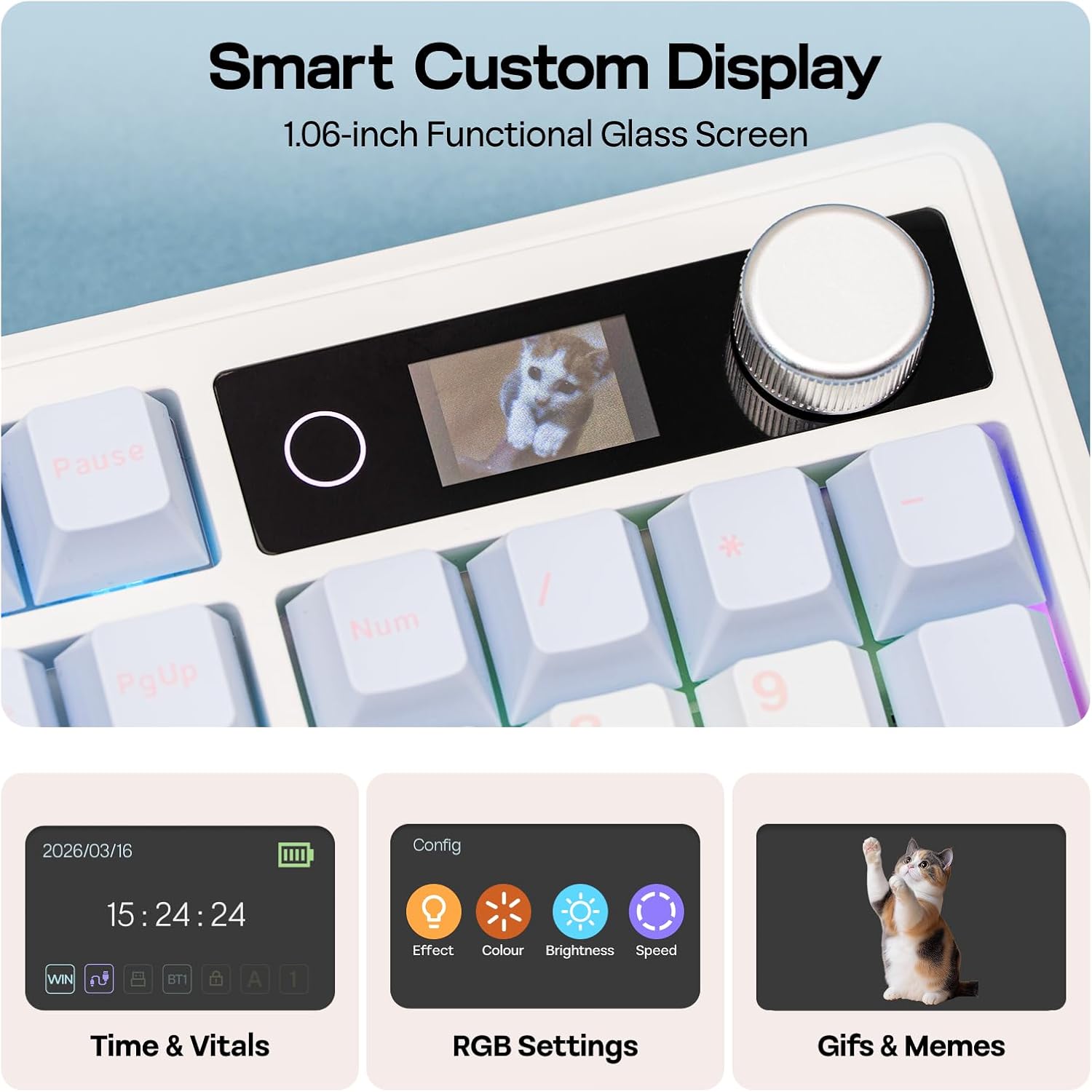
Figure 4.1: Connection Hub and Mode Switches
4.2 Betriebssystemumschaltung
Use the dedicated switch on the keyboard to toggle between Windows (WIN) and Mac operating system layouts. This ensures correct key mapping for your system.
4.3 Erstgebühr
Before first use, it is recommended to fully charge the keyboard using the provided USB-C cable. The screen will indicate charging status.
Video 4.2: An unboxing video of the TH108 V2 PRO, showing initial setup components.
5. Bedienungsanleitung
5.1 Screen and Knob Functions
The 1.06-inch screen displays various information and settings. The rotary knob allows for quick adjustments:
- Default Knob Function: Zum Anpassen der Lautstärke drehen. Zum Stummschalten/Aufheben der Stummschaltung drücken.
- FN + Knob: Toggles between screen pages (e.g., time, battery, connection status, RGB settings).
- Anpassung: The screen can display custom GIFs, drawings, or photos. This is managed via the web-compatible software.

Figure 5.1: Smart Custom Display and Knob
5.2 RGB-Beleuchtungssteuerung
The keyboard features customizable RGB backlighting. You can adjust effects, colors, brightness, and speed using:
- Integrated Knob and Screen: Use FN + Knob to navigate to RGB settings on the screen, then use the knob to adjust.
- Tastaturkürzel: Refer to the included quick guide for specific FN key combinations to change RGB modes.
- Web-Based Software: For advanced customization, including per-key lighting and custom effects.
5.3 Programmierbare Software
The TH108 V2 PRO utilizes a web-compatible software for advanced customization. This software allows you to:
- Schlüssel neu zuordnen
- Record macros
- Customize RGB lighting
- Adjust keyboard settings
- Upload GIFs or images to the screen
Access the software via the official EPOMAKER website. It is compatible across various devices and operating systems.
Video 5.2: A guide on how to customize your TH108 V2 PRO using the available software and features.
6. Wartung
6.1 Reinigung
- Vor der Reinigung die Tastatur von allen Stromquellen trennen.
- Mit einem weichen, fusselfreien Tuch leichtampAnschließend mit Wasser oder einer milden Reinigungslösung abwischen, um die Tastenkappen und das Gehäuse zu reinigen.
- Um Staub und Schmutz zwischen den Tastenkappen zu entfernen, verwenden Sie Druckluft oder eine kleine Bürste.
- Vermeiden Sie aggressive Chemikalien, Scheuermittel und übermäßige Feuchtigkeit.
6.2 Austausch von Tastenkappen und Schaltern
The TH108 V2 PRO features hot-swappable switches, allowing for easy replacement without soldering.
- Use the provided 2-in-1 switch-and-keycap puller.
- To remove a keycap, gently pull it upwards with the keycap puller.
- To remove a switch, use the switch puller to grasp the top and bottom clips of the switch and pull straight upwards.
- When inserting a new switch, ensure the pins are straight and align with the PCB sockets. Press firmly until it clicks into place.
- When replacing keycaps, align them with the switch stem and press down gently.
7. Fehlerbehebung
- Tastatur reagiert nicht:
- Stellen Sie sicher, dass die Tastatur aufgeladen ist.
- Check the connection mode switch (wired, 2.4GHz, Bluetooth) matches your setup.
- For 2.4GHz, ensure the receiver is properly inserted.
- Bei Bluetooth-Verbindungen muss das Gerät erneut gekoppelt werden.
- Um drahtlose Probleme auszuschließen, versuchen Sie, eine Verbindung über ein USB-C-Kabel herzustellen.
- RGB lighting not working/incorrect:
- Check RGB settings via the screen or software.
- Ensure brightness is not set to zero.
- Aktualisieren Sie die Tastatur-Firmware, falls verfügbar.
- Schlüssel werden nicht registriert:
- If a specific key is not working, try removing and re-inserting its switch.
- Ensure the switch pins are not bent.
- Test with a different switch if available.
- Softwareprobleme:
- Ensure you are using a compatible browser (e.g., Chrome) for the web-basierte Software.
- Leeren Sie den Browser-Cache oder versuchen Sie es mit einem anderen Browser.
- Refer to the EPOMAKER support website for software-specific FAQs.
8. Spezifikationen
| Marke | EPOMACHER |
| Modellname | TH108 V2 PRO |
| Konnektivitätstechnologie | 2.4Ghz Wireless, Bluetooth, USB Cable |
| Tastaturbeschreibung | Mechanisch |
| Anzahl der Schlüssel | 104 |
| Tastaturlayout | QWERTY |
| Schaltertyp | Linear, Linear Silent (depending on variant) |
| Besondere Merkmale | Backlit, Ergonomic, Hot-Swappable, Programmable Keys, Volume Roller, Screen |
| Tastatur Hintergrundbeleuchtung | RGB |
| Stromquelle | Batteriebetrieben (10000 mAh) |
| Material | Plastic (Enclosure), Polycarbonate (Plate) |
| Kompatible Geräte | Spielkonsole, Laptop, PC, Smartphone, Tablet |
| Kompatibles Betriebssystem | Android, Windows, Mac OS 11 Big Sur and above |
| Umfragerate (kabelgebunden) | 1000 Hz |
| Latency (Wired) | 2 ms |
9. Garantie und Support
The EPOMAKER TH108 V2 PRO Mechanical Keyboard comes with a 1 Jahr Garantie ab Kaufdatum.
For technical support, warranty claims, or additional information, please visit the official EPOMAKER website or contact their customer service directly. You can also find more resources and product information on the EPOMAKER Store on Amazon.