
Einführung
The Roku Hiro 32-inch 720p HD Smart TV offers an integrated Roku streaming experience. This television features an HD display for clear picture quality and speakers with enhanced audio. It supports Bluetooth for private listening with headphones and includes Wi-Fi for internet connectivity. The Roku operating system provides a customizable home screen, access to numerous streaming channels, and automatic updates, making it suitable for various living spaces.
Lieferumfang
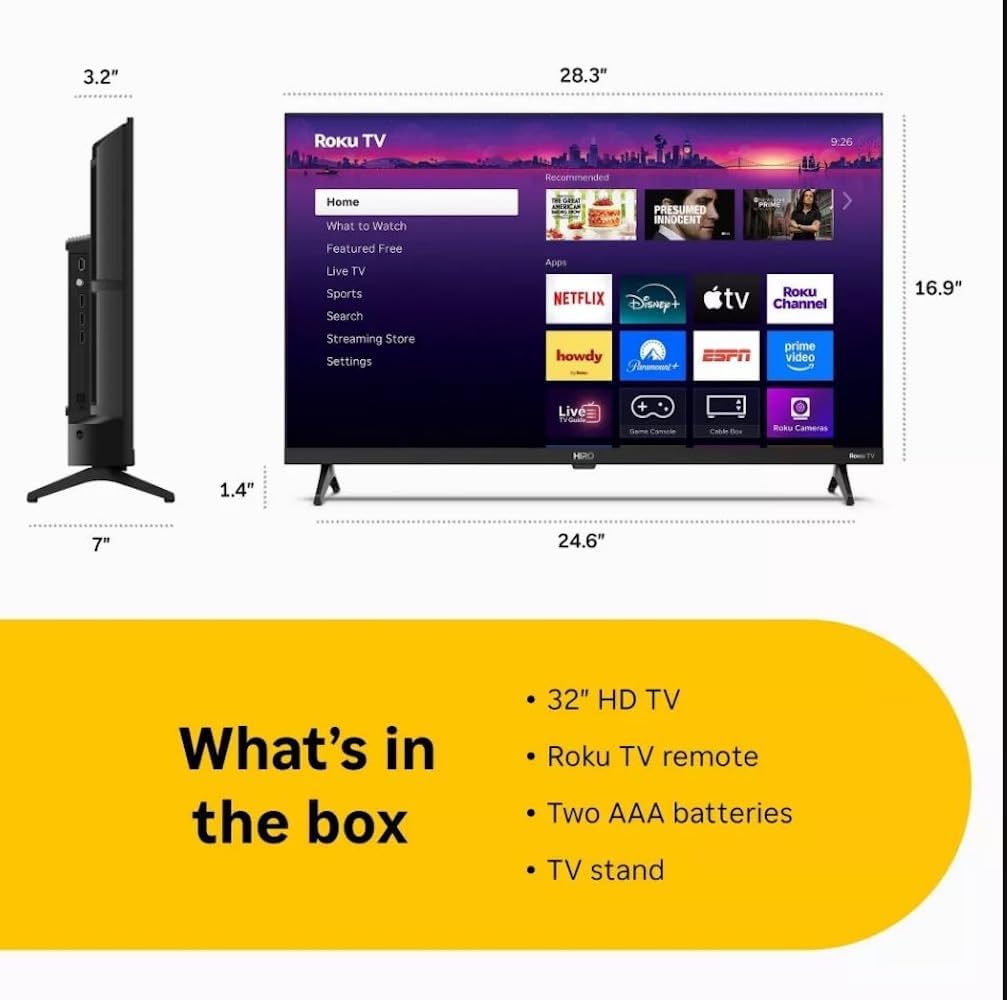
Diagram showing the dimensions of the Roku Hiro 32-inch TV and a list of included accessories: 32-inch HD TV, Roku TV remote, two AAA batteries, and TV stand.
- Hiro 32" 720p HD Smart TV Flat Screen LED Television with Roku TV
- Fernbedienung
- Fernsehtisch
- Stromkabel
- Benutzerhandbuch
Aufstellen
1. Standmontage
Carefully place the TV screen-down on a soft, clean surface to prevent damage. Align the TV stand with the designated slots on the bottom of the TV. Secure the stand using the provided screws. Ensure the stand is firmly attached before proceeding.
2. Geräte anschließen

Hinteren view of the Roku Hiro TV, showing the input/output ports including USB, HDMI, and antenna connections.
- Leistung: Verbinden Sie das Netzkabel mit dem Stromeingang des Fernsehers und anschließend mit einer Wandsteckdose.
- HDMI: Connect external devices such as Blu-ray players, game consoles, or cable boxes to the HDMI ports. This TV features 3 HDMI ports.
- USB: Nutzen Sie den USB-Anschluss zur Medienwiedergabe von einem USB-Laufwerk.
- Optisches Audio: Connect an external sound system using an optical audio cable for enhanced sound.
- Antenne/Kabel: Schließen Sie eine Antenne oder einen Kabelfernsehanschluss an den HF-Eingang an, um terrestrische oder Kabelkanäle zu empfangen.
3. Ersteinrichtung
After connecting all necessary cables, power on the TV. Follow the on-screen instructions to:
- Wählen Sie Ihre Sprache.
- Verbinden Sie sich mit Ihrem Wi-Fi-Netzwerk.
- Aktivieren Sie Ihr Roku-Konto (oder erstellen Sie ein neues).
- Scan for available channels if an antenna is connected.
Bedienungsanleitung
Fernbedienungsfunktionen

Close-up of the Roku TV remote control, highlighting buttons for TV power, volume, mute, sleep timer, instant replay, options, and app shortcuts.
- Netzschalter: Schaltet den Fernseher ein oder aus.
- Richtungspad (D-Pad): Navigiert durch Menüs und wählt Elemente aus.
- OK-Taste: Bestätigt die Auswahl.
- Home "Button: Kehrt zum Roku-Startbildschirm zurück.
- Zurück-Schaltfläche: Kehrt zum vorherigen Bildschirm zurück.
- Lautstärke erhöhen/verringern: Passt die Lautstärke des Fernsehers an.
- Stummschaltfläche: Schaltet den Fernsehton stumm oder hebt die Stummschaltung auf.
- App-Schnelltasten: Direct access to popular streaming services (e.g., Netflix, Disney+, Apple TV+, Prime Video).
- Schlaf-Timer: Stellt einen Timer ein, damit sich der Fernseher automatisch ausschaltet.
- Sofortige Wiedergabe: Jumps back a few seconds in supported content.
- Optionen: Accesses additional settings or information for the current content.
Navigating the Roku OS

The Roku TV home screen interface, showing recommended content and various streaming applications.
The Roku home screen provides access to all your streaming channels, inputs, and settings. Use the D-Pad on your remote to navigate through the menu options on the left and the app grid on the right. You can customize the order of your channels by highlighting an app, pressing the * (Options) button, and selecting 'Move channel'.
Streaming-Inhalte
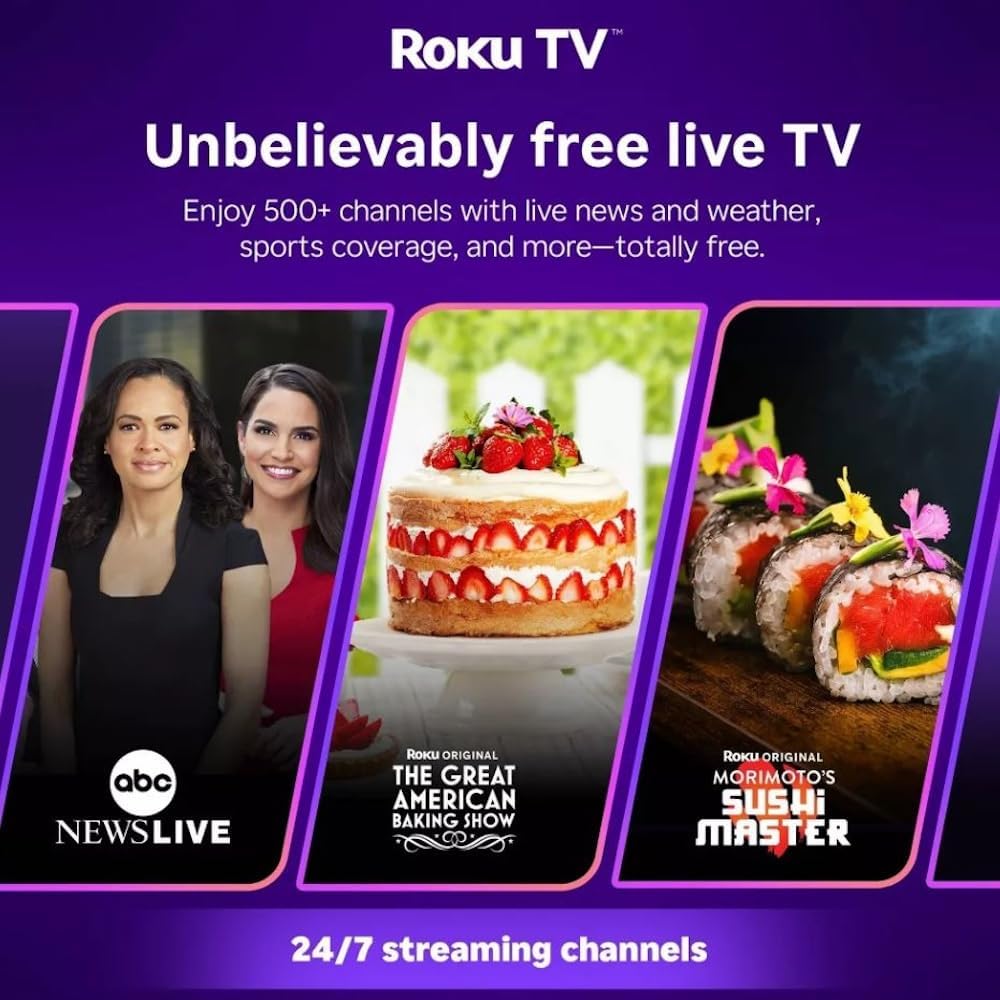
Roku TV interface promoting free live TV channels, featuring examples like ABC News Live, The Great American Baking Show, and Morimoto's Sushi Master.
Access a wide range of streaming services and free content through the Roku Channel Store. The Roku platform offers over 500 free channels, including live television, movies, and news. Use the 'Search' function on the home screen to find specific titles or channels.
Audiofunktionen

Roku Hiro TV displaying the home screen with various streaming apps, emphasizing enhanced audio quality.
The TV features enhanced audio quality. For private listening, you can pair Bluetooth headphones directly with the TV. Navigate to Settings > Remotes & devices > Bluetooth devices > Pair new device to connect your headphones.
Wartung
Den Fernseher reinigen
- Vor der Reinigung immer den Netzstecker des Fernsehers ziehen.
- Verwenden Sie ein weiches, fusselfreies Tuch, um den Bildschirm und das Gehäuse vorsichtig abzuwischen.
- Bei hartnäckigen Flecken leicht andrücken.ampBefeuchten Sie das Tuch mit Wasser oder einem milden, nicht scheuernden Bildschirmreiniger. Sprühen Sie den Reiniger nicht direkt auf den Bildschirm.
- Vermeiden Sie die Verwendung von aggressiven Chemikalien, Scheuerschwämmen oder Lösungsmitteln.
Software-Updates
The Roku TV automatically checks for and installs software updates when connected to the internet. To manually check for updates, go to Einstellungen > System > Software-Update.
Fehlerbehebung
| Problem | Lösung |
|---|---|
| Kein Strom | Vergewissern Sie sich, dass das Netzkabel fest mit dem Fernseher und einer funktionierenden Steckdose verbunden ist. Versuchen Sie es mit einer anderen Steckdose. |
| Kein Bild, aber Ton ist vorhanden | Überprüfen Sie die Eingangsquelle. Drücken Sie die Taste Heim button on the remote and select the correct input. Ensure all HDMI cables are securely connected. |
| Kein Ton, aber ein Bild ist vorhanden. | Check the volume level and ensure the TV is not muted. If using external audio, verify connections and settings. |
| Keine Verbindung zum WLAN möglich | Verify your Wi-Fi password. Restart your router and modem. Go to Einstellungen > Netzwerk > Verbindung einrichten to reconfigure. |
| Fernbedienung funktioniert nicht | Tauschen Sie die Batterien in der Fernbedienung aus. Stellen Sie sicher, dass sich keine Hindernisse zwischen der Fernbedienung und dem Infrarotsensor des Fernsehers befinden. |
Technische Daten
| Modellname | H32C2C4 |
| Bildschirmgröße | 32 Zoll |
| Display-Technologie | LED |
| Auflösung | 720p |
| Bildwiederholrate | 60 Hz |
| Betriebssystem | Roku-Betriebssystem |
| Konnektivitätstechnologie | Bluetooth, HDMI, Optical Audio, USB, Wi-Fi |
| Total Number of HDMI Ports | 3 |
| Anzahl USB-Anschlüsse | 1 |
| Produktabmessungen (T x B x H) | 3.2"T x 28.3"B x 16.9"H |
| Artikelgewicht | 7.5 Pfund |
| Bandtage | 120 Volt (Wechselstrom) |
| Montagetyp | Tischmontage |
| Farbe | Schwarz |
Garantieinformationen
This Roku Hiro TV is covered by a 90-day Replacement Warranty. Please retain your proof of purchase for any warranty claims. For detailed terms and conditions, refer to the warranty documentation included with your product or visit the official Roku support webWebsite.
Unterstützung
For further assistance, troubleshooting guides, or to contact customer support, please visit the official Roku support website. You can find comprehensive FAQs and contact information there.