
1. Einleitung
Welcome to the user manual for your MEIZE D116 Android 14 Tablet. This guide provides essential information on setting up, operating, maintaining, and troubleshooting your device. Please read this manual thoroughly to ensure optimal performance and longevity of your tablet.
2. Lieferumfang
Your MEIZE D116 Tablet package includes the following items:
- 10-Zoll-Tablet
- Schutzhülle
- Bluetooth-Tastatur
- Drahtlose Maus
- Typ-C-Kabel
- Displayschutz
- Adapter-Ladegerät
- Auswurfstift (für SIM-/MicroSD-Einschub)
- Benutzerhandbuch (dieses Dokument)

Image: The MEIZE D116 Tablet displayed with its included accessories: a protective case, Bluetooth keyboard, wireless mouse, Type-C cable, charger, and stylus.
3. Installationsanleitung
3.1 Erstes Aufladen und Einschalten
- Connect the provided Type-C cable to the tablet's charging port and the adapter charger to a power outlet.
- Laden Sie das Tablet vor der ersten Verwendung vollständig auf. Die Akkuanzeige auf dem Bildschirm zeigt den Ladestatus an.
- To power on, press and hold the power button located on the side of the tablet until the MEIZE logo appears.
- To power off, press and hold the power button, then select "Power off" from the options.
3.2 Verbinden der Bluetooth-Tastatur
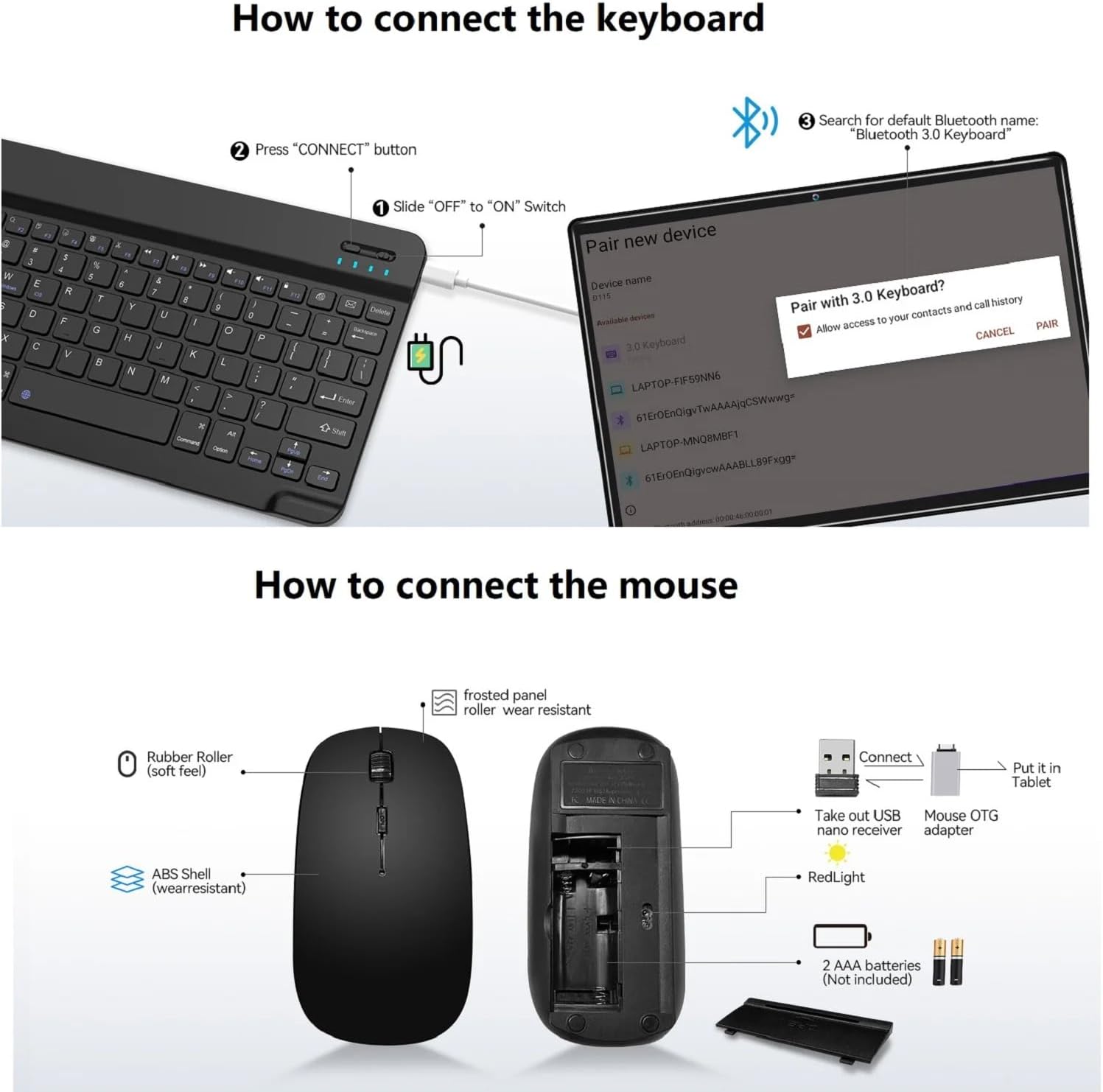
Image: A diagram illustrating the steps to connect the Bluetooth keyboard. It shows sliding the power switch to ON, pressing the CONNECT button, and then pairing via the tablet's Bluetooth settings.
- Ensure the Bluetooth keyboard is charged.
- Slide the "OFF" to "ON" switch on the keyboard.
- Press the "CONNECT" button on the keyboard. The Bluetooth indicator light will flash.
- On your MEIZE D116 tablet, go to Einstellungen > Verbundene Geräte > Bluetooth.
- Schalten Sie Bluetooth ein und suchen Sie nach verfügbaren Geräten.
- Select "Bluetooth 3.0 Keyboard" (or similar name) from the list to pair.
3.3 Anschließen der drahtlosen Maus
Image: A diagram showing the components of the wireless mouse, including the USB nano receiver, battery compartment, and how to connect it to the tablet using an OTG adapter.
- Open the battery compartment of the wireless mouse and insert 2 AAA batteries (not included).
- Take out the USB nano receiver from the mouse's compartment.
- Connect the USB nano receiver to the provided OTG adapter.
- Plug the OTG adapter with the receiver into the tablet's Type-C port. The mouse should connect automatically.
3.4 Wi-Fi-Verbindung
- Gehe zu Einstellungen > Netzwerk & Internet > W-lan.
- Schalten Sie WLAN ein. Das Tablet sucht dann nach verfügbaren Netzwerken.
- Select your desired 2.4GHz or 5GHz network and enter the password if prompted.

Image: The MEIZE D116 Tablet showcasing its key features, including support for 2.4GHz/5GHz dual-band Wi-Fi for stable network connections.
3.5 Installation der SIM-Karte und der microSD-Karte

Image: A close-up of the MEIZE D116 Tablet's side, revealing the tray for SIM cards and a MicroSD card, indicating its expandability and cellular capabilities.
- Suchen Sie den SIM-/MicroSD-Kartensteckplatz an der Seite des Tablets.
- Führen Sie den Auswurfstift in das kleine Loch neben dem Fach ein, um es zu öffnen.
- Place your SIM card(s) and/or MicroSD card into the designated slots on the tray. Ensure correct orientation.
- Drücken Sie die Schale vorsichtig wieder in das Tablet, bis sie einrastet.
4. Bedienung Ihres Tablets
4.1 Grundlegende Navigation (Android 14)
- Startbildschirm: Swipe left or right to access different home screens. Tap app icons to open them.
- Benachrichtigungen: Wischen Sie vom oberen Bildschirmrand nach unten zu view Benachrichtigungen und Schnelleinstellungen.
- App-Schublade: Wischen Sie vom unteren Bildschirmrand nach oben, um auf alle installierten Anwendungen zuzugreifen.
- Multitasking: Swipe up from the bottom and hold to see recently used apps.
4.2 Anzeigefunktionen
The MEIZE D116 features a 10.1-inch 1920x1200 IPS FHD display.
- Augenschutzmodus: Reduces blue light emission to minimize eye strain, especially during prolonged use. Activate this feature in Einstellungen > Anzeige.
- Dunkler Modus: Changes the system's color scheme to a darker palette, which can be more comfortable in low-light environments and save battery on some displays. Activate in Einstellungen > Anzeige.
4.3 Kameranutzung
Ihr Tablet ist mit einer 8-Megapixel-Frontkamera und einer 13-Megapixel-Rückkamera ausgestattet.

Image: The MEIZE D116 Tablet highlighting its 8MP front and 13MP rear cameras, suitable for video calls and capturing photos.
- Öffnen Sie die Kamera App von Ihrem Startbildschirm oder App-Drawer.
- Tippen Sie auf das Kamerasymbol, um zwischen Vorder- und Rückkamera zu wechseln.
- Tippen Sie auf den Auslöser, um ein Foto aufzunehmen oder die Videoaufnahme zu starten/stoppen.
4.4 Speicherverwaltung
The tablet comes with 128GB of internal storage (ROM) and 16GB (8+8 virtual) of RAM. Storage can be expanded up to 1TB using a MicroSD card.
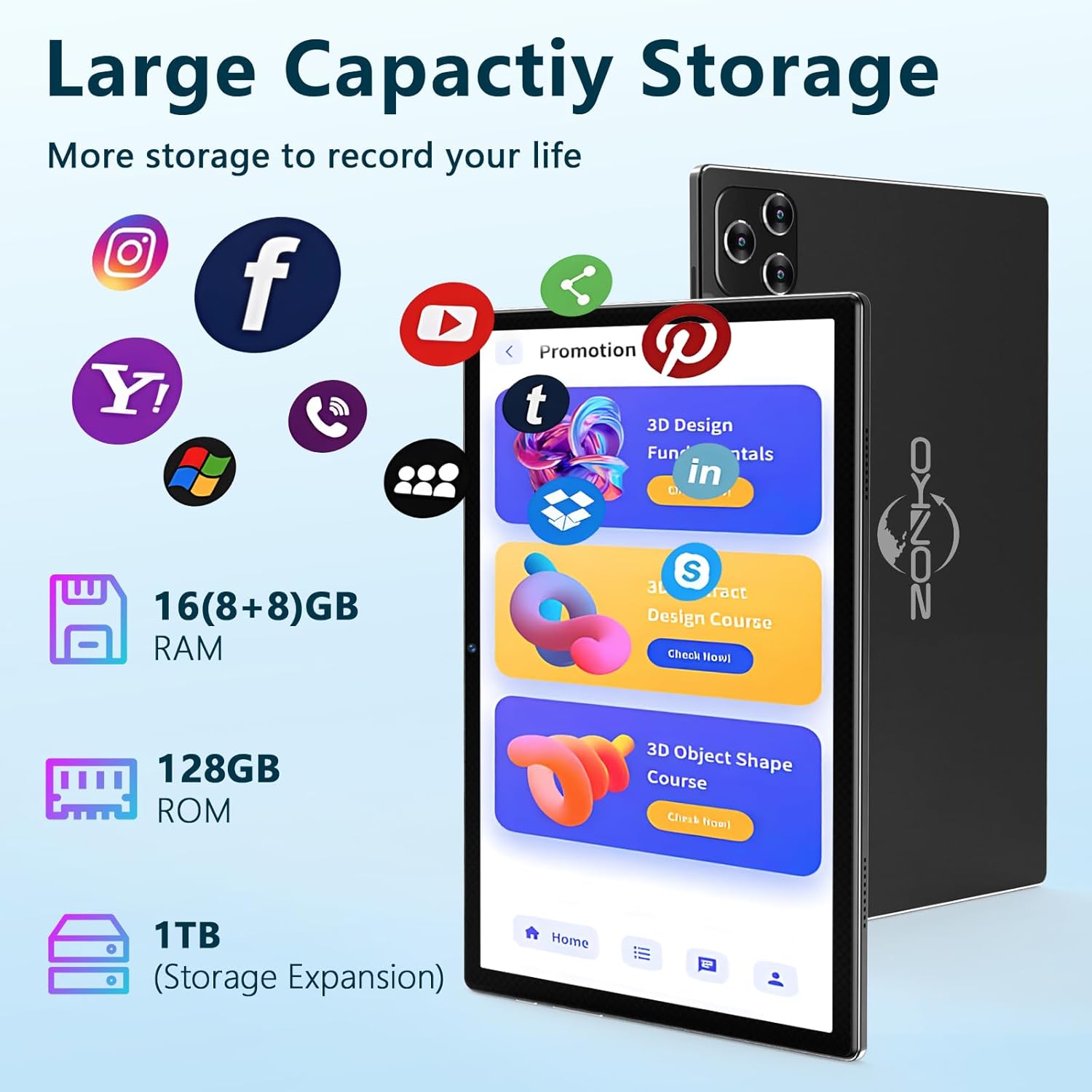
Image: The MEIZE D116 Tablet illustrating its large storage capacity, including 16GB RAM, 128GB ROM, and the ability to expand storage up to 1TB with a MicroSD card.
- Speicherplatz prüfen: Gehe zu Einstellungen > Lagerung Zu view Nutzung des internen und externen Speichers.
- Bewegen Files: You can move photos, videos, and other files to the MicroSD card to free up internal space.
- App-Verwaltung: Uninstall unused apps or clear their cache in Einstellungen > Apps.
4.5 Batteriemanagement
The tablet is equipped with an 8000mAh battery, providing extended usage time.

Image: The MEIZE D116 Tablet emphasizing its 8000mAh long-lasting battery, designed to meet various entertainment and work needs.
- Batteriesparmodus: Activate Battery Saver mode in Einstellungen > Batterie um die Batterielebensdauer zu verlängern.
- Nutzungsoptimierung: Reduce screen brightness, turn off Wi-Fi/Bluetooth when not in use, and close background apps to conserve power.
- Laden: Use the provided charger for optimal charging speed and battery health.
4.6 General Usage Scenarios

Image: A collage showing the MEIZE D116 Tablet being used in various scenarios: for work with a keyboard, for learning, for reading, and for playing games, demonstrating its versatility.
The MEIZE D116 Tablet is designed for versatile use, including:
- Arbeiten: Utilize the Bluetooth keyboard and mouse for productivity tasks.
- Lernen: Access educational apps and online resources.
- Lektüre: Enjoy e-books and articles with the eye-protection mode.
- Spielen: Experience games and multimedia content on the HD display.
5. Wartung
5.1 Reinigung Ihres Tablets
- Verwenden Sie ein weiches, fusselfreies Tuch, um den Bildschirm und das Gehäuse des Tablets zu reinigen.
- Bei hartnäckigen Flecken leicht dampReinigen Sie das Tuch mit Wasser oder einem für elektronische Bildschirme geeigneten Reiniger.
- Vermeiden Sie die Verwendung von aggressiven Chemikalien, scheuernden Materialien oder übermäßiger Feuchtigkeit.
5.2 Softwareaktualisierungen
Prüfen Sie regelmäßig, ob Software-Updates verfügbar sind, und installieren Sie diese, um sicherzustellen, dass Ihr Tablet über die neuesten Funktionen, Sicherheitspatches und Leistungsverbesserungen verfügt.
- Gehe zu Einstellungen > System > Systemaktualisierung.
- Folgen Sie den Anweisungen auf dem Bildschirm, um verfügbare Updates herunterzuladen und zu installieren. Stellen Sie sicher, dass Ihr Tablet während der Updates ausreichend geladen oder an eine Stromquelle angeschlossen ist.
5.3 Speicheroptimierung
- In regelmäßigen Abständenview your installed applications and uninstall those you no longer use.
- Clear cache data for apps that consume a lot of space (Einstellungen > Apps > Select App > Speicher & Cache > Cache leeren).
- Transfer large media files (photos, videos) to a MicroSD card or cloud storage.
6. Fehlerbehebung
6.1 Häufige Probleme und Lösungen
| Ausgabe | Mögliche Lösung |
|---|---|
| Das Tablet lässt sich nicht einschalten. | Ensure the tablet is charged. Connect to the charger for at least 30 minutes, then try powering on again. |
| Probleme mit der WLAN-Verbindung. | Restart your Wi-Fi router. On the tablet, turn Wi-Fi off and on again. Forget the network and reconnect. |
| Bluetooth accessory not connecting. | Ensure the accessory is in pairing mode and fully charged. Restart Bluetooth on the tablet. Try re-pairing the device. |
| Das Tablet reagiert langsam oder gar nicht. | Close unused background apps. Clear app caches. Restart the tablet. Check for available software updates. |
| Apps stürzen ab. | Löschen Sie den Cache und die Daten der problematischen App (Einstellungen > Apps). Reinstall the app if the issue persists. |
7. Spezifikationen
Below are the technical specifications for the MEIZE D116 Android 14 Tablet:
| Besonderheit | Detail |
|---|---|
| Marke | MEIZ |
| Modellname | T116 - Die wunderbare Welt der Träume |
| Betriebssystem | Android 14.0 |
| Prozessor | Octa-Core Processor, 2 GHz |
| RAM-Speicher | 16 GB (8 GB physisch + 8 GB virtuell) |
| Interner Speicher (ROM) | 128 GB |
| Erweiterbarer Speicher | Bis zu 1 TB über MicroSD-Karte |
| Bildschirmgröße | 10.1 Zoll |
| Bildschirmauflösung | 1920 x 1200 IPS FHD |
| Frontkamera | 8 Megapixel |
| Rückfahrkamera | 13 Megapixel |
| Batteriekapazität | 8000 mAh Lithium-Polymer |
| Wi-Fi-Konnektivität | IEEE 802.11a/ac/b/g/n, Dual band (2.4GHz/5GHz) |
| Bluetooth | Bluetooth 5.0 |
| Zellulartechnologie | 4G (if SIM card installed) |
| Sensoren | G-Sensor, GPS, FM, OTG, MIC, Vibration |
| Häfen | 1 x Micro OTG / USB Port, 1 x 3.5mm stereo headphone jack |
| Technische Daten | 9.65 x 6 x 0.36 Zoll |
| UPC | 646051391546 |
Bild: Ein überview of the MEIZE D116 Tablet's key specifications, including Android 14, 10-inch display, 16GB RAM, 128GB ROM, 2.4GHz/5GHz Wi-Fi, Bluetooth 5.0, 8000mAh battery, and 13MP+8MP cameras.
8. Garantieinformationen
The MEIZE D116 Tablet comes with a 1 Jahr Garantie Ab Kaufdatum. Diese Garantie deckt Herstellungsfehler und Verarbeitungsfehler bei normalem Gebrauch ab.
Die Garantie deckt keine Schäden ab, die durch Missbrauch, Unfälle, unbefugte Änderungen oder Naturkatastrophen verursacht wurden. Bitte bewahren Sie Ihren Kaufbeleg für Garantieansprüche auf.
9. Kundendienst
If you encounter any issues not covered in this manual or require further assistance, please contact MEIZE customer support.
- For support, please refer to the contact information provided on the MEIZE official webWebsite oder Ihre Einkaufsplattform.
- When contacting support, please have your tablet's model number (D116) and proof of purchase ready.